

I. Purpose
The restaurant can integrate CukCuk with QuickBooks to manage the financial operations.
II. Instruction steps
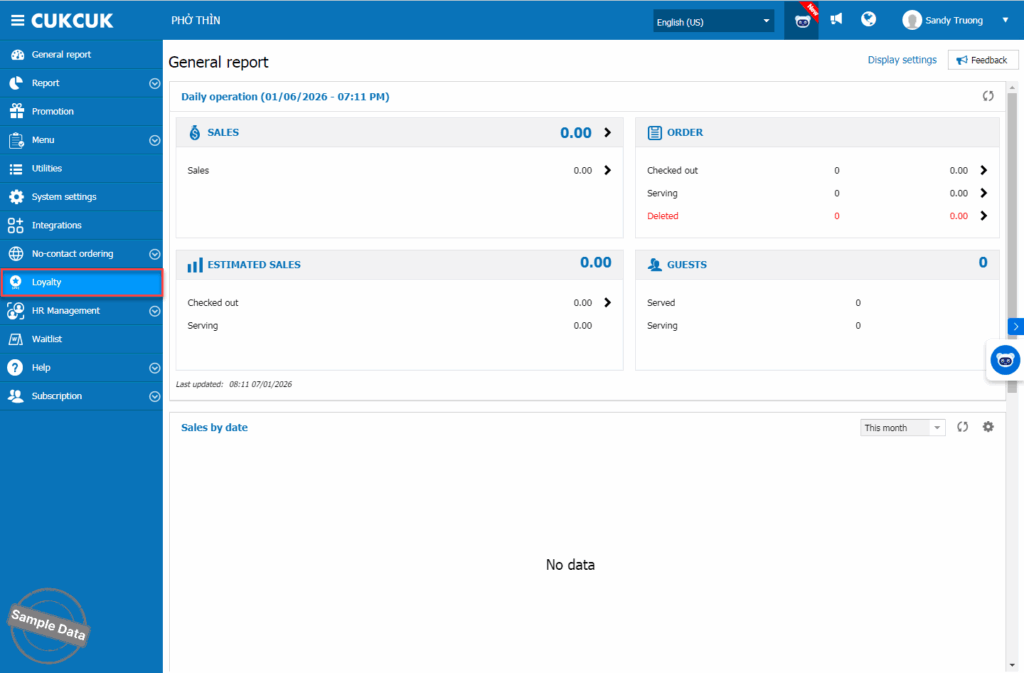
On the management page, go to Loyalty.
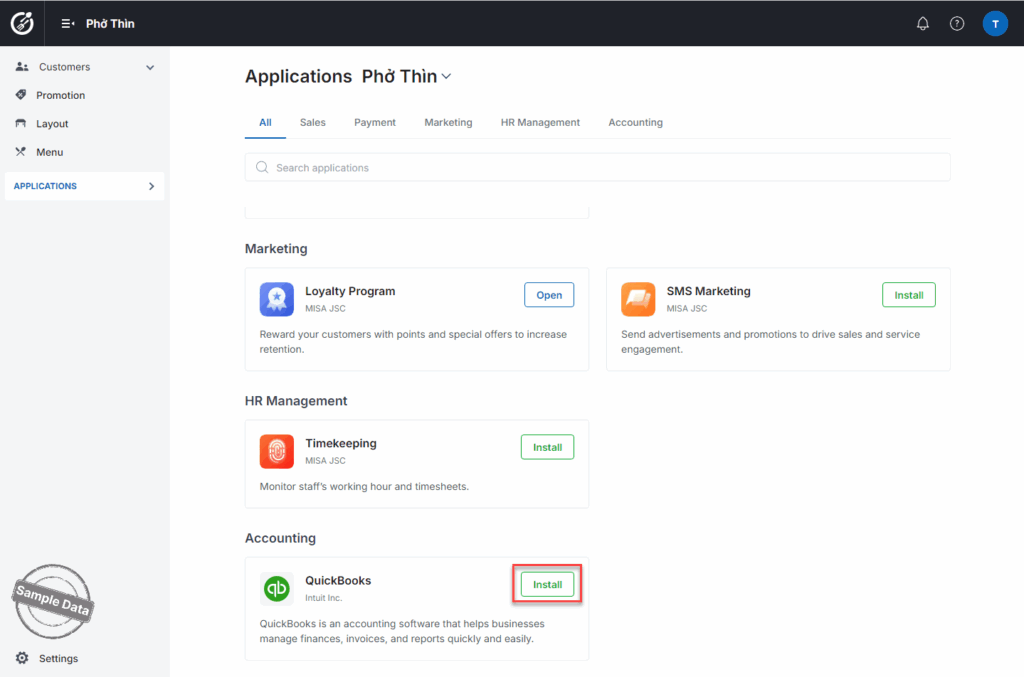
On Applications tab, scroll down to QuickBooks and click Install.
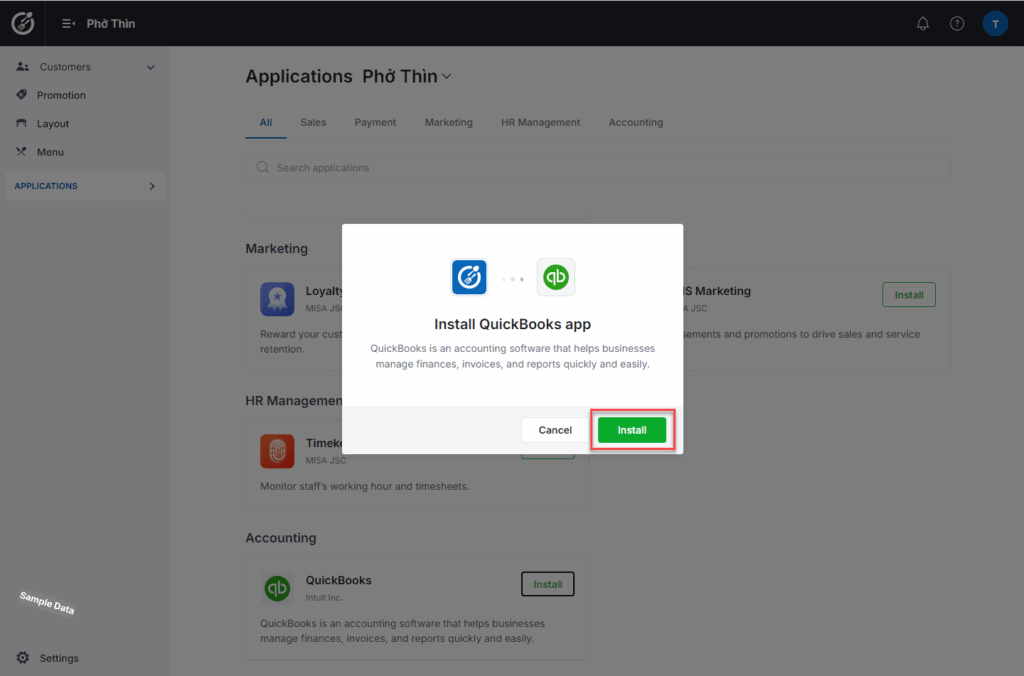
Next, click Install.
Click edit icon  to start setting up.
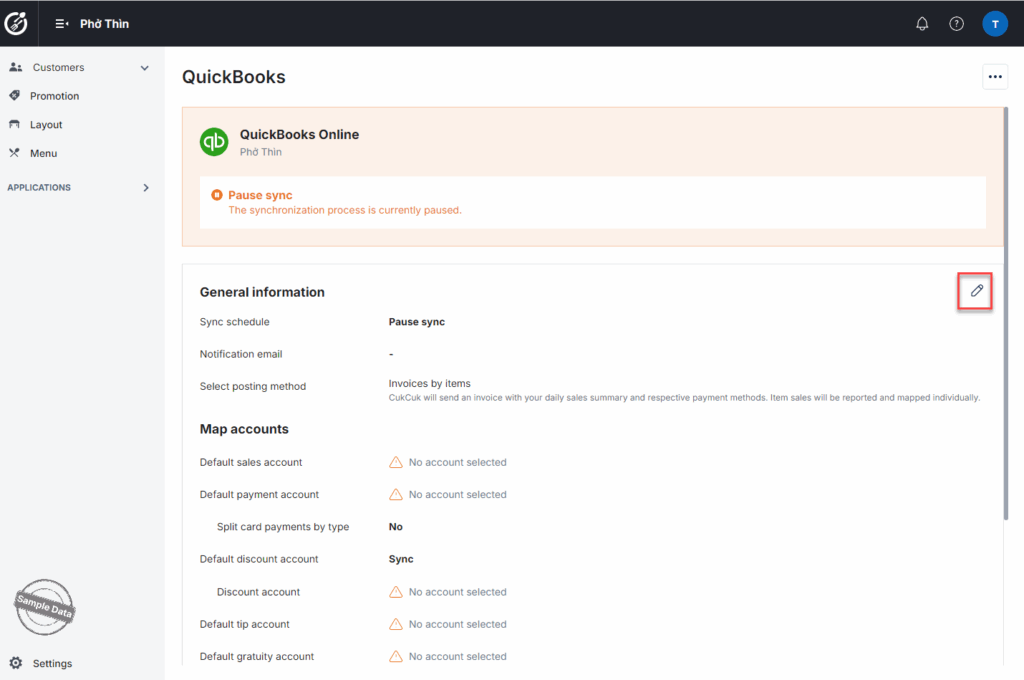
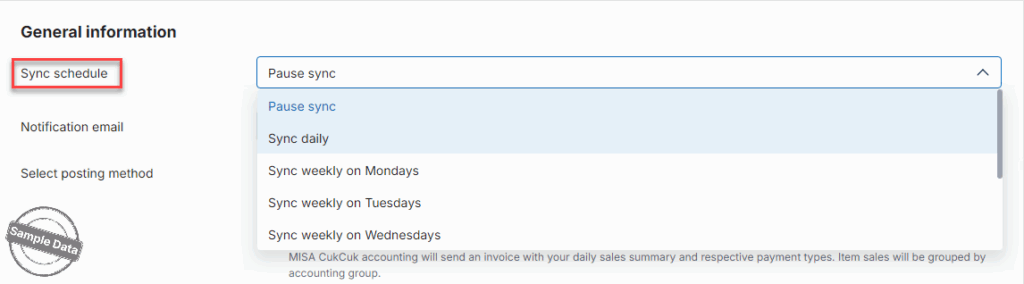
1. Sync schedule:
Select the schedule you want to synchronize data.
2. Notification email:
Enter the email you want to receive notifications.
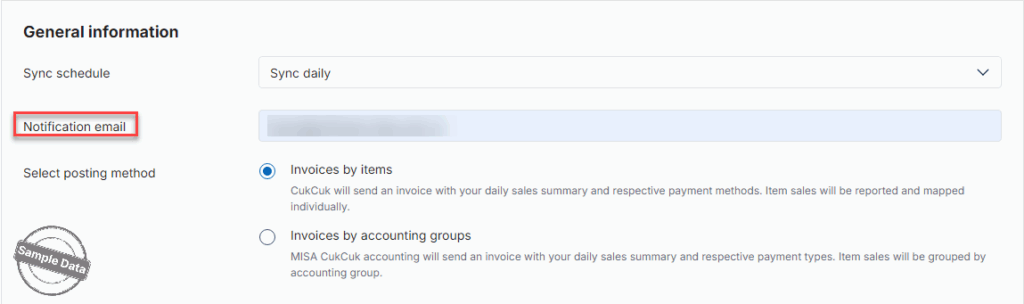
3. Select posting method:
a. Invoices by items:
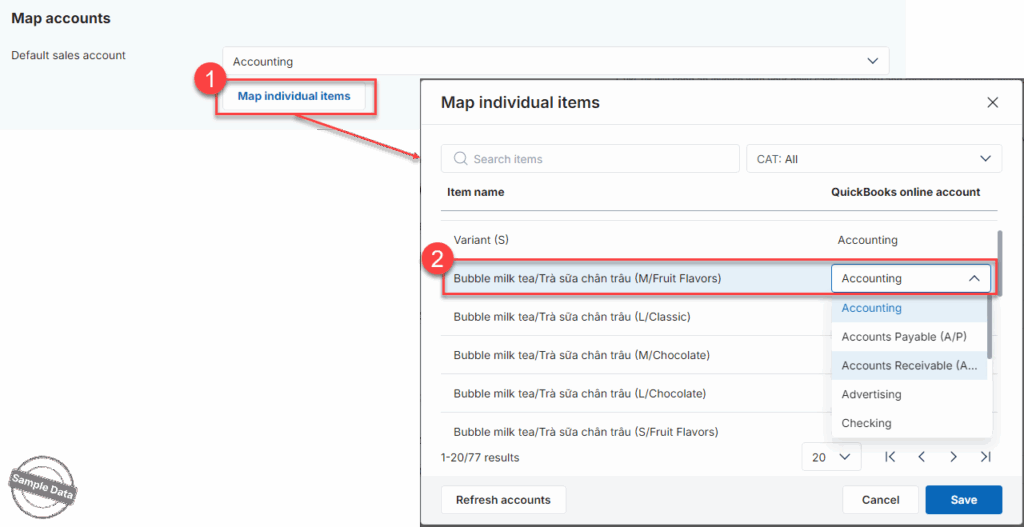
Default sales account: select one account.

Click Map individual items, select the item you want to change the account and choose the new account. Then, click Save.
Default payment account: select one default payment account.
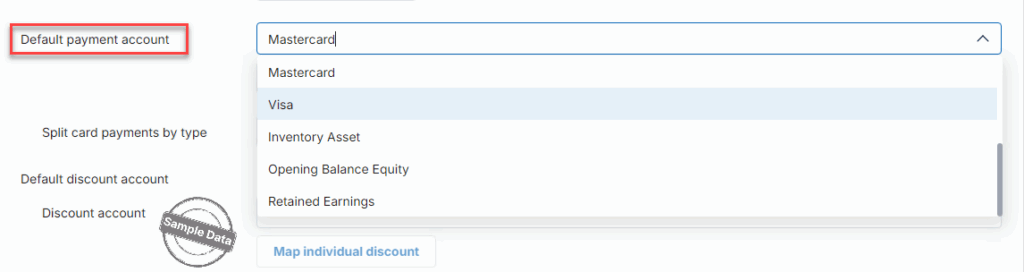
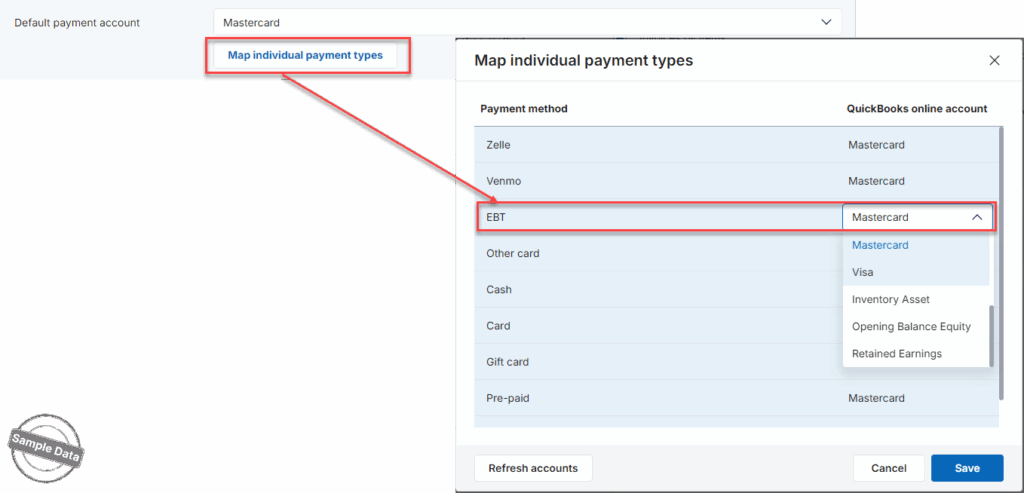
Click Map individual payment types, select the payment method you want to change and choose the new account. Then, click Save.
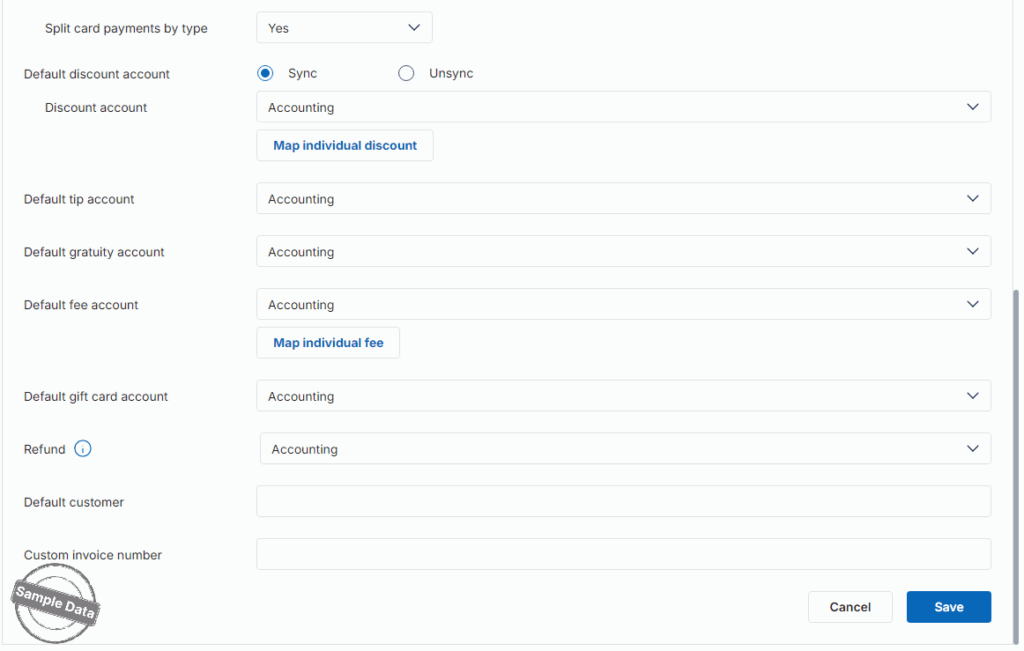
Other settings: Set up other information. Then, click Save.
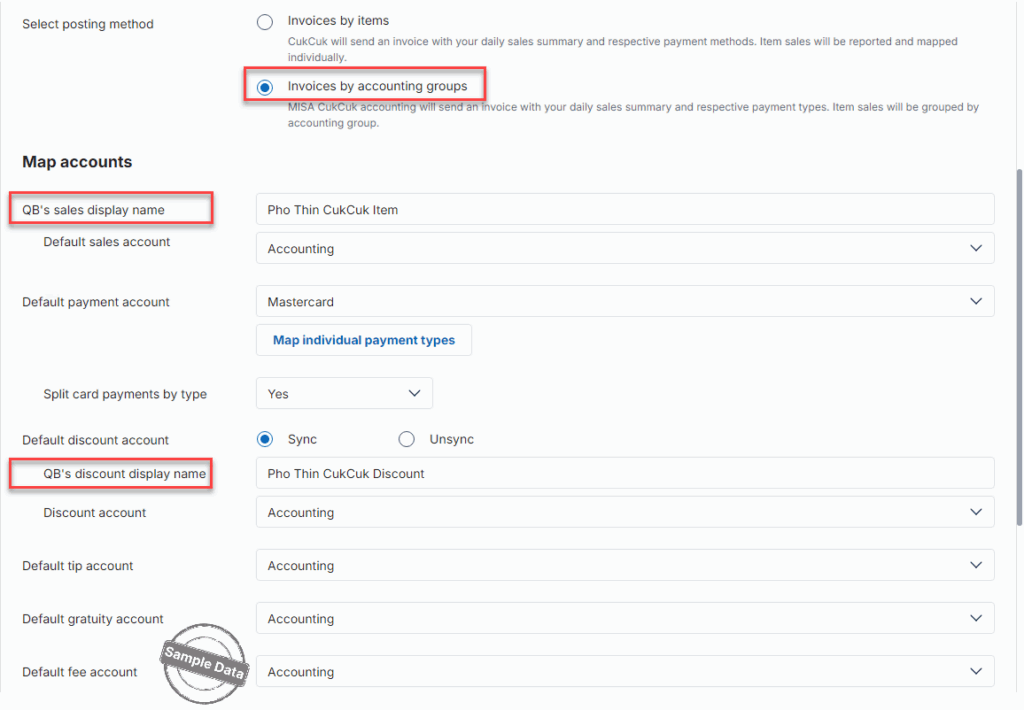
b. Invoices by accounting groups:
Check Invoices by accounting groups, enter QB’s sales display name and discount display name. Set up other information. Then, click Save.
Have a nice day!


