

Nội dung có trong bài
Ẩn
I. PURPOSE
The restaurant can quickly set up menu items with variations, especially items that have different sizes, flavors, or prices.
II. INSTRUCTION STEPS
To add an item with variants, follow these steps:
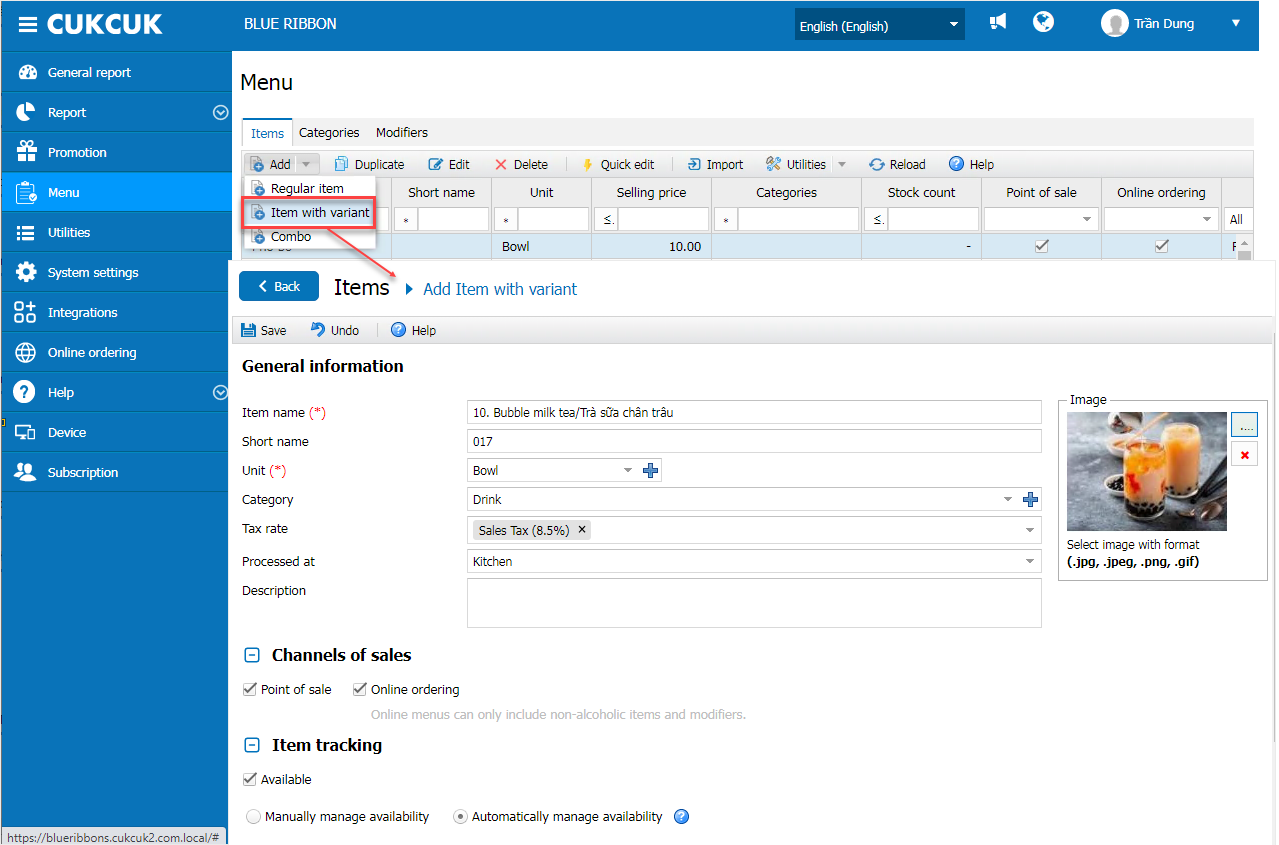
Step 1: Go to Menu / Items.
Step 2: Under Add, click the icon  and select Items with Variant.
Enter the item information in the General Information tab.
To manage and track the item:
- Select Available.
- Choose either:
- Manually manage availability, or
- Automatically manage availability.
Notes
- The item description will appear on the order screen to help staff provide more information to customers.
- If you check Do not display on menu, the item will not appear on the sales screen.
- For best visual display, item images should follow a 4:3 ratio (e.g., 1280 × 720 pixels).
Step 3: Add Variants
To create item variants:
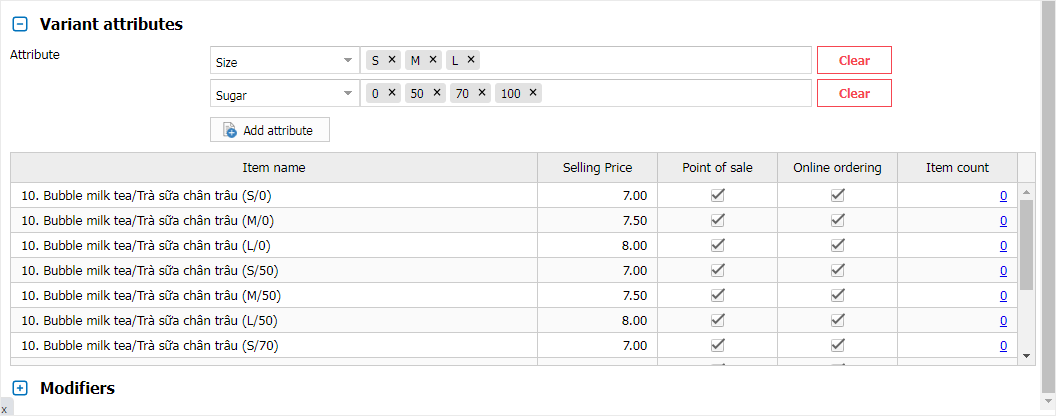
- Define the available variant options.
The system provides default variants:
- Size
- Flavor
- Custom Attribute
If selecting Custom Attribute, you can enter a new attribute name.
After creating attributes, define the available options for each attribute.
Important Notes
- Custom attributes are not saved to the default attribute list.
- You can assign one or multiple attributes to a single item.
- You can set different prices for each variant. Variant prices may be the same or different.
Have a nice day!


