

I. PURPOSE
The restaurants can quickly and easily import food items, drinks, modifiers, and tax rates all in one file.
II. INSTRUCTION STEPS
Step 1: Download the template file
- On the Dashboard, go to Menu.
- Click the icon
 and select Import.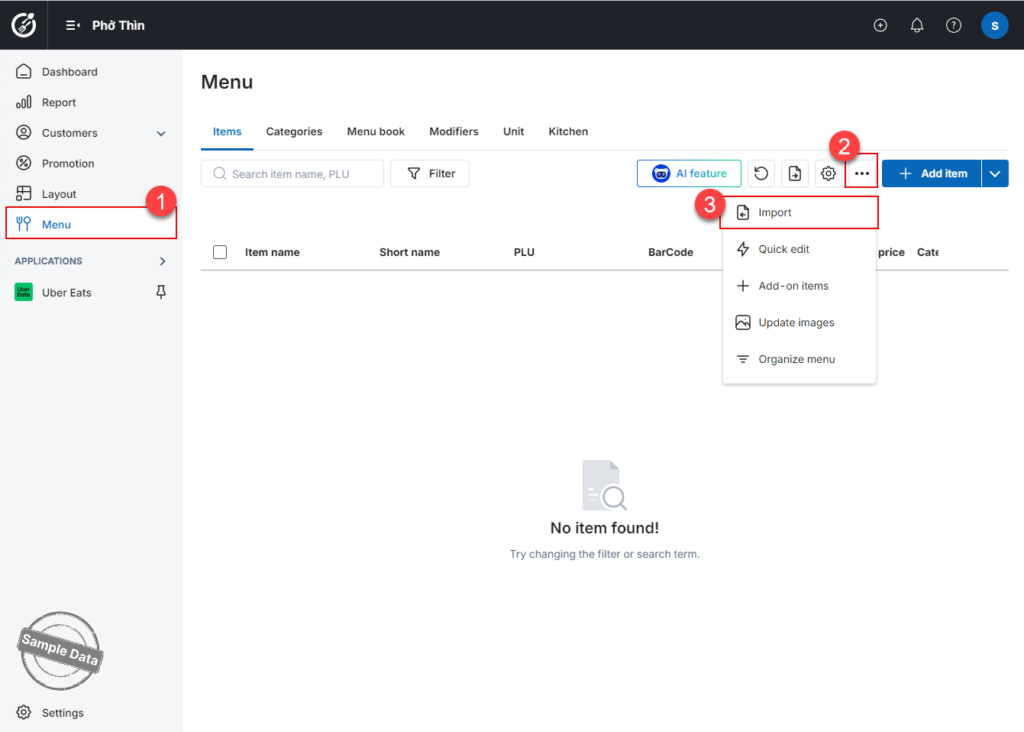
- Then click Download template to download the Excel template file.
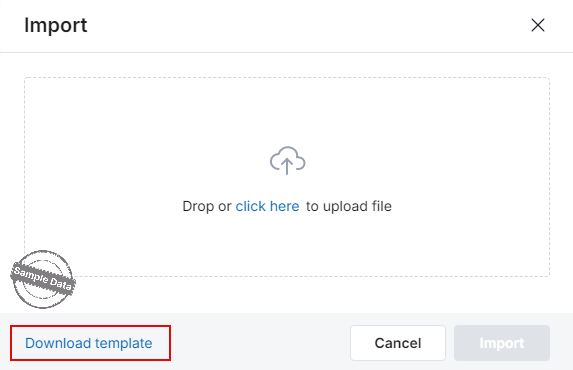
Note: Even if you have an existing menu in Excel format, we highly recommend downloading the official system template. Using the provided template ensures that all data—such as item names, prices, and categories—is mapped to the correct columns, guaranteeing a seamless and successful import process.
Step 2: Prepare the Excel file
The template file includes 4 sheets:
- Example
- Taxes
- Modifiers
- Menu
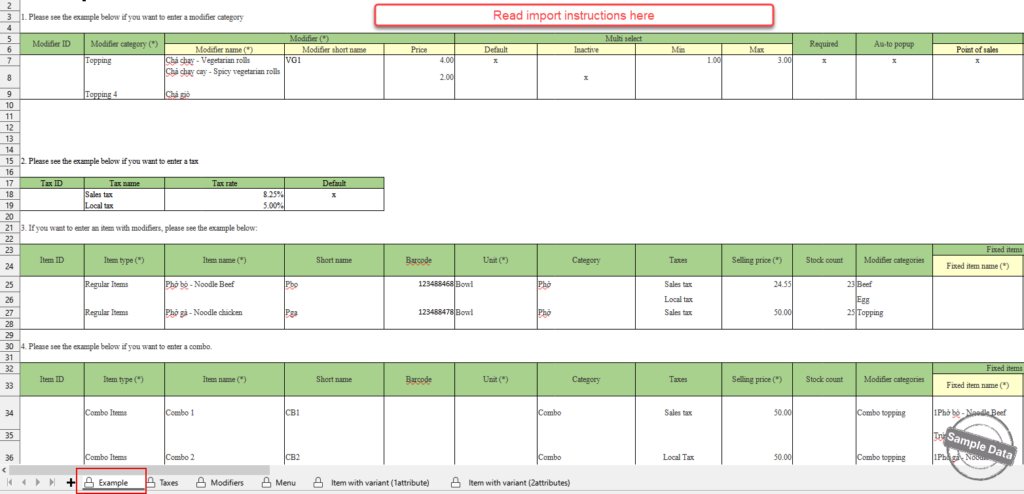
The Example sheet provides instructions on how to enter the information correctly.
Step 3: Enter taxes
Before adding menu items, you should first set up taxes and modifier groups.
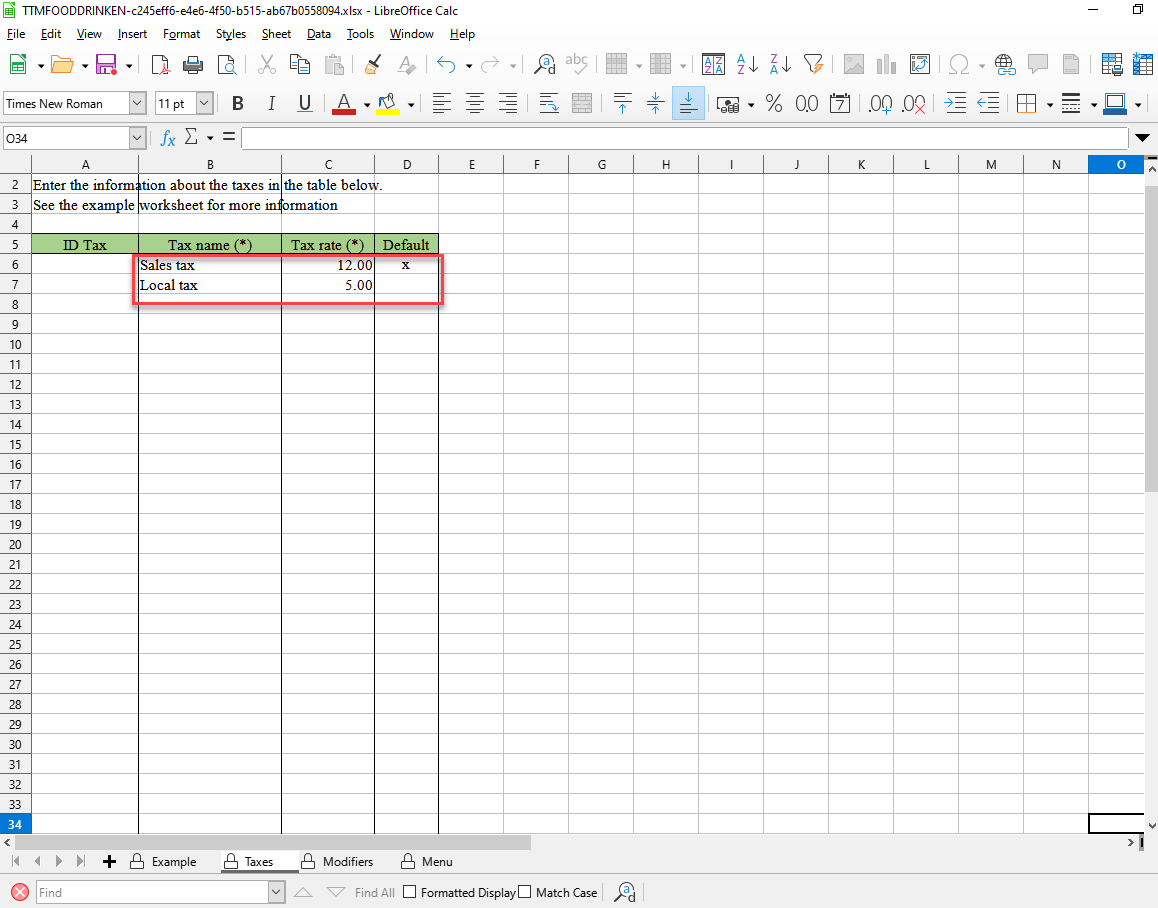
In the Taxes sheet:
- Enter the tax name
- Enter the tax rate
- Mark an “x” in the Default column if you want to set it as the default tax
- Leave it blank if not
Step 4: Enter modifier groups
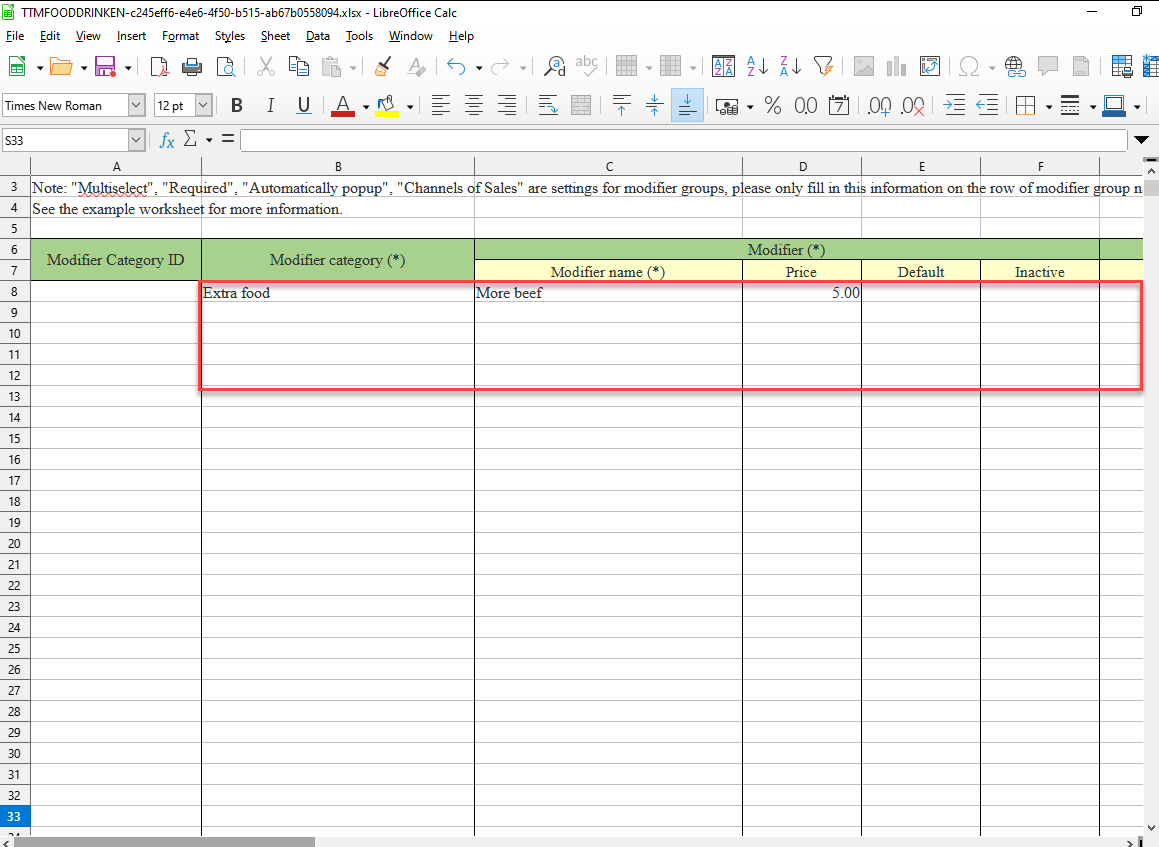
In the Modifiers sheet:
- Enter the modifier group name
- Enter the modifiers in each group
- Enter the price for each modifier, if applicable
You can also mark:
- “x” in the Default column if the modifier is commonly ordered
- “x” in the Inactive column if the modifier is no longer in use
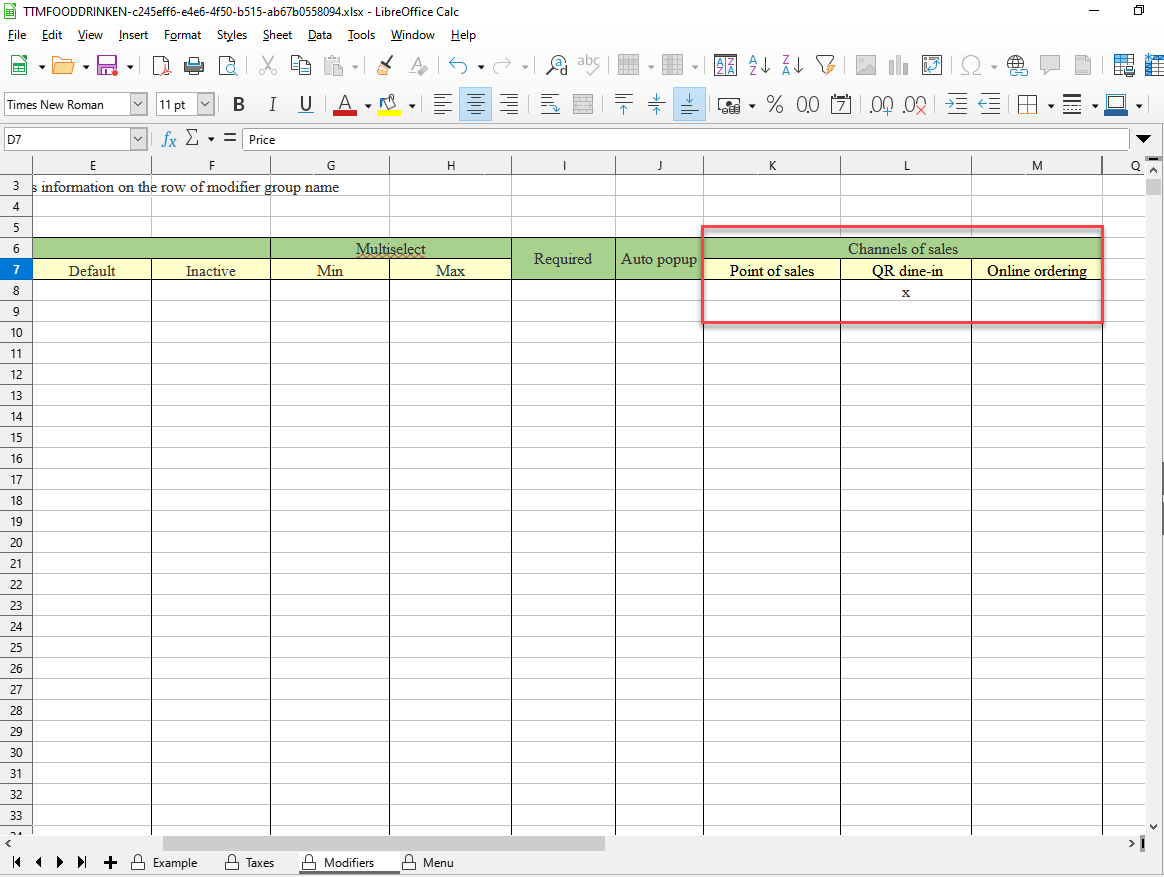
For sales channels, only mark an “x” for the channels where the restaurant does not sell the item.
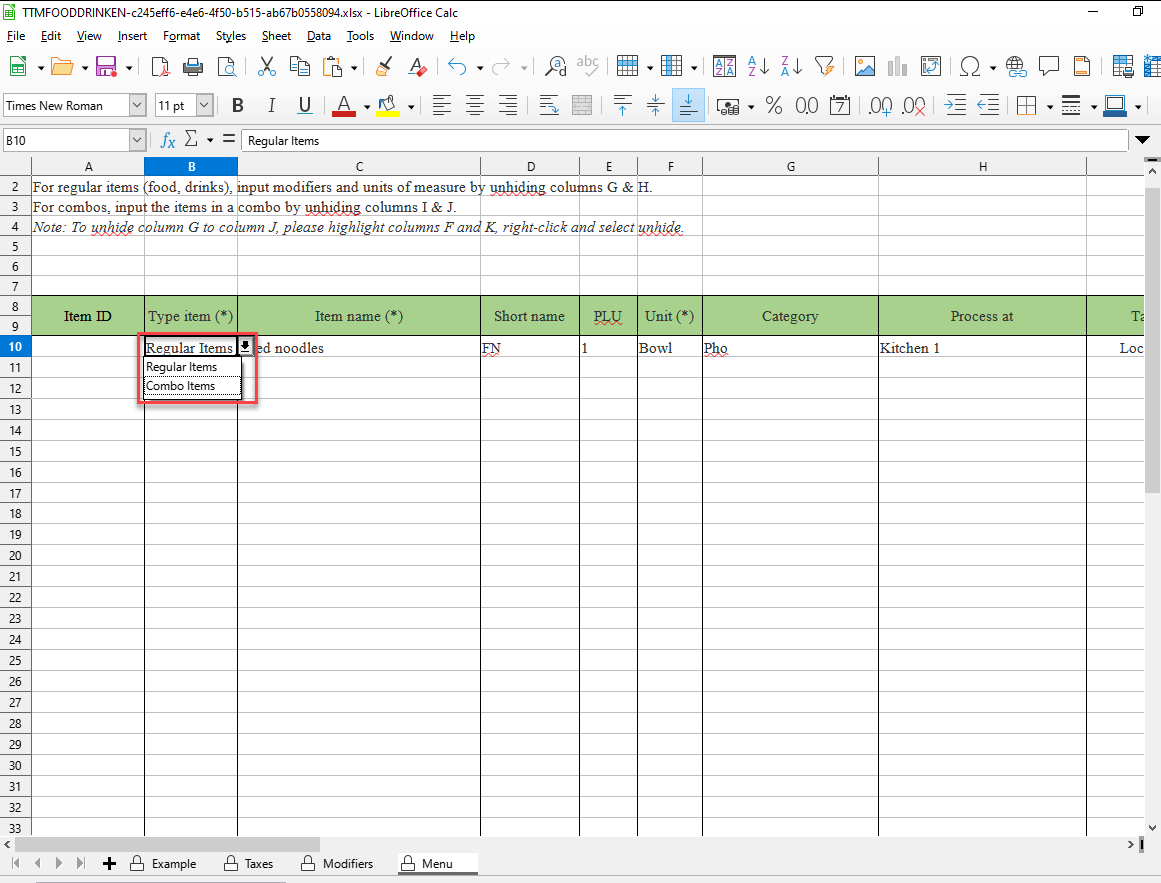
In the Menu sheet:
- Click the dropdown arrow to select the item type
- Fill in the remaining item information in the corresponding columns
Important:
You cannot enter the tax name or modifier group directly in the Menu sheet.
If you need to create a new tax or modifier group:
- Add it first in the Taxes or Modifiers sheet
- Then return to the Menu sheet and select it from the dropdown list
Step 6: Import the completed file
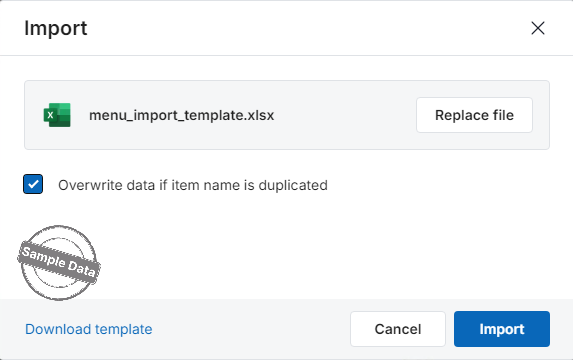
After you finish entering all menu information, return to the Dashboard to import the completed file.
- Drag and drop the file into the upload area, or click Click here to select the file
- Then click Import to continue
If you want the system to update existing items when the item name is duplicated, check: Overwrite data if item name is duplicated
Step 7: Review the import results
In the Import results step, the system will display the number of successfully imported items, modifiers, and taxes.
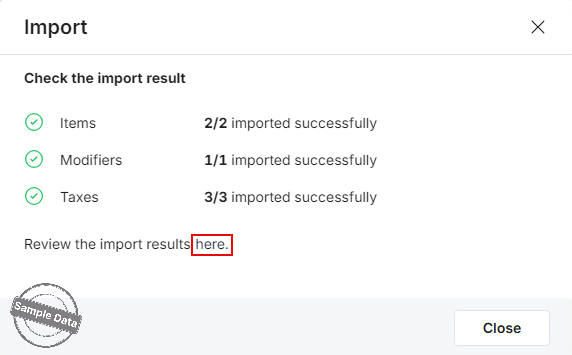
If there are any errors, click here in Review the import results to fix the issues and import the file again.
Have a nice day!


