

Nội dung có trong bài
Ẩn
I. Purpose
The restaurant managers can rearrange food and beverage items on the menu.
The selected order will remain consistent during daily operations, helping staff quickly select items when taking orders.
II. Instruction steps
Step 1: Access Menu Organization
- On the Dashboard, go to Menu.
- Click the icon

and select Organize Menu.
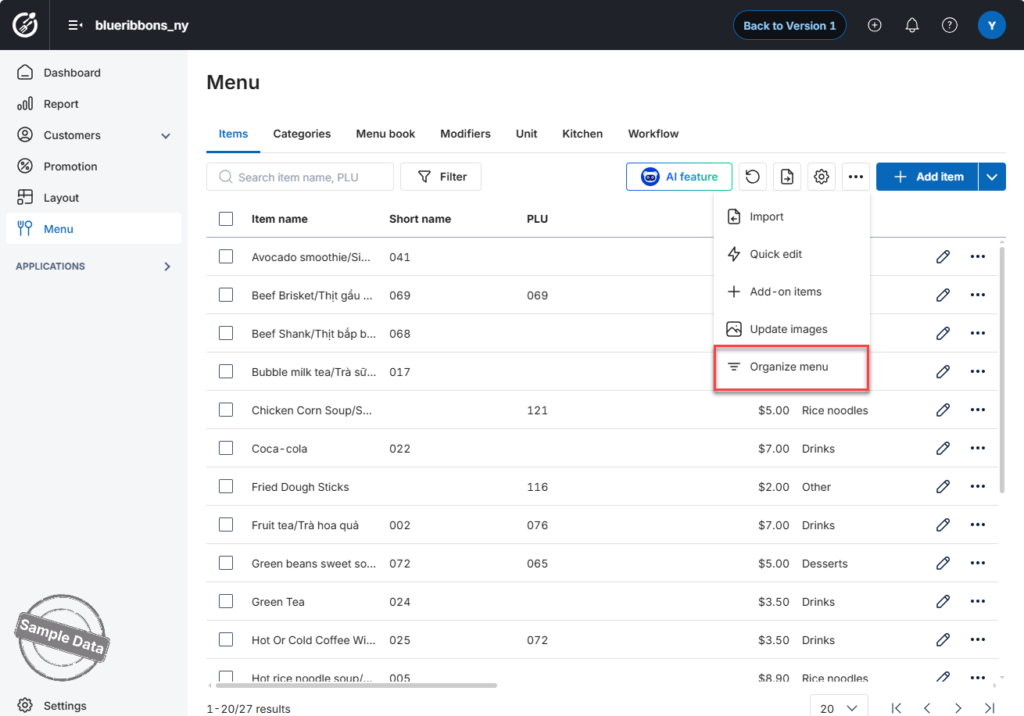
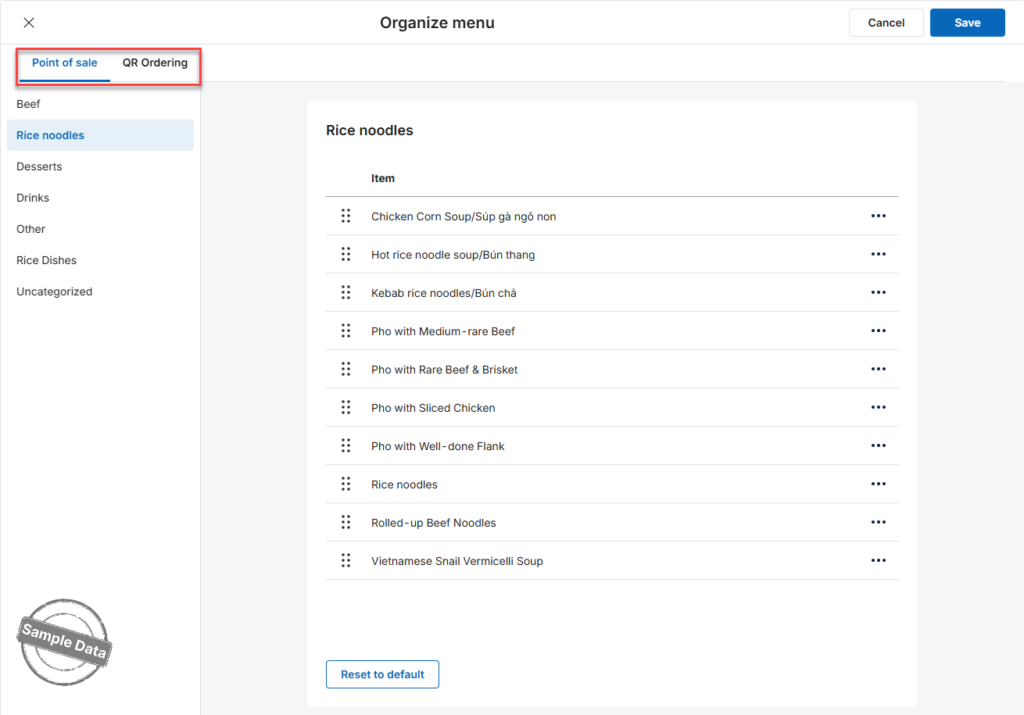
Step 2: Choose Ordering Channel
Select where you want to organize the menu:
- Point of Sale (POS)
- QR Ordering
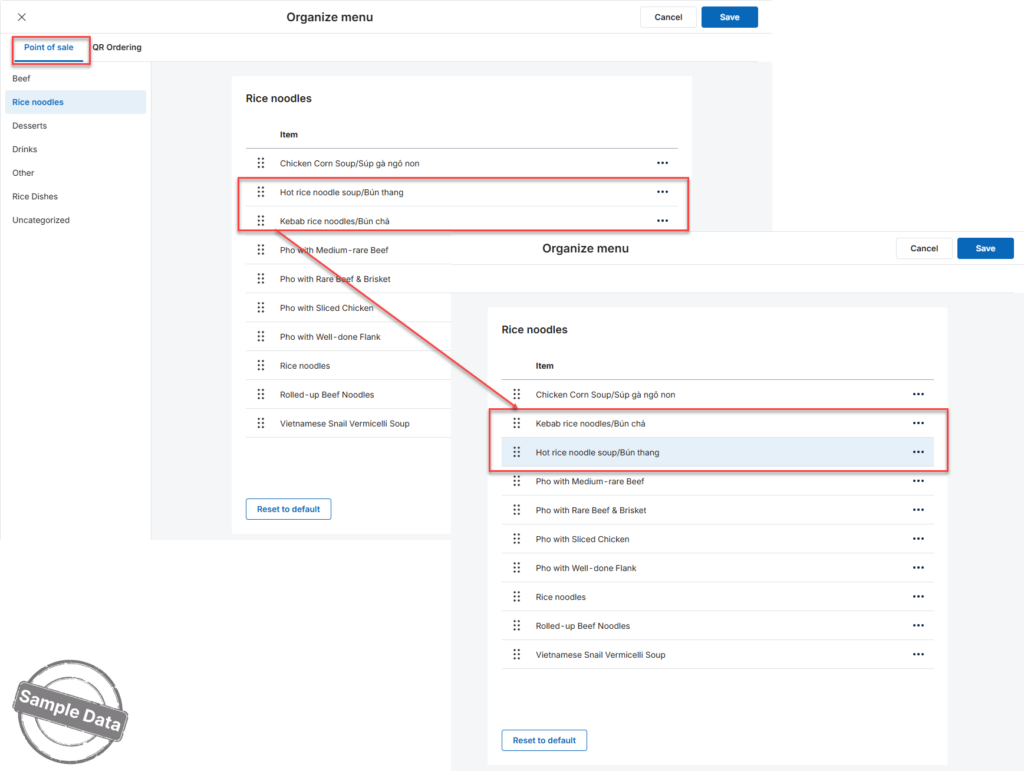
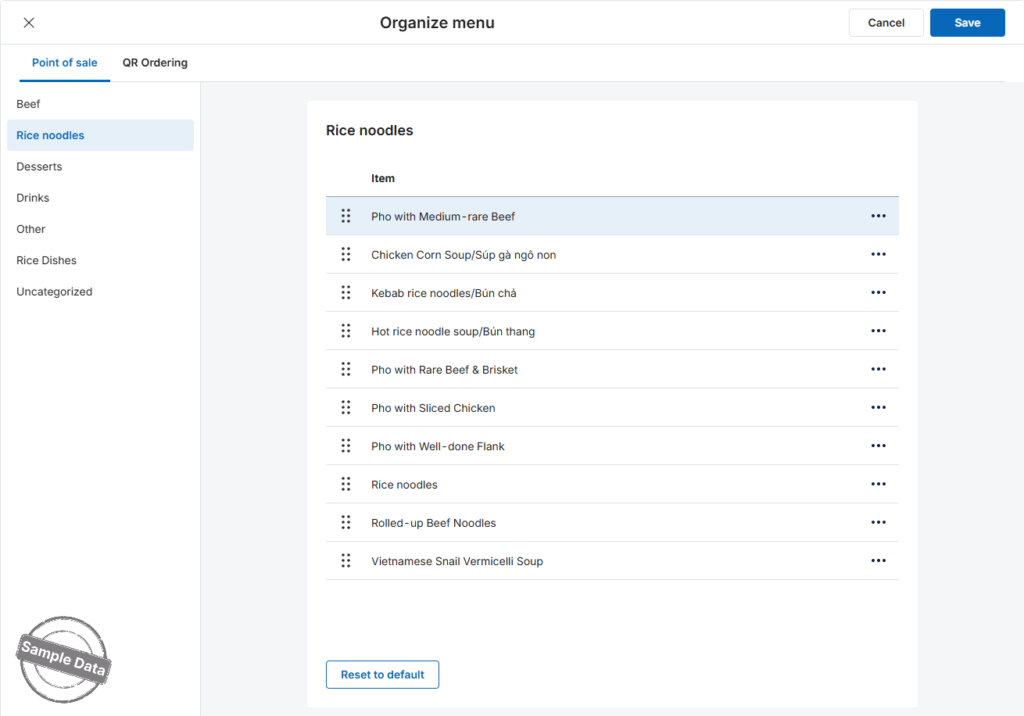
Step 3: Arrange Items (POS Example)
- Open the Point of Sale tab.
- Select the category you want to rearrange.
- Press and hold an item, then drag and drop it to the desired position.
Quick Navigation Options:
- Click the icon
and choose:
- Page Up to move to the top
- Page Down to move to the bottom
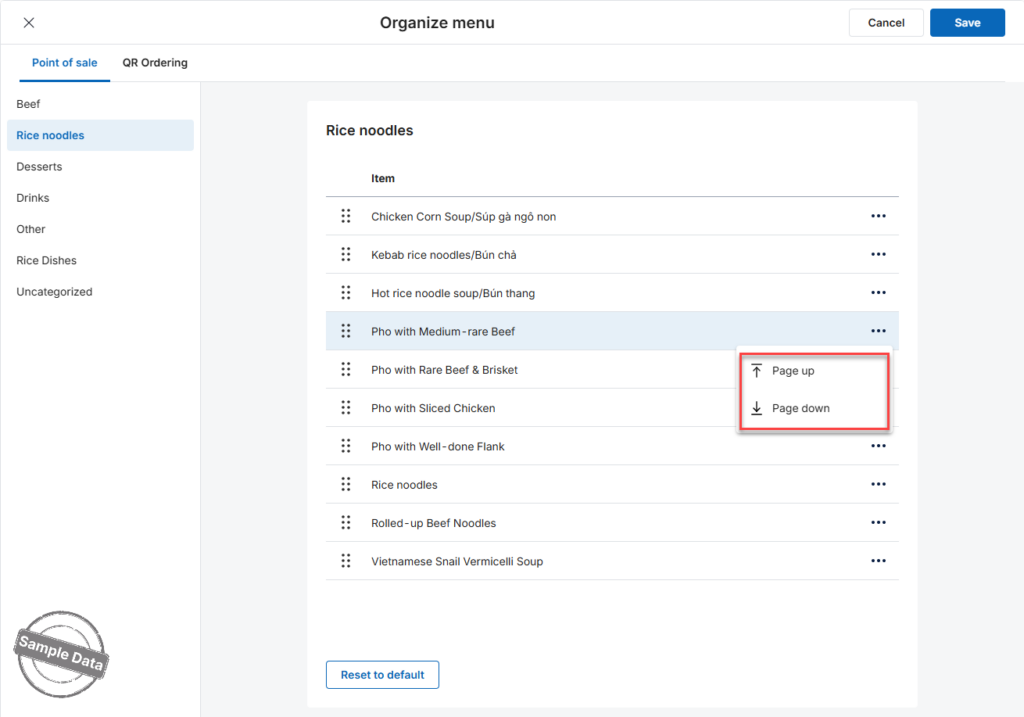
If you want to restore the original order, click Reset to Default.
Step 4: Save Changes
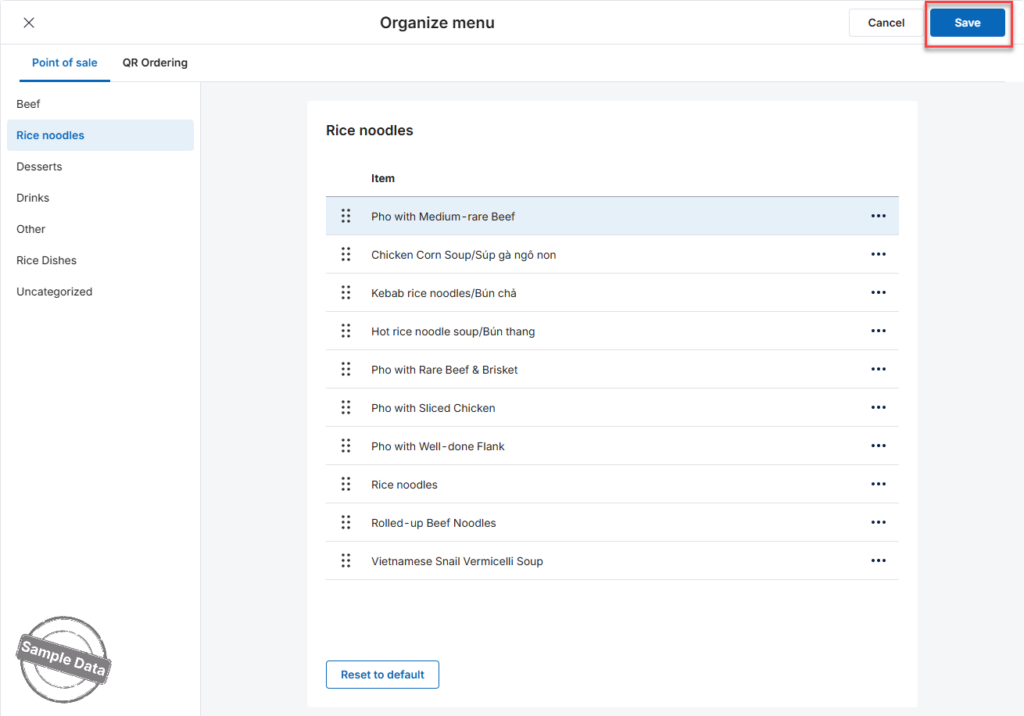
Click Save to apply the new arrangement.
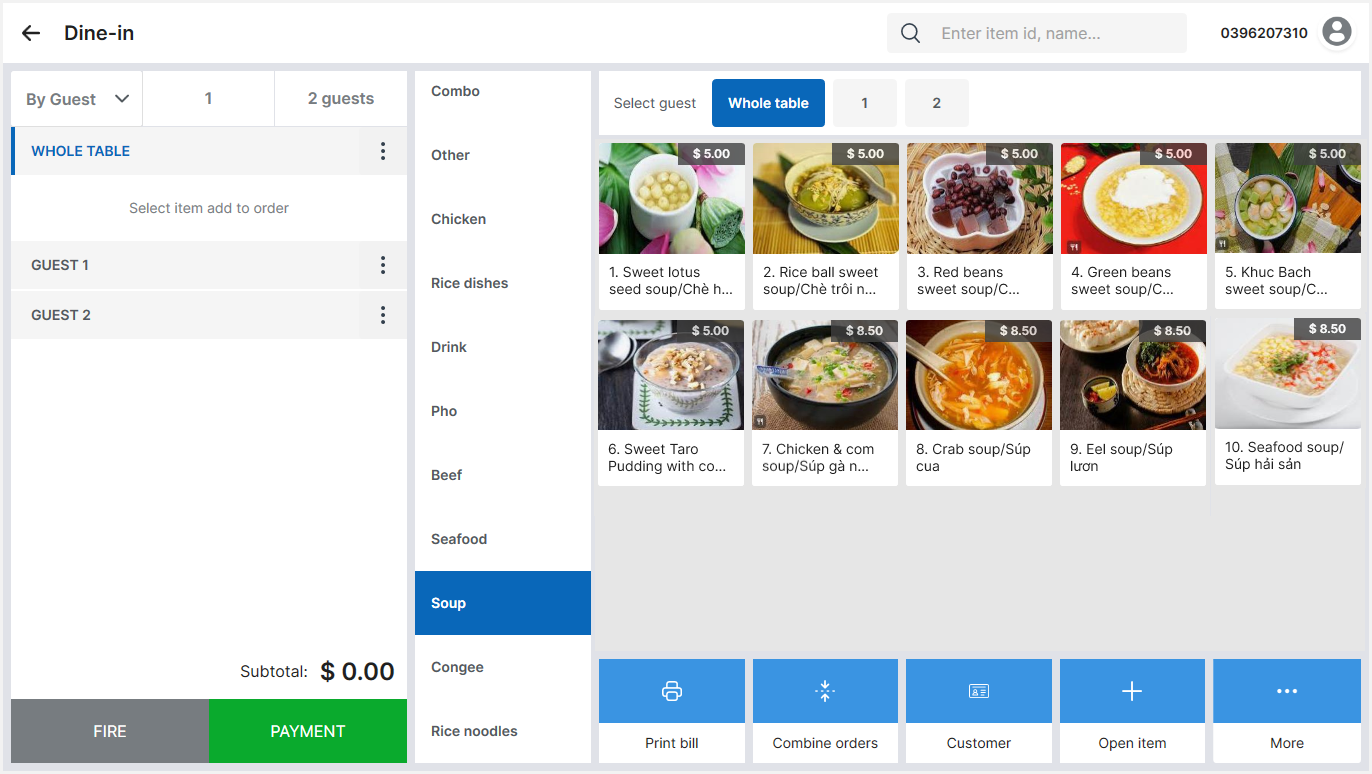
The items in the Food tab on the sales screen will now appear in the updated order.
Organize QR Ordering
Follow the same steps in the QR Ordering tab to rearrange items for the QR menu.
Have a nice day!


