

I. PURPOSE
To help restaurants proactively check all card transactions during the day and send data to the bank before the end of the working day.
II. INSTRUCTION STEPS
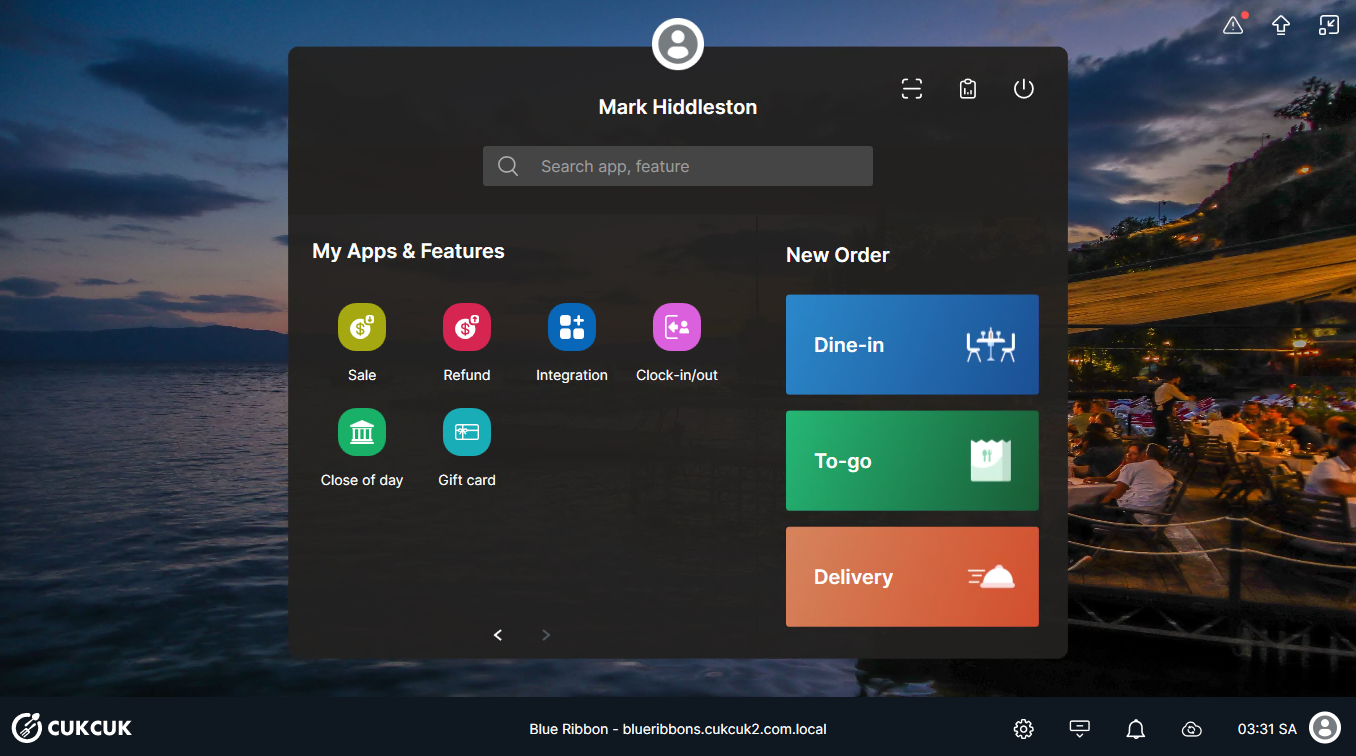
On the POS, click on Close of day.
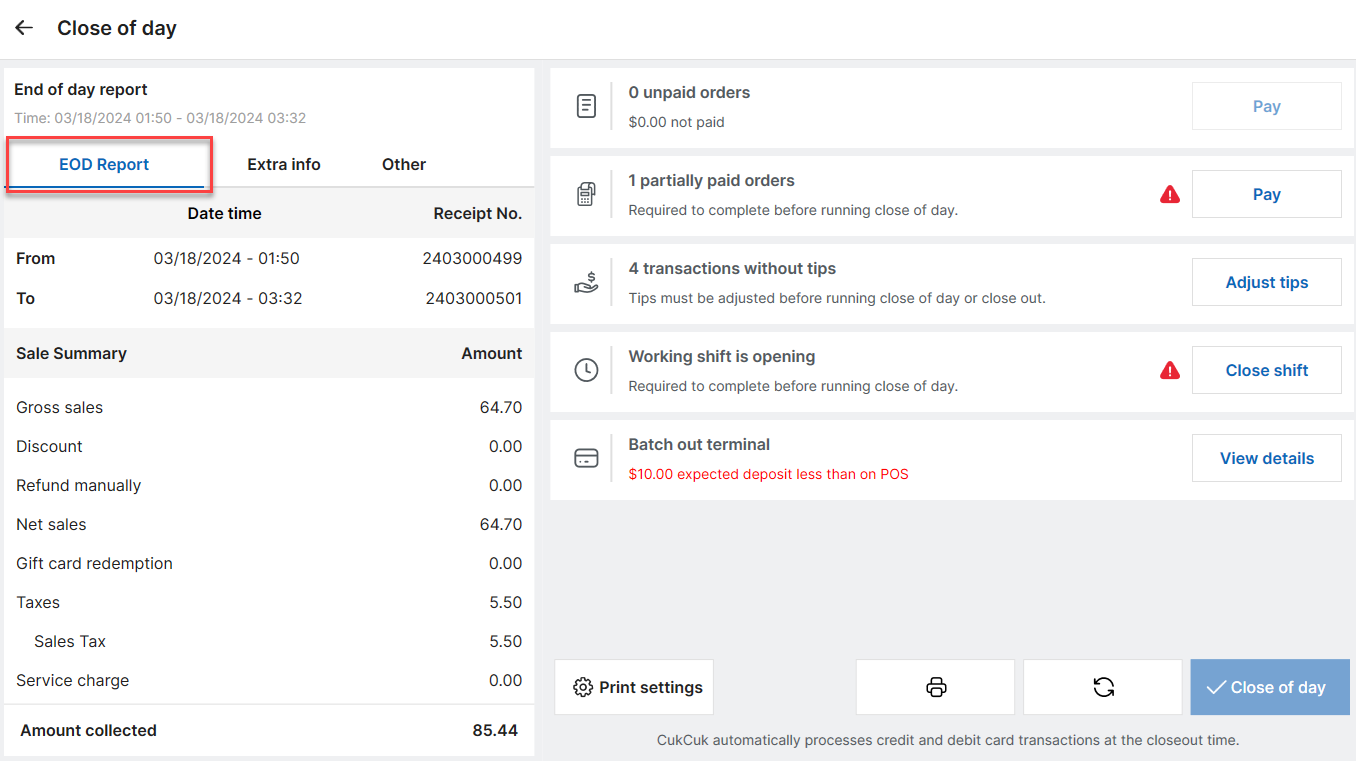
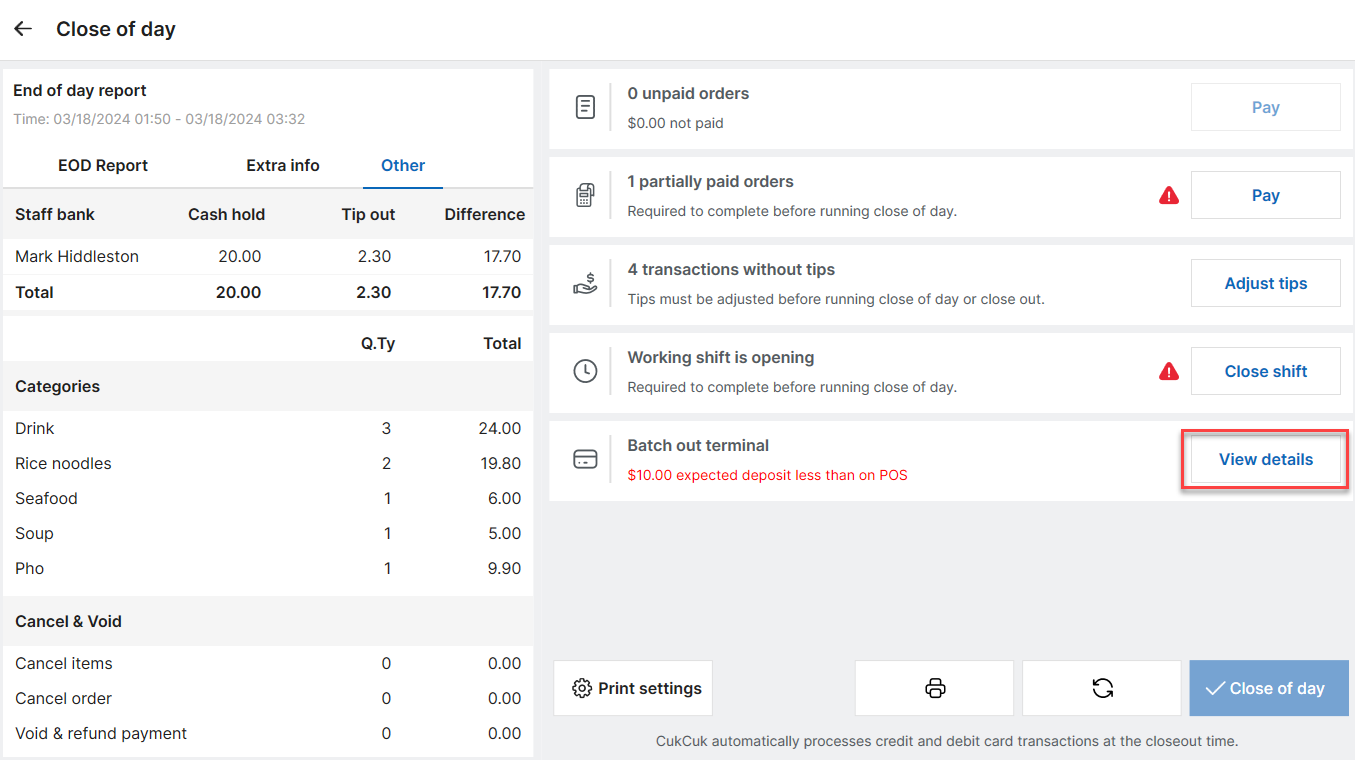
Go to the EOD Report tab to check the report time, number of invoices, daily sales overview, and the total amount collected.
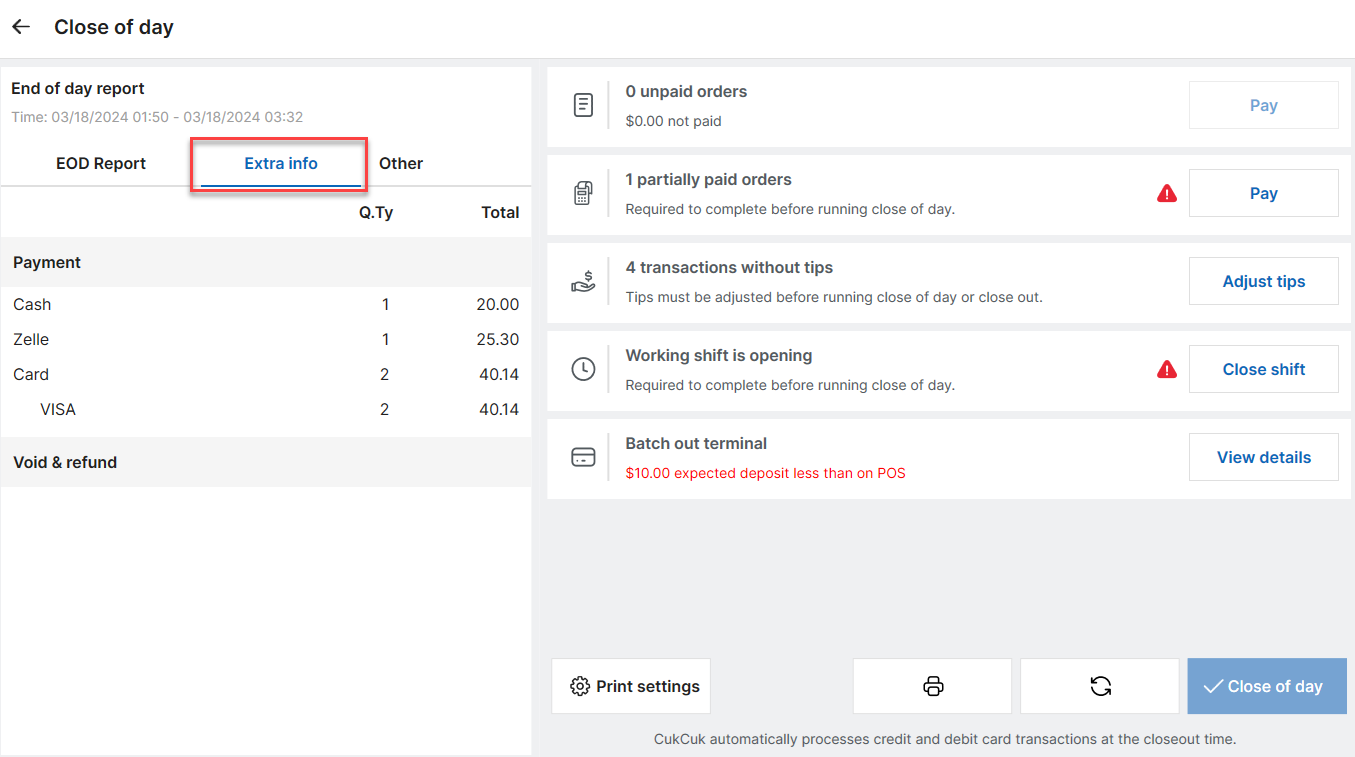
The Extra info tab displays details of each payment method.
The Other tab provides information about Staff bank, categories, and Cancel & Void. If there are any partially paid orders or unpaid shifts, please complete these tasks before closing entries.
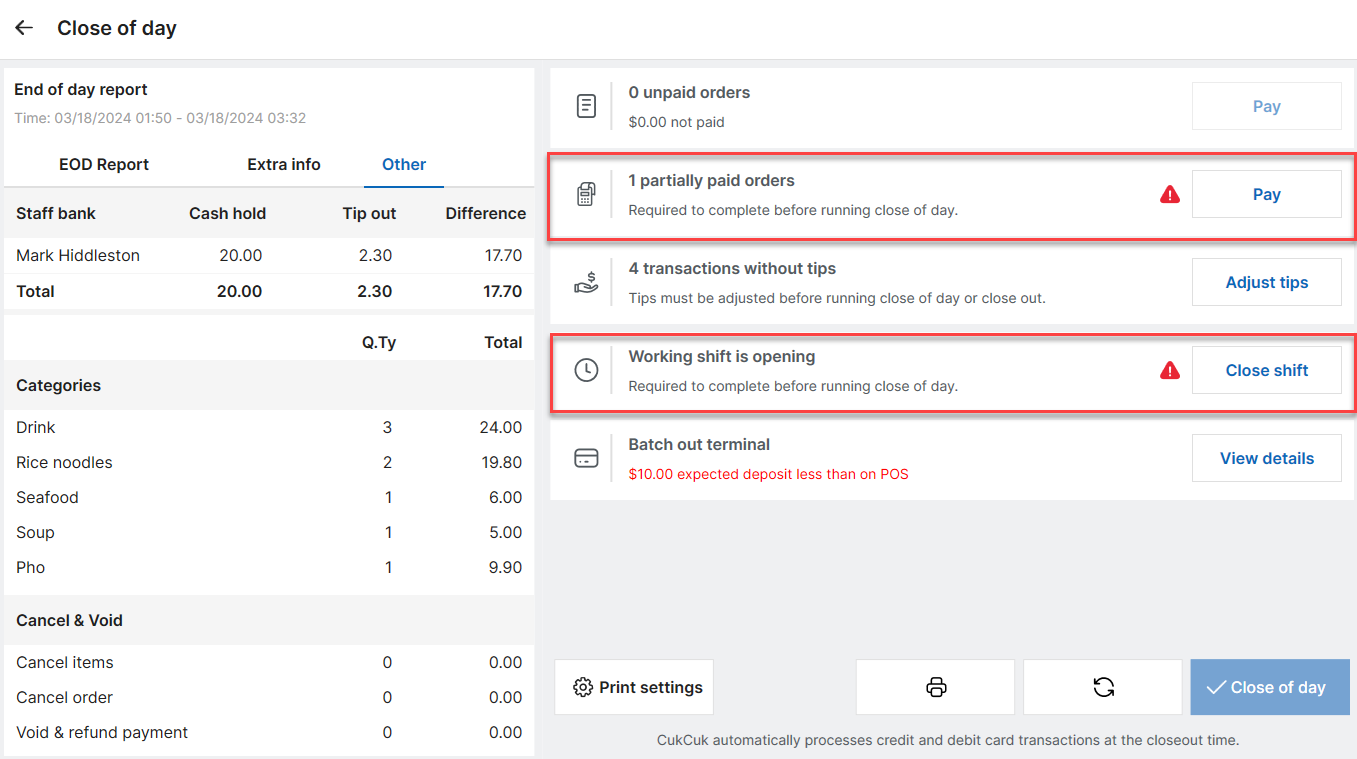
Ở mục Batch out terminal, nếu có chênh lệch số tiền giữa máy pax và máy POS thì nhấn vào View details để kiểm tra và xử lý.
In Batch out terminal, if there is a discrepancy between the amount on the PAX machine and the POS, click View details to review and resolve it.
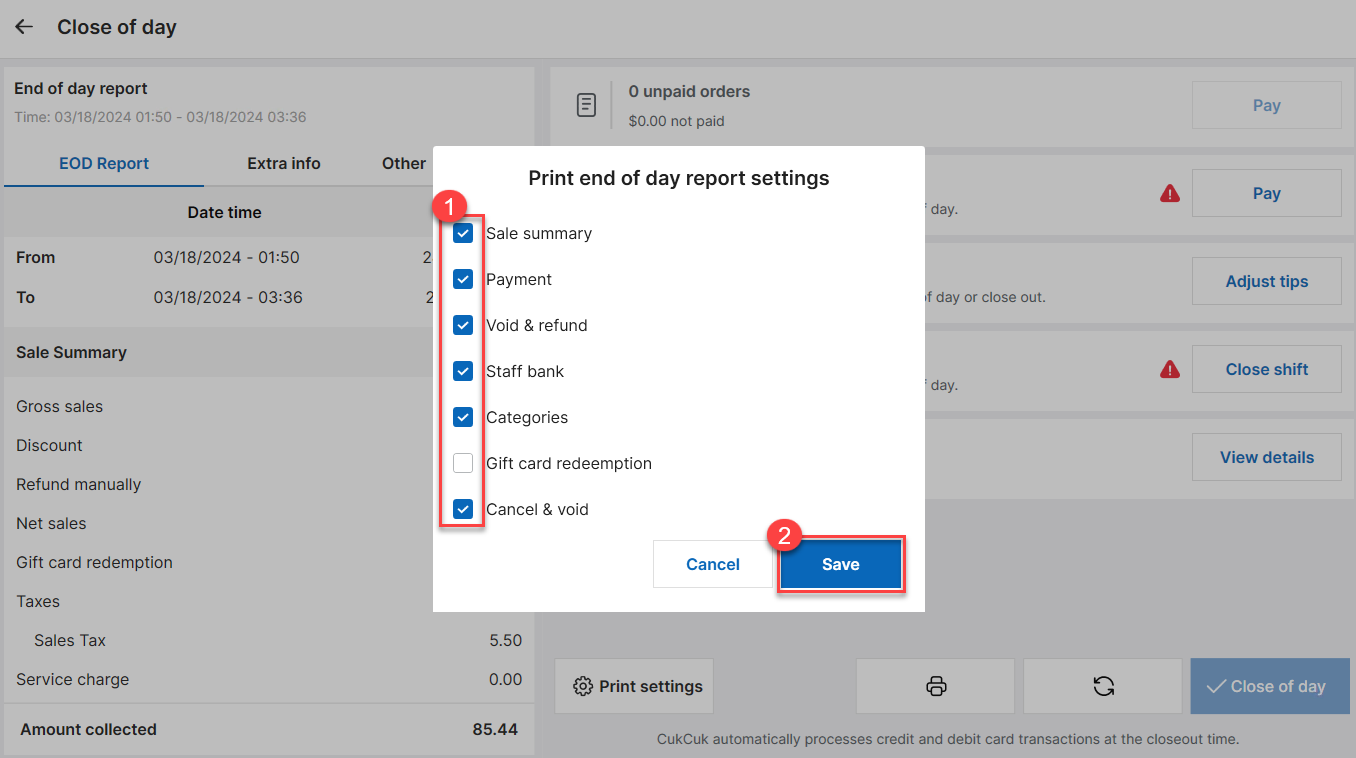
To print the report, click Print settings and select the information you want to print. Click Save to save your settings.
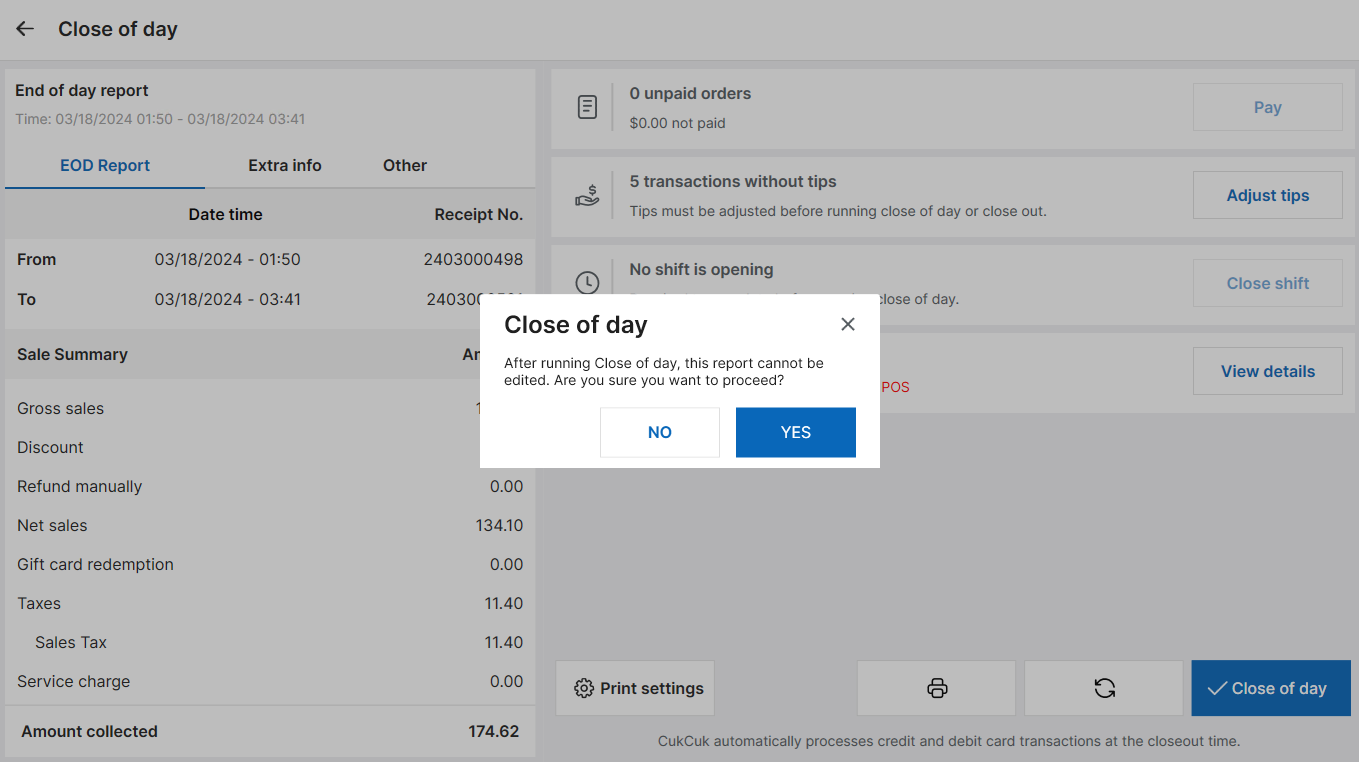
Then click Close of day and select Yes.
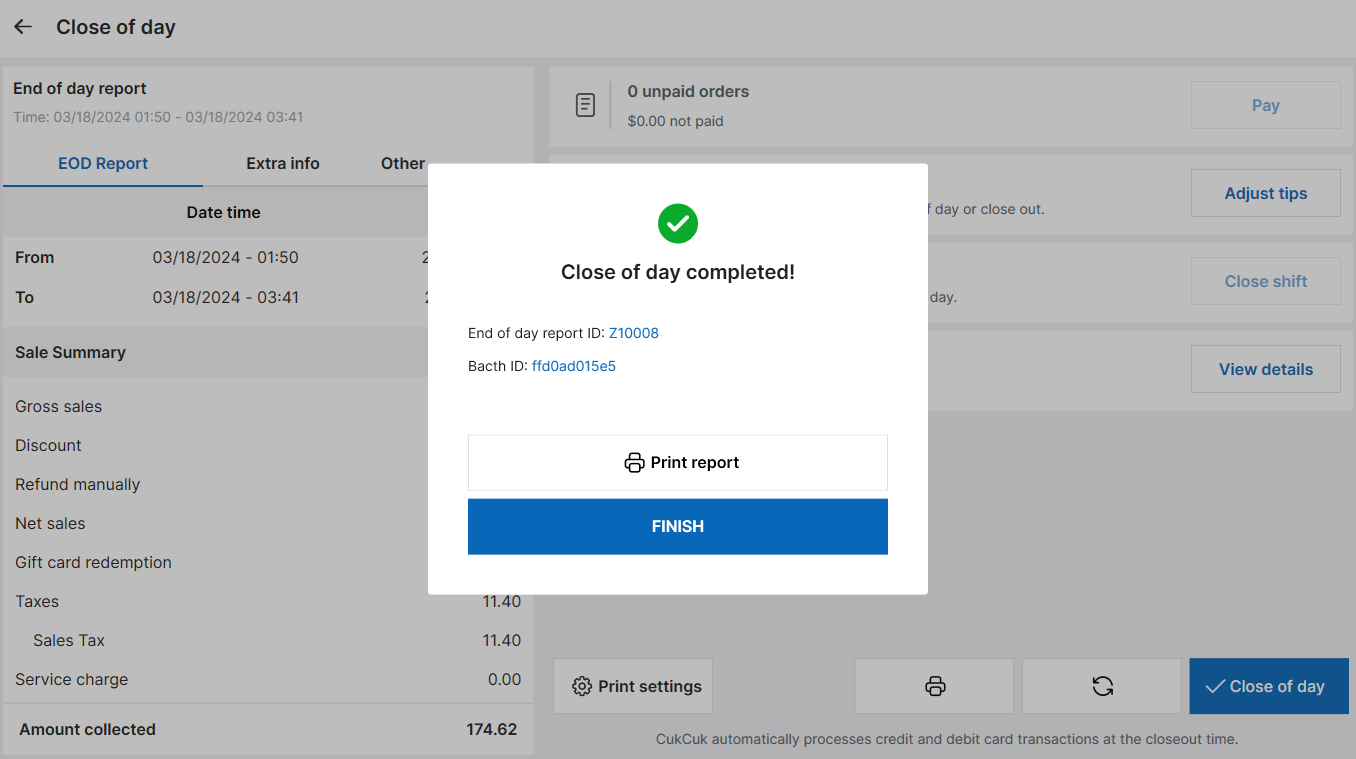
Choose Print report to print or Finish.
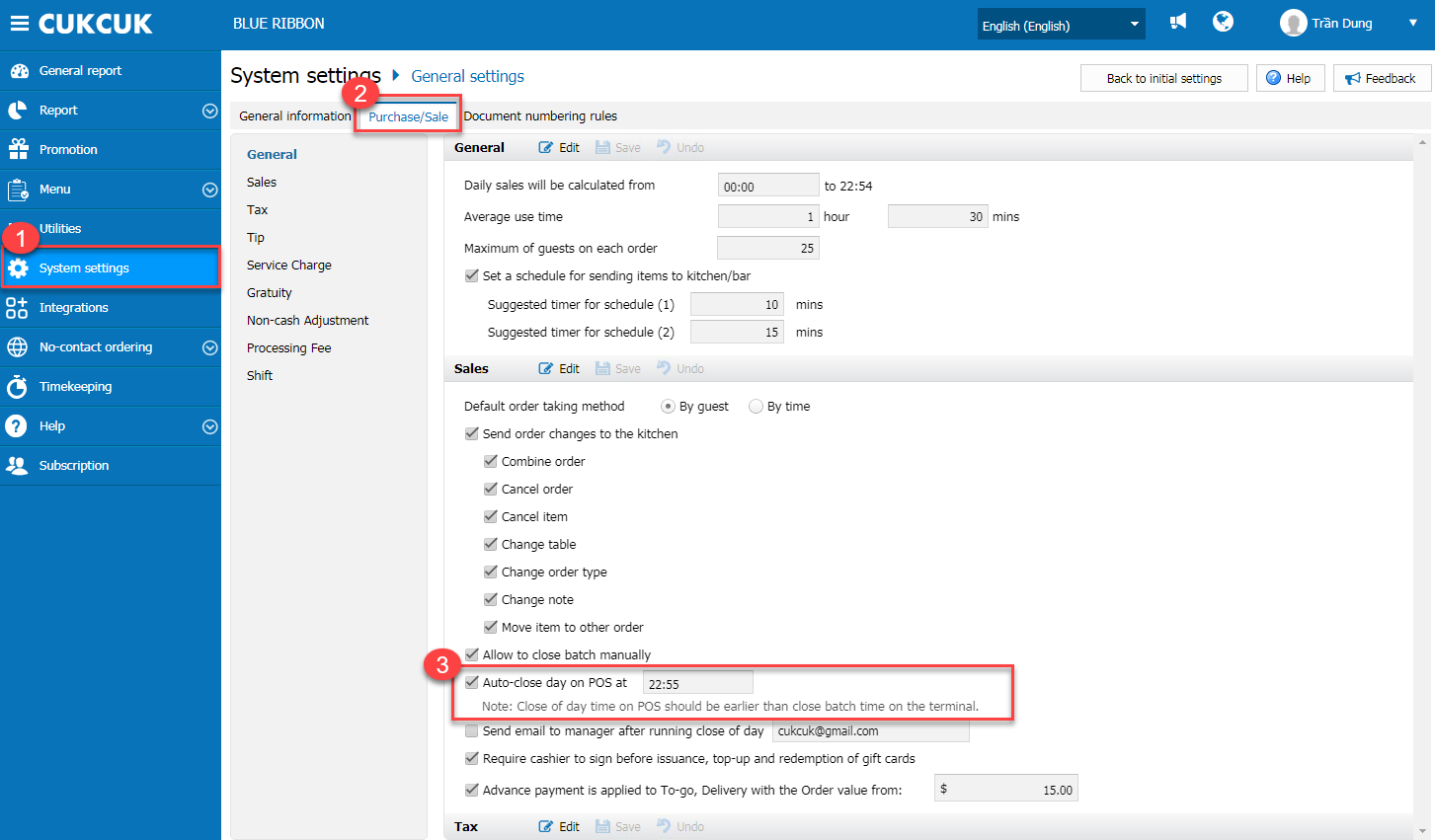
In addition to manual closing, the program also offers an auto-close feature. On the management page, go to System settings/General settings. In the Purchase/Sale tab, tick Auto-close of day on POS. Note: the auto-close time should be set before the closing time of the PAX machine.
Have a nice day!


