

Nội dung có trong bài
Ẩn
I. Purpose
The Flexible Combo feature allows restaurant managers to create customizable combo meals. Customers can choose from different items or options within the combo, while the restaurant can configure included items, optional selections, extra charges, default choices, and quantity limits.
II. Instruction steps
1. Set up flexible combo
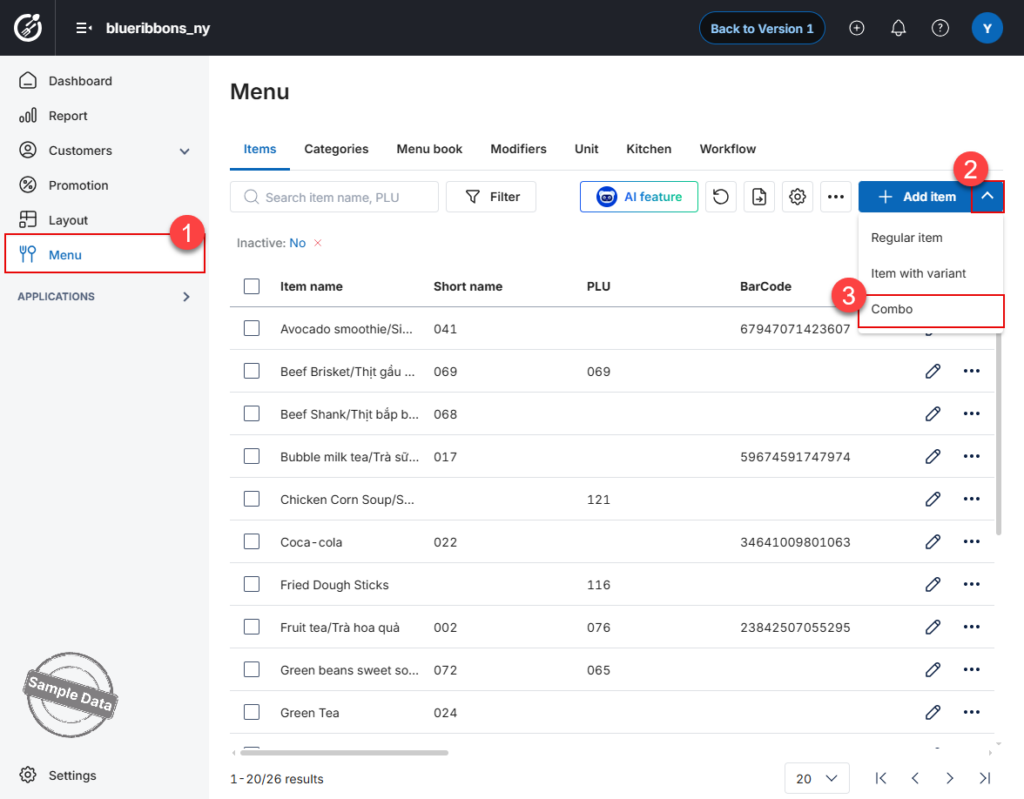
- On the Dashboard, go to Menu.
- Locate the Add item button. Instead of clicking it directly, click the arrow button next to it.
- Select Combo from the dropdown menu.
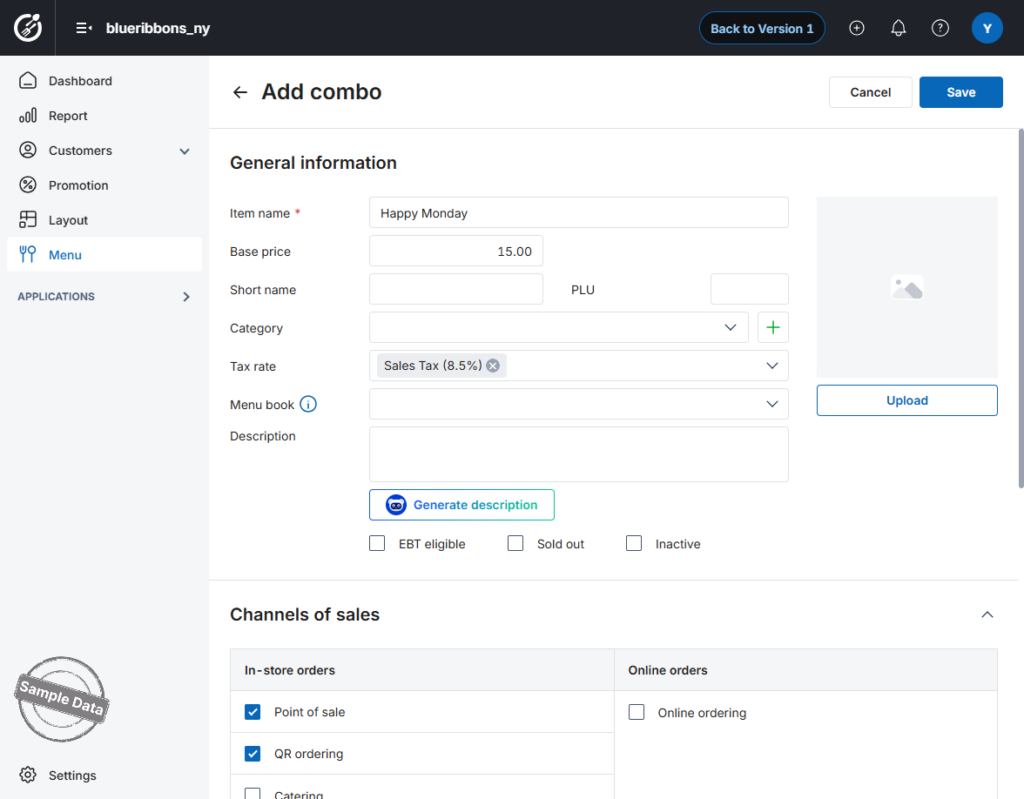
- Enter the Combo Name.
- Scroll down to Add item section to define what is included in the bundle.
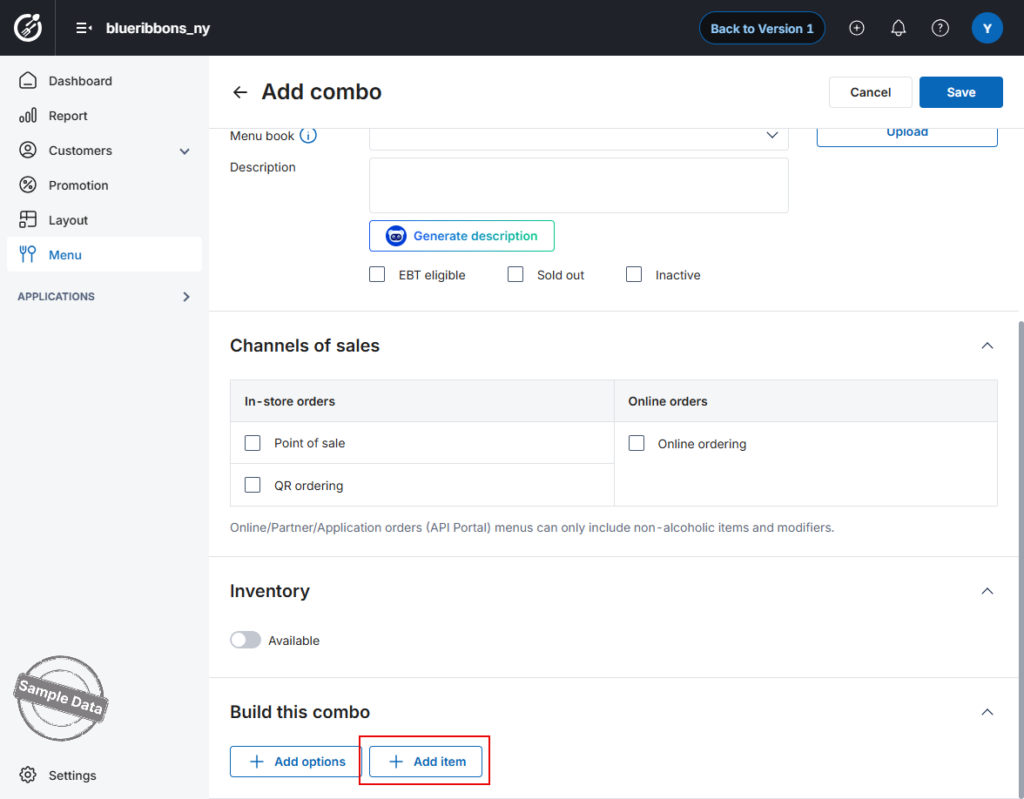
- Click Add items.
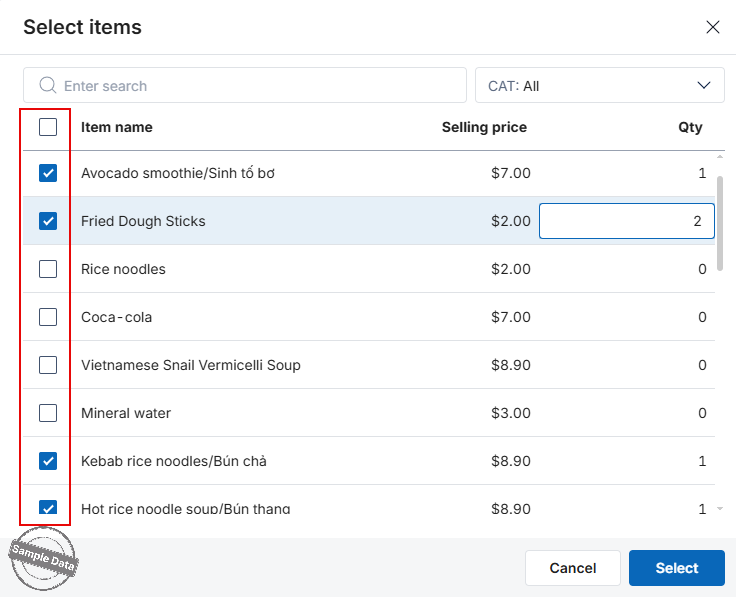
- Select the applicable items from your menu.
- Enter the Quantity for each item.
- Click Select to confirm.
Optional items allow customers to choose between different variations (e.g., choosing between Coke or Pepsi).
- Click Add options.
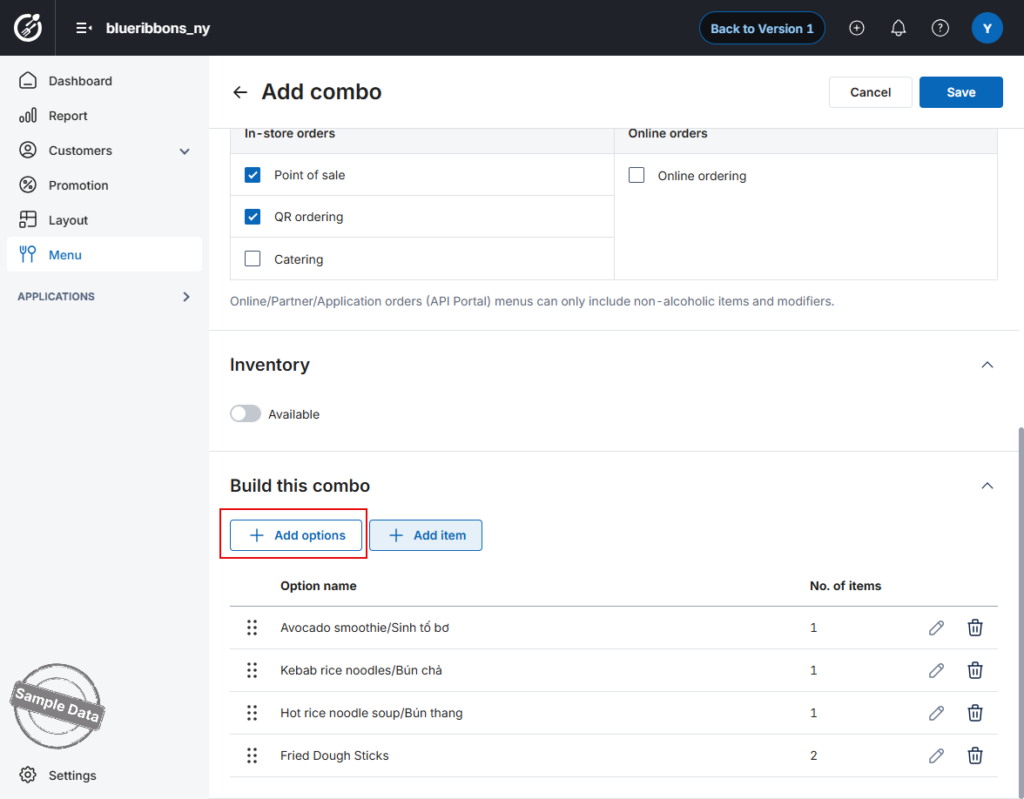
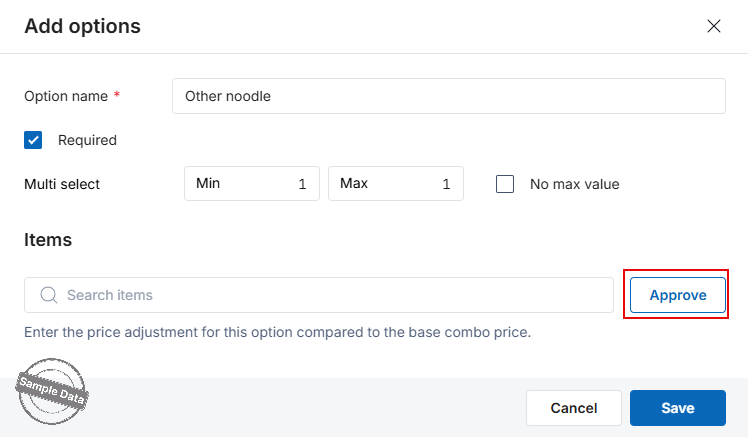
- Enter the Option Name (e.g., “Choose your drink”).
- Click Approve to proceed to the item selection screen.
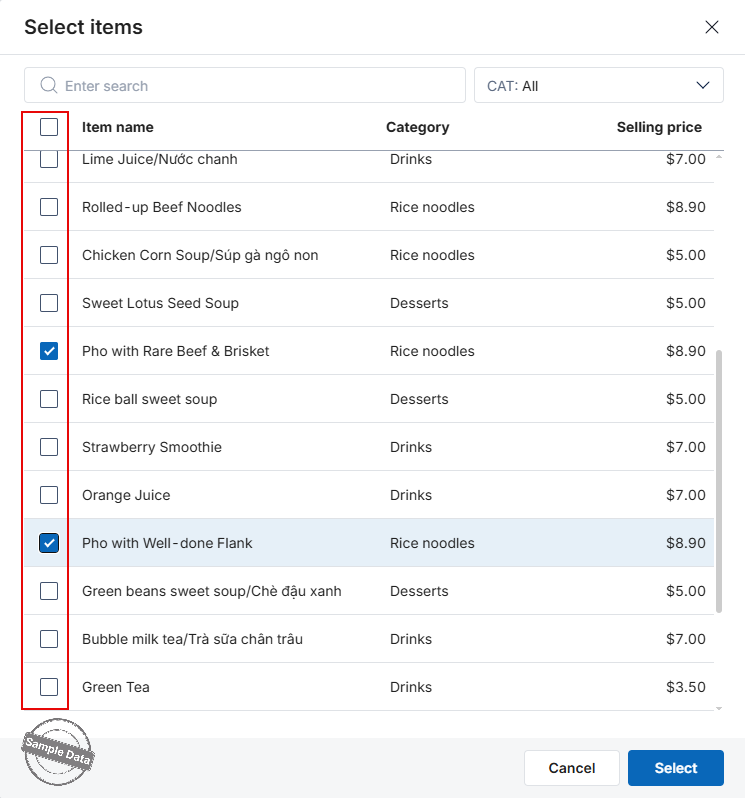
- Select the optional items you want to offer.
- Click Select to confirm.
Once the items are added, you must configure how they affect the final price and customer selection:
- For included items: If the item is already part of the base combo price, set its price to $0.
- For premium choices: If a customer chooses a more expensive option, enter the extra cost in the “Upcharge” column.
- For popular choices: Check the “Default” box to automatically pre-select the most common option for the customer.
If you want to require a customer to make a choice within an option group:
- Check the Required box.
- Set Quantity Limits:
- Min: Enter the minimum number of items the customer must pick (enter 0 if no minimum is required).
- Max: Enter the maximum number of items allowed, or select “No max value” for unlimited choice.
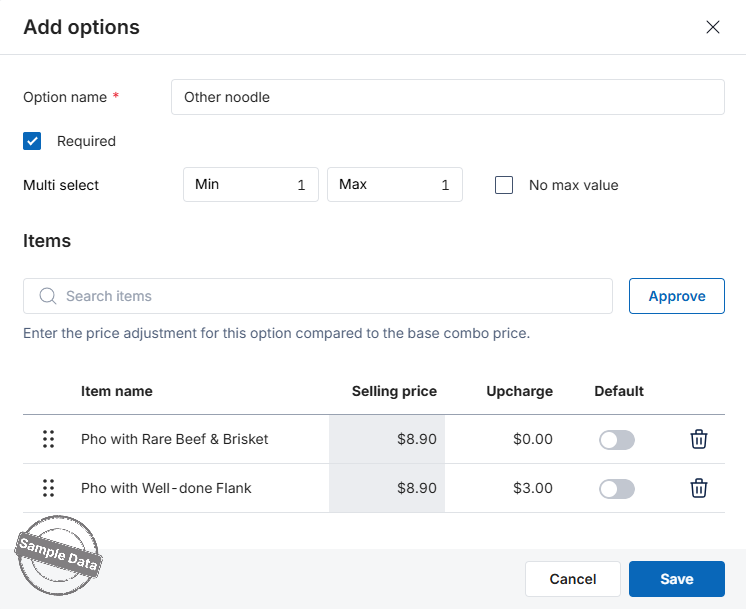
Click Save to complete the setup.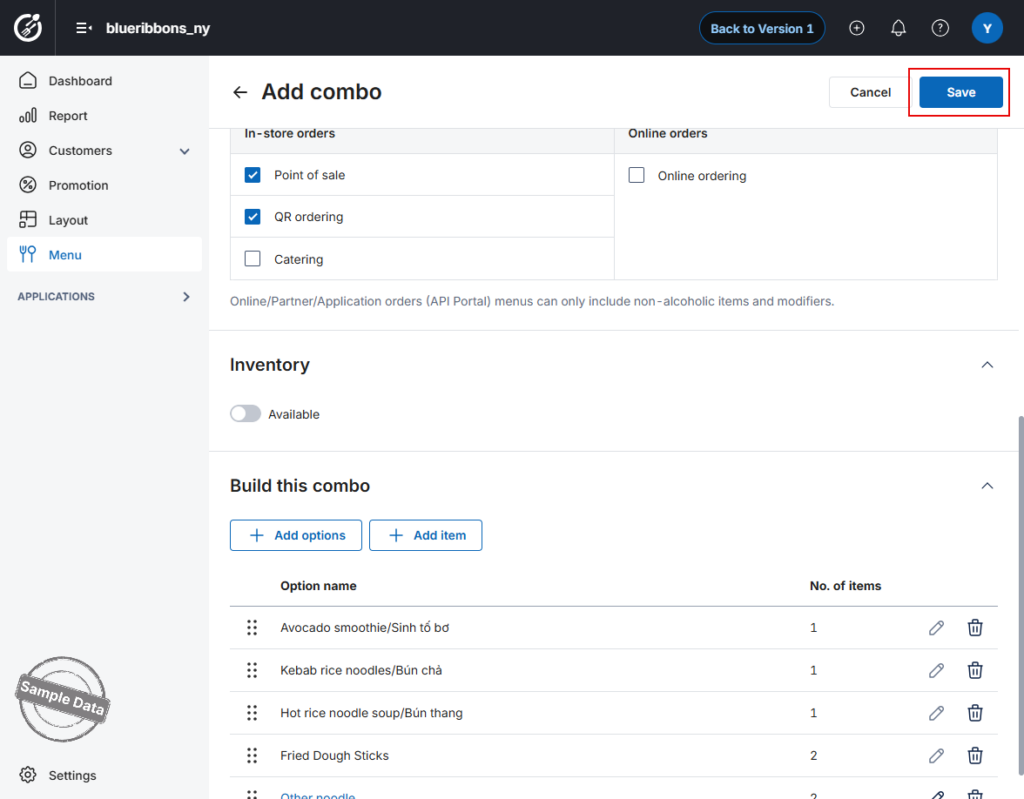
2. Select flexible combo on POS
On Options tab, select items and increase the quantity.

Click Save to add combo to the order.
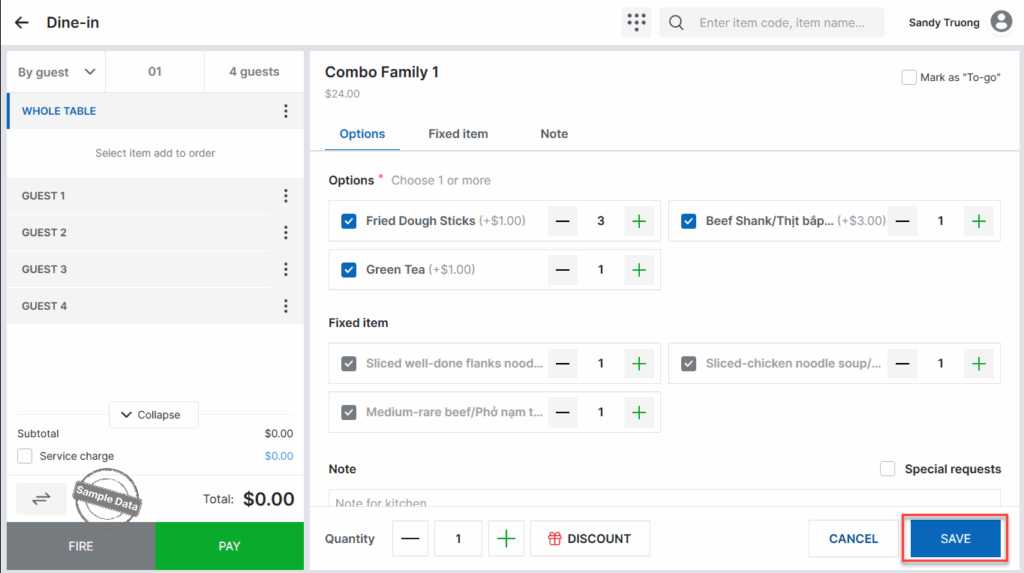
Click Pay to complete the order.

Have a nice day!


