

I. Purpose
This feature allows managers to refund or void a transaction in response to customer requests.
II. Watch the tutorial video
Download the instructional video here: https://www.youtube.com/watch?v=KX3ldjHluuw&list=PL8vytpnSLC8nOGecyPnYm38QqkLso11Zy&index=11
III. Instruction Steps
1. Initiate the Refund
- On the Transaction screen, select the transaction you wish to refund.
- Click the three-dot icon and select Refund payment.

- Enter the Refund reason.
- Click Yes, Refund it to proceed.

2. Select the Refund Method (Void vs. Refund)
If the restaurant has not yet closed the shift, the system will present two options depending on the transaction status:
Case 1: For transactions NOT yet sent to the bank
The system will offer two choices: Void or Refund.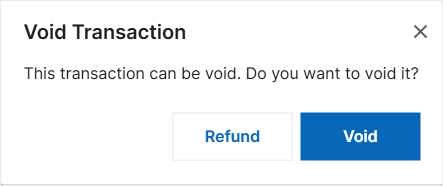
- Void: The system sends a command to the PAX terminal to stop the transaction. No funds will be deducted from the customer’s card.

- Refund: The system will prompt you to select a payment method to return the funds to the customer.


Case 2: For transactions ALREADY sent to the bank
The system will automatically skip to the payment method selection screen.
- Select the appropriate payment method to complete the refund to the customer.
3. Verify the Result
- Transaction List: A new transaction line will be generated in the Transaction list with a Refund status to offset the original amount.

- Bill/Invoice List: For bills that have been voided or refunded, additional steps may be required to update the invoice. For detailed instructions on how to update invoices after a void or refund, please click here.
Have a nice day!


