

Nội dung có trong bài
Ẩn
I. Purpose
This guide helps users quickly update item images when setting up the menu in the system.
II. Instruction Steps
Step 1: Access Image Update
- On the Dashboard, go to Menu.
- Click this icon
 and select Update Images.
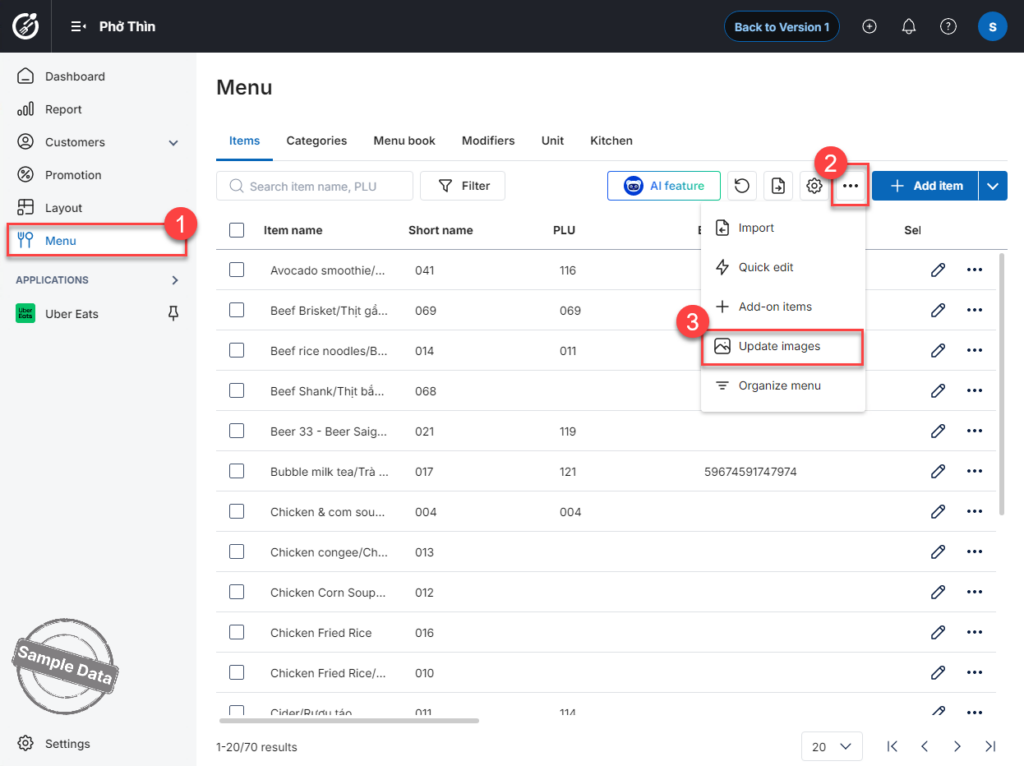
Step 2: Upload an Image
1. Locate the item you want to update.
2. Click Upload.
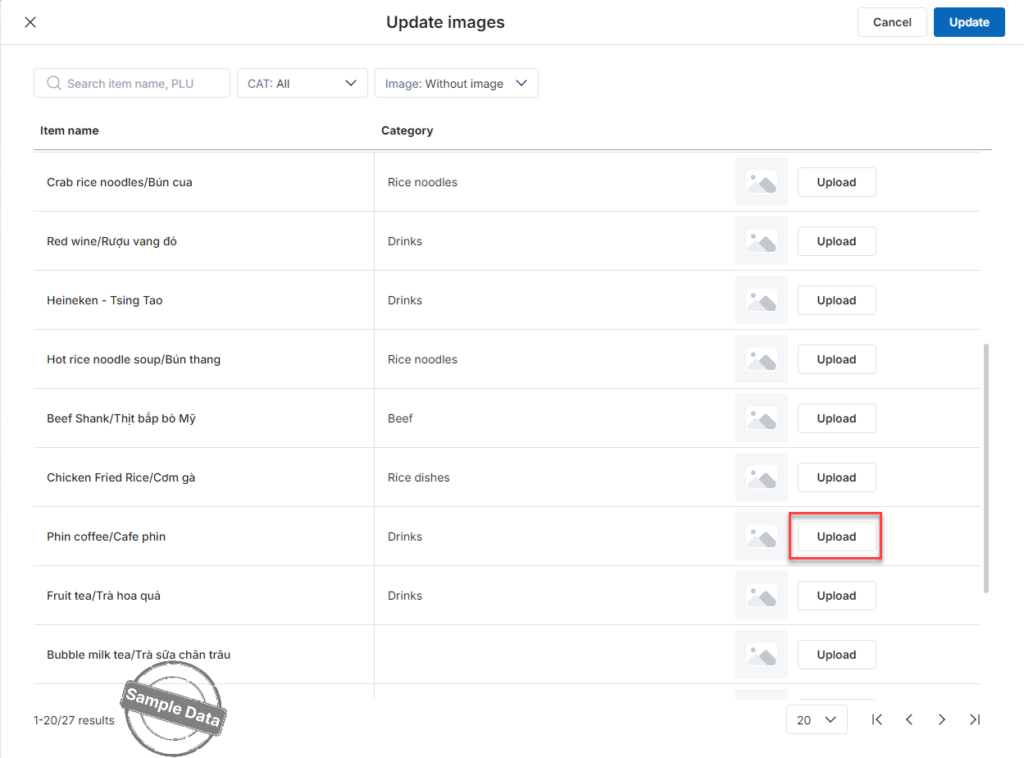
3. Select the desired image from your device.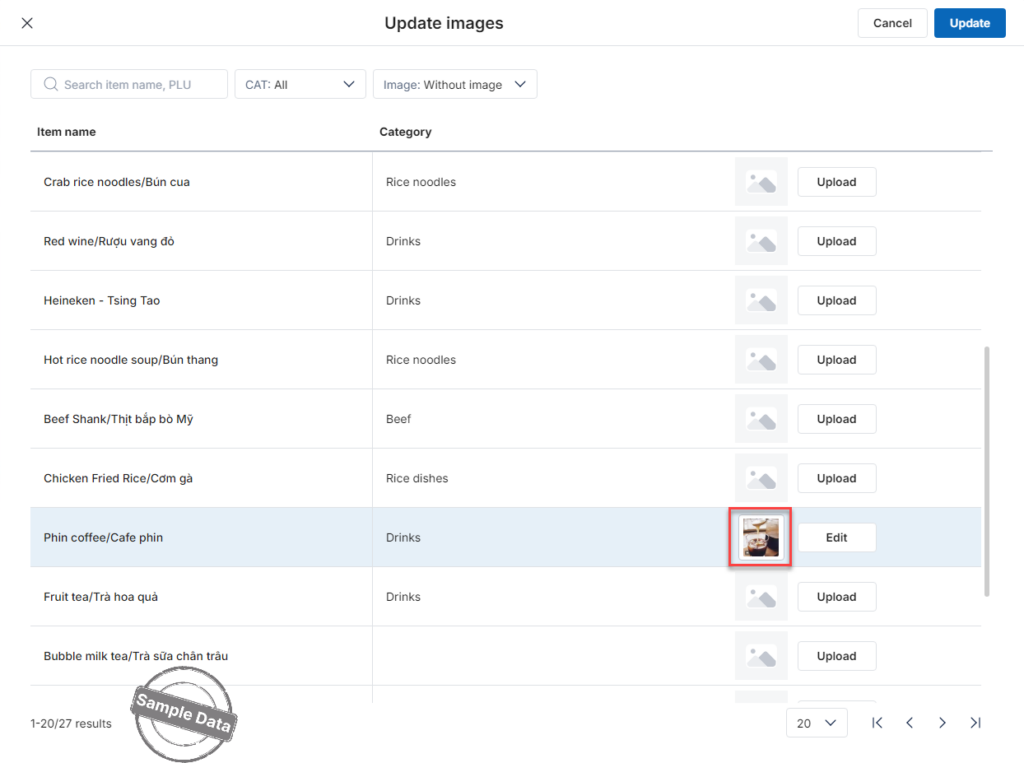
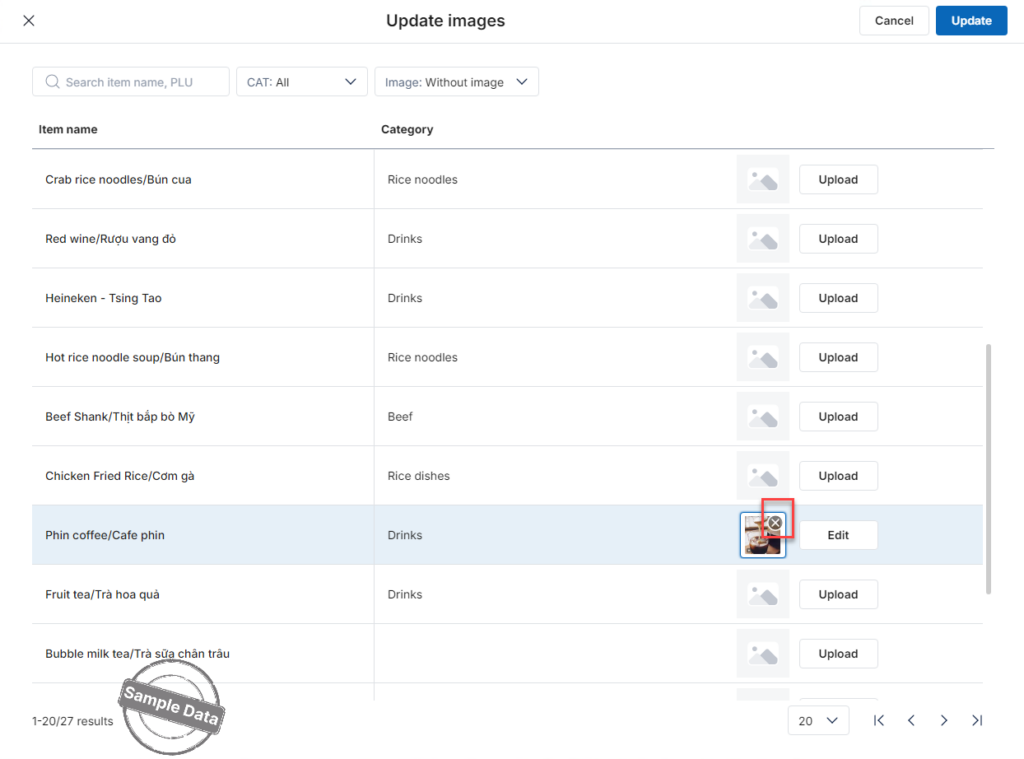
Step 3: Edit or Replace Image (If Needed)
- If you selected the wrong image, click Edit to replace it.
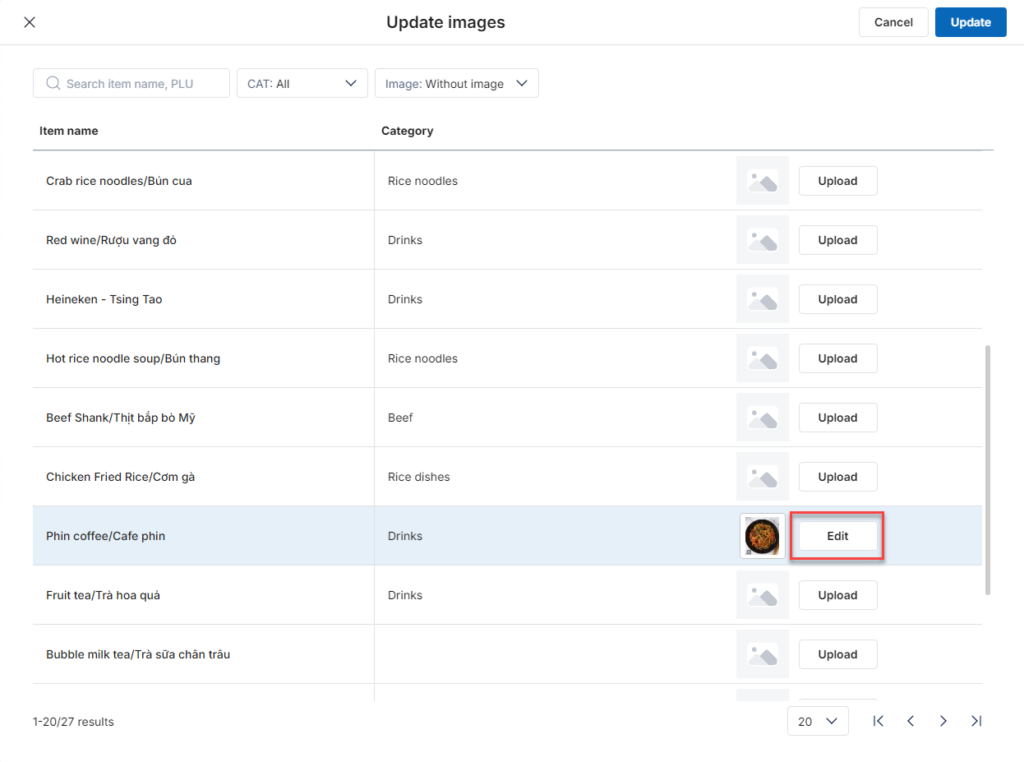
- If you do not want to use an image for the item, hover over the image and click the “X” button to remove it.
Step 4: Save Changes
Click Update to apply the changes.
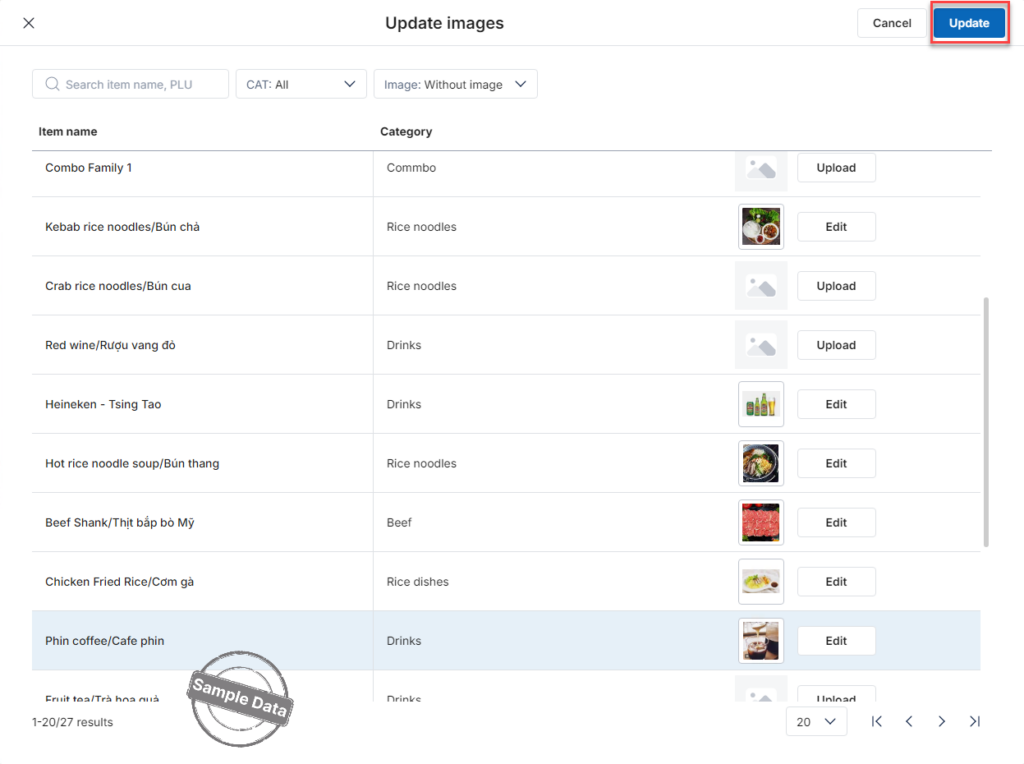
The item image has now been successfully updated.
Have a nice day!


