

I. Purpose
The restaurant manager can set up automatic discount by bill when customers pay in cash and choose whether or not to display this information on the secondary screen and receipt.
II. Instruction steps
1. On the dashboard
Step 1: Access Payment Method Pricing
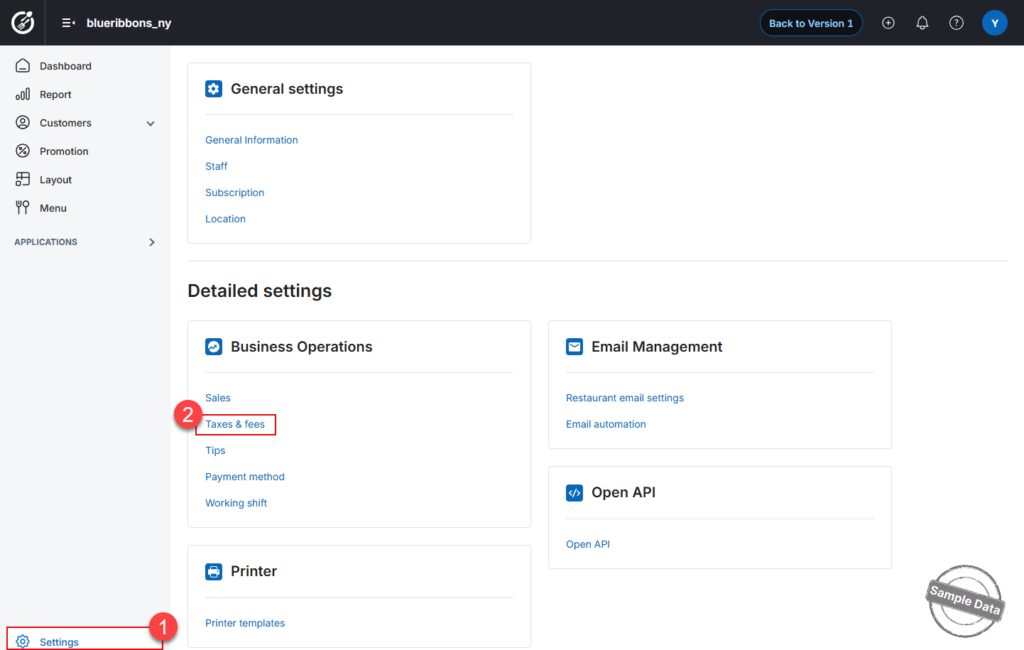
- On the Dashboard, go to Settings.
- Navigate to the Taxes & fees section.
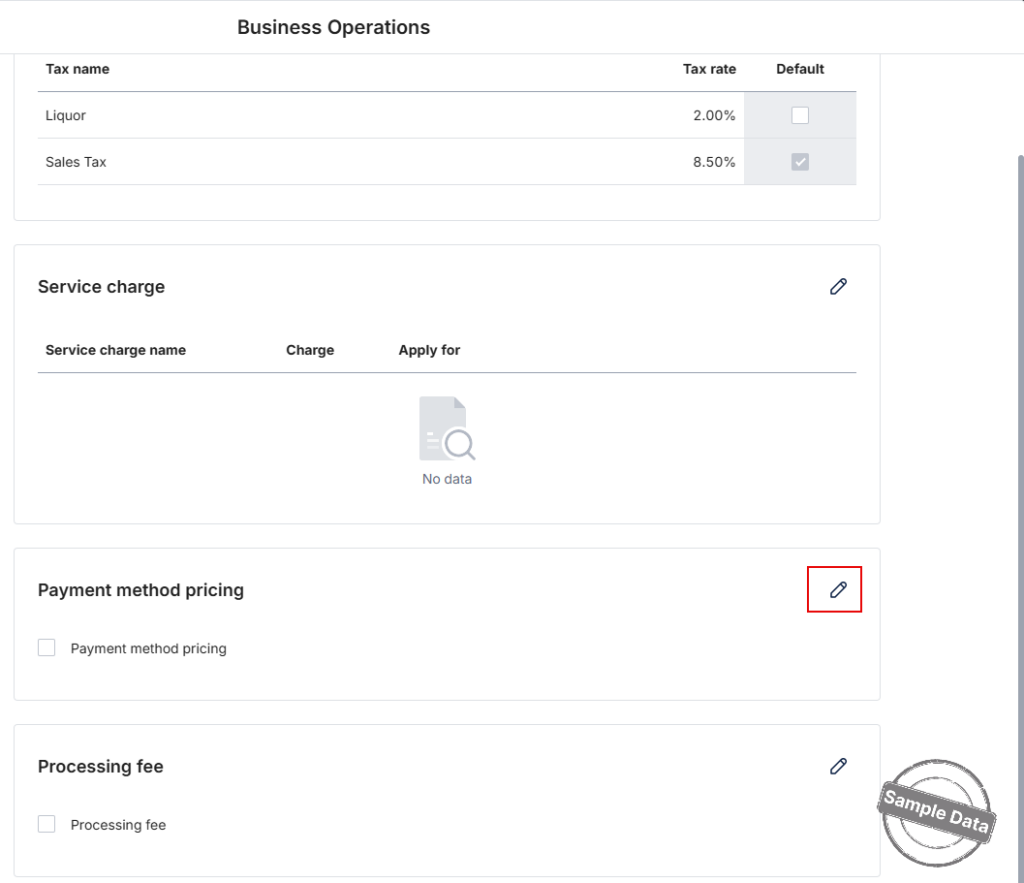
- Locate the Payment method pricing area.
- Click the Edit icon to modify the settings.
Step 2: Configure Cash Discount Settings
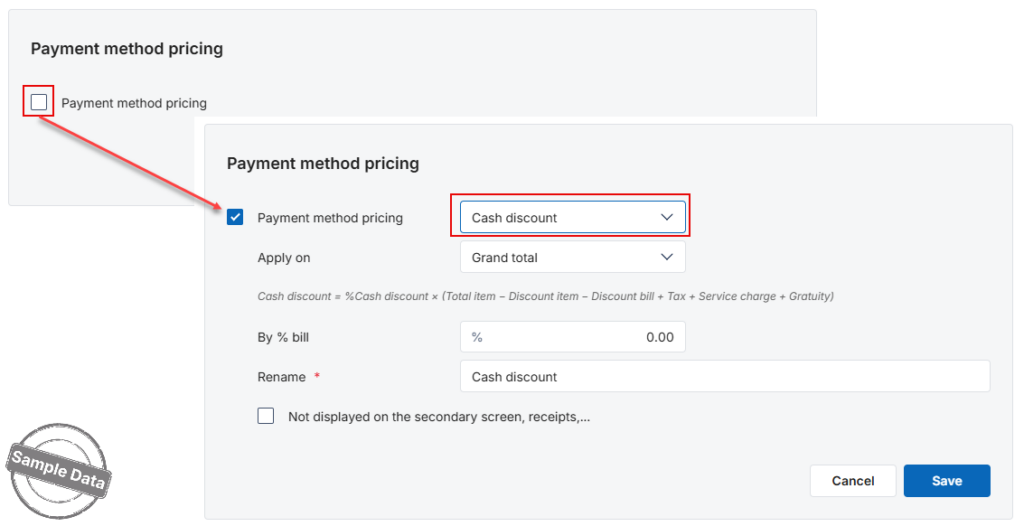
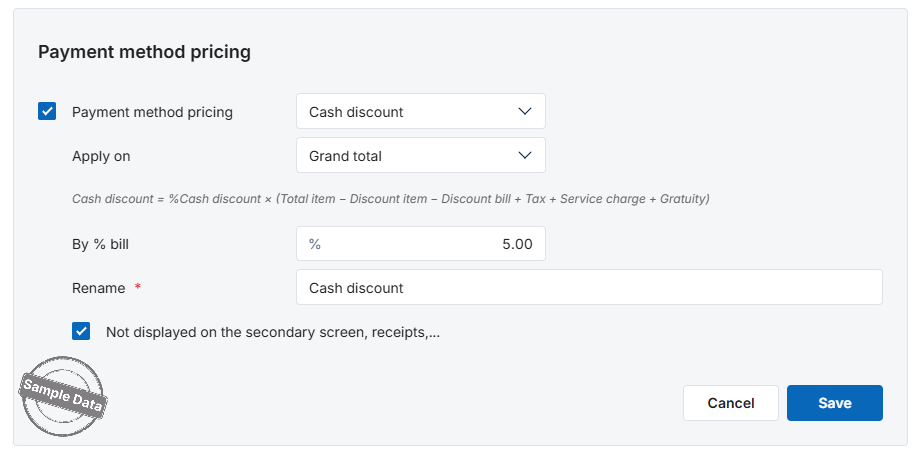
- Check the box for Payment method pricing to enable the feature.
- In the first dropdown menu, select Cash discount.
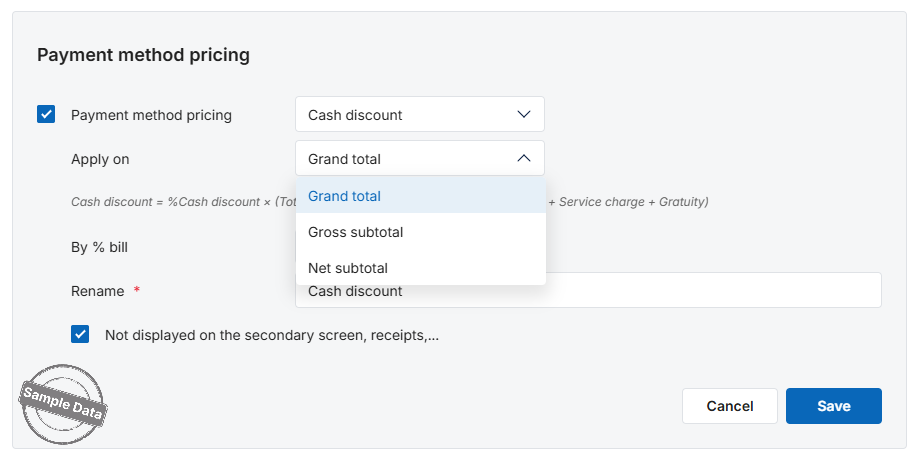
- Configure how the discount is calculated by selecting an option in the Apply on dropdown:
- Grand total: The discount is calculated based on the final amount (including all taxes, service charges, and gratuities).
- Gross subtotal: The discount is calculated based on the total amount before taxes and fees.
- Net subtotal: The discount is calculated based on the amount after taxes/fees have been applied (as per your local accounting rules).
- Enter the Discount percentage (e.g.,
5for a 5% discount) in the field provided.
Step 3: Customize Display & Naming
- Rename the program (Optional):
- By default, it is named “Cash discount”.
- You can click on the Rename field to change it to something else (e.g., “Cash Incentive” or “Cash Payment Discount”) to match your restaurant’s branding.
- Control Visibility:
- If you do not want the discount information to appear on the customer-facing secondary screen or printed receipts, tick the box:
“Not displayed on the secondary screen, receipts,…”
- If you do not want the discount information to appear on the customer-facing secondary screen or printed receipts, tick the box:
Step 4: Save Changes
- Review your configurations carefully.
- Click Save to apply the new pricing rules to your POS system.
2. On POS
Go to Settings.

At the Tax & Fee tab, tick Cash discount and enter the discount percentage to be applied when customers pay in cash. Tick Not displayed on the secondary screen, receipts, … if you do not want the Cash discount information to appear on the secondary screen and receipts.

Note: The restaurant manager can rename the program in the Display Name field.
When cash payment is selected, the program will automatically apply discount by bill that has been set up. If you choose not to display the Cash discount information on the secondary screen and receipts, this information will not appear on the secondary screen.

This information will also not be shown on the printed receipt for the customer.

The revenue report will display the total discount amount given when customers pay in cash.

Have a nice day!


