

I. Purpose
The manager can quickly set up menu items with variants, especially items that have different sizes, flavors, or prices.
II. Instruction Steps
To add an item with variants, follow these steps:
Step 1: Create a New Item
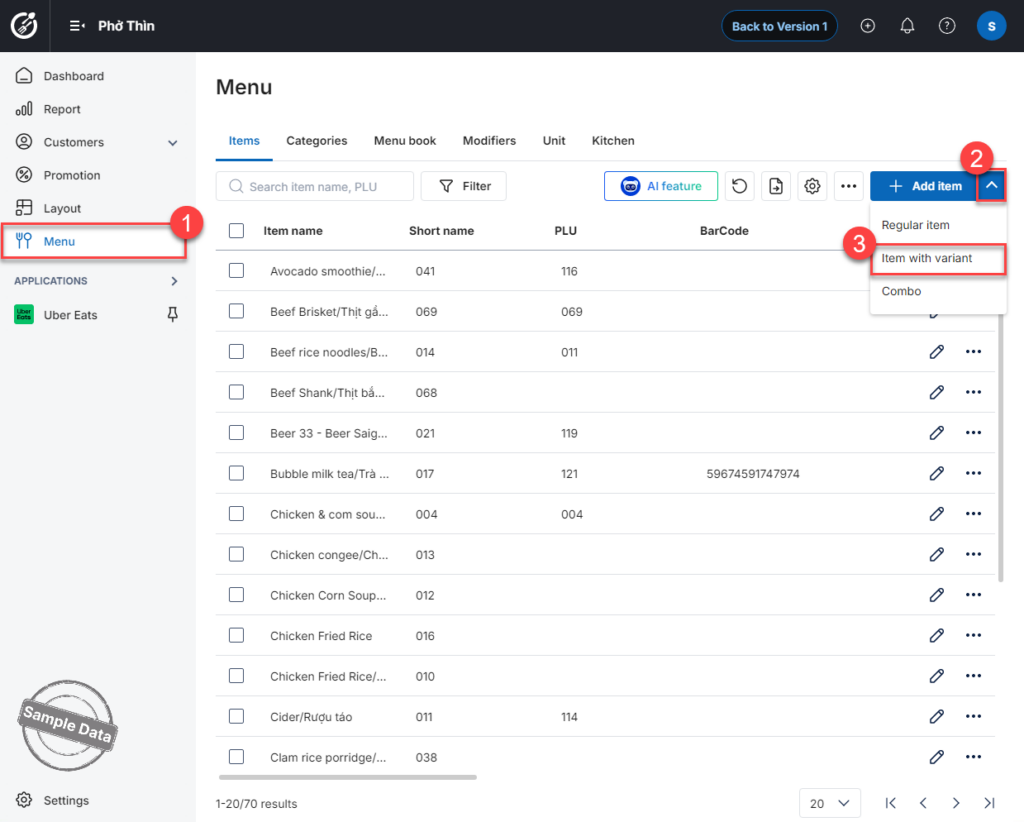
- Go to Menu.
- Click the arrow icon
 next to Add item.
 - Select Item with variant.
Step 2: Enter Item Information
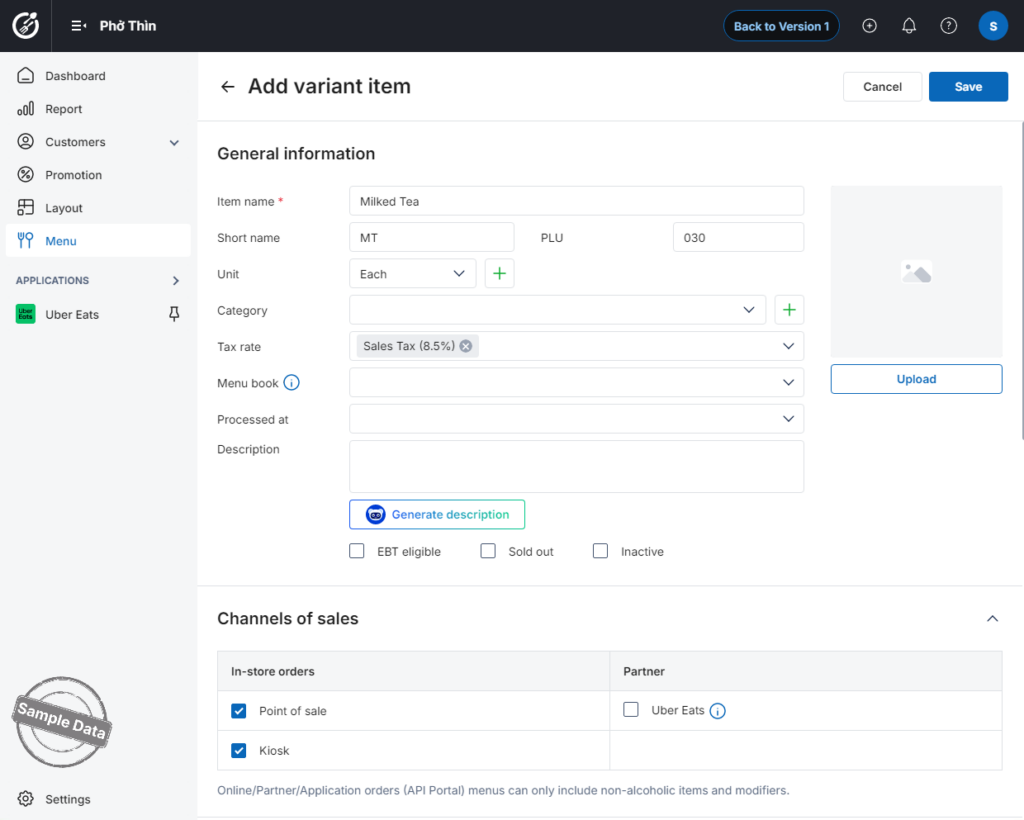
Fill in the required item details.
Under Channels of Sales, select the sales channels where this item will be available.
Step 3: Enable Inventory Tracking (Optional)
If you want to track inventory for this item:
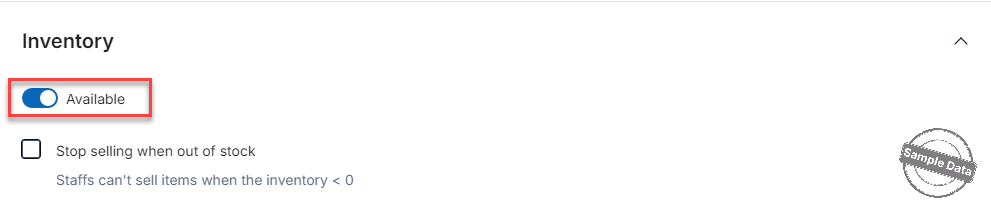
- Go to the Inventory section.
- Turn on Available.
- If needed, check Stop selling when out of stock to automatically prevent sales when stock reaches zero.
Step 4: Create Item Attributes (Variants)
To define item variants:
- Select or create attributes.
The system provides default options:- Size
- Flavor
- Custom attribute
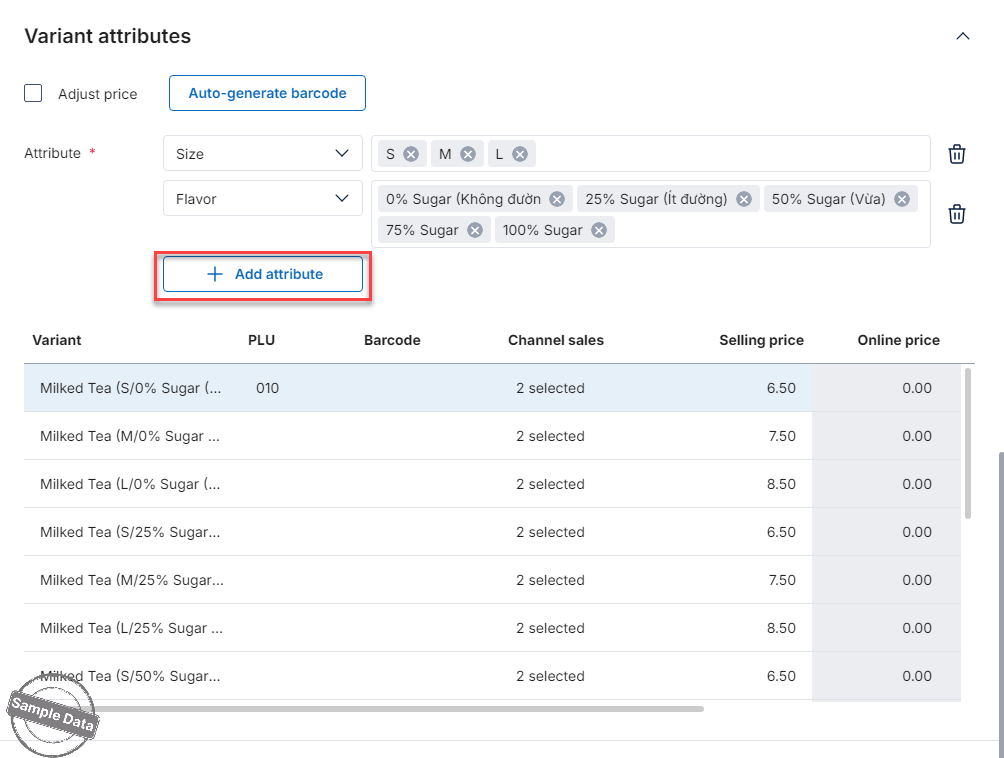
2. If selecting Custom attribute, enter a custom attribute name.
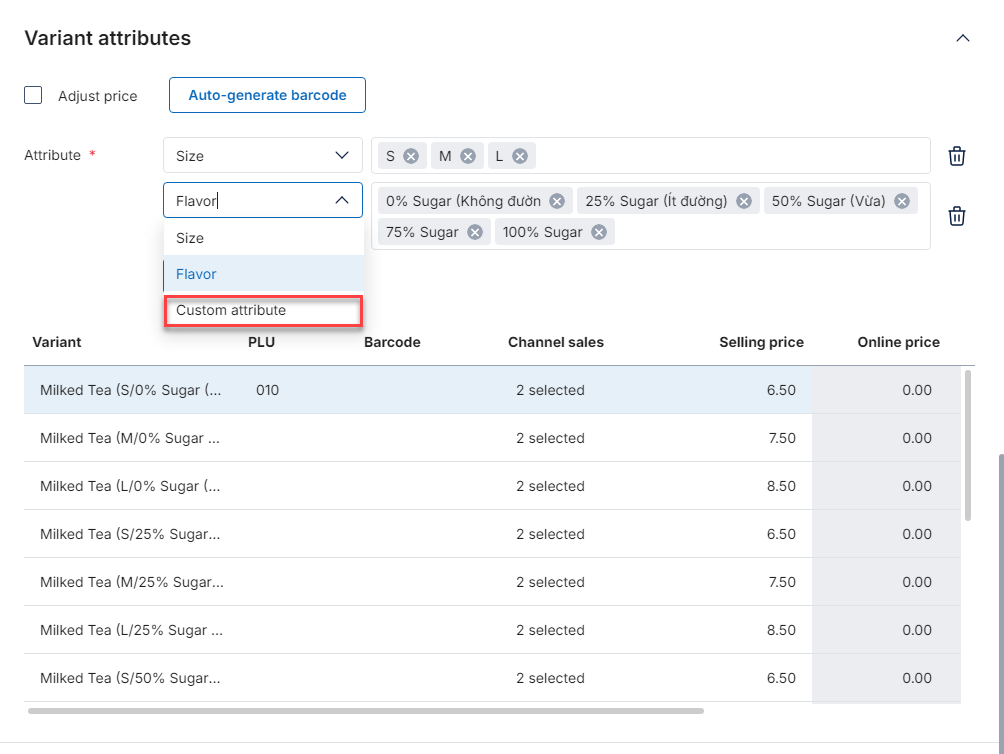
3. You can set different prices for each variant. Variant prices may be the same or different.
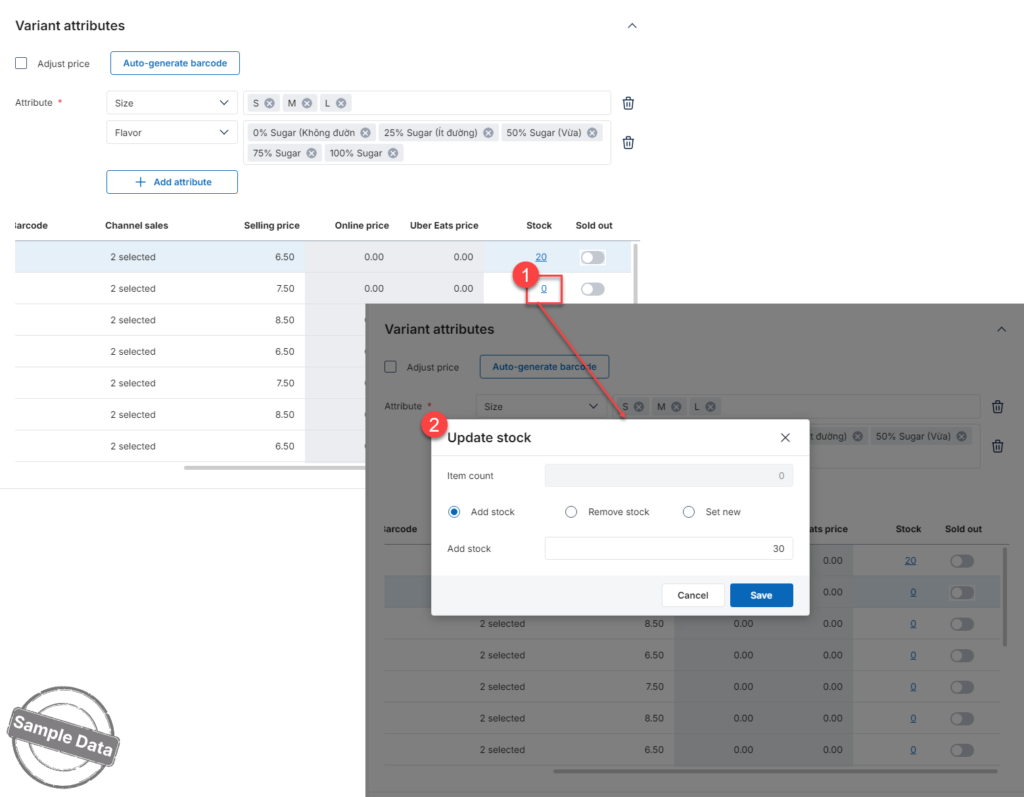
Step 5: Update Variant Stock
After setting up attributes, enter the available quantity for each variant in the Stock column.
Important Notes
- Custom attributes are not saved to the default attribute list.
- You can assign one or multiple attributes to a single item.
Have a nice day!


