

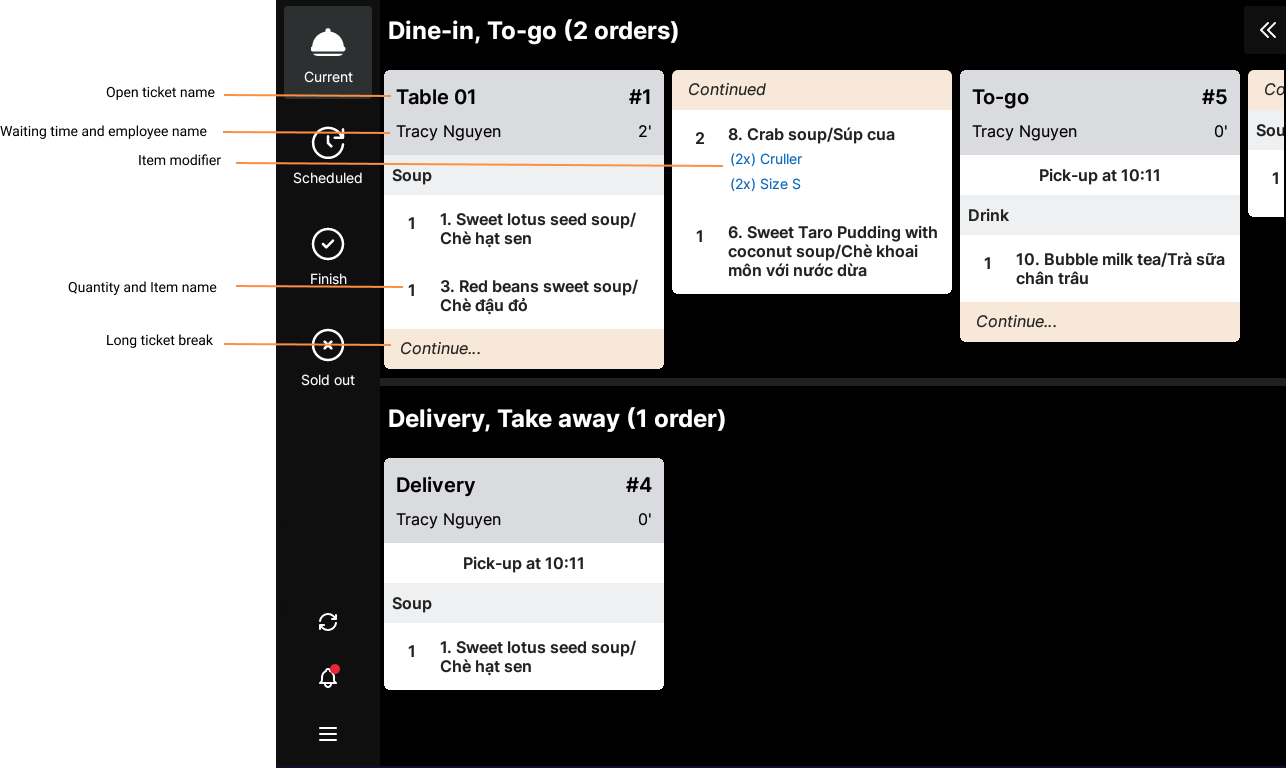
When accessing the KDS device, orders will appear on the kitchen display screen as preparation tickets along with the list of items to be prepared.
In the Current tab
- The first line of the preparation ticket displays the service type and the sales staff. Below that is the timestamp immediately after the order is created and sent to the kitchen.
- The list of items is displayed individually, following the menu category order configured on the management page. If an order includes modifiers, they will be listed directly under each item.
- If an order contains many items, the system automatically splits it into sections so you can view all items on a single screen without scrolling.
Additionally, you can click the icon  to view a summary of all items currently being prepared. If any item has been marked as completed, the system will automatically reduce the quantity or hide that item.
Tab Content Tab Content Tab Content
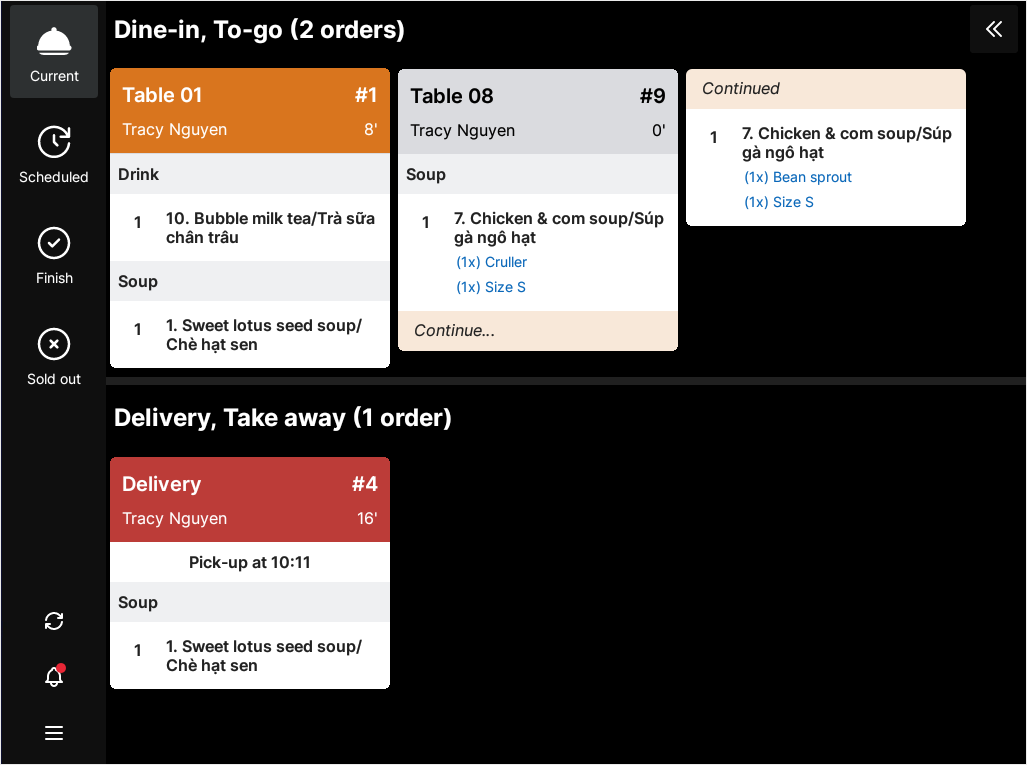
- As time passes, the color of each preparation ticket will change from GRAY to ORANGE, then to RED, indicating orders that are within or exceeding the preparation time. The time thresholds can be adjusted in Settings / Undo / Transitions time.
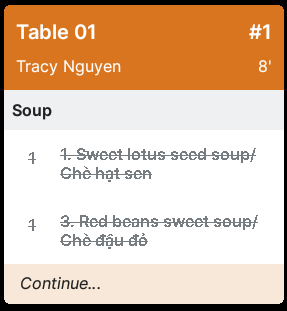
- For items that have been prepared, click on the item in the ticket. The system will display a strikethrough to mark it as completed. You can also click the entire ticket to mark it complete when all items are finished.
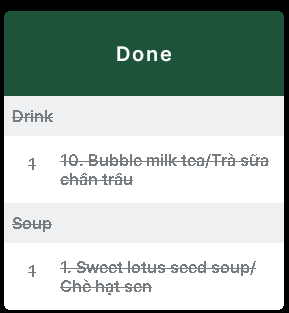
- You can click each preparation ticket to mark the entire order as completed, or select individual items. Once completed, the Current tab will display the status as Done, and the system will move the order to the Finish tab.
You can select Done to hide the order from the Current tab.
In the Schedule tab
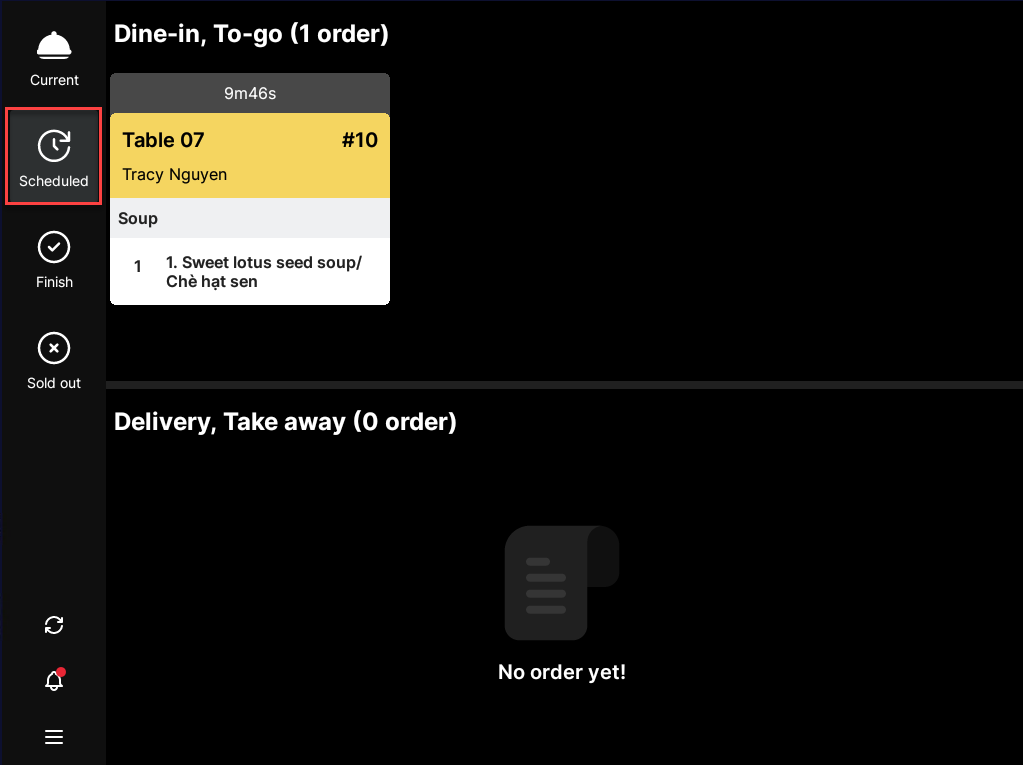
For items that are scheduled but not yet required for preparation, the system displays them in the Schedule tab. When the countdown timer reaches 0, the system automatically moves the items to the Current tab for preparation.
In the Finish tab
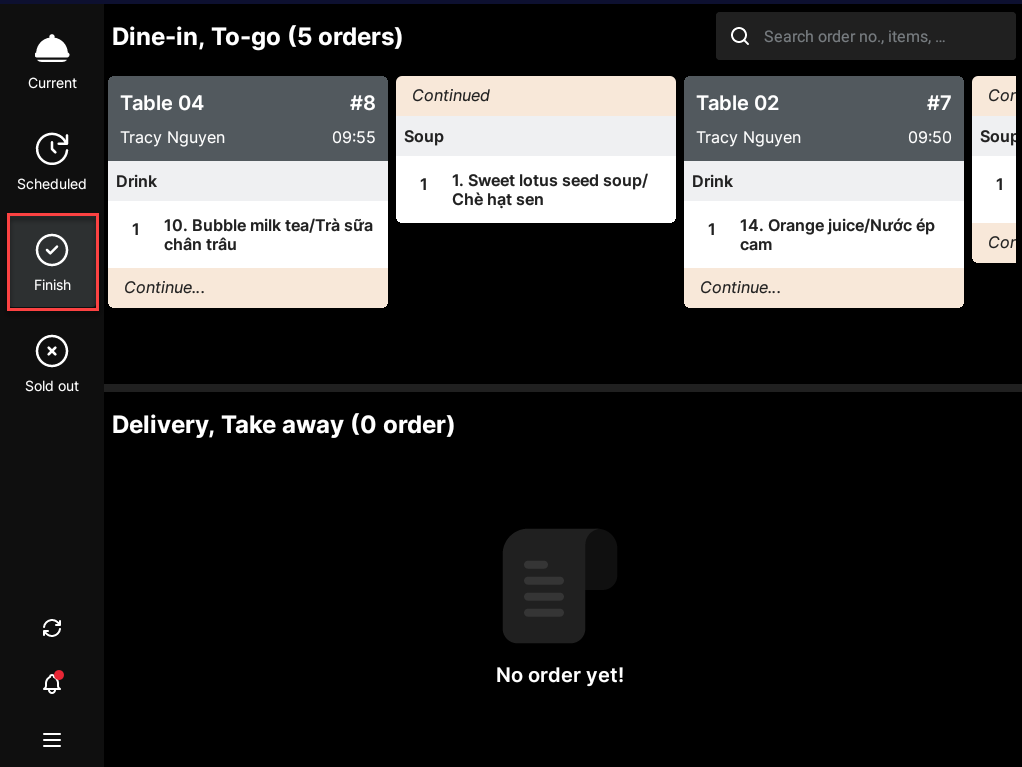
Orders marked as completed will automatically move to the Finish tab. By default, the system displays the most recently completed preparation tickets at the top.
In the Sold out tab
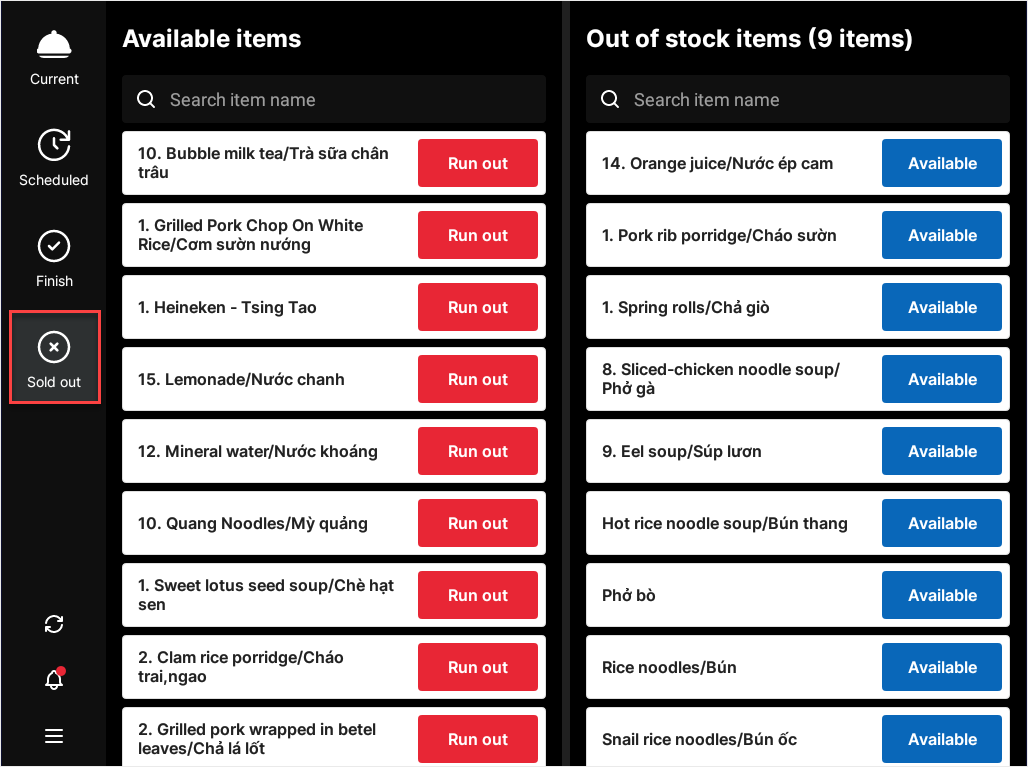
The system displays a list of available and temporarily out-of-stock items. Only items configured under Manual tracking will appear here.
Have a nice day!


