

I. PURPOSE
The restaurant managers can monitor inventory levels for menu items and handle discrepancies when inconsistencies are detected (if any).
II. INSTRUCTION STEPS
To track inventory quantities, follow these steps:
1. Configure inventory tracking for Regular items
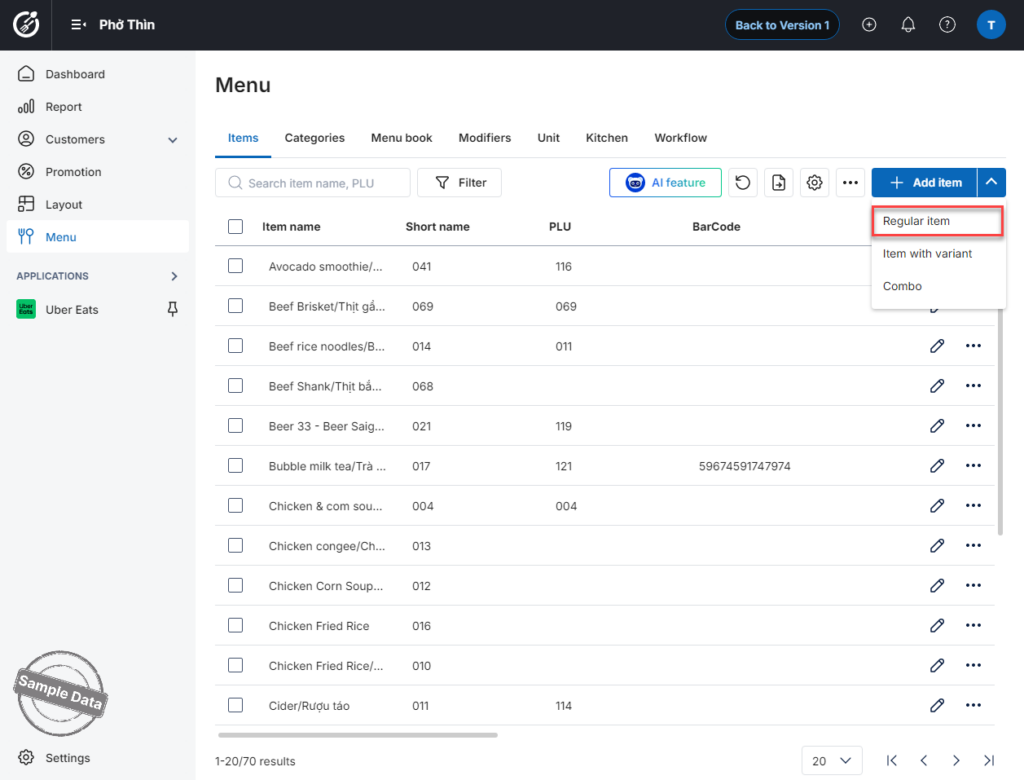
Click Add item and select Regular item.
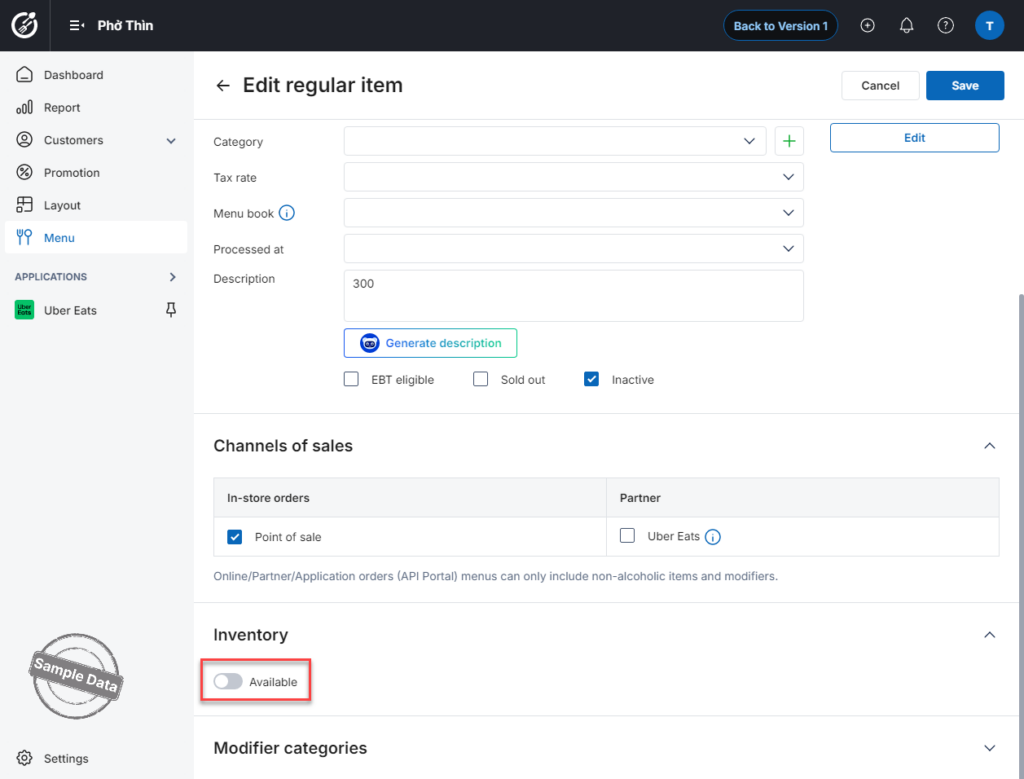
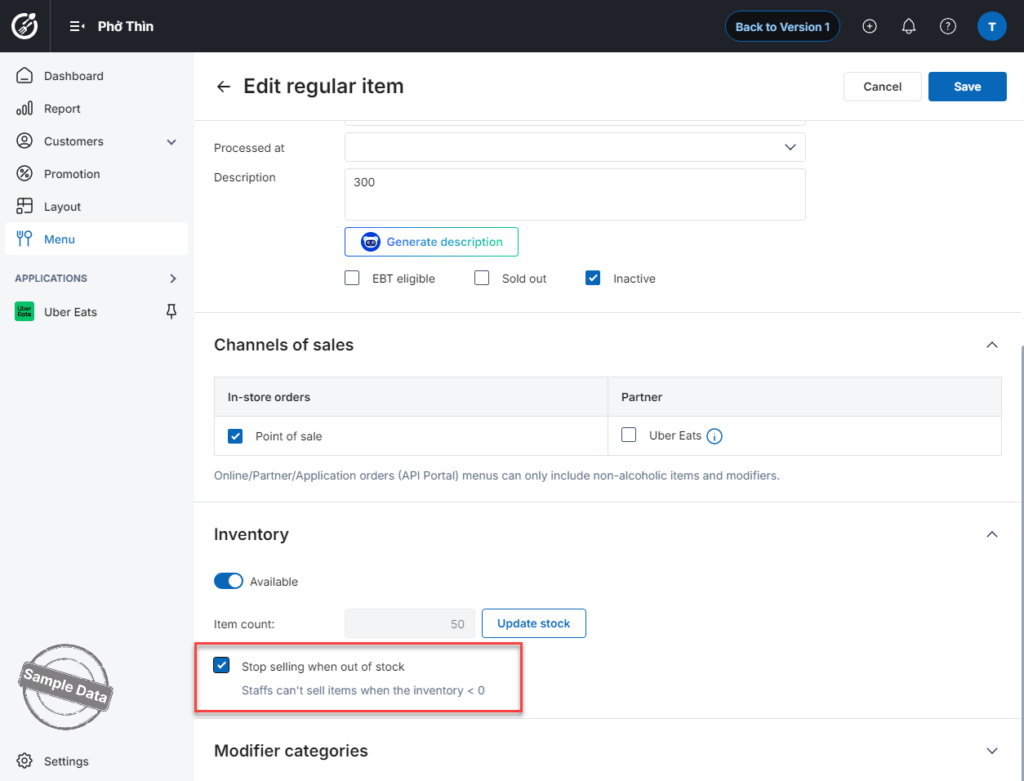
After entering the item details, scroll down to the Inventory section and turn it On.
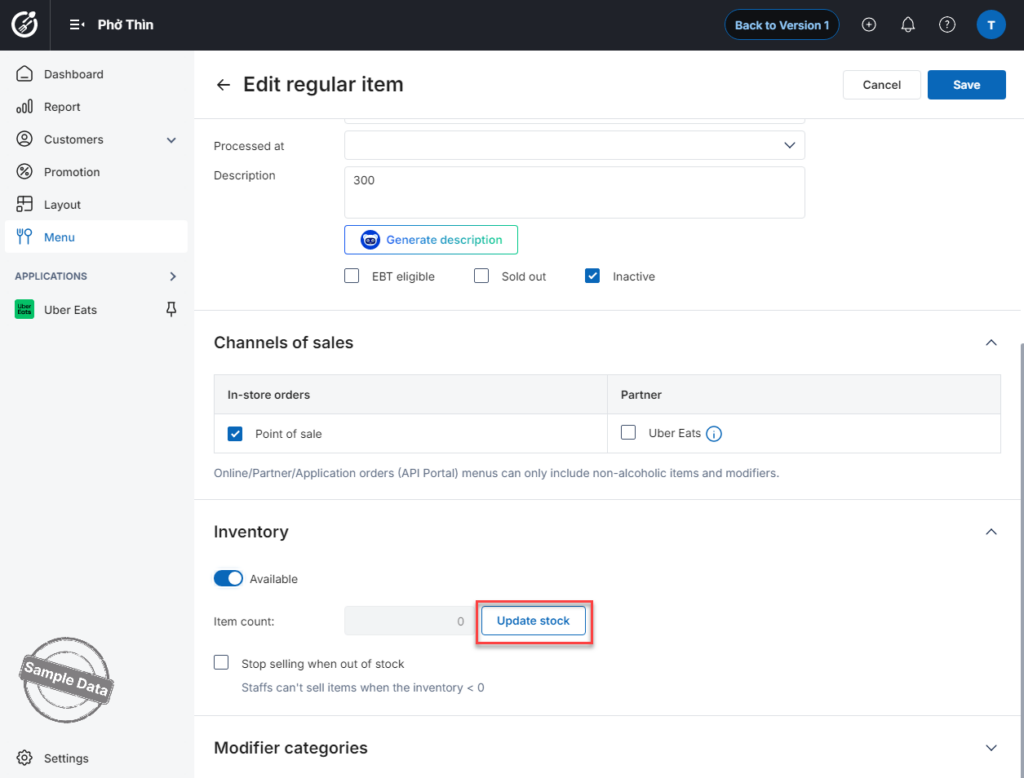
Click Update stock.
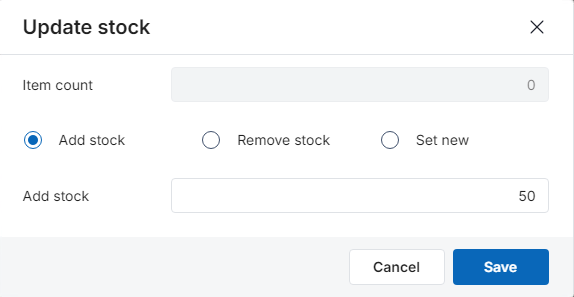
You can choose one of the following options:
- Add stock – Increase current quantity
- Remove stock – Deduct quantity
- Set new – Replace with a new quantity
Select the appropriate option, enter the quantity, then click Save.
Check Stop selling when out of stock if you want the item to automatically become unavailable once the stock reaches zero.
2. Configure inventory tracking for Item with variant
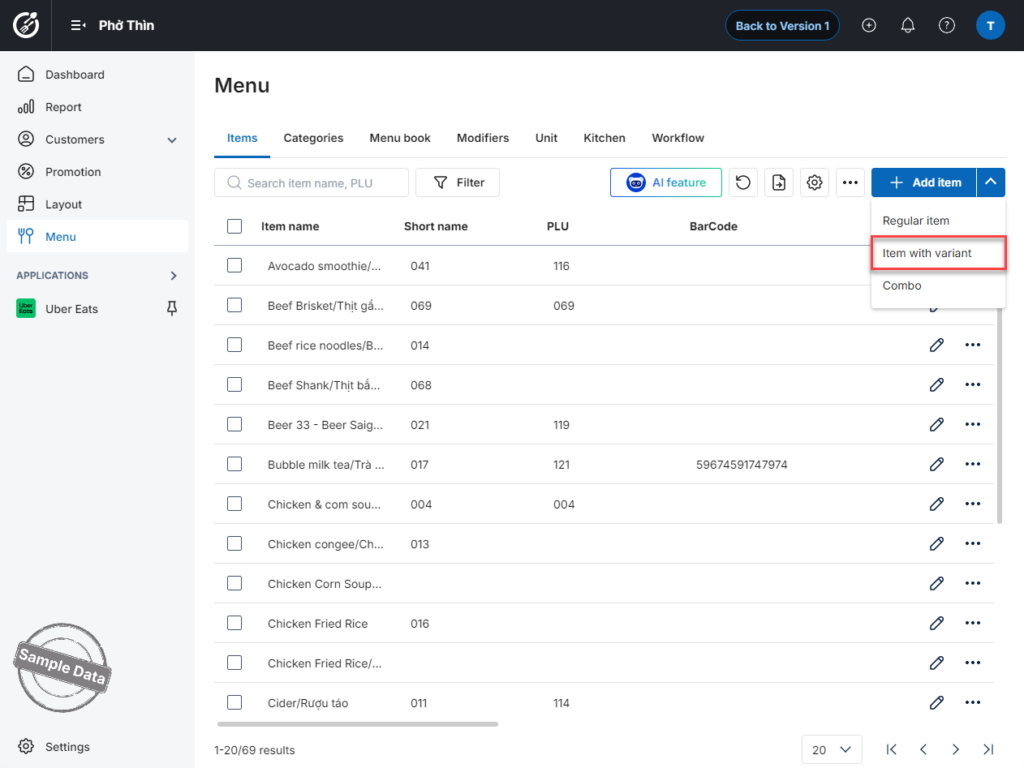
Click Add item and select Item with variant.
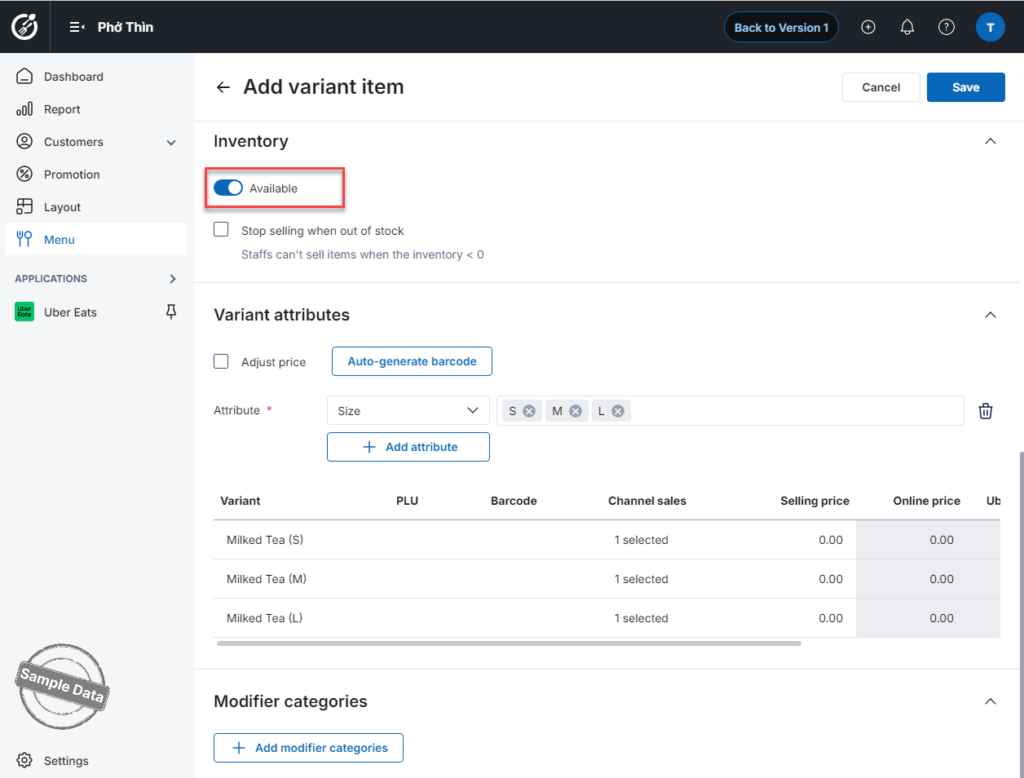
After entering the item details, scroll down to the Inventory section and turn it On.
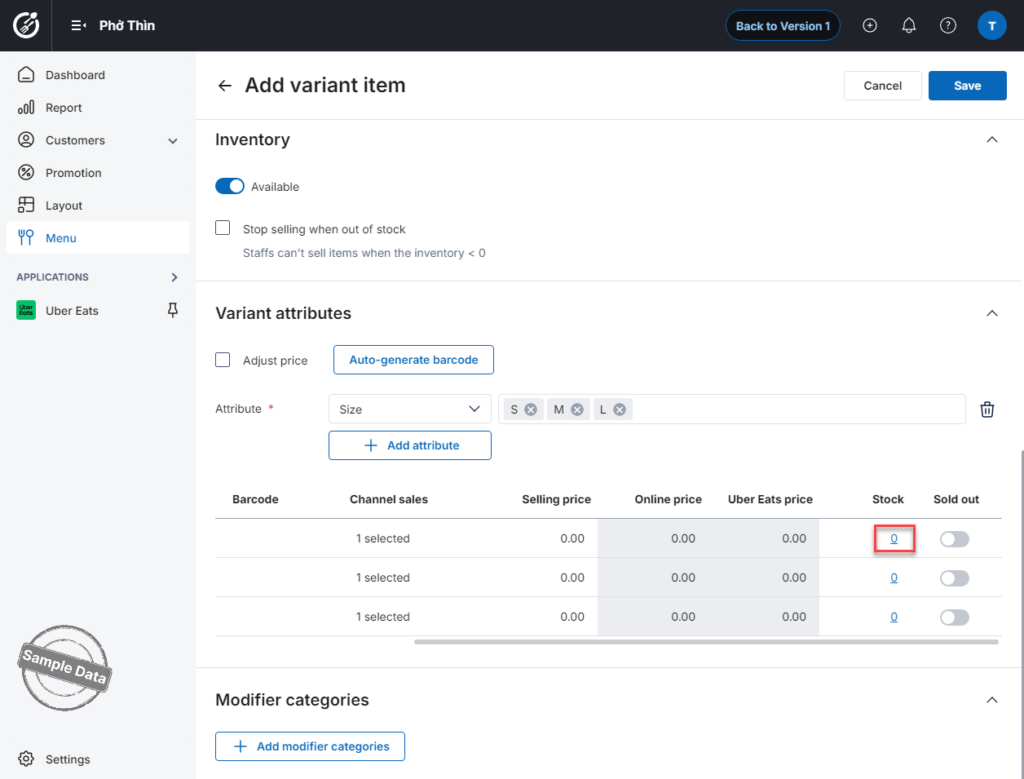
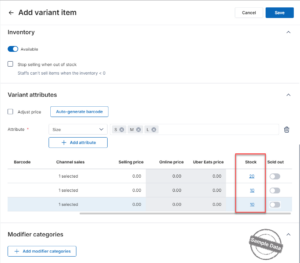
In the variant table, slide right and click the number in the Stock column for each variant.
You can choose one of the following options:
- Add stock – Increase current quantity
- Remove stock – Deduct quantity
- Set new – Replace with a new quantity
Select the appropriate option, enter the quantity, then click Save.
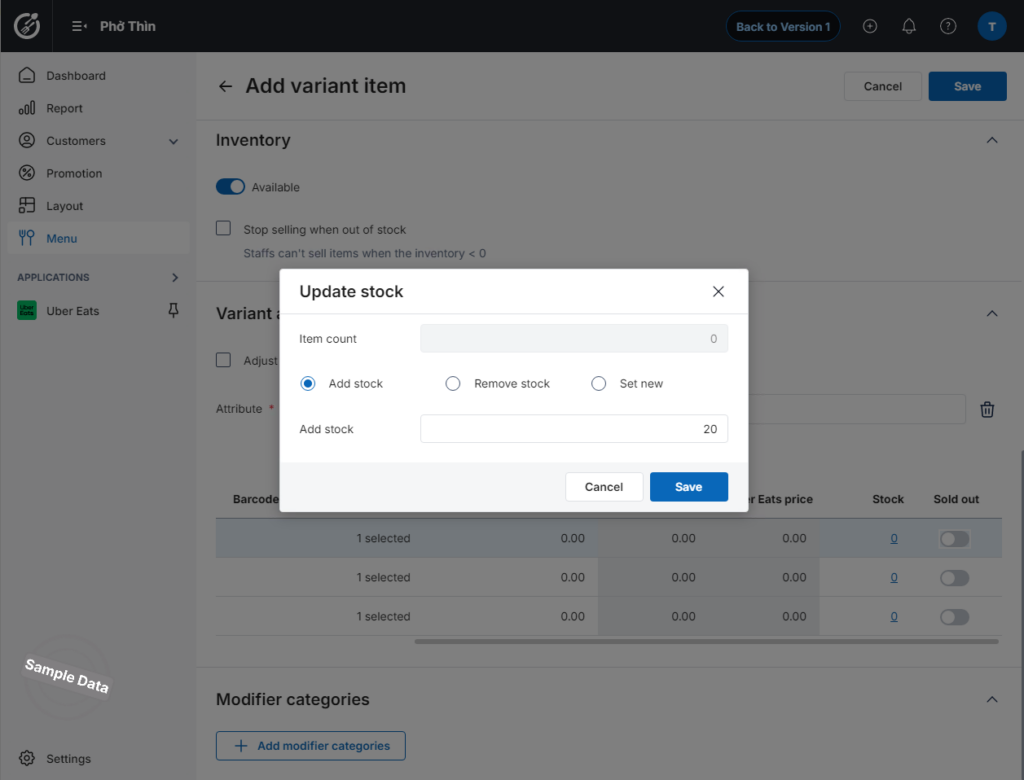
Repeat the same steps for other variants as needed.
3. Quick edit stock
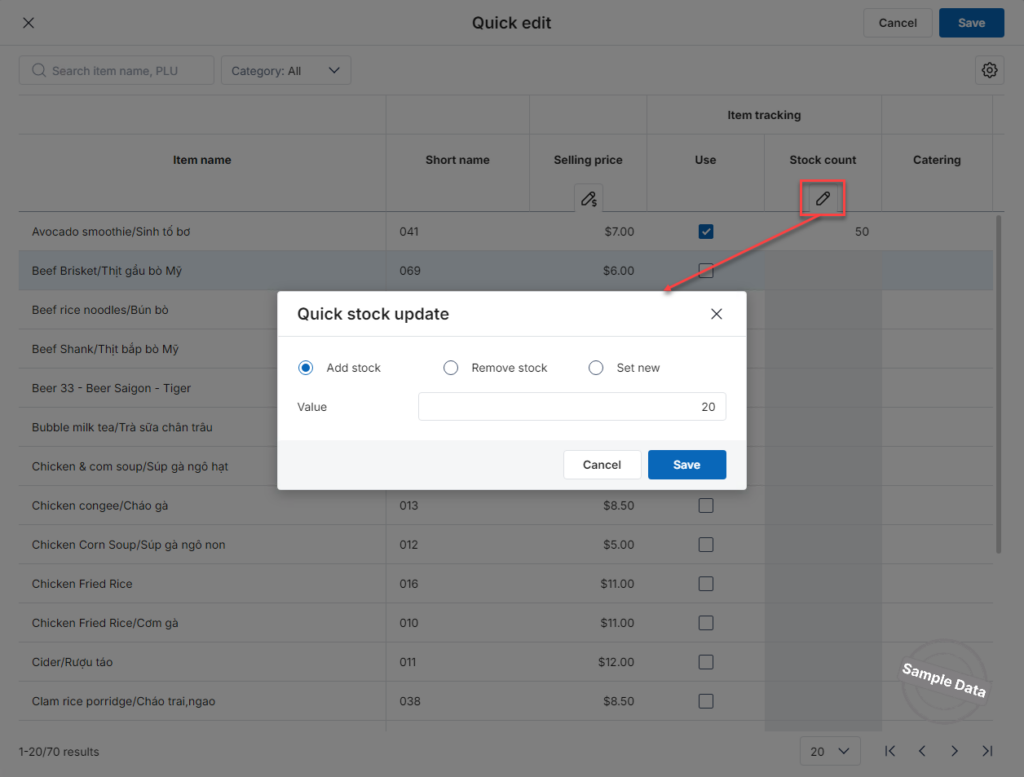
Managers can also quickly update quantities using the Quick Edit tab.
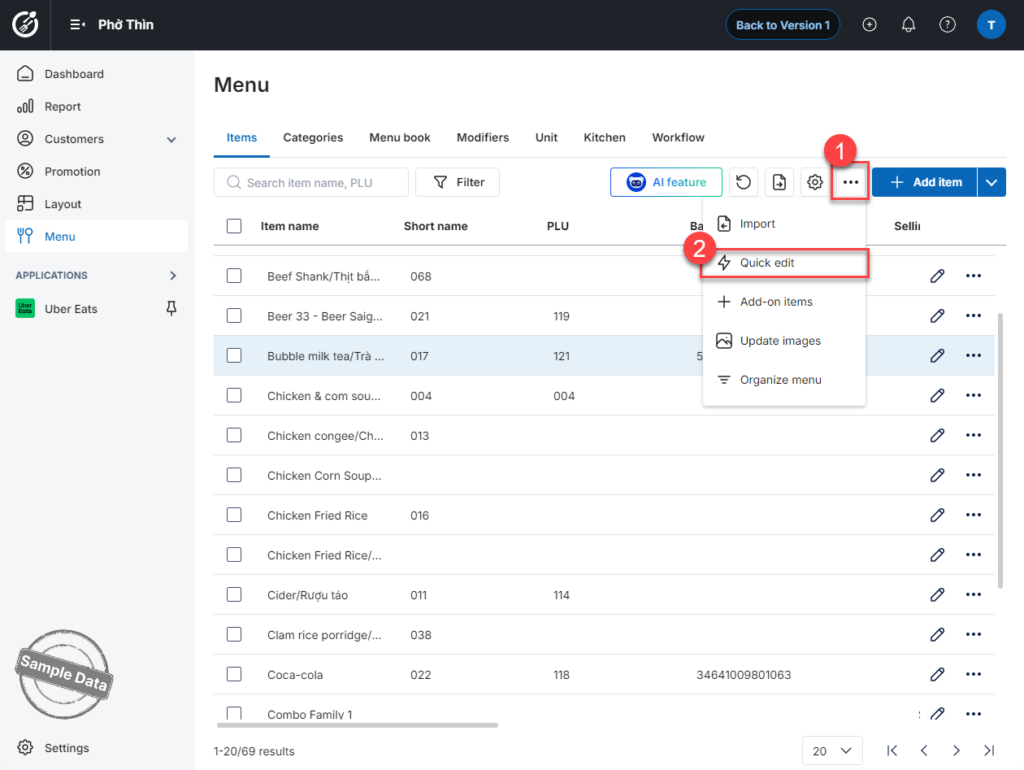
Click this icon  and enter stock quantity directly on the item list screen. Then click Save.
⚠ Note: Inventory tracking is currently not supported for individual items within combo components.
Have a nice day!


