

I. PURPOSE
The Restaurant Owner/Manager can assign login permissions on the management page and control device access for employees.
II. INSTRUCTION STEPS
1. Set up on the dashboard
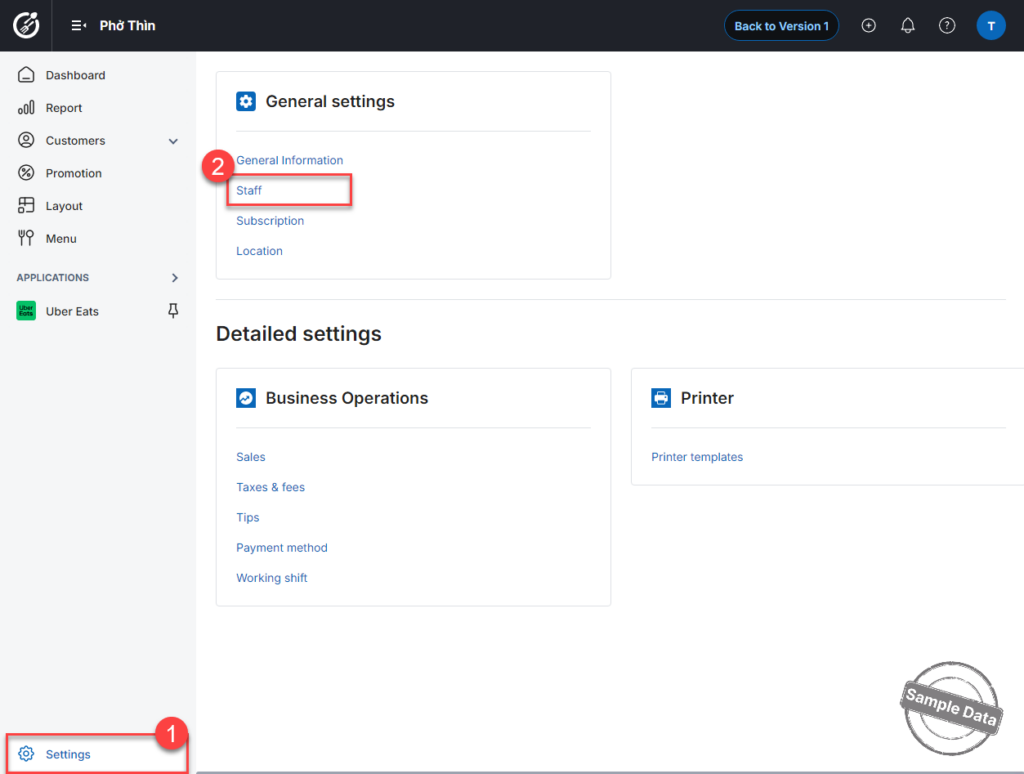
On the management page, go to Settings / Staff.
Select a staff and click Edit icon
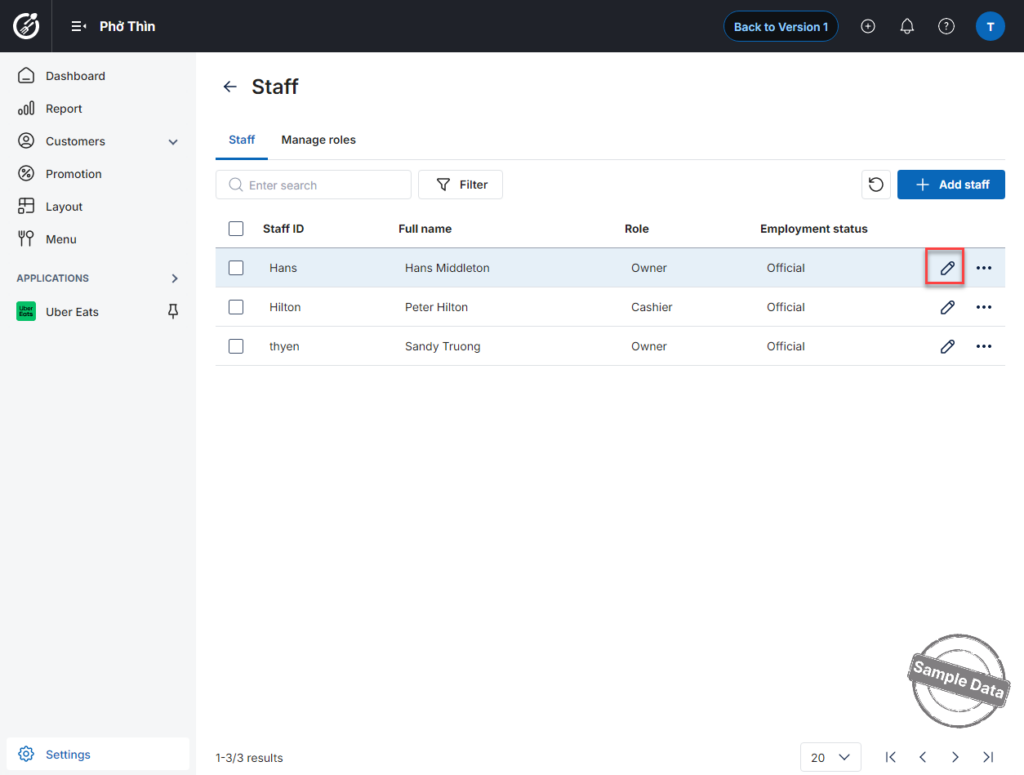
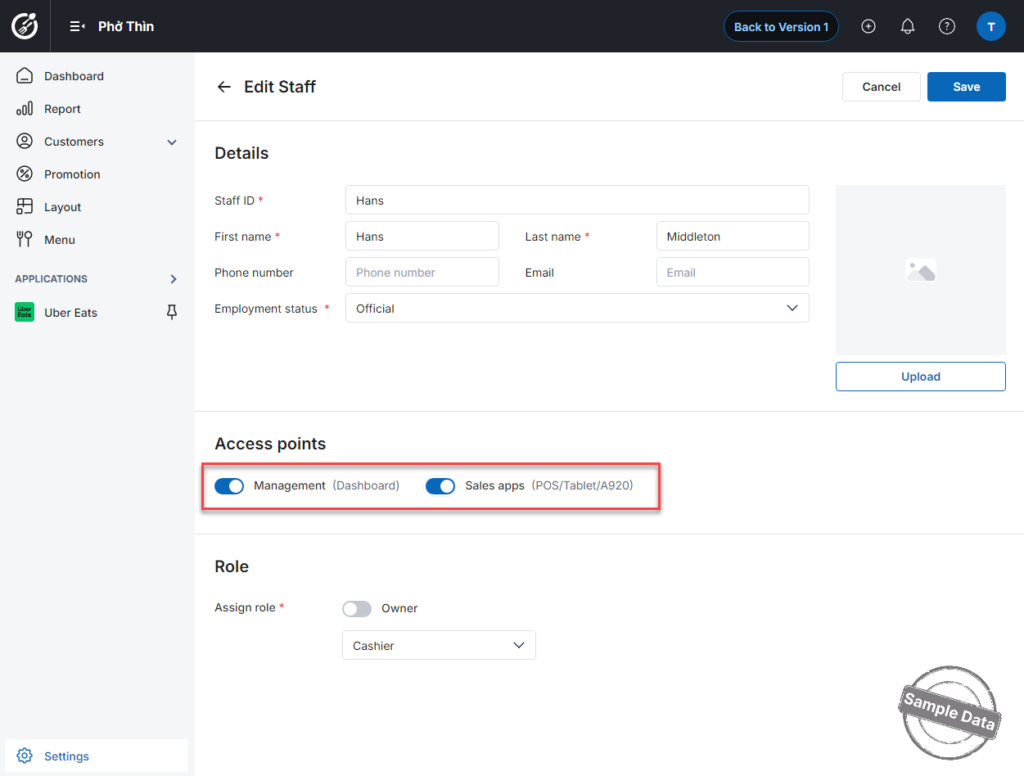
- If the employee is allowed to log in on the PC/POS sales device, turn on Sale apps (POS/Tablet/A920).
- If the employee is allowed to access and configure settings on the Management Dashboard, turn on Management (Dashboard).
Click Save to apply the settings.
2. Set Up on PC/POS
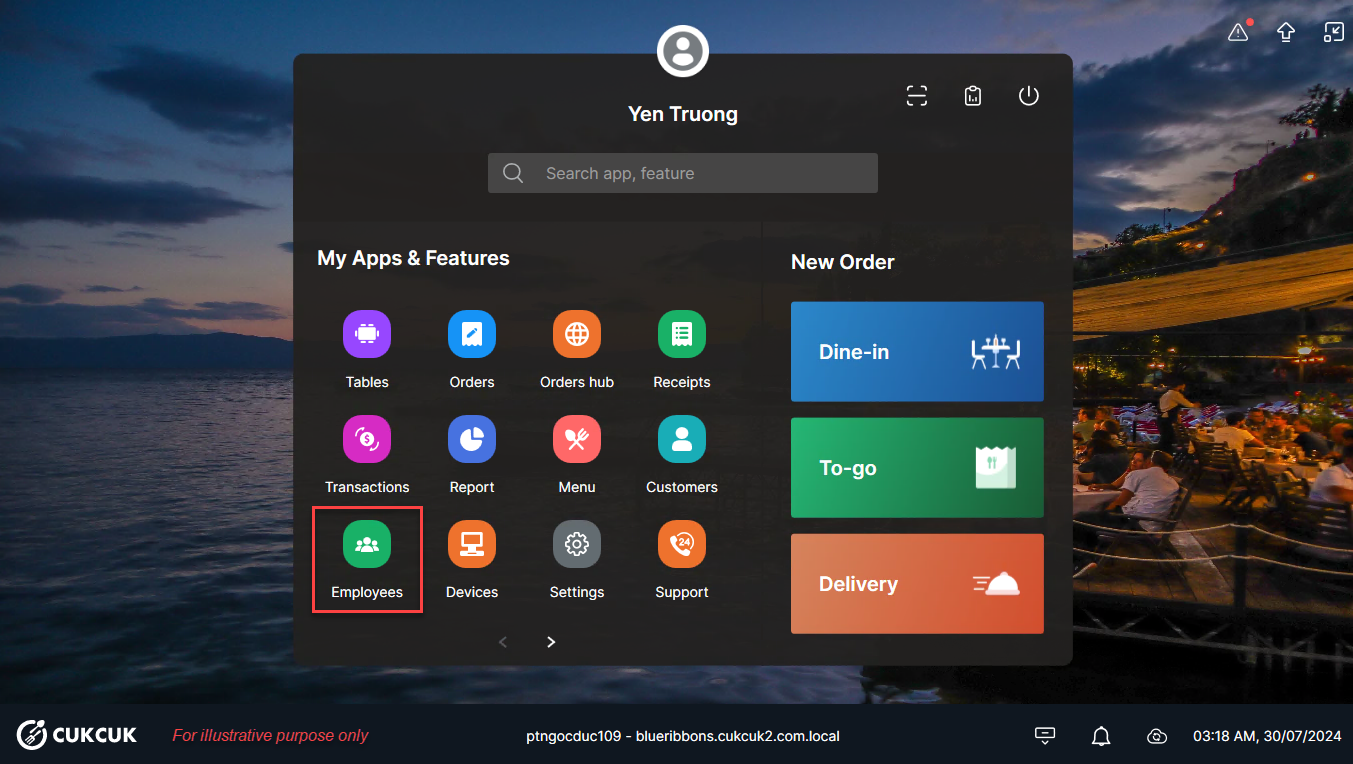
On the PC/POS, go to Employees.
Click Add employee.
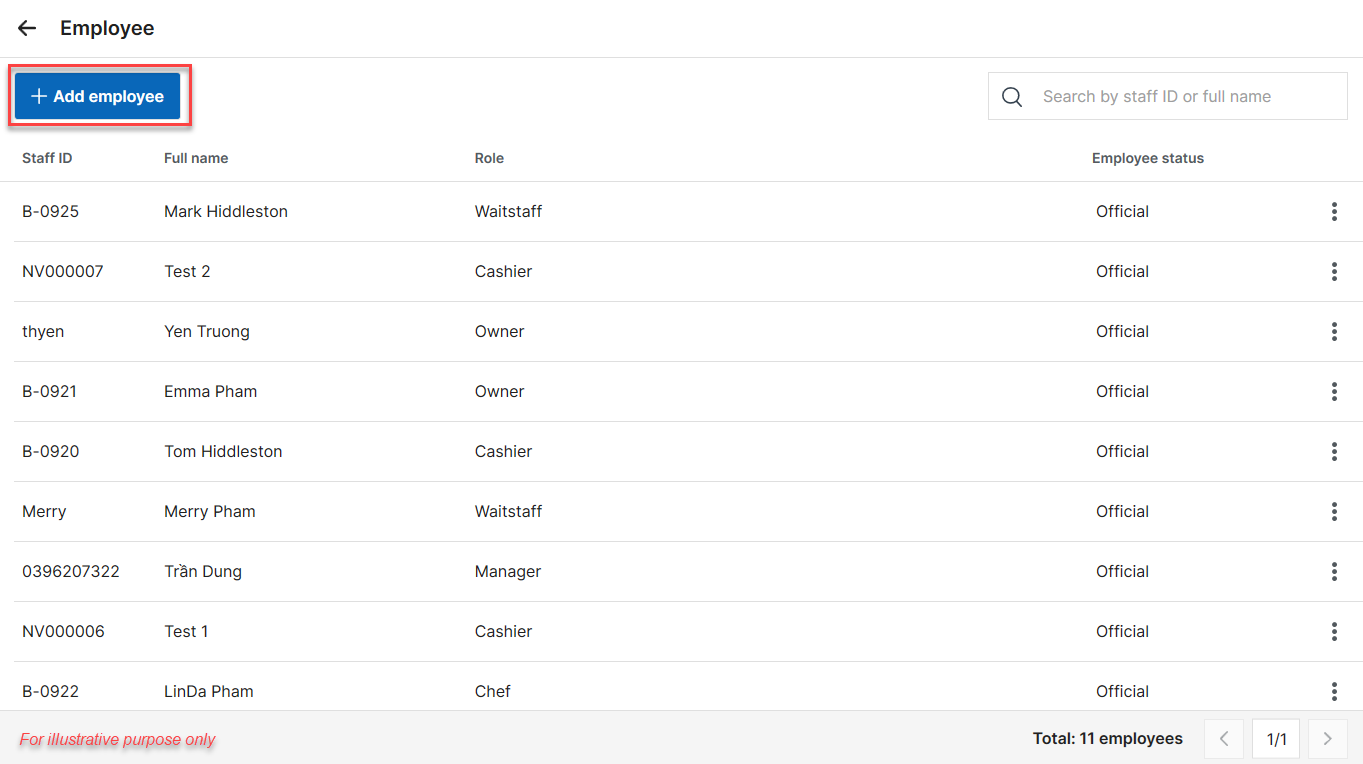
Enter the employee information.
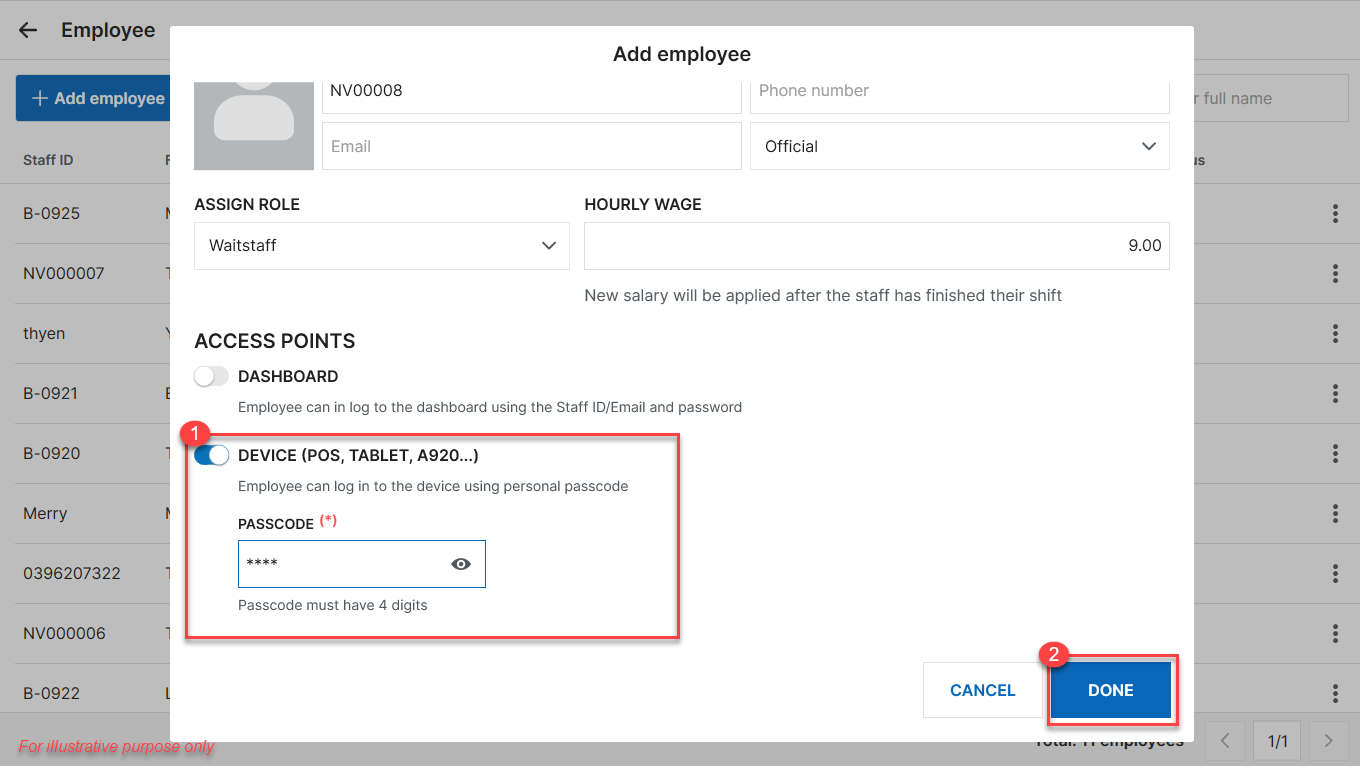
- If the employee is only allowed to log in on the PC/POS device, check Device and enter a passcode.
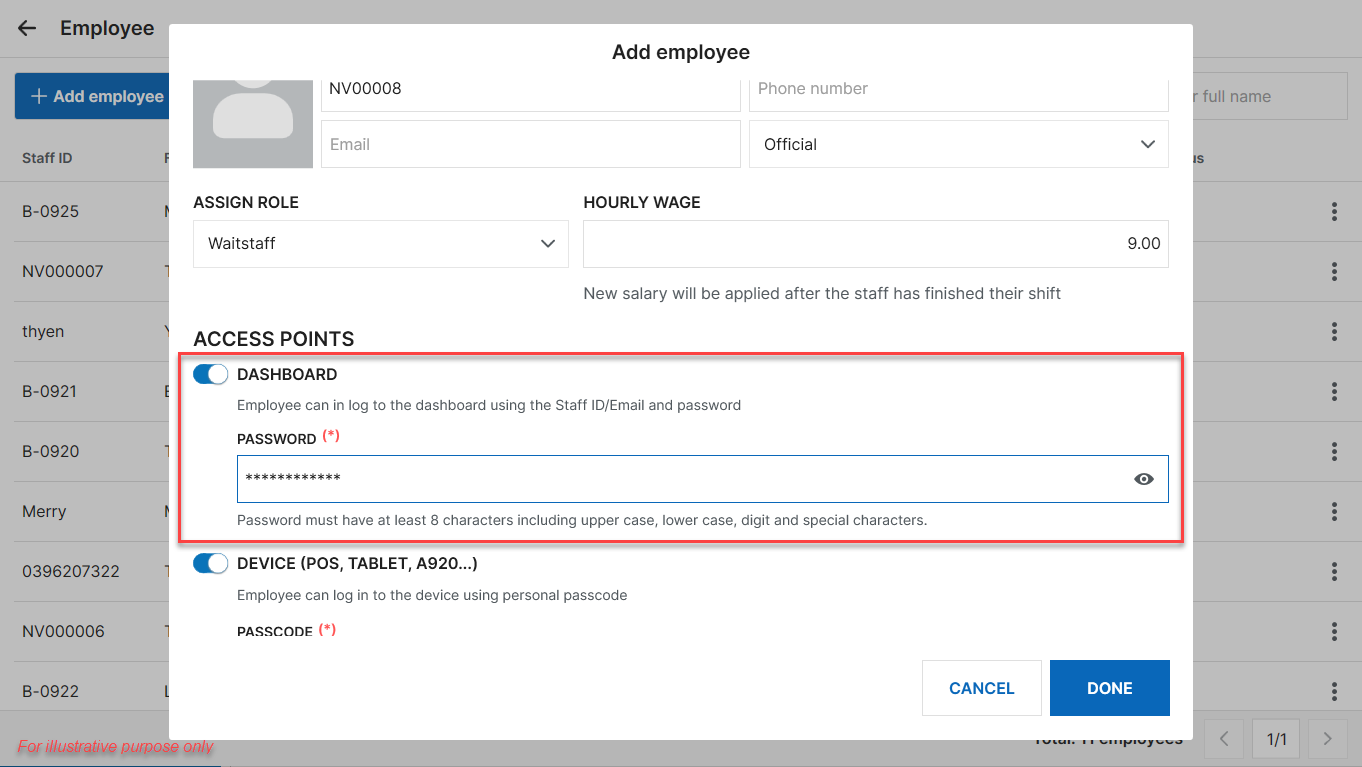
- If the employee is allowed to access the Management Dashboard, check Dashboard and enter a password.
Click Done to save the setup.
3. Change Passcode / Login Password
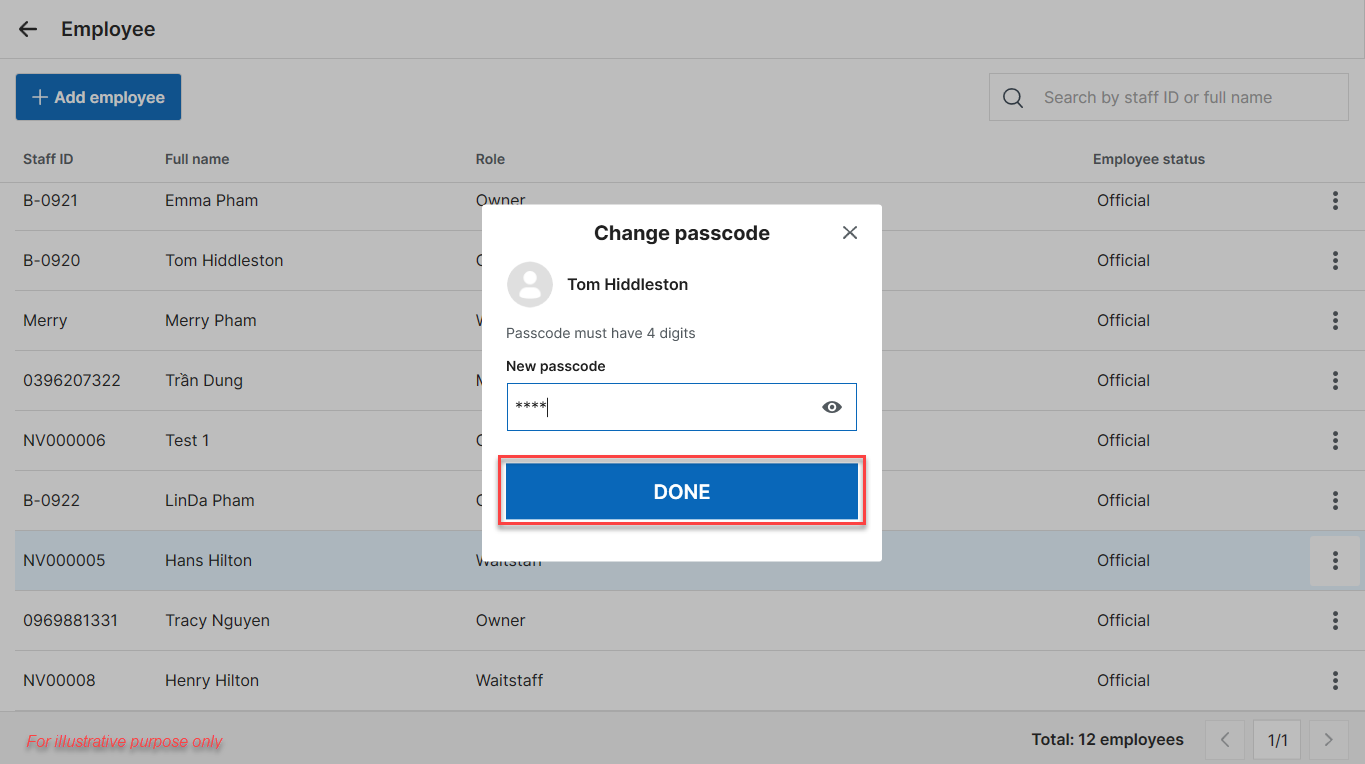
On the PC/POS, go to Employees. Select the employee whose passcode/password you want to change. Then, click Change passcode.
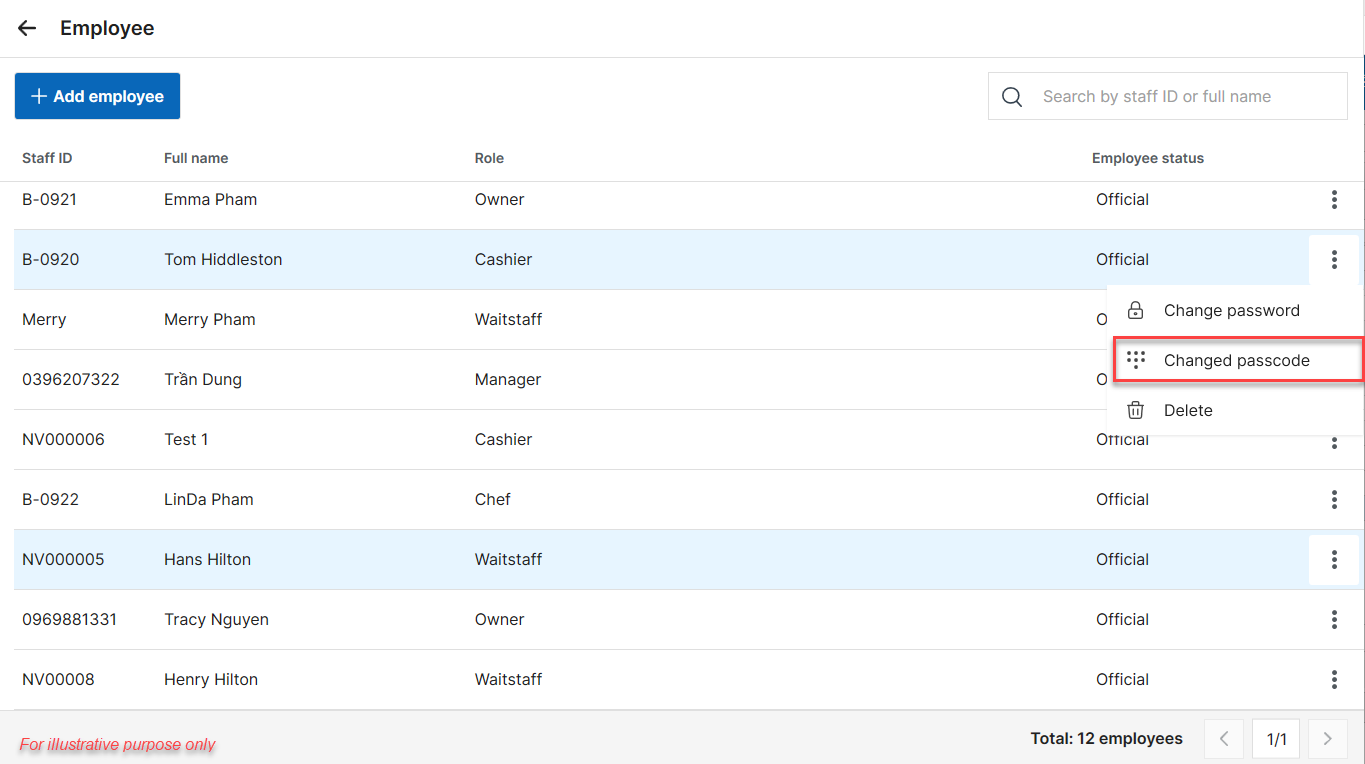
Enter the new passcode. Click Done to save.
📌 Note:
The Restaurant Owner/Manager can view the passcode/password again by clicking the corresponding icon 
Have a nice day!


