

I. PURPOSE
Helps restaurants set up and use the timekeeping feature to track and manage employees’ working hours:
- Set up timekeeping on the management web portal
- Employees clock in at the start and clock out at the end of each shift
II. WATCH TUTORIAL VIDEO
Watch the tutorial video here.
III. INSTRUCTION STEPS
1. Set up timekeeping on the management page
On the management page, click Timekeeping and select Active
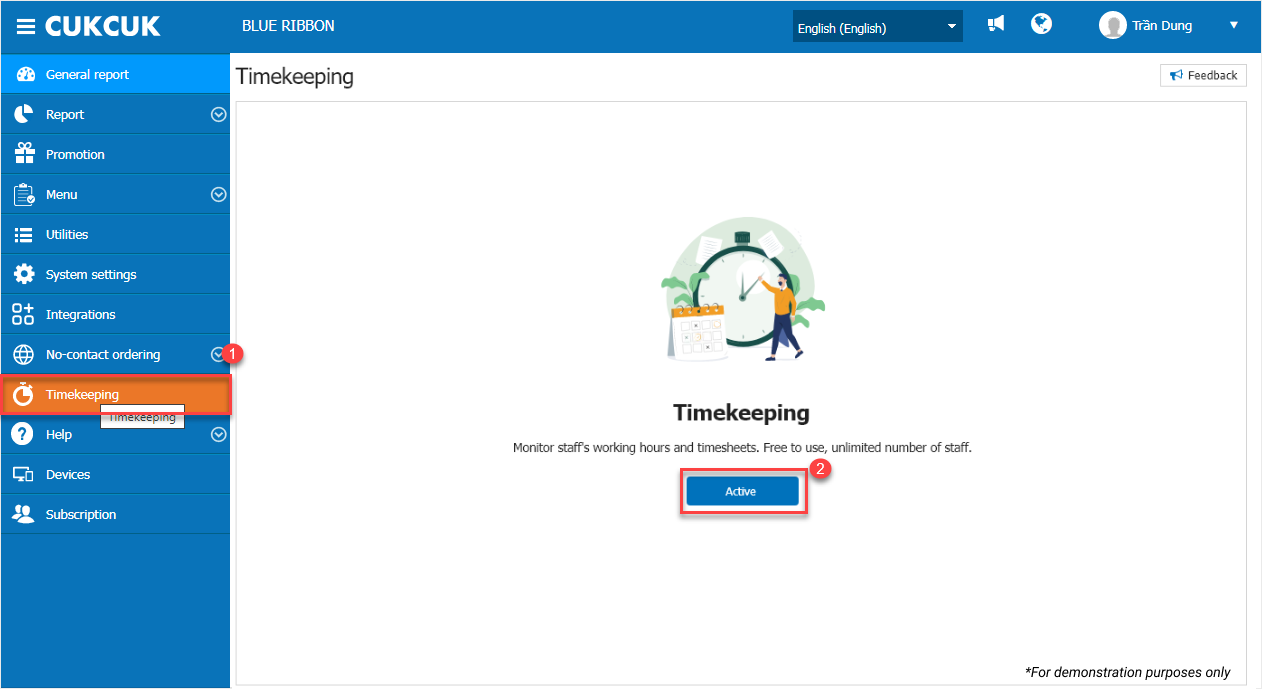
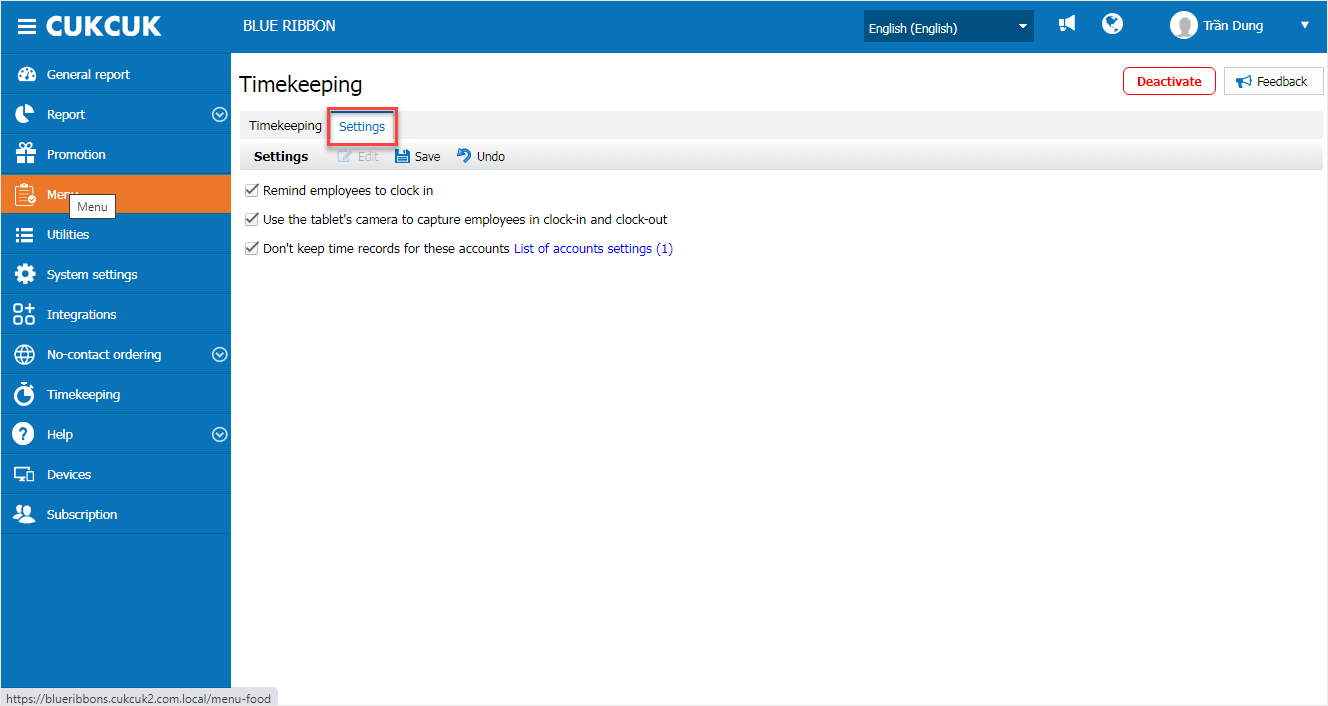
Go to the Settings tab. The program has some default settings. If your restaurant’s workflow differs, you can adjust these settings as needed. After making changes, click Save.
Go to Timekeeping tab to view the detailed timesheet for all employees.
- Select the date range, then click Load data.
- The system will display the total working hours and detailed clock-in/clock-out times per day for each employee, as shown in the image below.
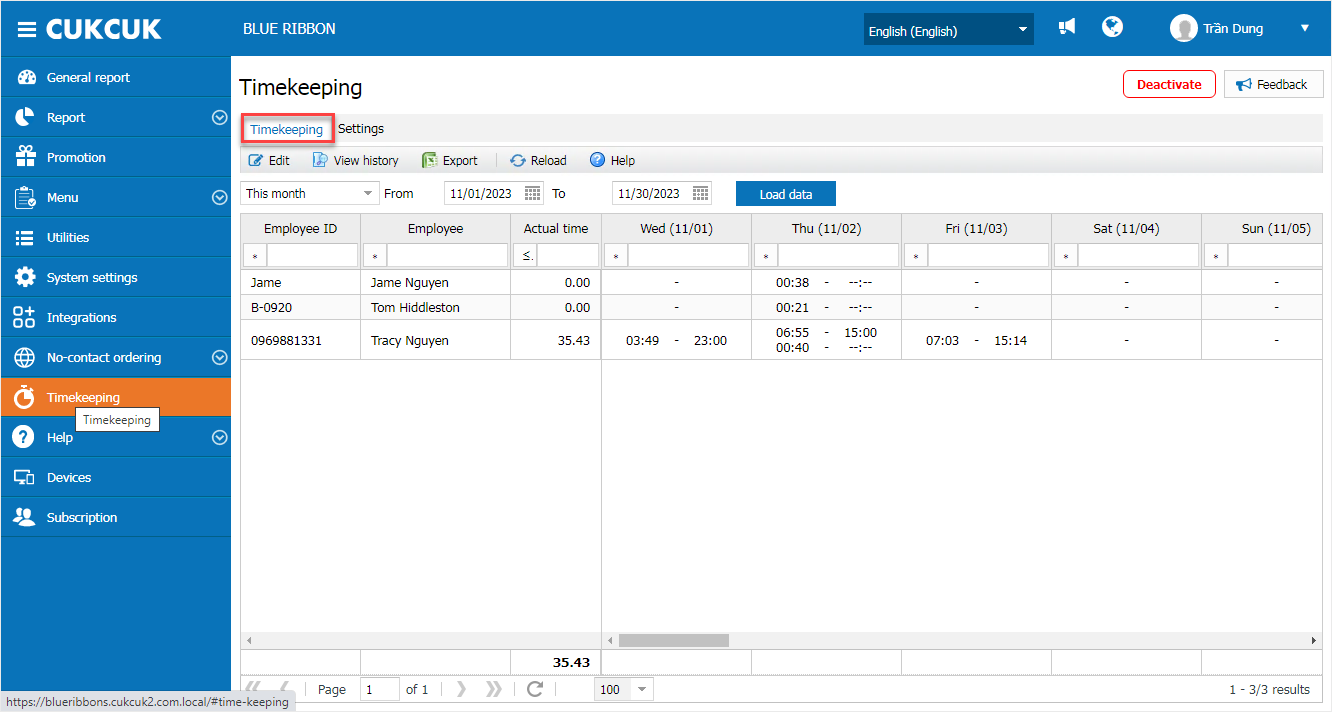
Lưu ý: Chỉ được phép xem bảng công tối đa của 1 tháng (31 ngày), trường hợp nhà hàng chọn khoảng thời gian lớn hơn trên màn hình hiển thị cảnh báo Your date range cannot exceed a month. Try a smaller range.
Note: You can view a timesheet for a maximum of 1 month (31 days). If you select a longer period, a warning will appear: “Your date range cannot exceed a month. Try a smaller range.”
Update data:
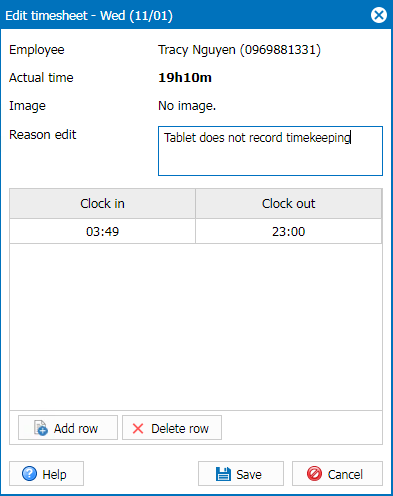
- Select the employee row you need to correct and click Edit to adjust clock times if needed.
- Click Add row/Delete row to add or remove clock in/out times.
- Enter the reason for editing clock in/out times.
Then, click Save.
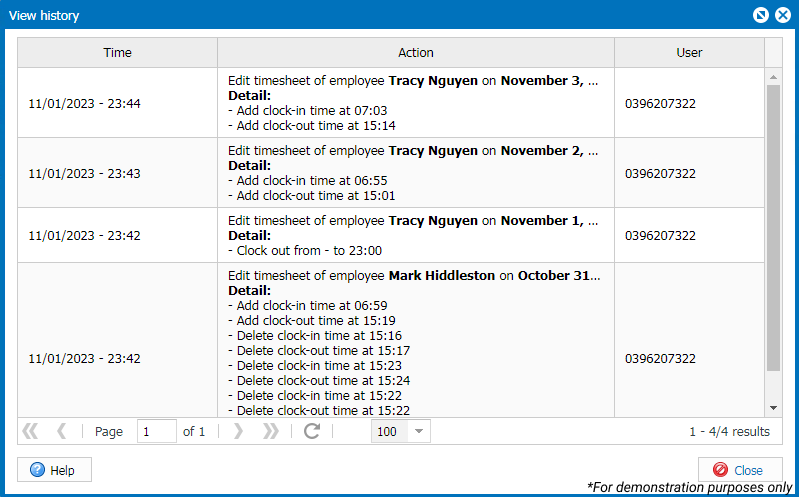
Click the icon  to view the timesheet edit history of all employees in the restaurant.
2. Employees clock in at the start and clock out at the end of shift
2.1. Clock-in
To clock in, employees should:
- Log in to the PC sales software.
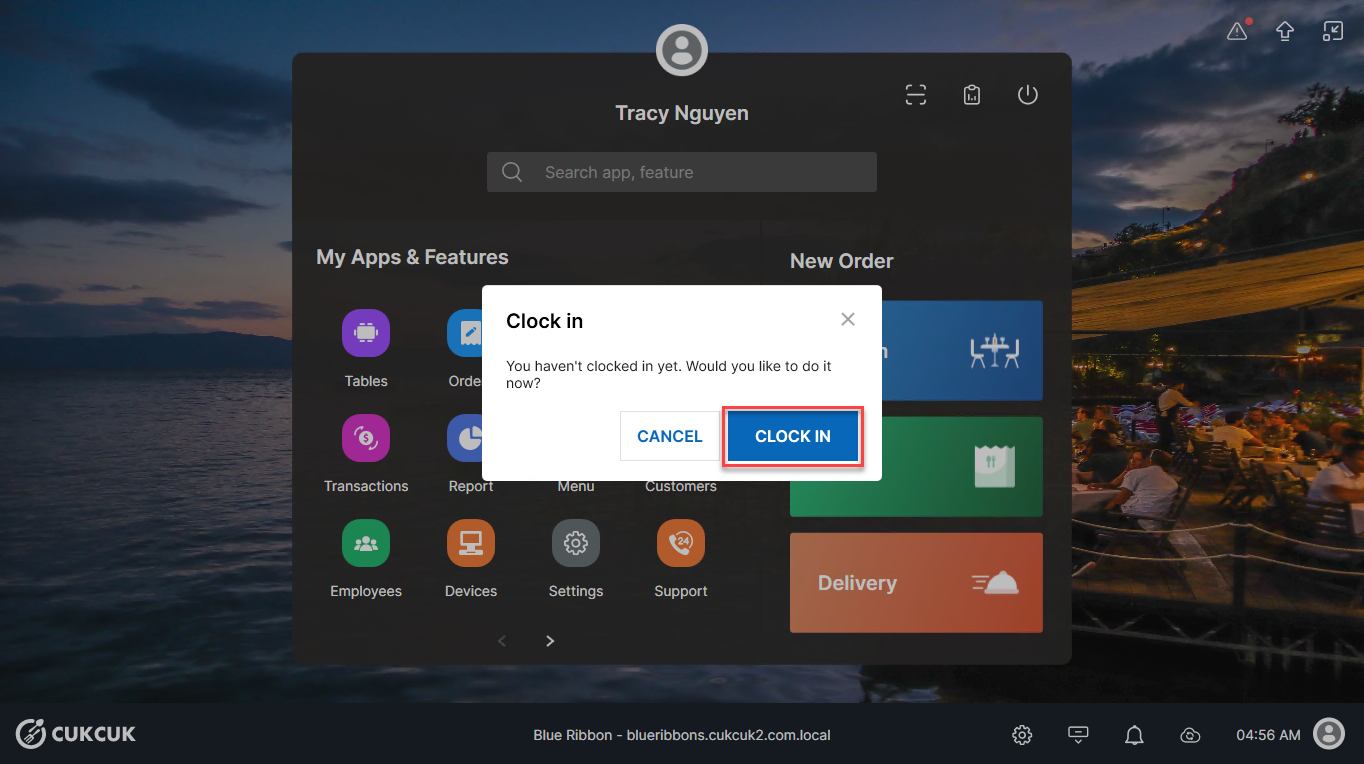
Case 1: If the restaurant has enabled Remind employees to clock in in Timekeeping/Settings on the management page:
- A clock-in notification will appear. Click Clock in to confirm your attendance.
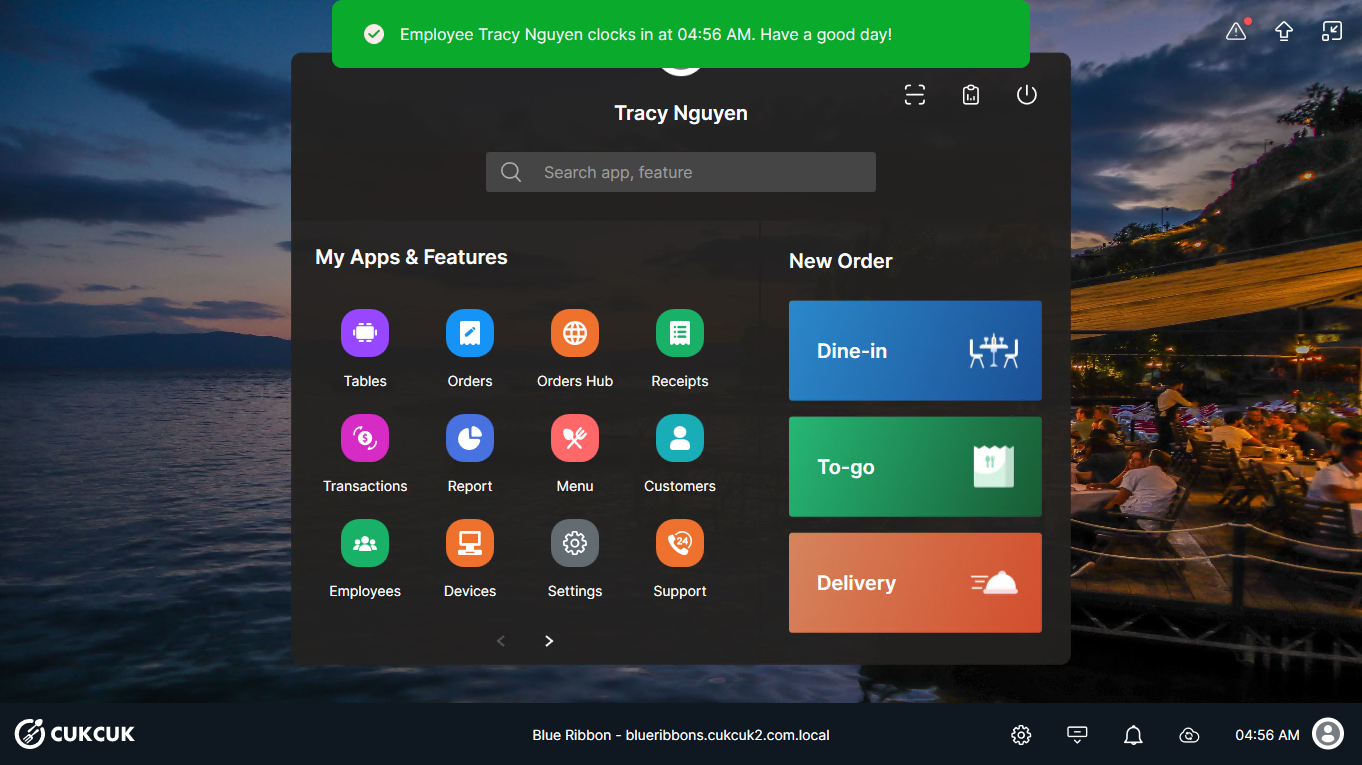
– This message will appear.
Case 2: If the reminder setting is not enabled:
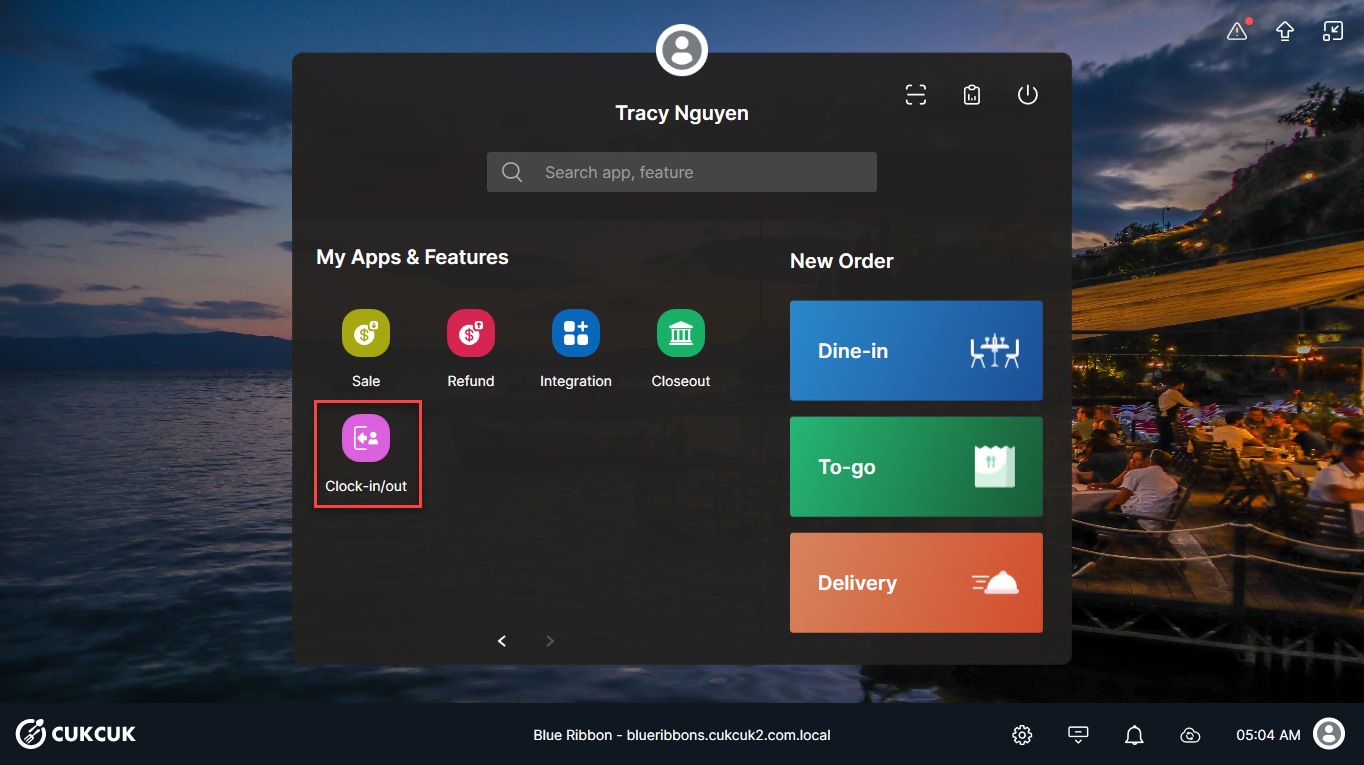
- On the main screen, click Clock-in/out.
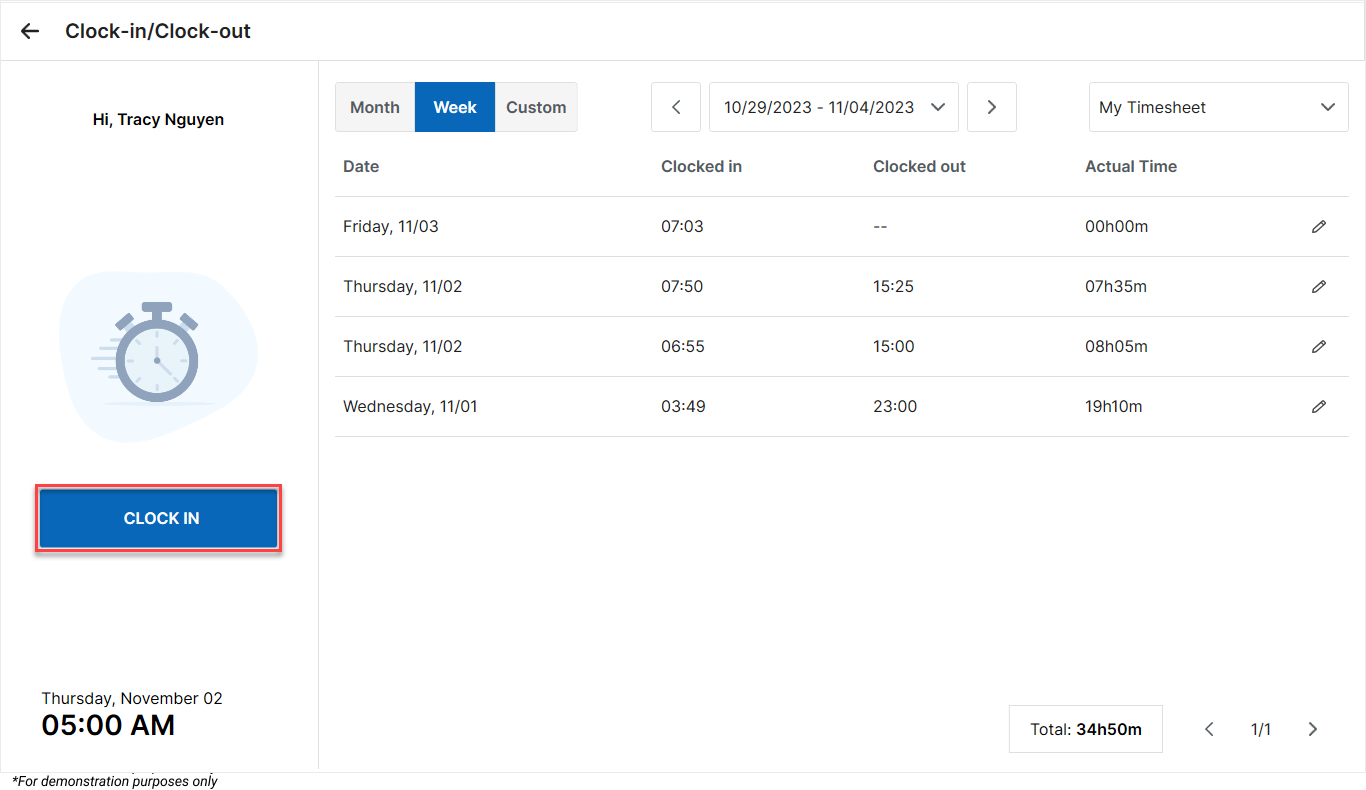
- On the Clock-in/Clock-out screen, click Clock in to confirm.
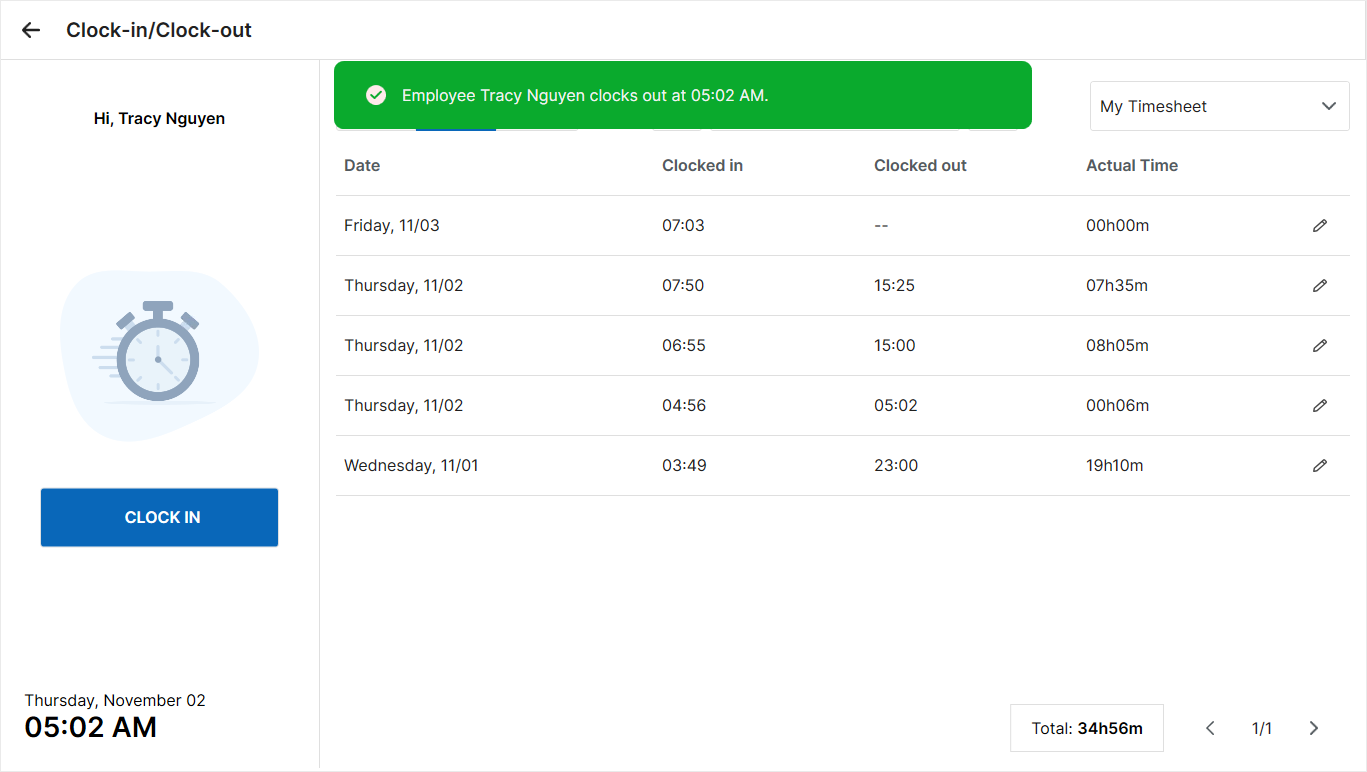
- The screen will display a “successful clock-in” message.
2.2. Clock-out
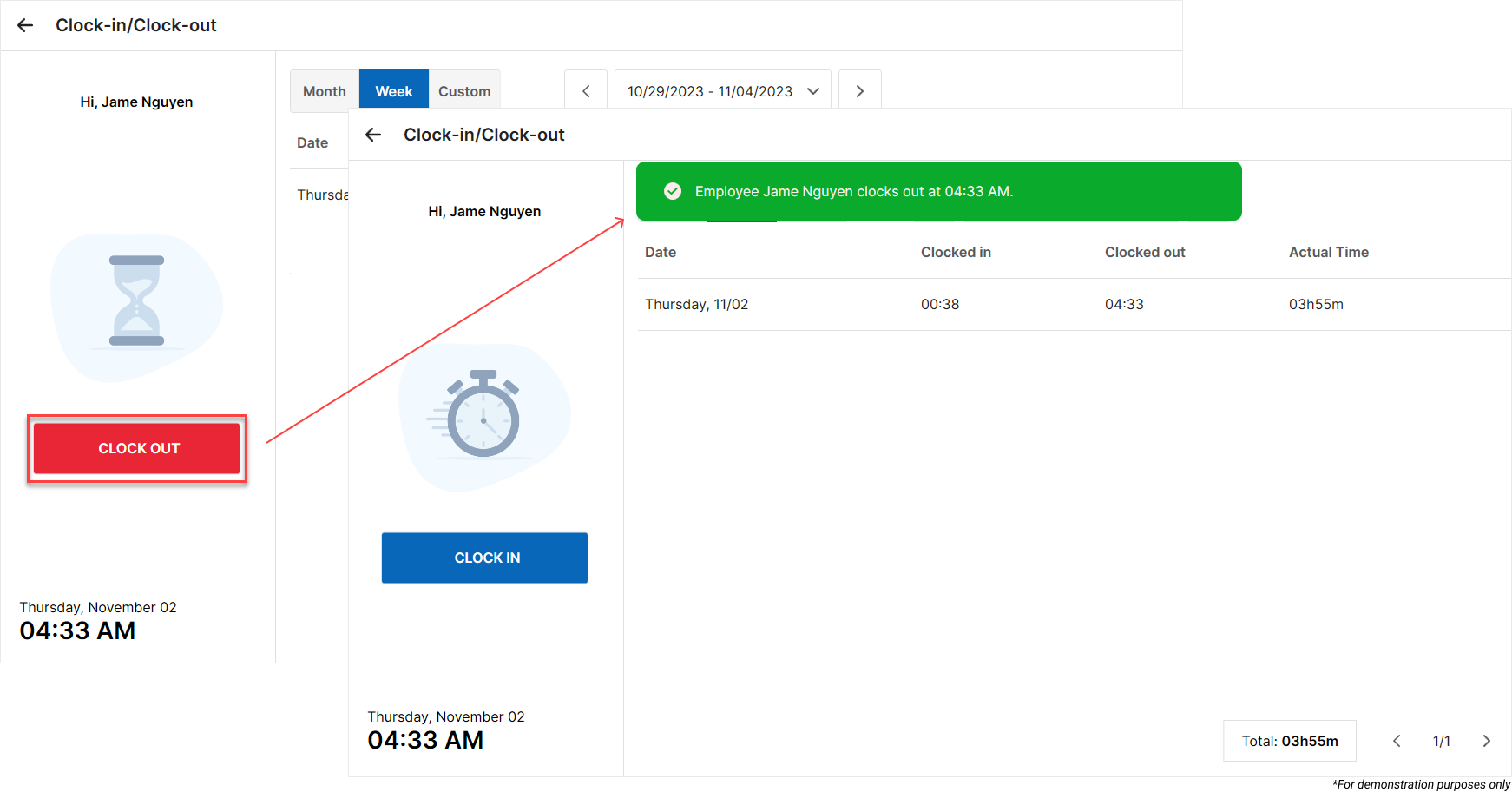
At the end of the shift, employees should repeat the above steps to Clock-out.
2.3. Edit Timekeeping Records
Employees with the Timekeeping permission in Role Management can:
- View their own clock-in history and edit time records for themselves or other employees.
- Edit their own or other employees’ clock-in/out times.
Click the icon  to make adjustments if you haven’t clocked out or need to correct a time entry.
Then, click Done to save your changes.
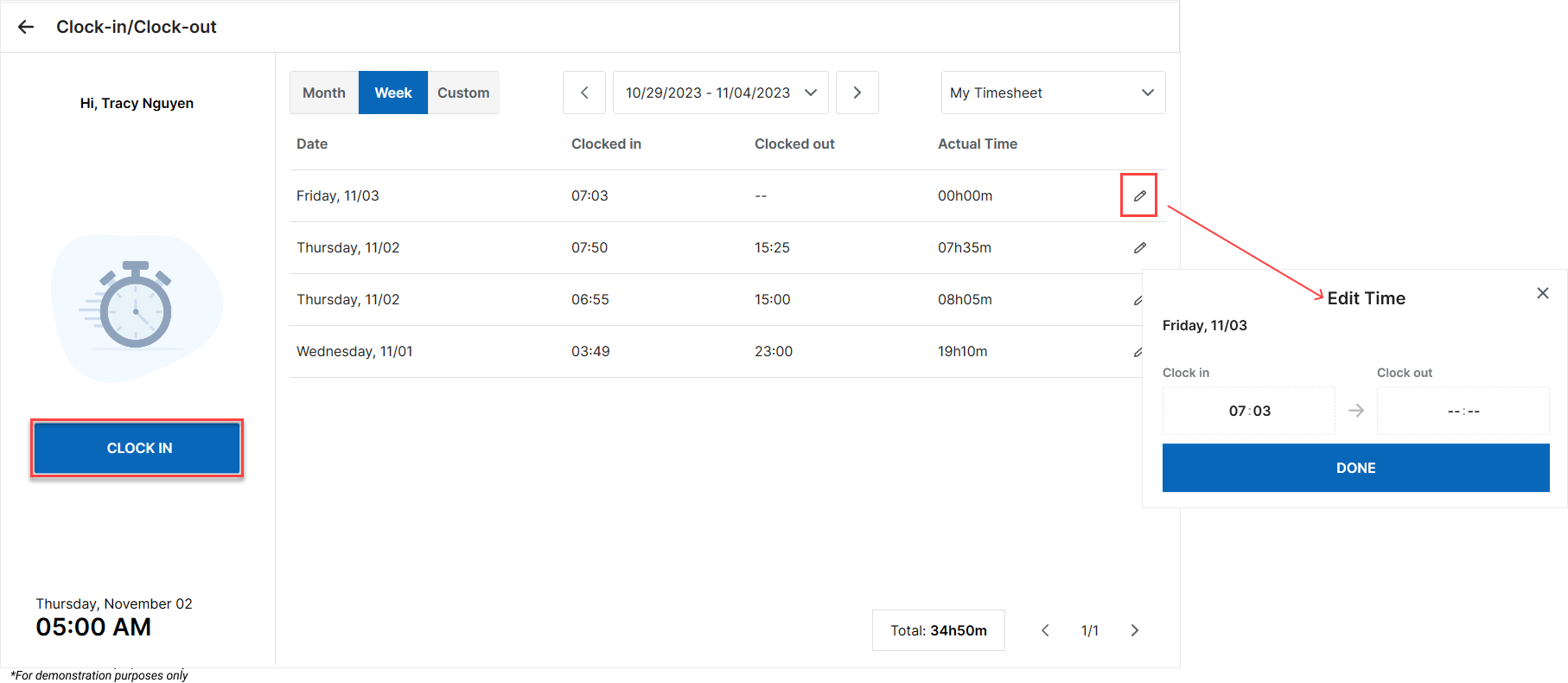
Additionally, CUKCUK supports timekeeping for employees on the Tablet App—the steps are the same as on the PC sales software.
IV. NOTES
| Setting Description | Details |
|---|---|
| 1. Remind employees to clock in | After logging in to the PC sales software, a notification appears allowing employees to clock in for attendance. |
| 2. Use the tablet’s camera to capture employees in clock-in and clock-out | Allows restaurants to use the tablet camera to record employees’ timekeeping images when logging into the sales app. |
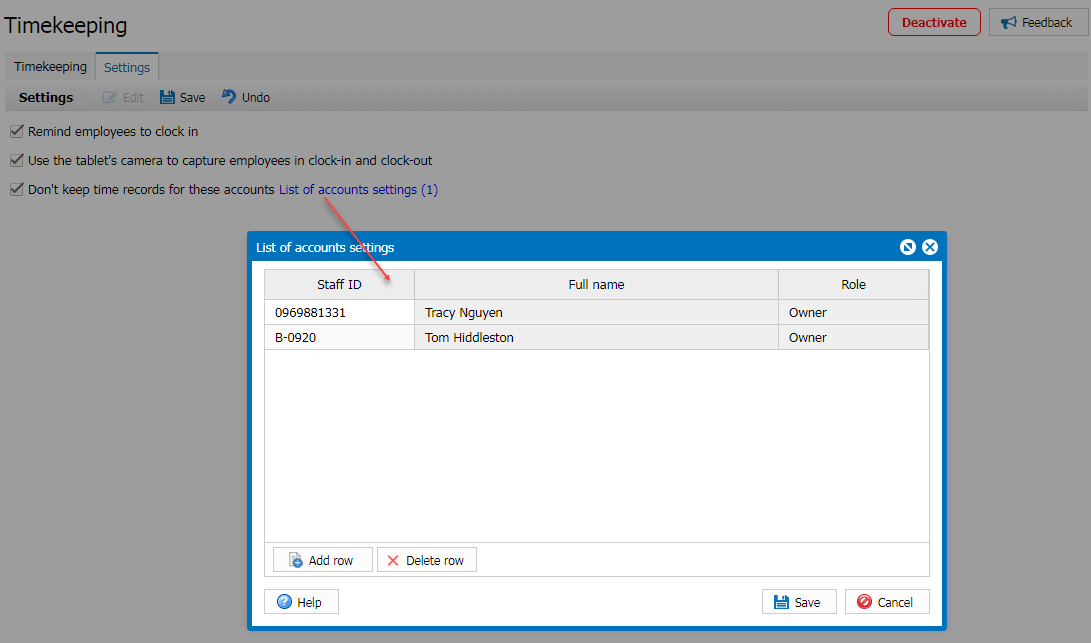
| 3. Don’t keep time records for these accounts / List of account settings | Allows restaurants to select employee accounts that do not need timekeeping when logging into the sales software/app.
|
Have a nice day!


