

I. Purpose
The manager can quickly and efficiently set up work shifts and immediately view the total number of scheduled hours for each employee.
II. Instructions
On the management page, go to HR Management / Timekeeping and select Activate.
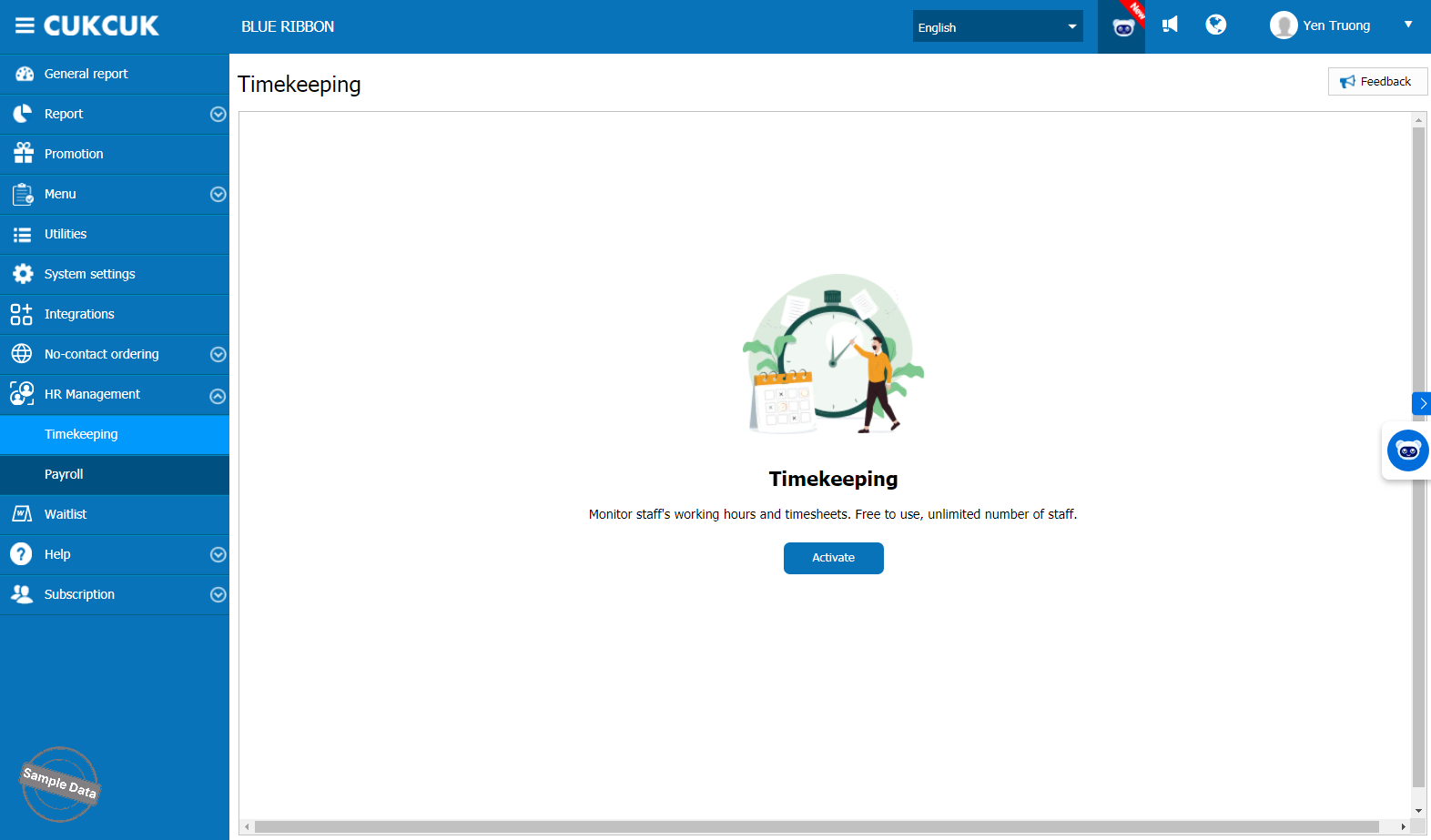
Then select the type of timekeeping management applied at your restaurant as described below:
1. Set up Timekeeping management method
- If your restaurant manages by actual working hours, select Manage schedules by actual clock-in/out.
- If your restaurant manages by assigned shifts, select Manage schedules by shift.
- Then, click Accept to apply.

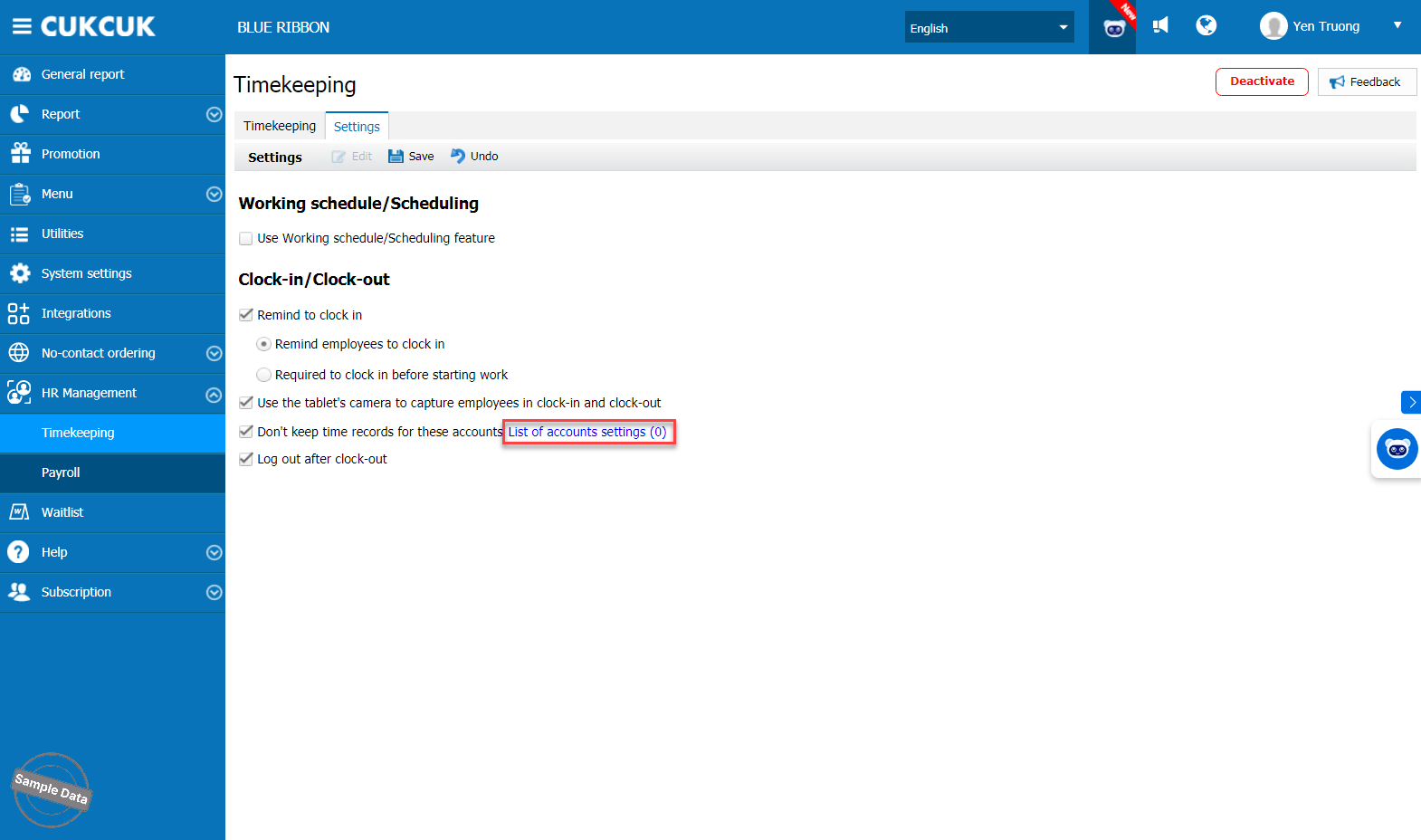
Click Edit in the Settings tab. The program has some default settings checked. You may uncheck any options that do not apply. If you need to specify employees whose attendance should not be tracked, click List of account settings under Don’t keep time records for these accounts.
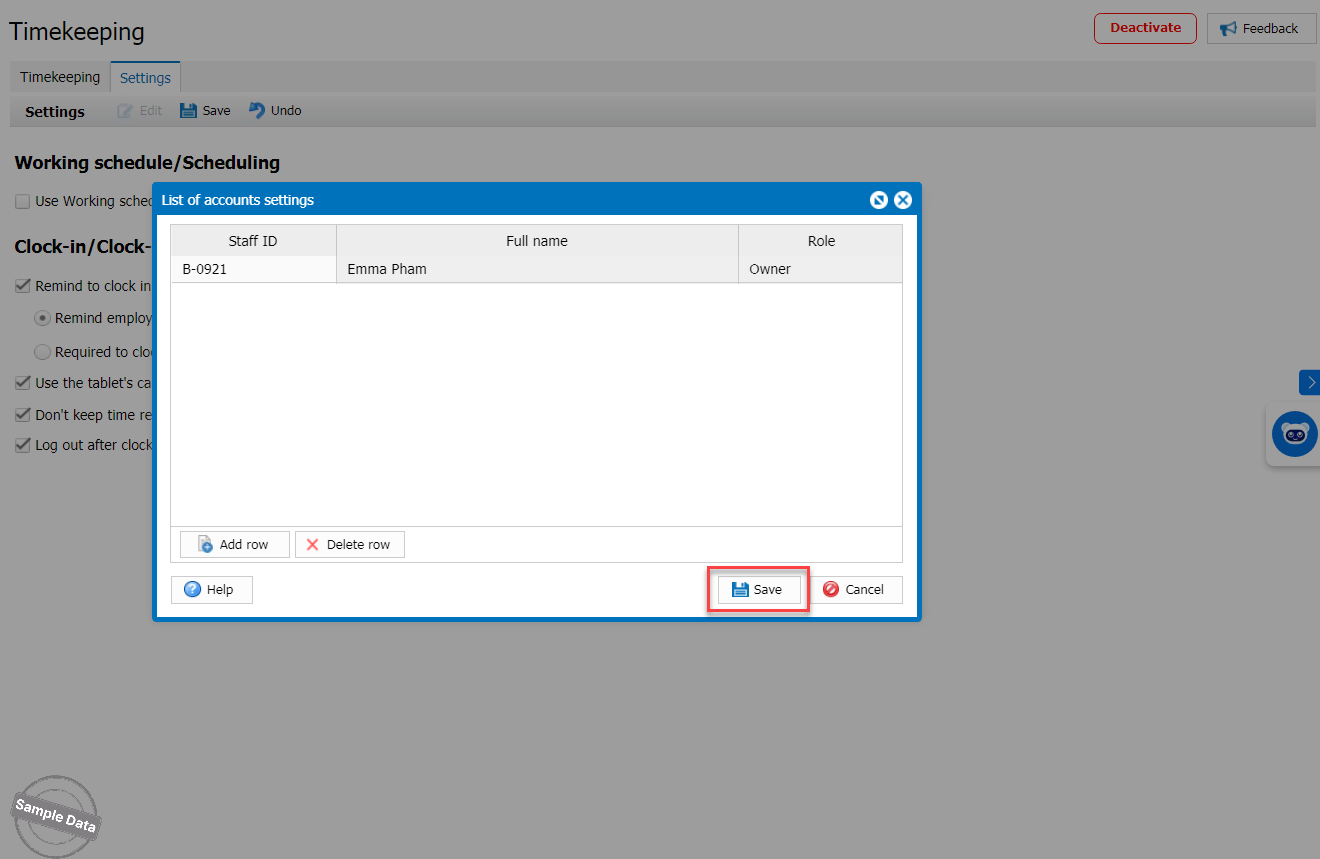
Click Add row and select employees to apply the settings. Click Save to store changes.
If your restaurant uses the Working schedule/Scheduling feature, tick Use Working schedule/Scheduling feature. Here, you can set the number of minutes employees can clock in early, clock out late, arrive late, or leave early.
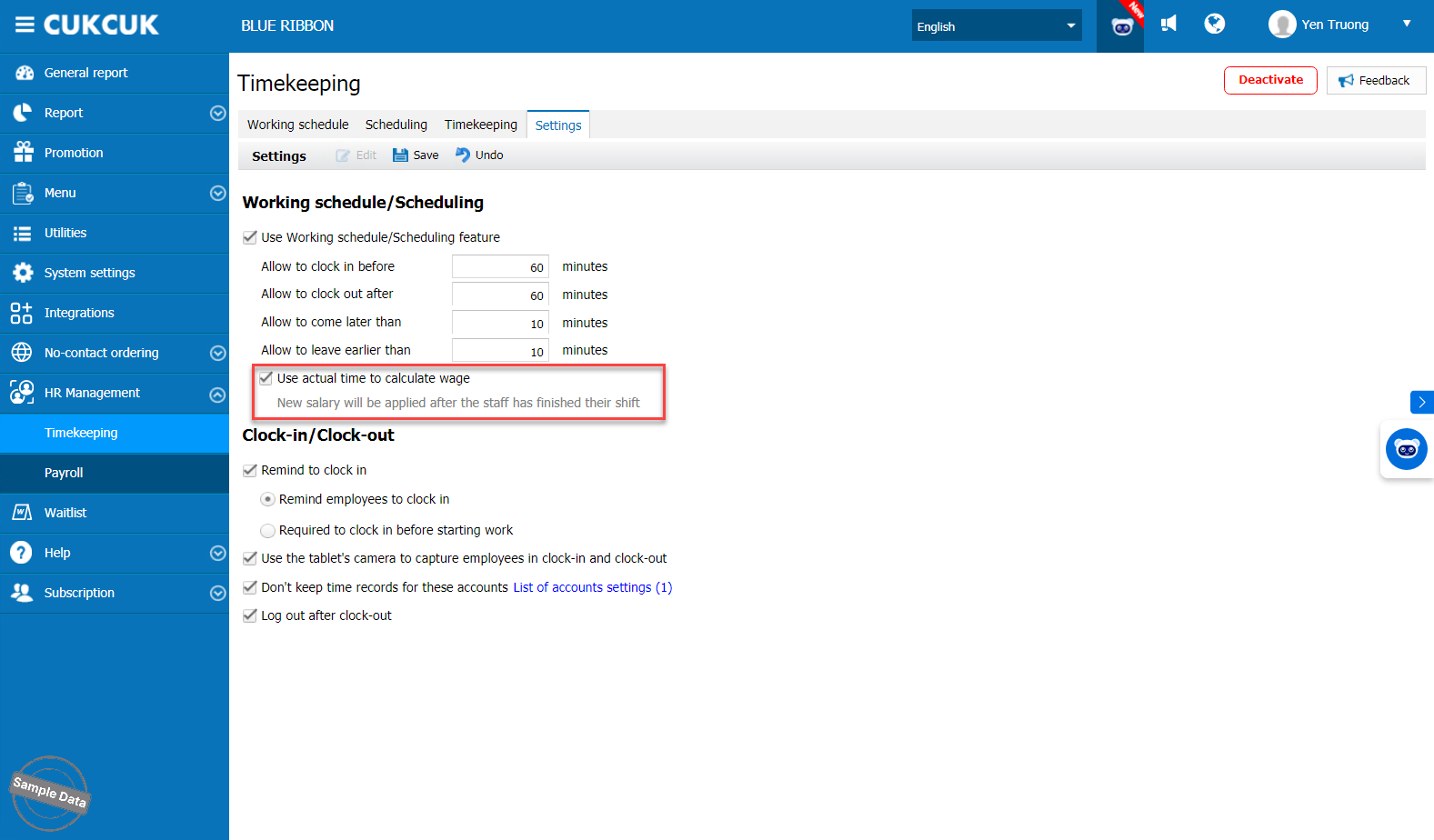
If you use actual attendance time for payroll calculation, tick Use actual time to calculate wage.
Click Save to save settings.
2. Create Working Schedules
Before assigning shifts, you must create work schedules. In the Working schedule tab, click Add. Enter the schedule name, select the time period, enter break times (if any), and choose a color for easy recognition on the timesheet. Click Save to store the schedule.
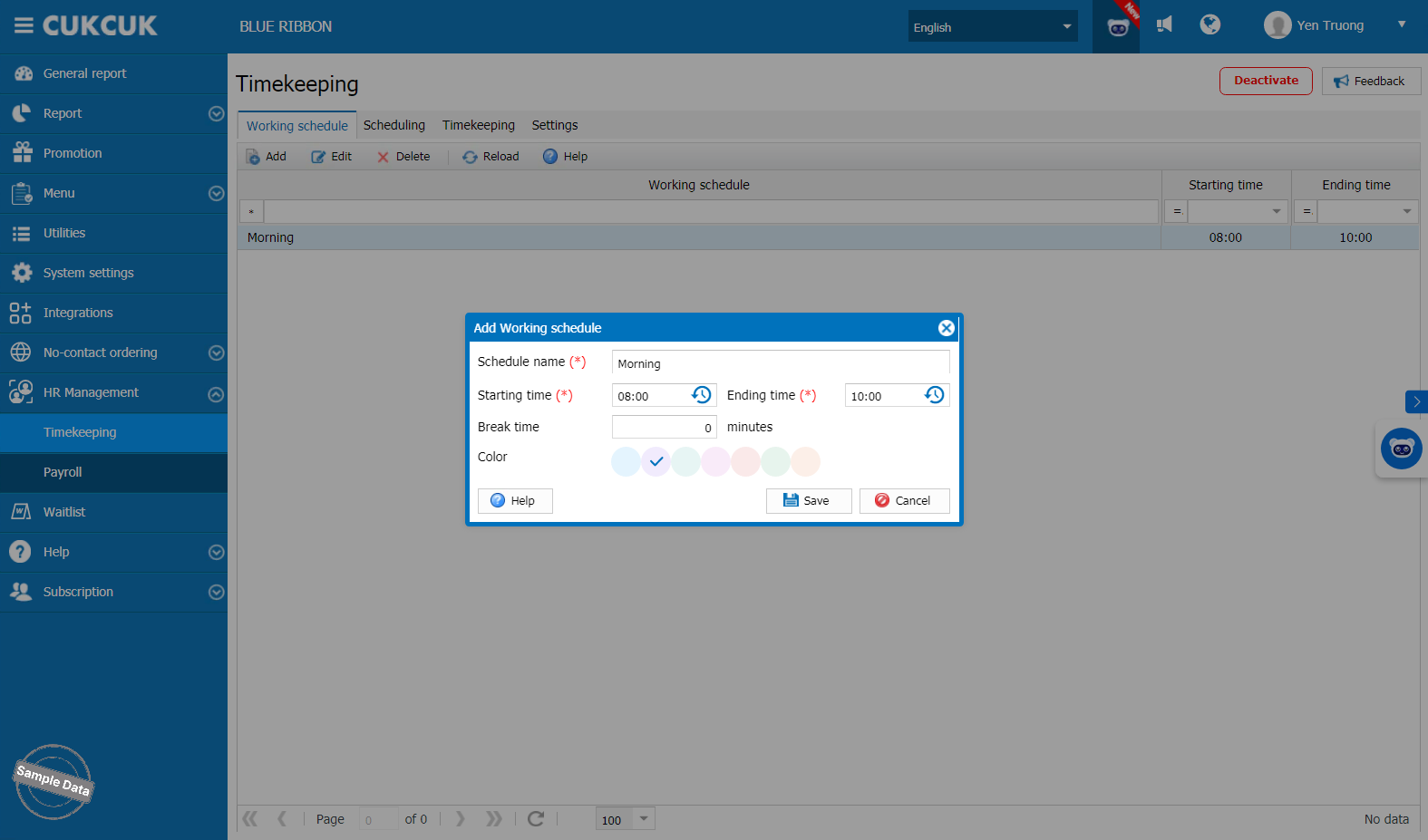
Repeat this step to create additional schedules as needed.
3. Assign Work Shifts
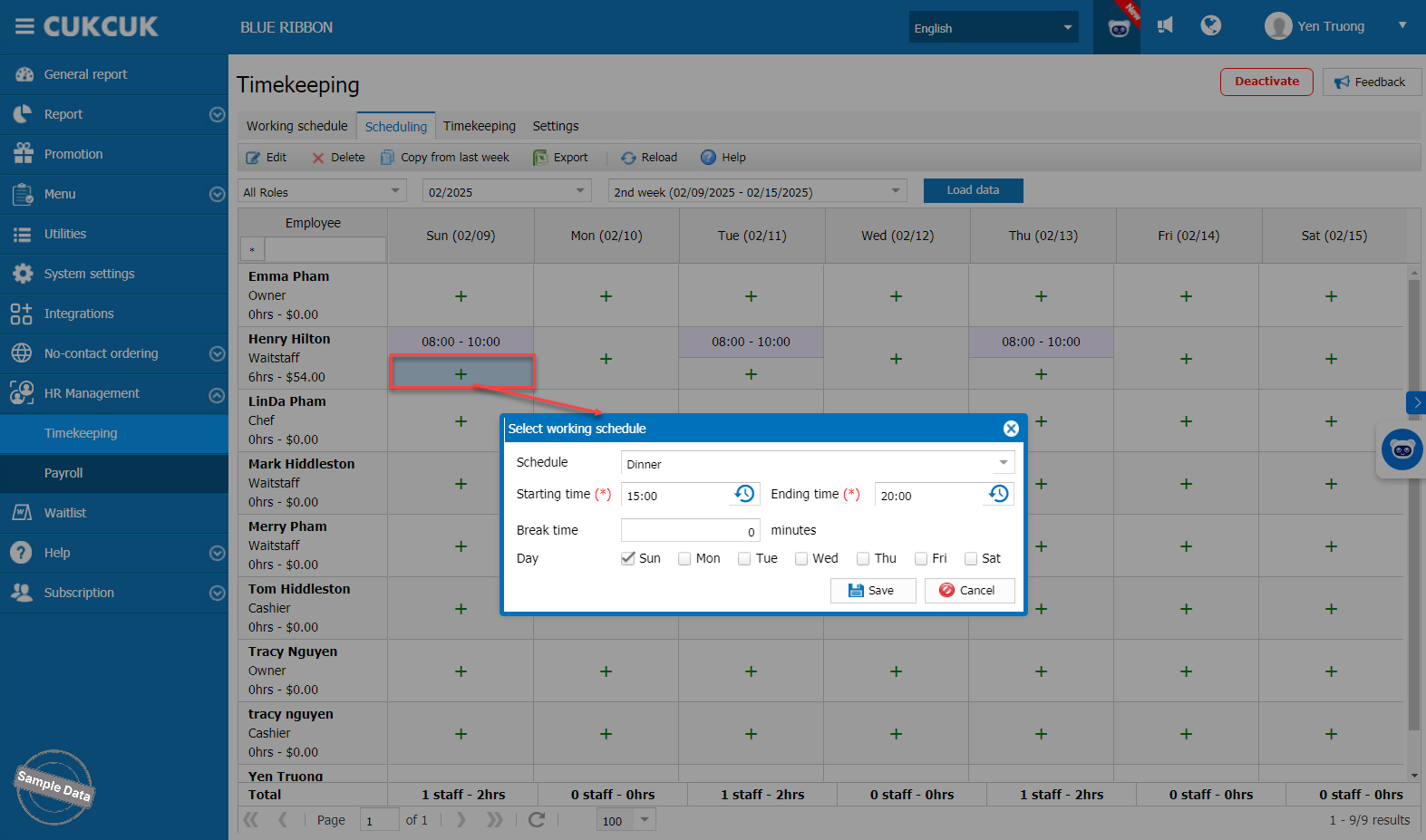
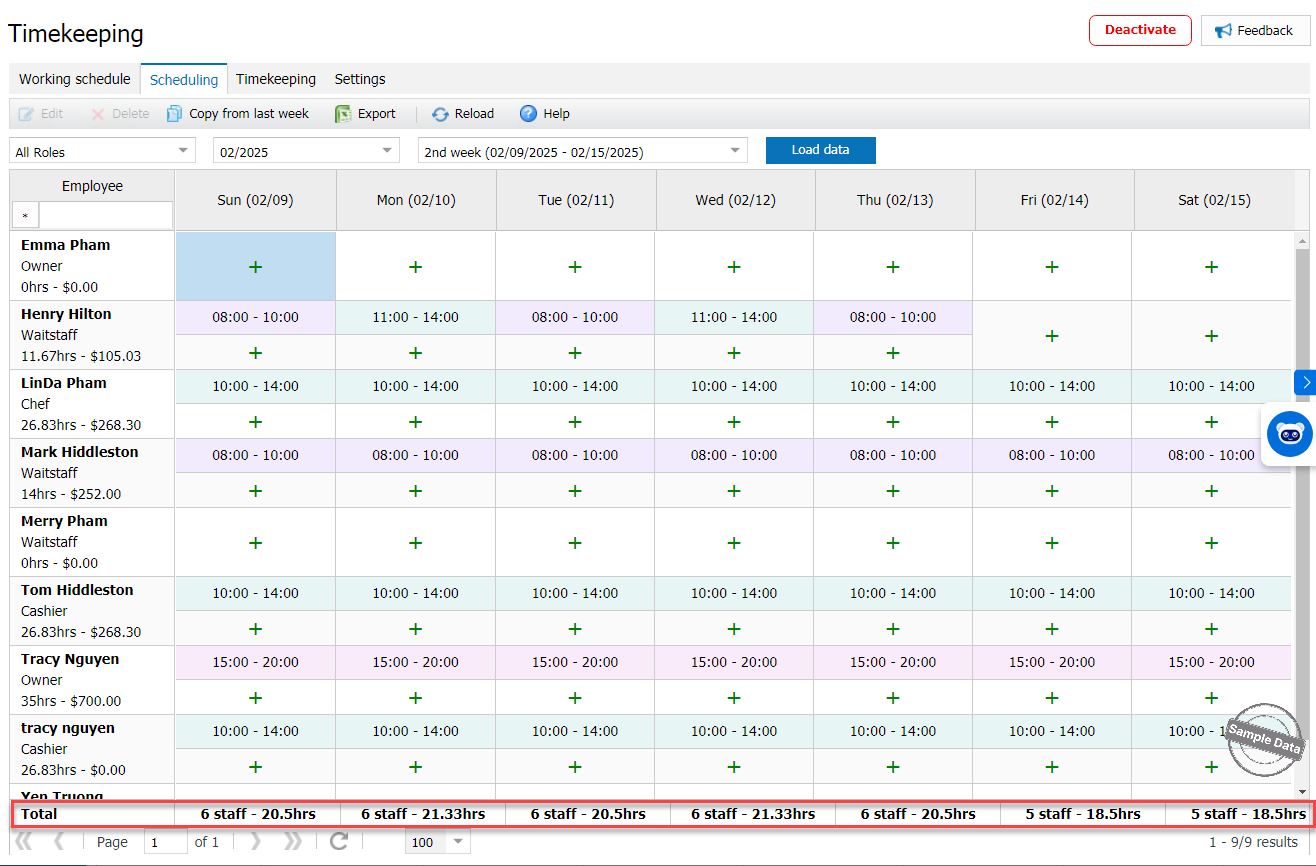
Go to the Scheduling tab. For the employee you want to assign shifts to, click the + icon for the desired day. Choose the work schedule. Tick all days that use the same schedule. Click Save to save the settings.
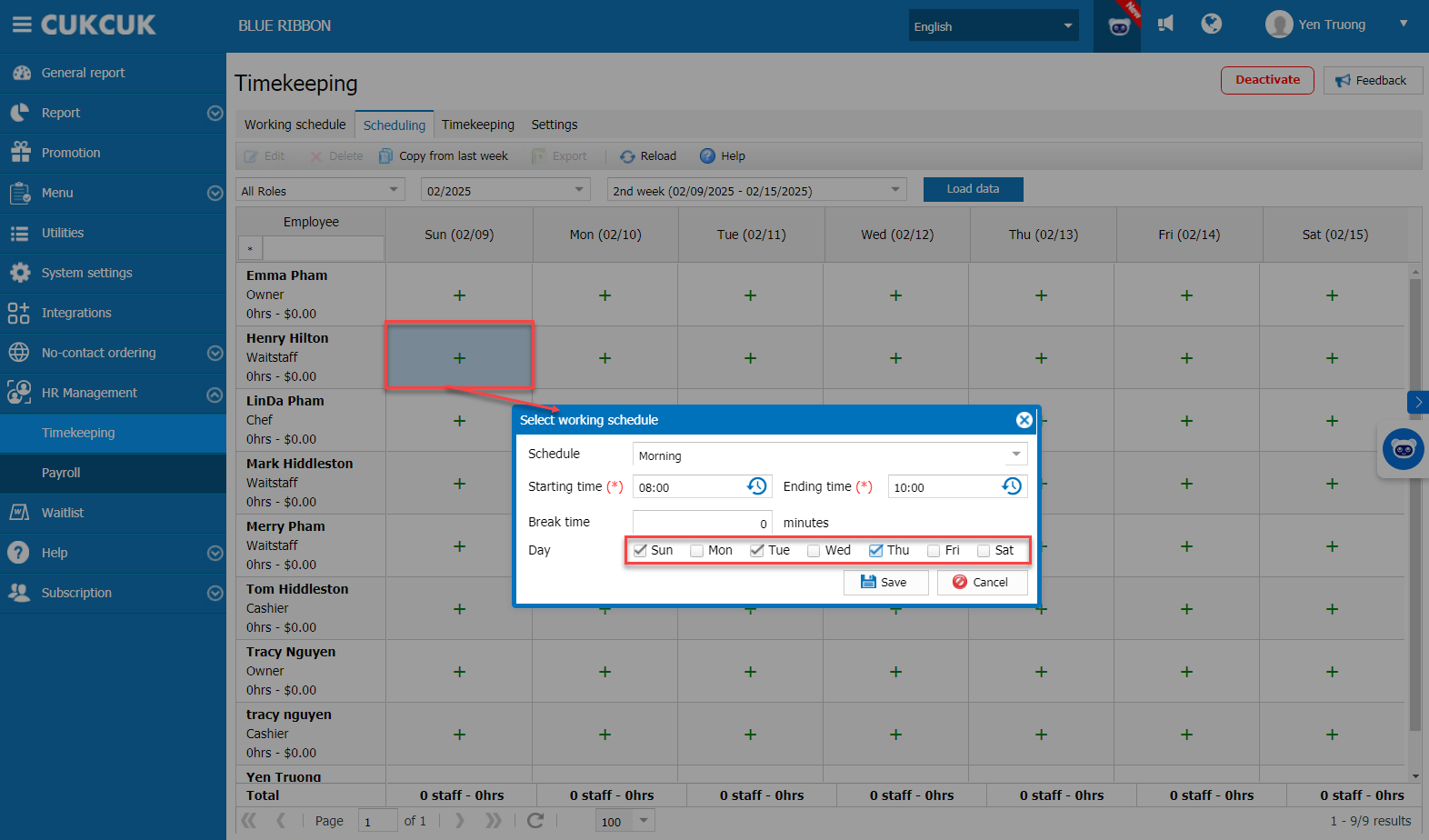
The program will display the total assigned hours and corresponding pay for each employee.
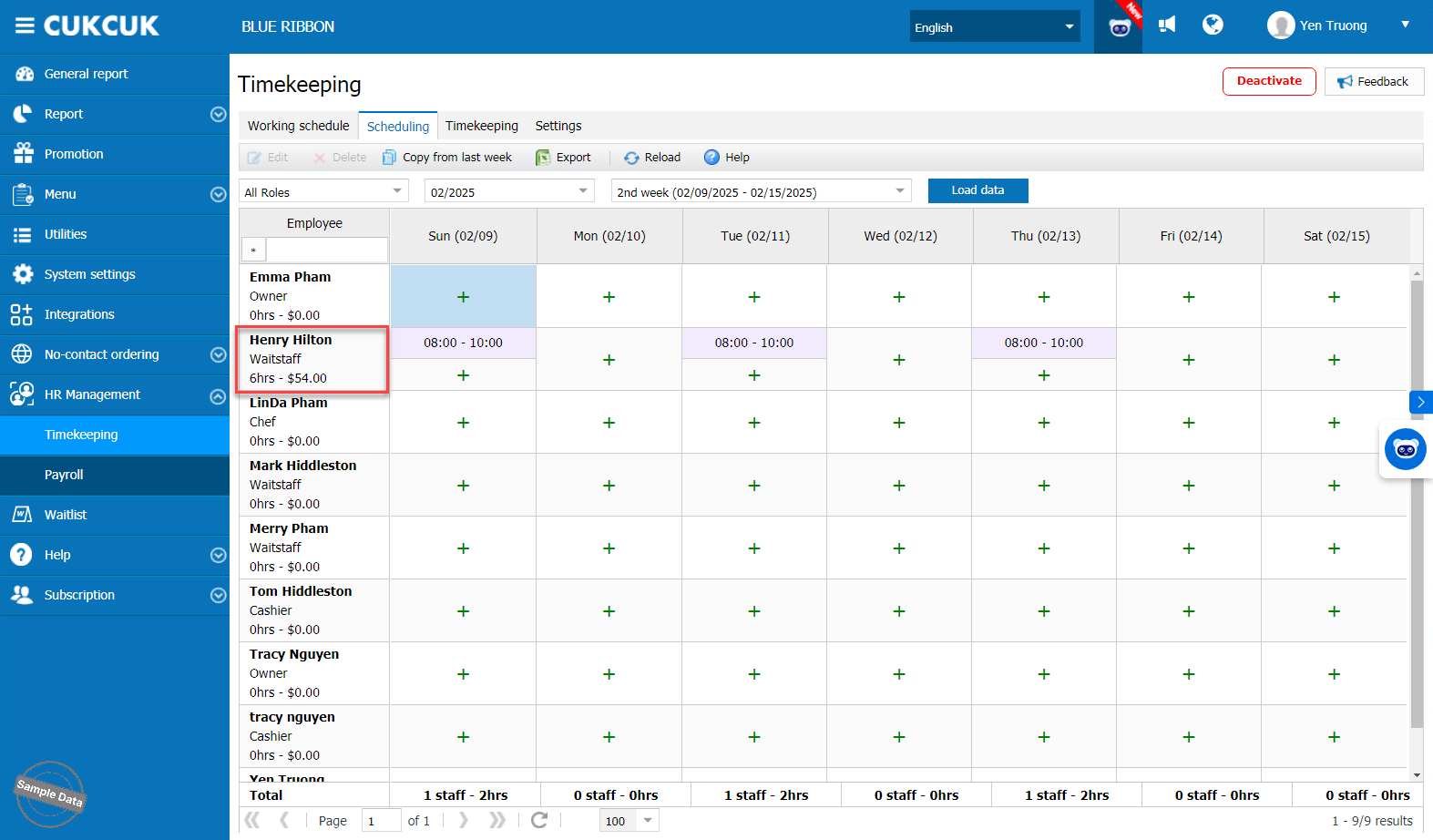
Notes:
- Here, managers can change the shift start and end times for each employee.
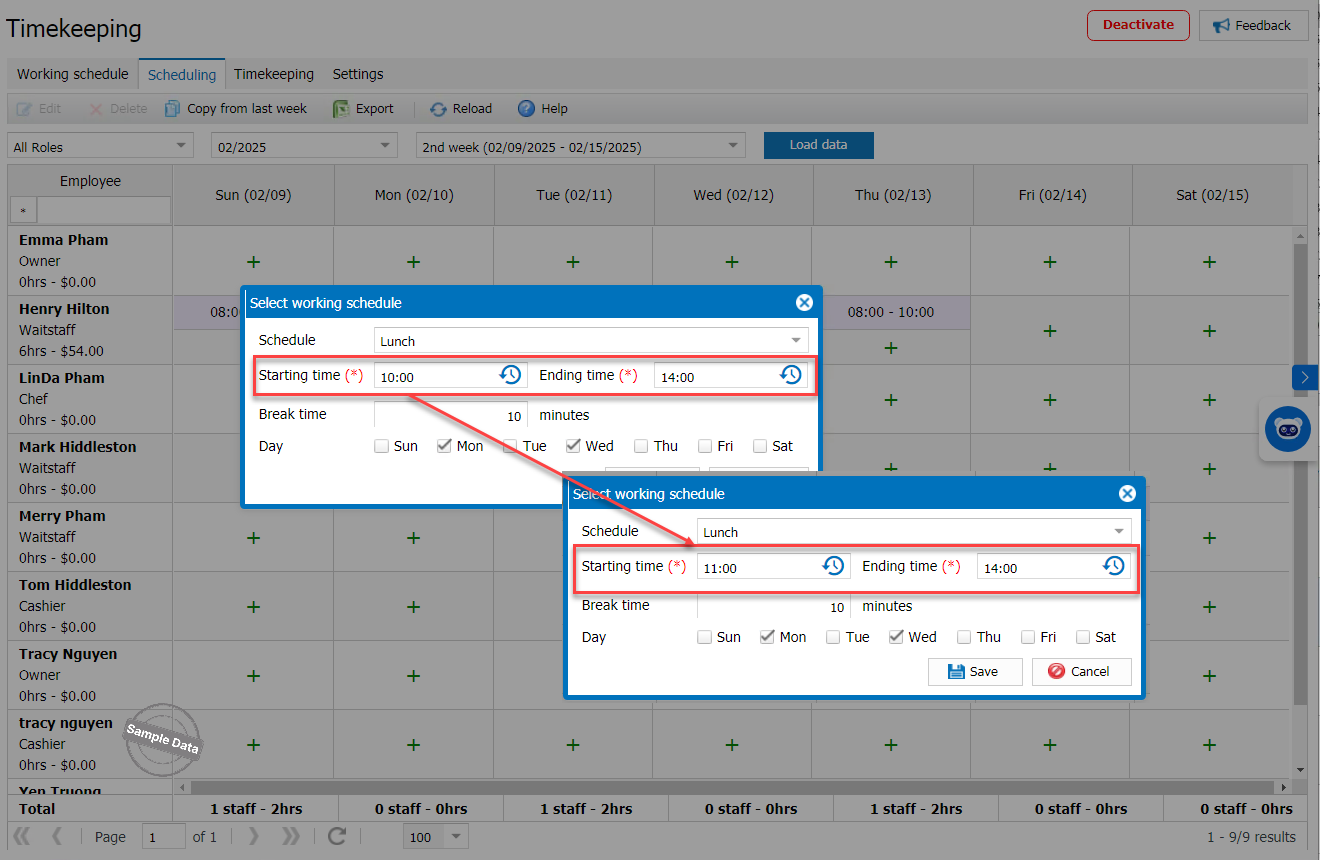
- To quickly edit/delete a shift on any day, hover over that shift and click the pencil icon to edit or the X icon to delete.
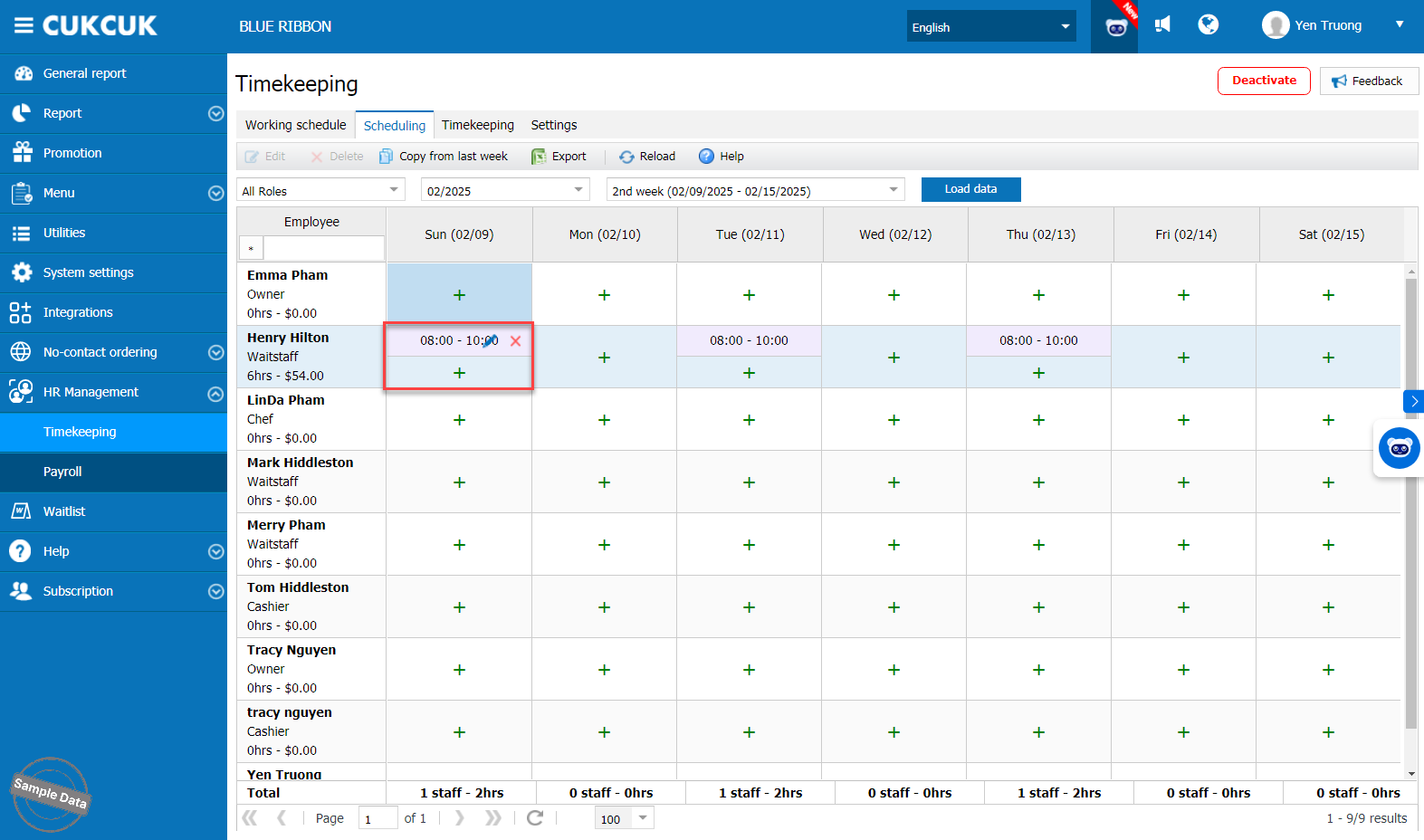
- To add extra shifts to one day, click the + icon and add as above. Each employee can work up to 3 shifts per day.
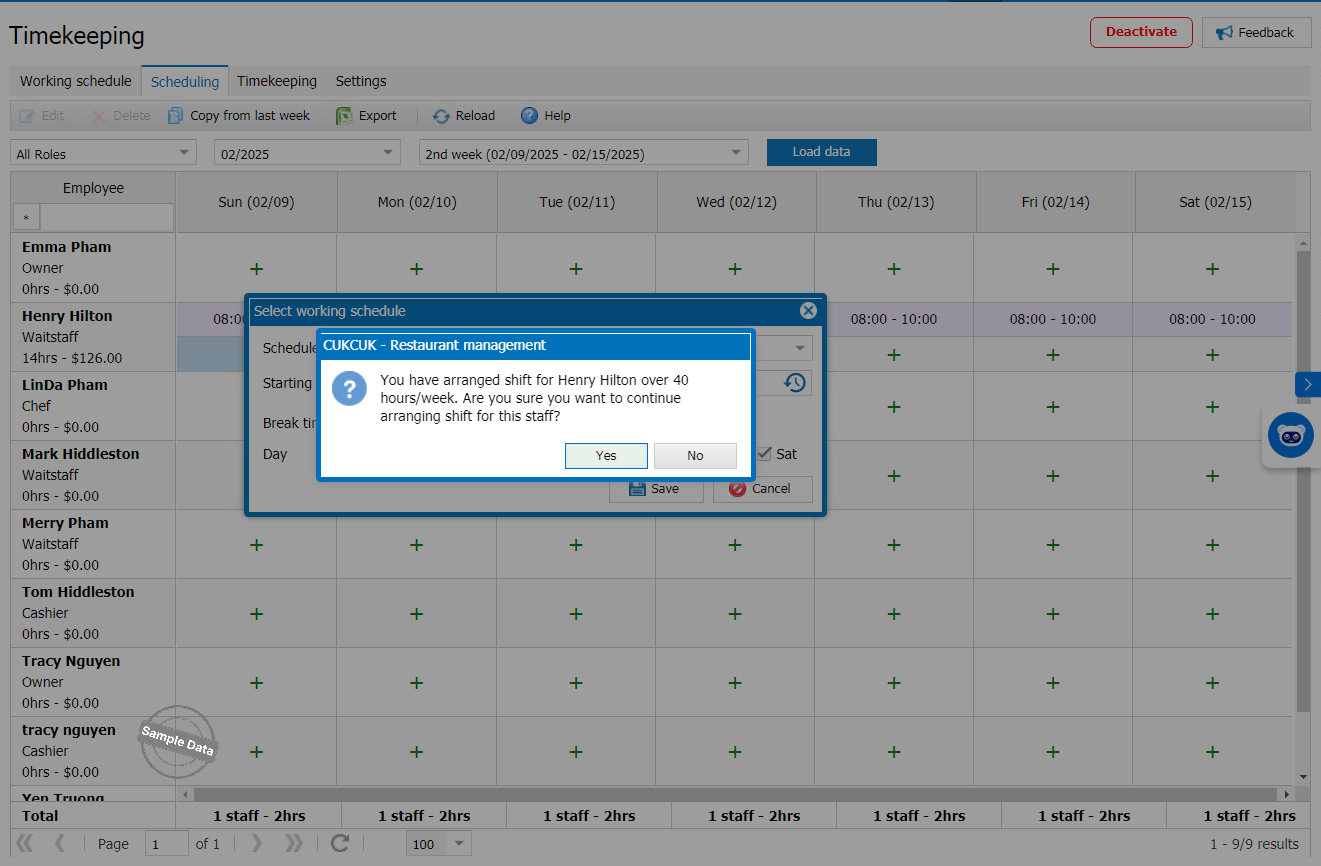
- If employees are assigned more than 40 working hours per week, the program will issue a warning.
- If you continue assigning beyond 40 hours/week, the system will highlight the total hours and pay in red as a caution.
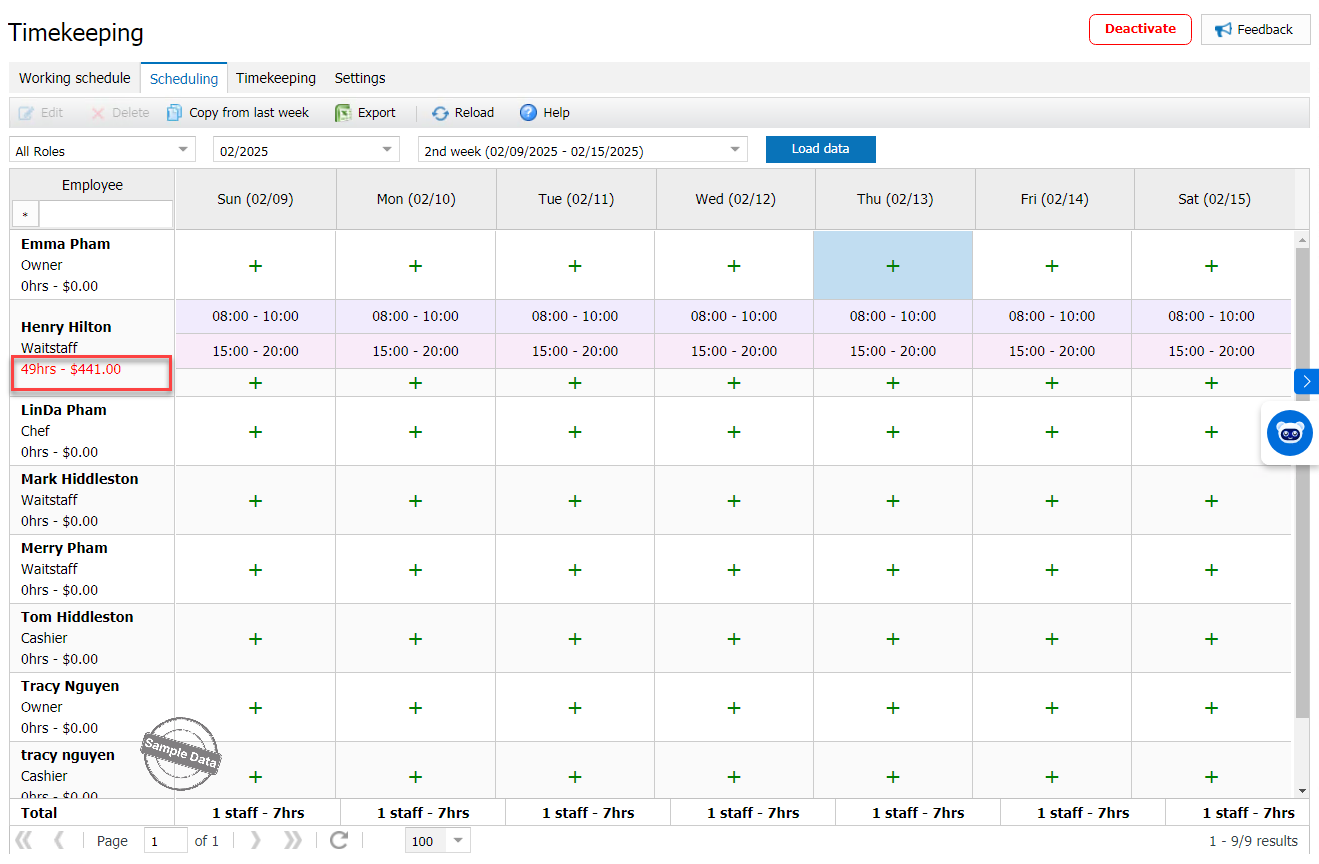
- Managers can view the total number of employees and total scheduled hours for each day of the week.
Have a nice day!


