

Nội dung có trong bài
Ẩn
To add items, categories and modifiers on POS, please follow these steps:
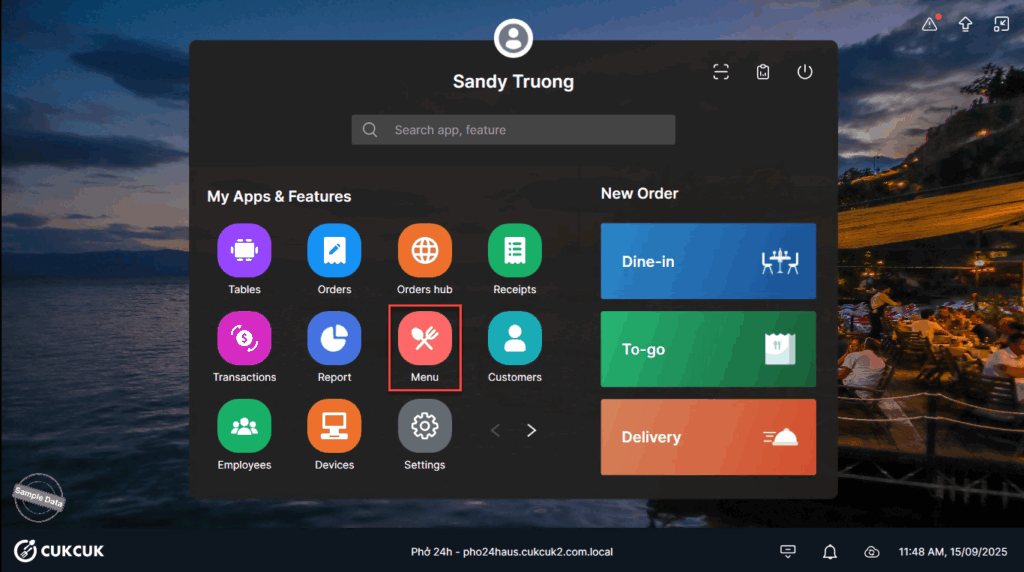
On POS, go to Menu.
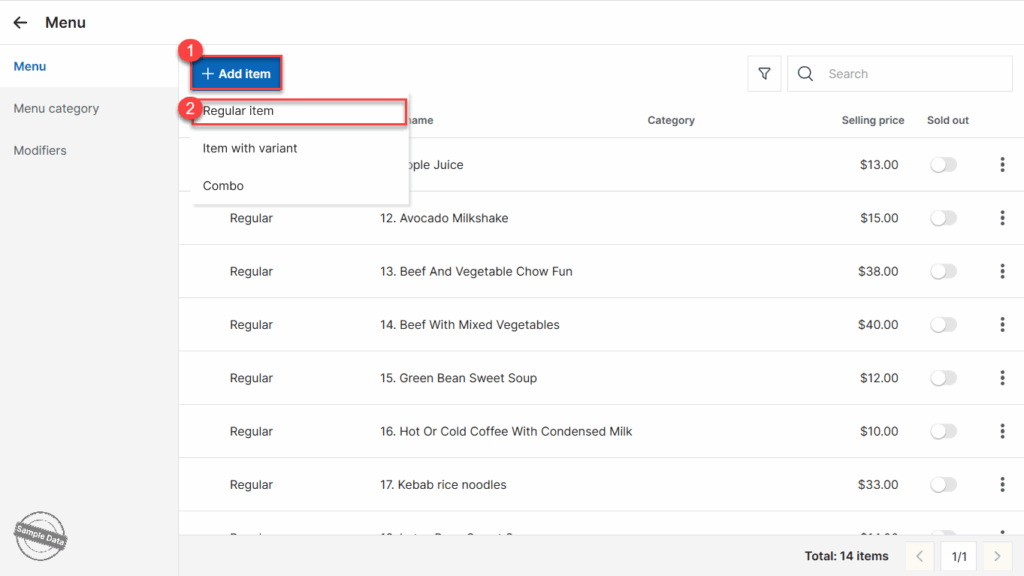
1. Add item
Click Add item and select Regular item, Item with variant or Combo.
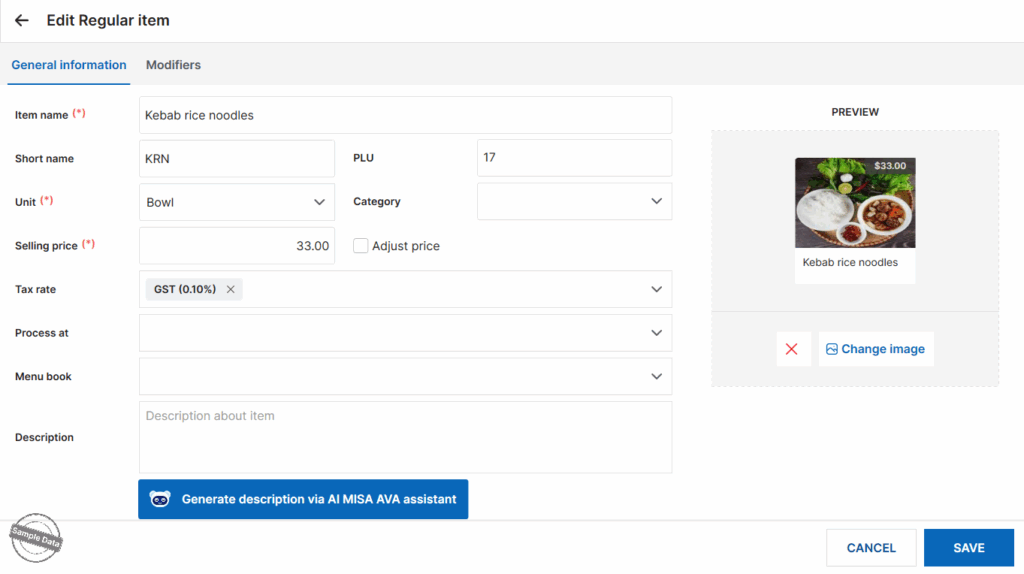
Fill in item information. Add item photo (if any). Then, click Save.
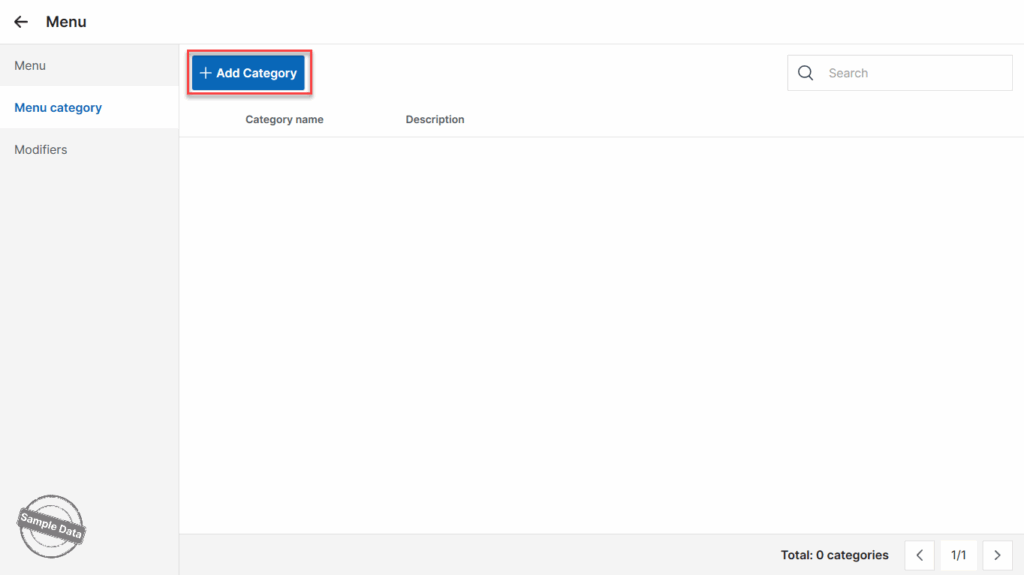
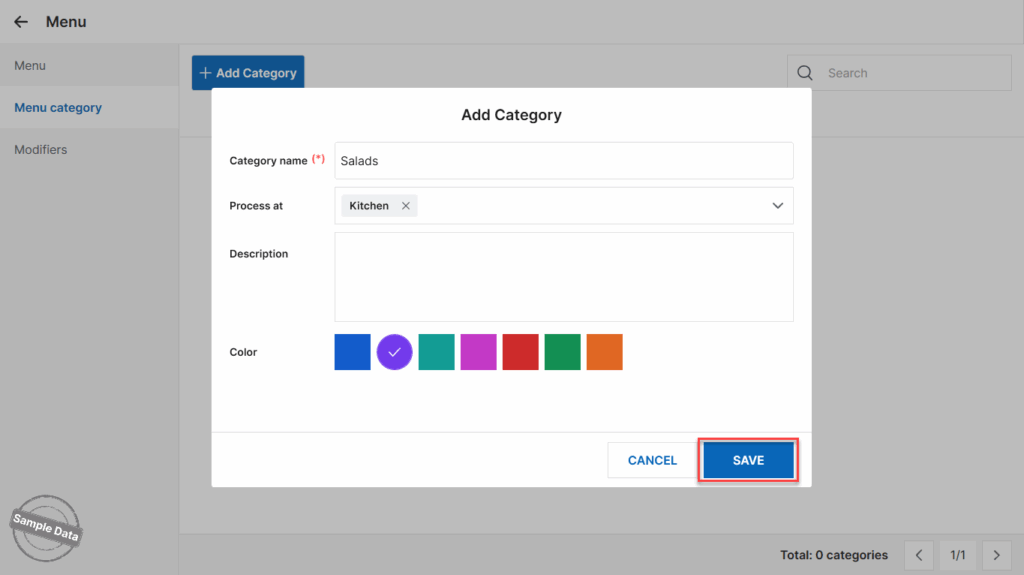
On Menu category tab, click Add Category.
Enter Category name, process at and select color. Then click Save.
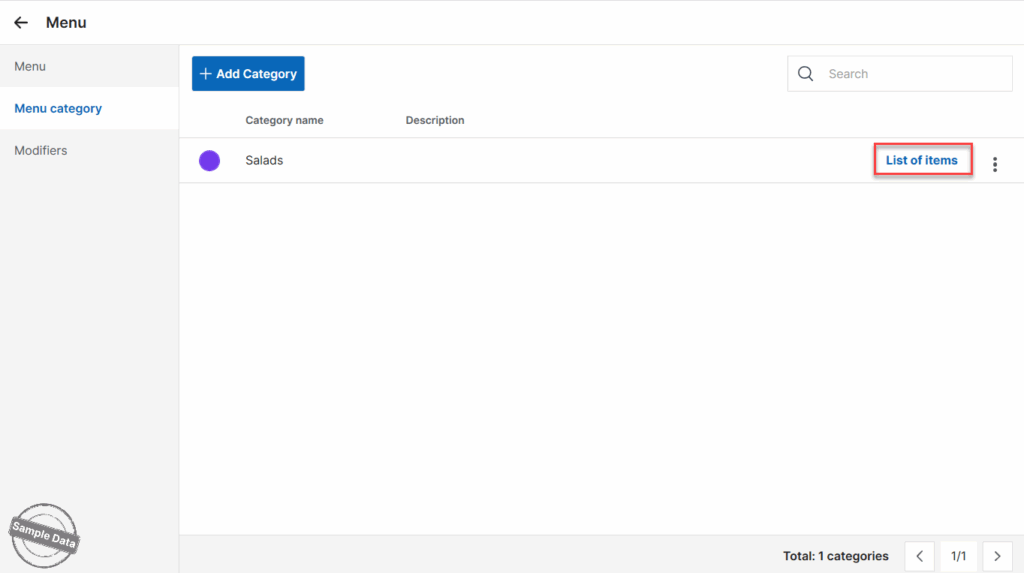
Click List of items to add items to this category.
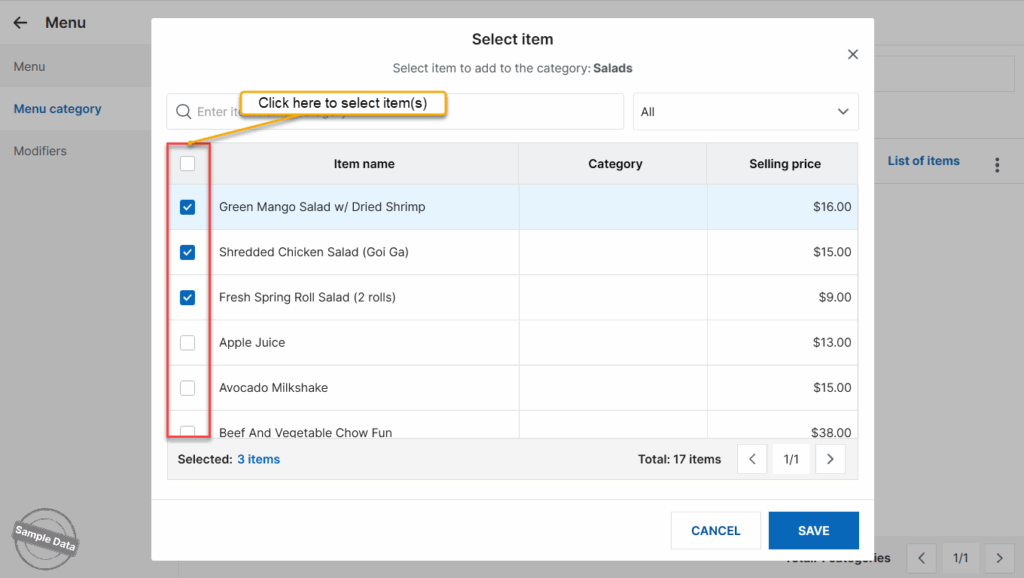
Check applicable items and click Save.
3. Add modifiers
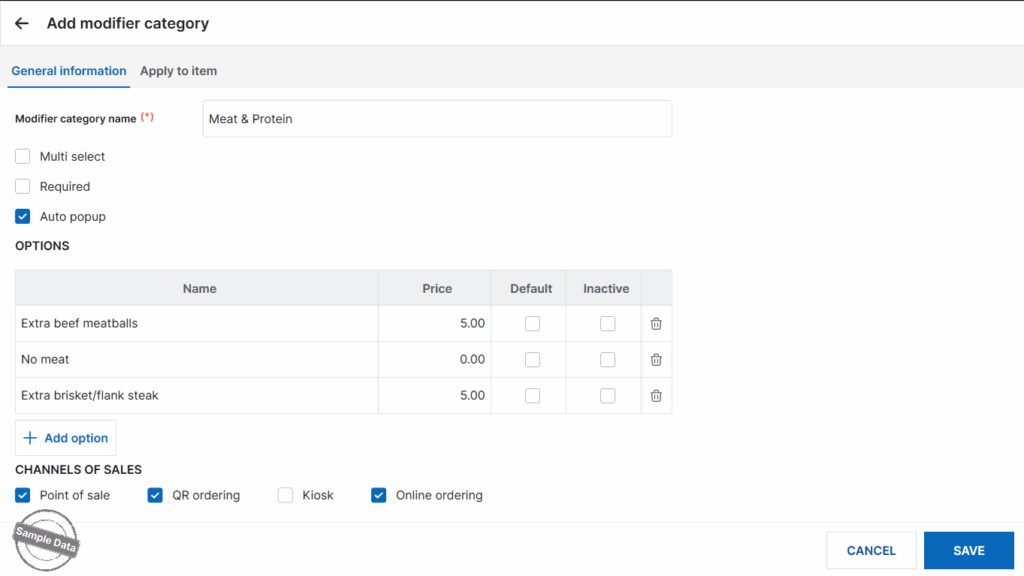
On Modifiers tab, click Add Category.
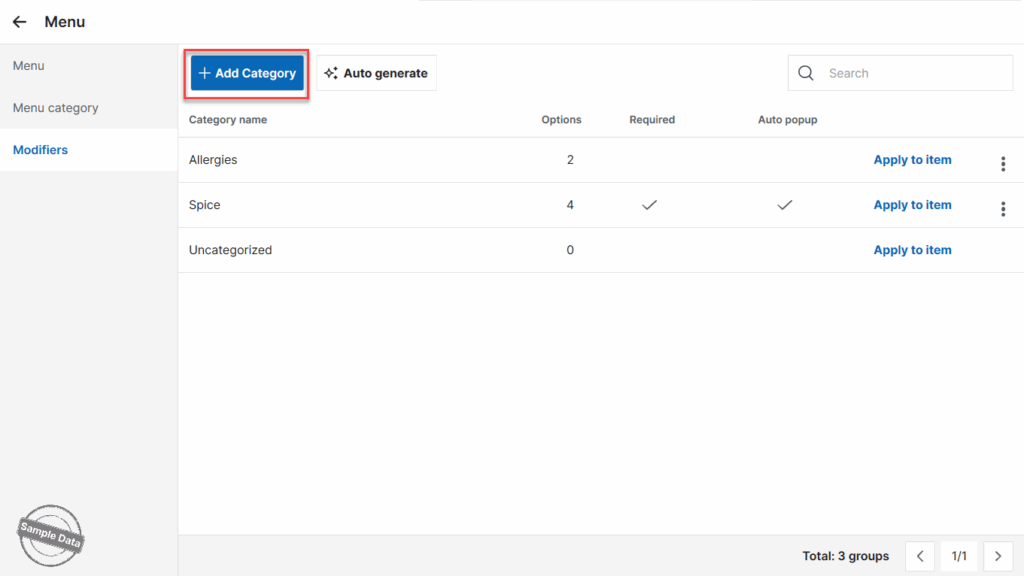
Enter category name. Check Multi select, Required, or Auto popup (if applicable). Then click Save.
Have a nice day!


