

I. Overview of Tablet Configuration
Device Requirements: The CUKCUK Sales application runs on all Android tablets that meet the following requirements:
- Operating system: Android 5.0 or later
- Recommended devices:
- Minimum screen size: 7 inches
- Recommended: 10-inch tablet for better display and usability
- Suggested models: Amazon Fire HD 8 and Fire HD 10
II. Introduction to the Tablet Device
For restaurants, tablets have become one of the most commonly used business tools. They help improve the sales process, enhance customer experience, and increase efficiency and profitability.
1. About the Tablet Device
A tablet is one of the fastest ways to process restaurant orders. It makes service easier since staff no longer need pen and paper. Orders can be placed within seconds:
- Expand your service area with the convenience of mobile ordering
- Quickly add menu items to orders and send them directly to the kitchen/bar, improving efficiency and reducing waiting time
- Track employees’ working hours, breaks, and overtime daily
Before using the tablet, make sure:
- The device is connected to Wi-Fi
- Necessary configuration settings are properly set up
2. Installing the Sales Application
Restaurant staff will use the tablet to process sales. Installation steps:
- Ensure the tablet is connected to a secure Wi-Fi network and power source.
- Open Google Play Store.
- Search for CUKCUK Sales.
- Install the application.
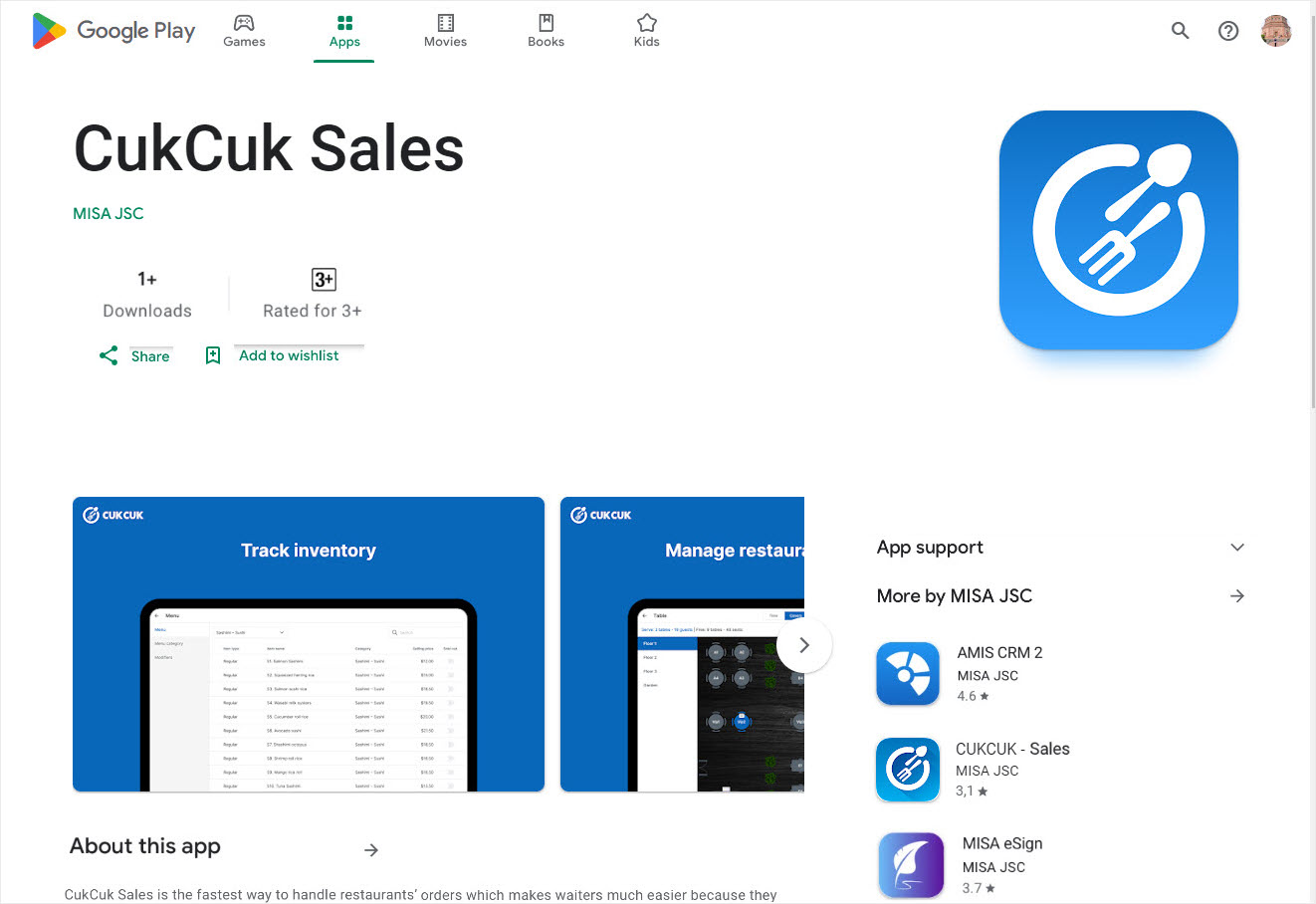
After installation, log in with your account to start selling.
(The system will automatically update when a new version is available.)
III. Logging In to the Sales Application
To log in:
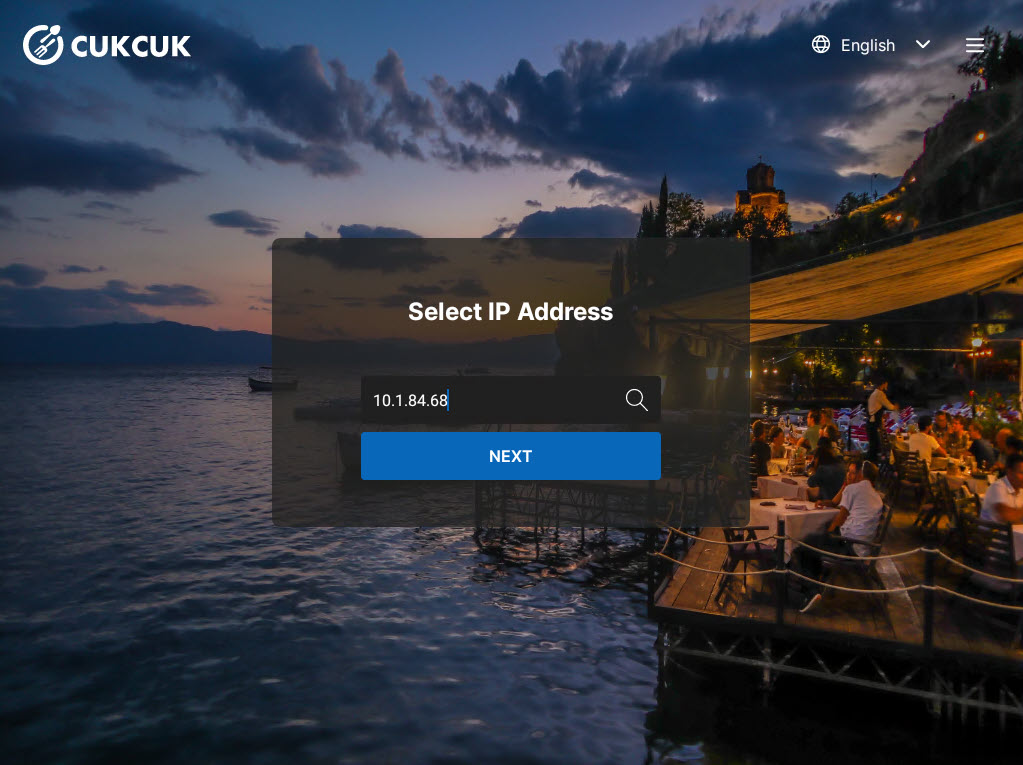
- Open the CukCuk Sales application on your tablet.
- On the login screen:
- Enter the IP address manually, or
- Tap the icon
 to quickly select the IP address for connection.
- Click NEXT.
Note: If this is the first time logging in on the device, you must activate the device on the management page. Please refer to the activation guide for details here.
IV. Features and Functions of the Application
Users can access the following sections to learn more about each feature:
|
Features |
Utilities |
| Order Management | Efficient order handling:
|
| Menu Management | Easier menu management:
|
| Reservation Management | Fast and convenient reservation handling:
|
| Promotion Management | Simple and user-friendly setup:
|
| Payment Processing | Simplified and automated payment handling:
|
Have a nice day!


