

Nội dung có trong bài
Ẩn
I. Purpose
The restaurant manager can set up cash discount by grand total, gross subtotal or net subtotal.
II. Instruction steps
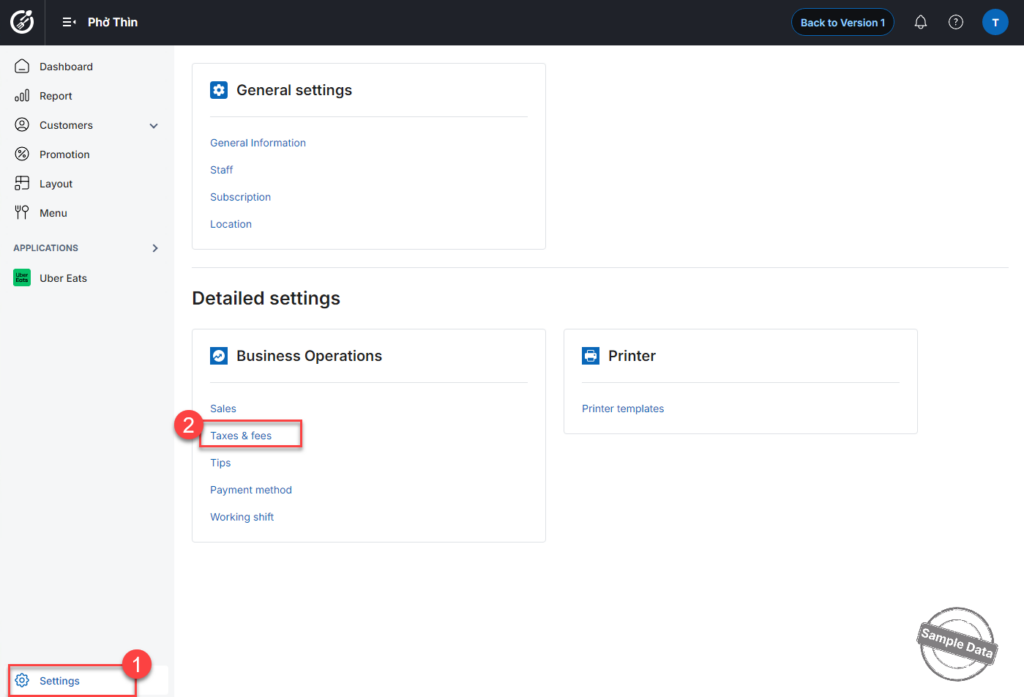
On the dashboard, go to Settings and select Taxes & fees.
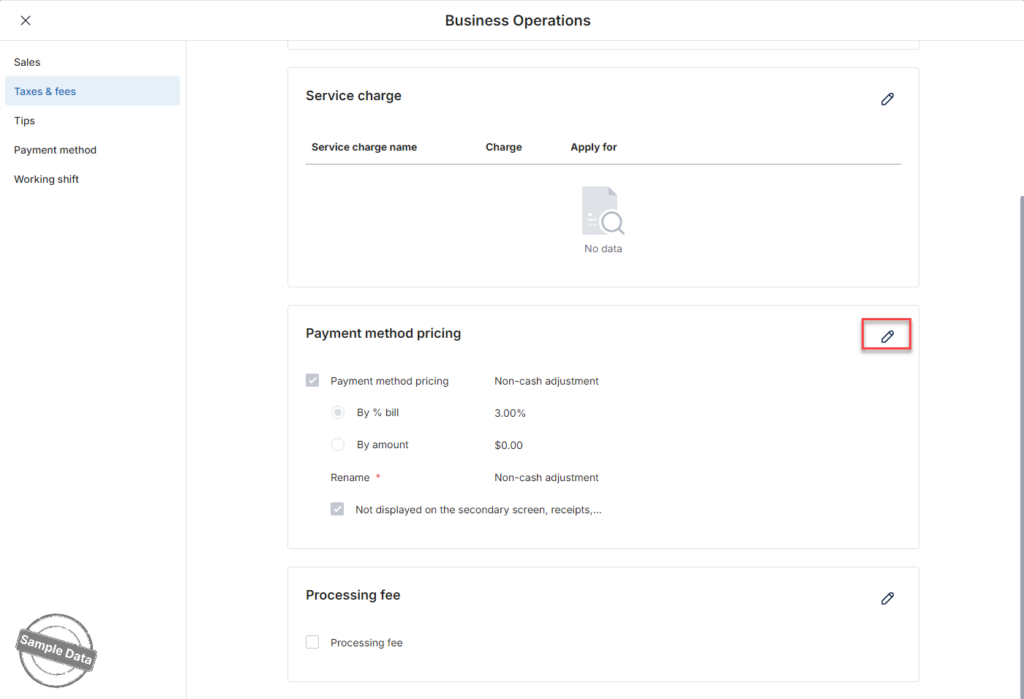
Scroll down to Payment method pricing and click Edit icon.
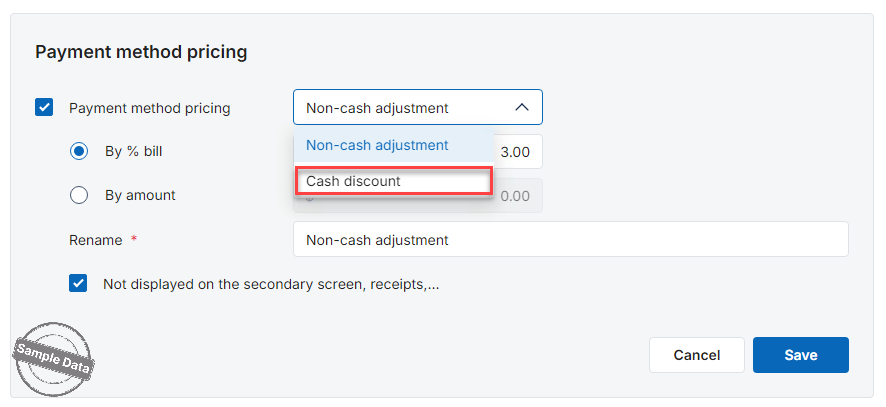
Select Cash discount.
Choose where the discount will be applied: Grand total, Gross total, or Net subtotal.
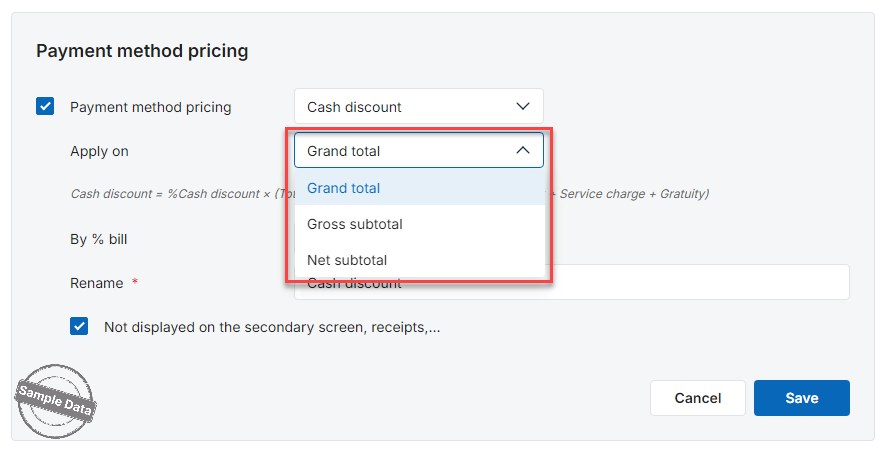
Enter the discount percentage.
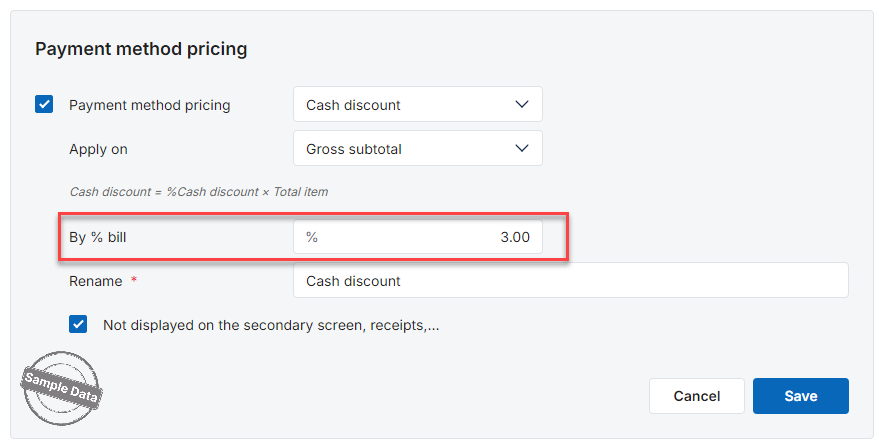
If you want the cash discount information to appear on the secondary screen, receipts, make sure to uncheck the option Not displayed on the secondary screen, receipts…
Click Save to apply the configuration.
Note:
- Gross Subtotal is the total amount based on the original menu prices of items and modifiers, before applying any discounts, rewards, taxes, or service fees. It represents the full item value prior to any adjustments.
- Net Subtotal is the total amount after item-level discounts, bill-level discounts, and rewards have been applied, but before taxes, service charges, or gratuity are added. It reflects the adjusted item value before mandatory charges are calculated.
- Grand Total is the final amount the customer must pay after all discounts, rewards, taxes, service charges, and gratuity have been applied. It represents the complete and payable balance of the transaction.


