

I. Purpose
The manager can customize kitchen ticket and receipt templates directly on the management page, saving time and increasing flexibility.
II. Instruction steps
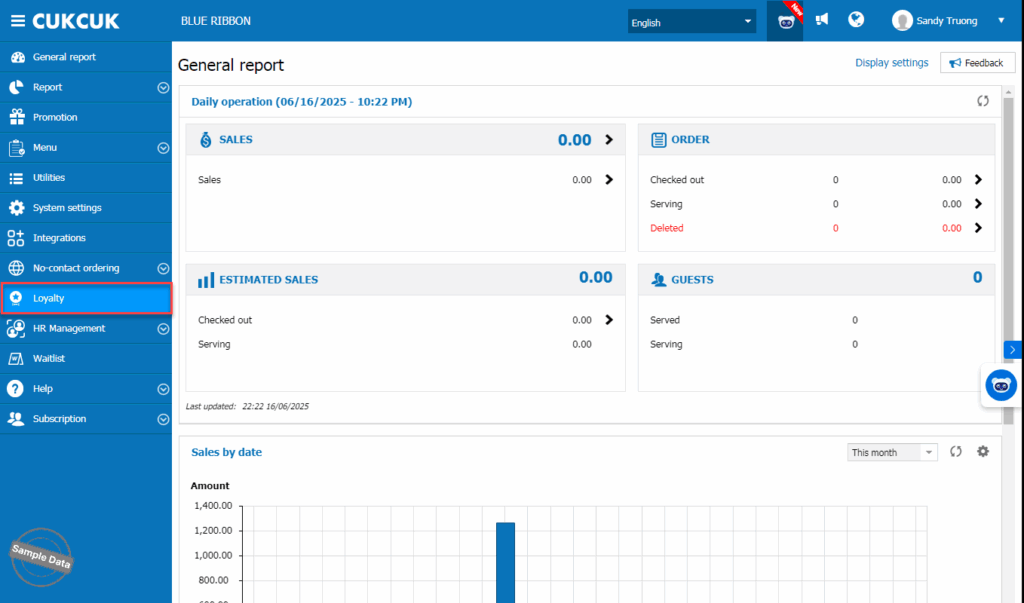
On the dashbord, go to Loyalty.
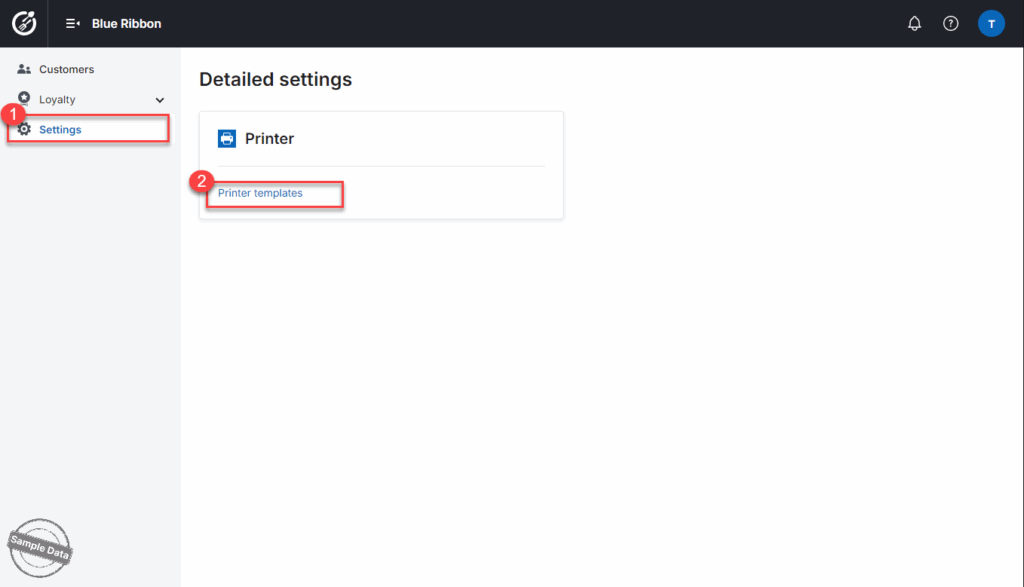
Click Settings/Printer Templates.
1. Customize printer template
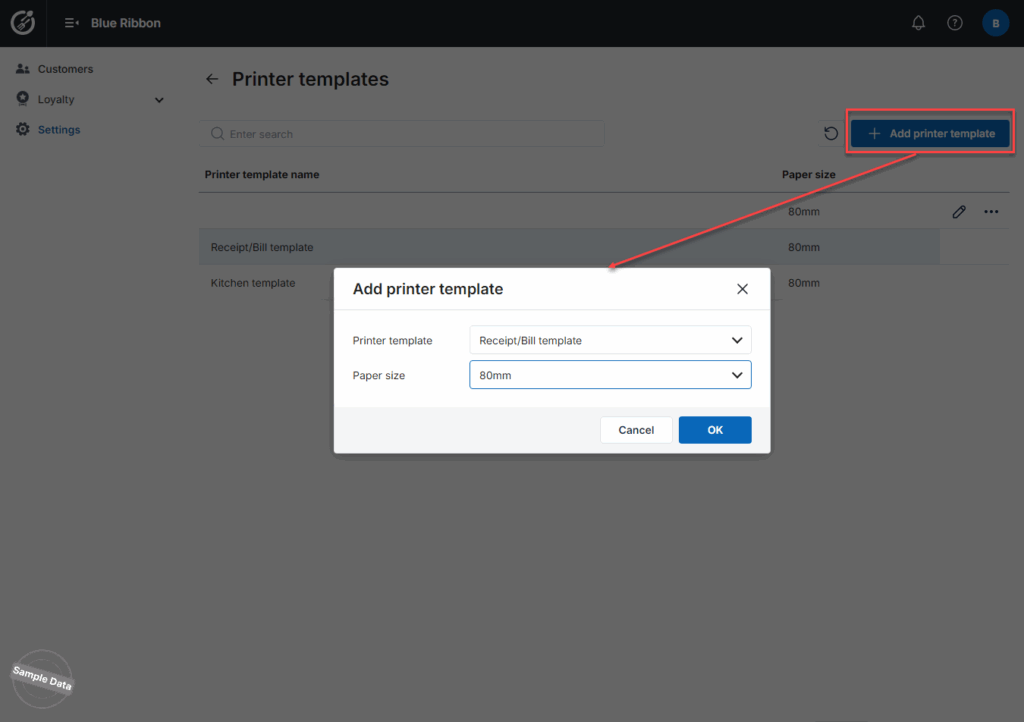
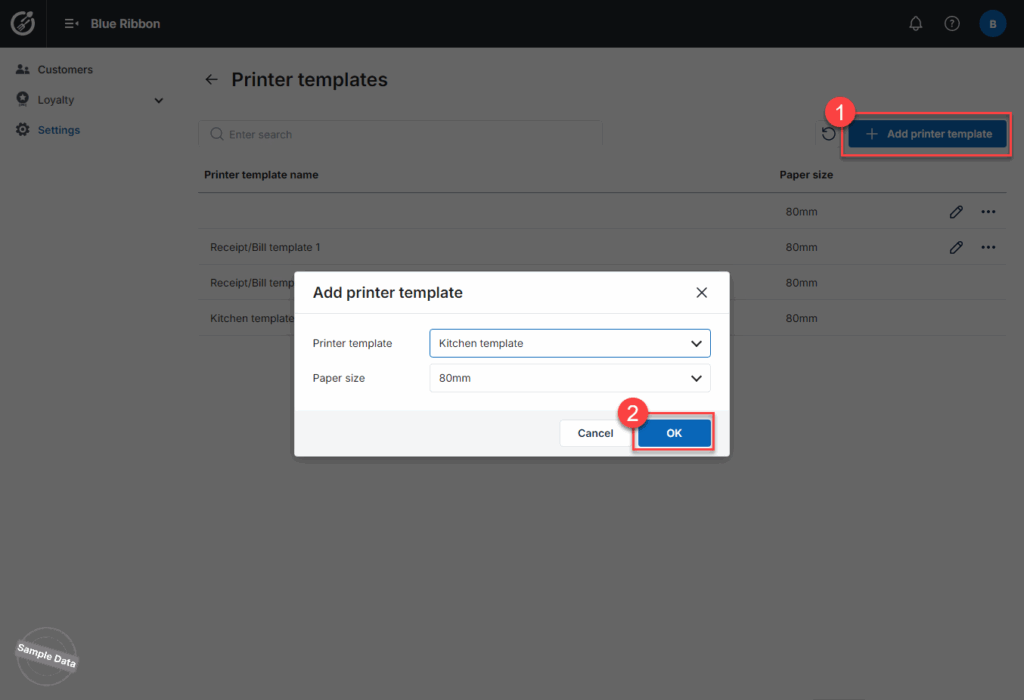
Click Add printer template, select Receipt/Bill template and paper size.
If your restaurant has a logo, drag and drop or select the logo at Drop or Click here to upload a logo image.
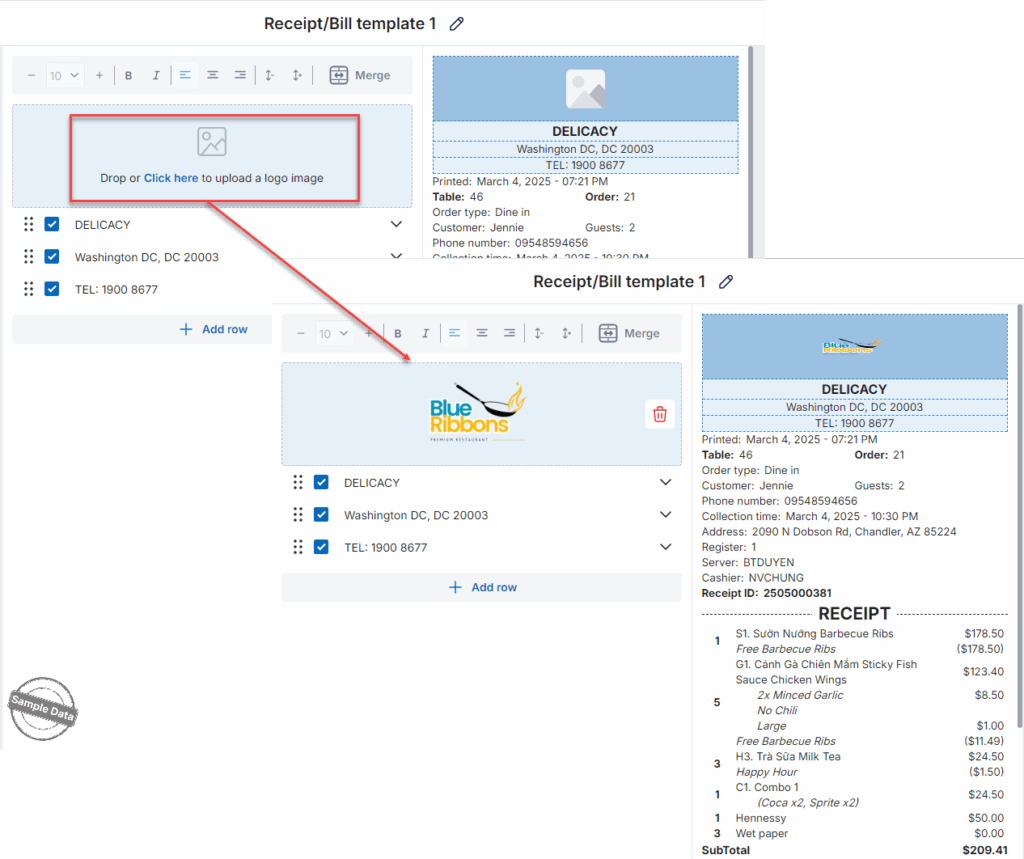
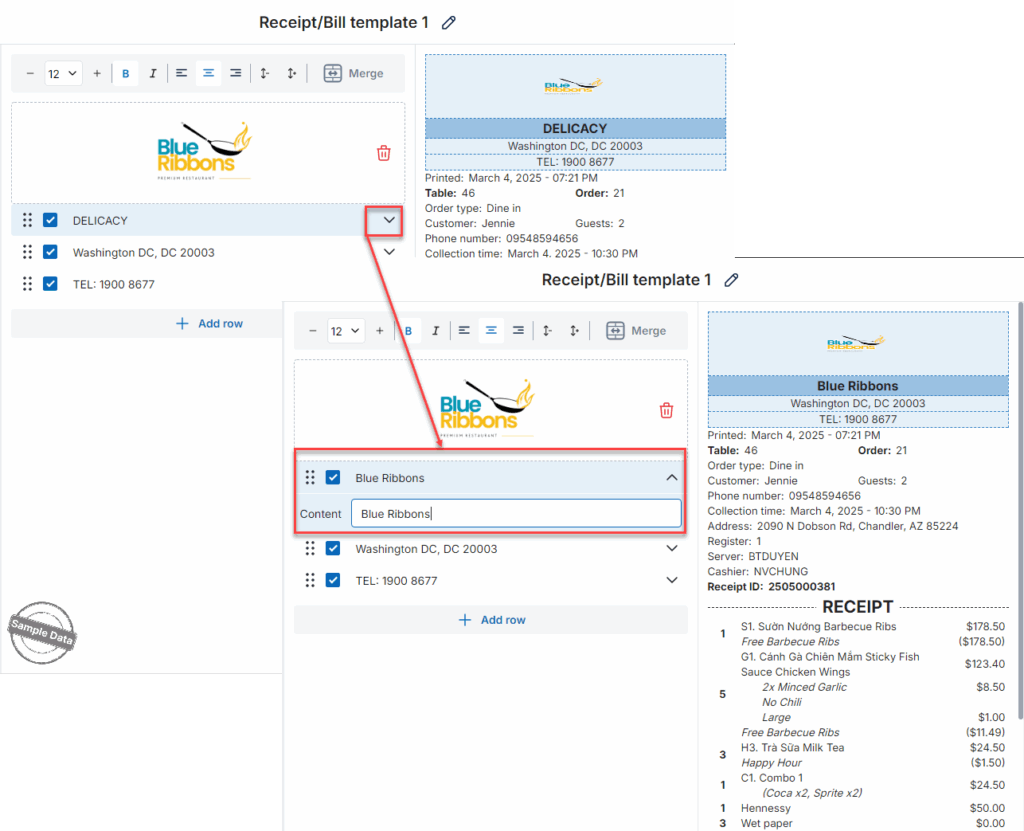
Click the arrow icon next to Delicacy to edit your restaurant’s name.
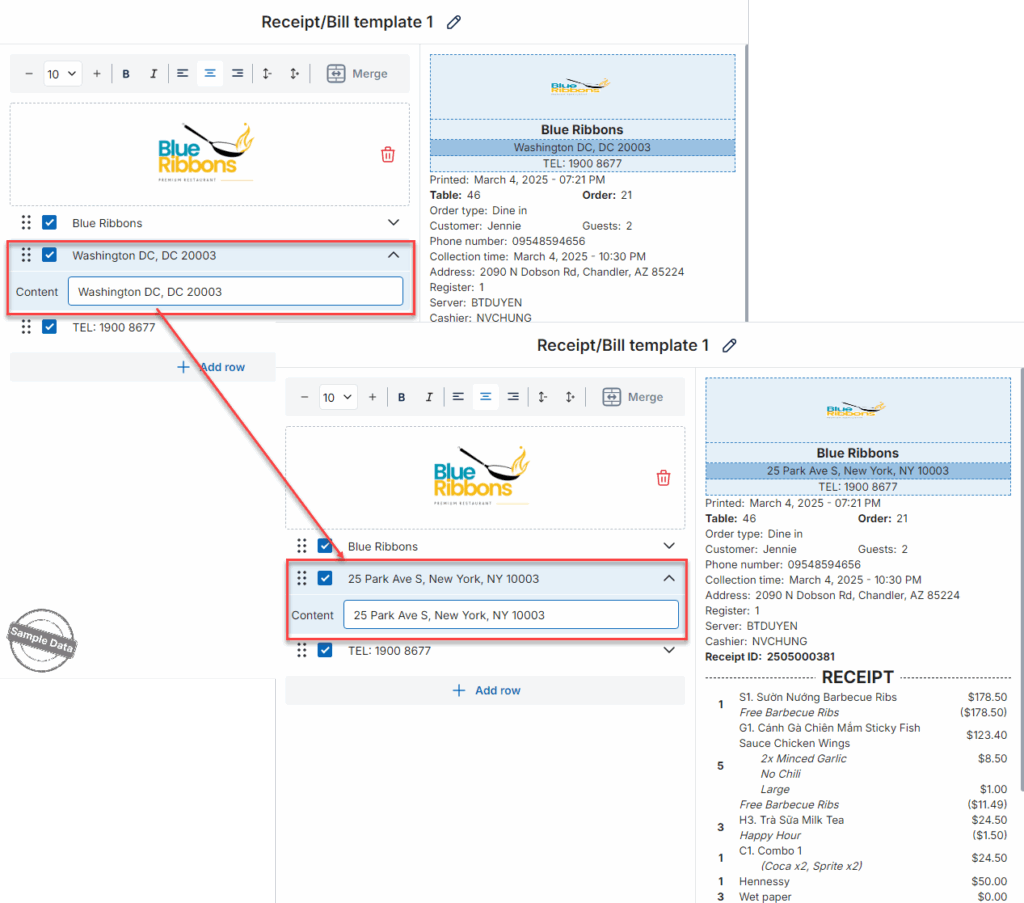
Click the arrow icon next to Washington DC to edit your restaurant’s address.
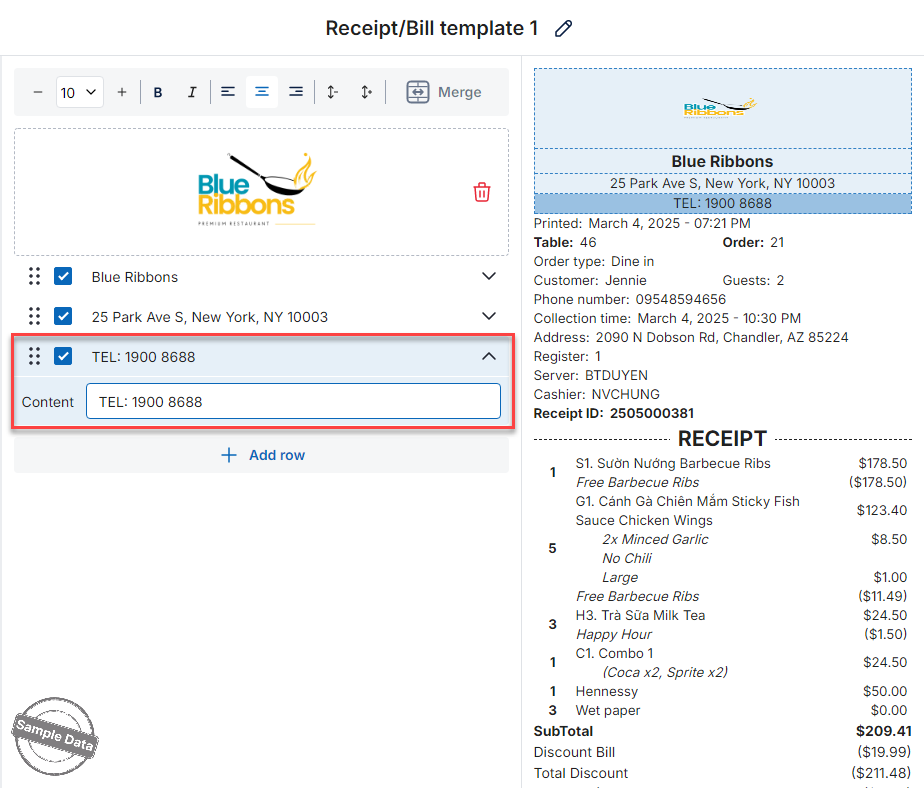
Click the arrow icon next to TEL to edit the restaurant’s phone number.
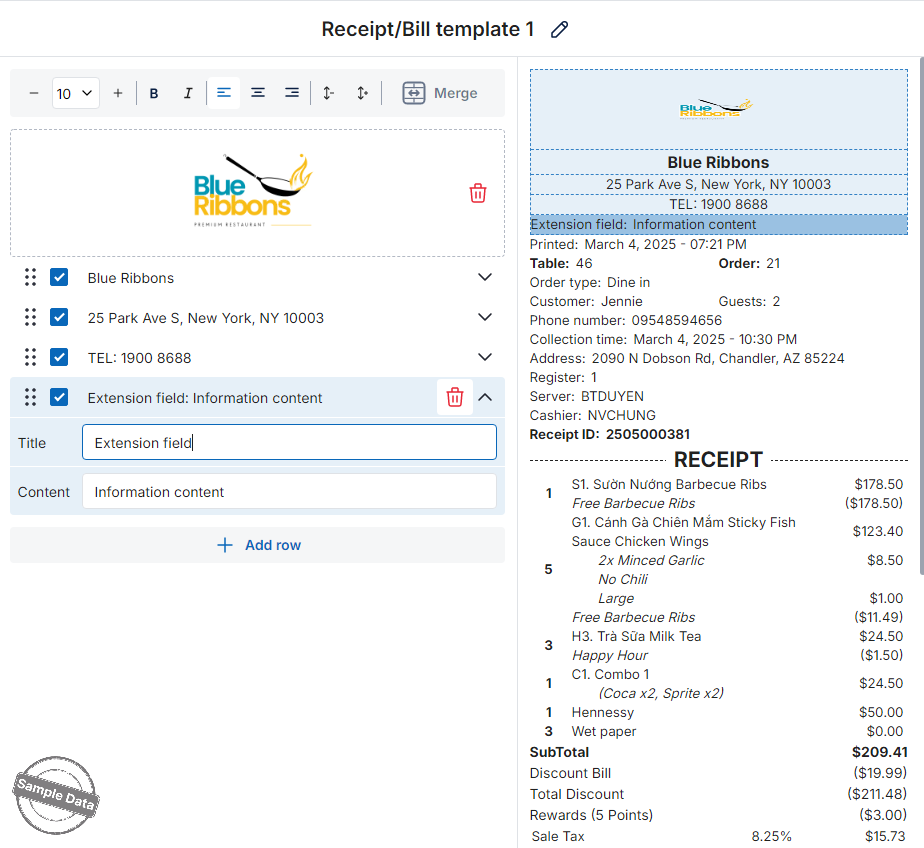
Click Add row to add any other information line about the restaurant.
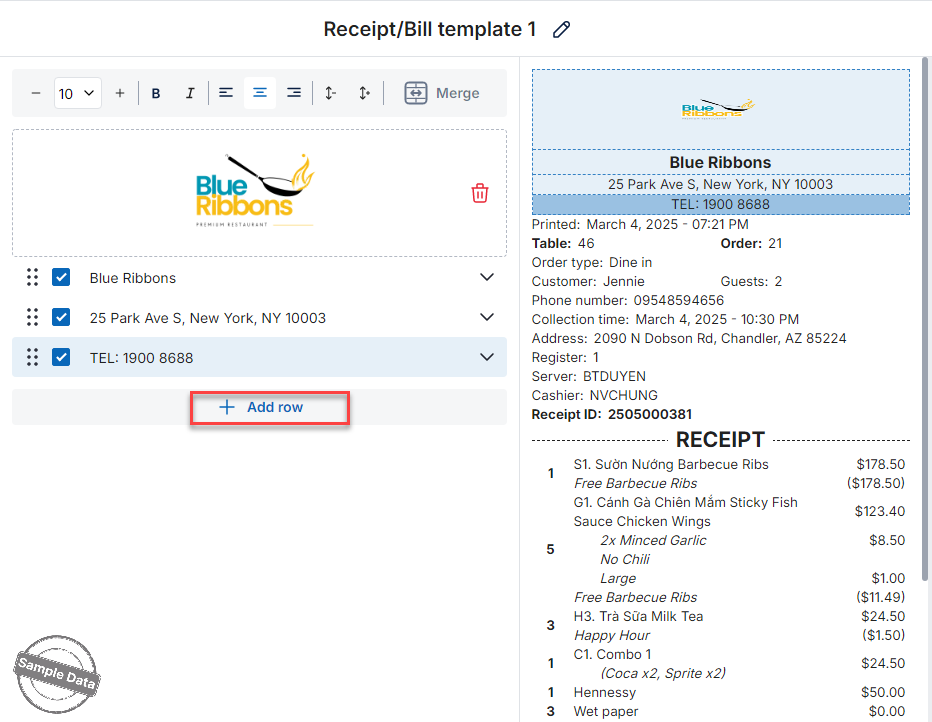
Enter the Title and Content for the added line.
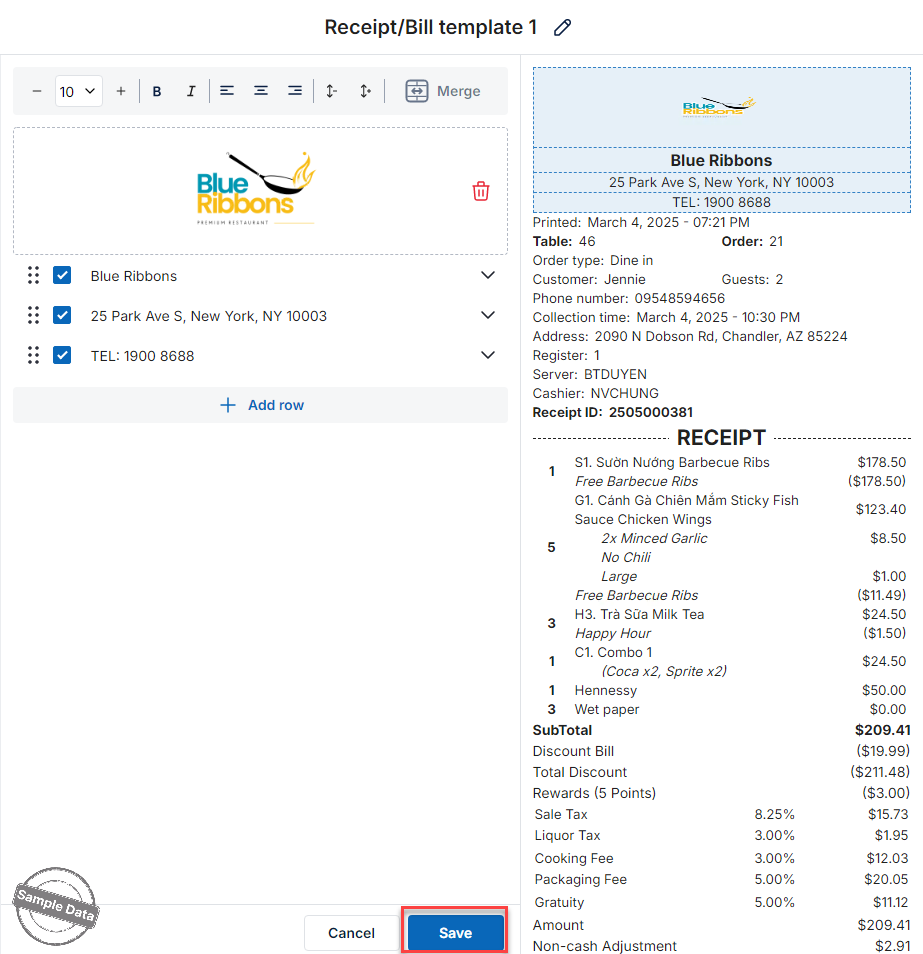
Click Save to save your changes.
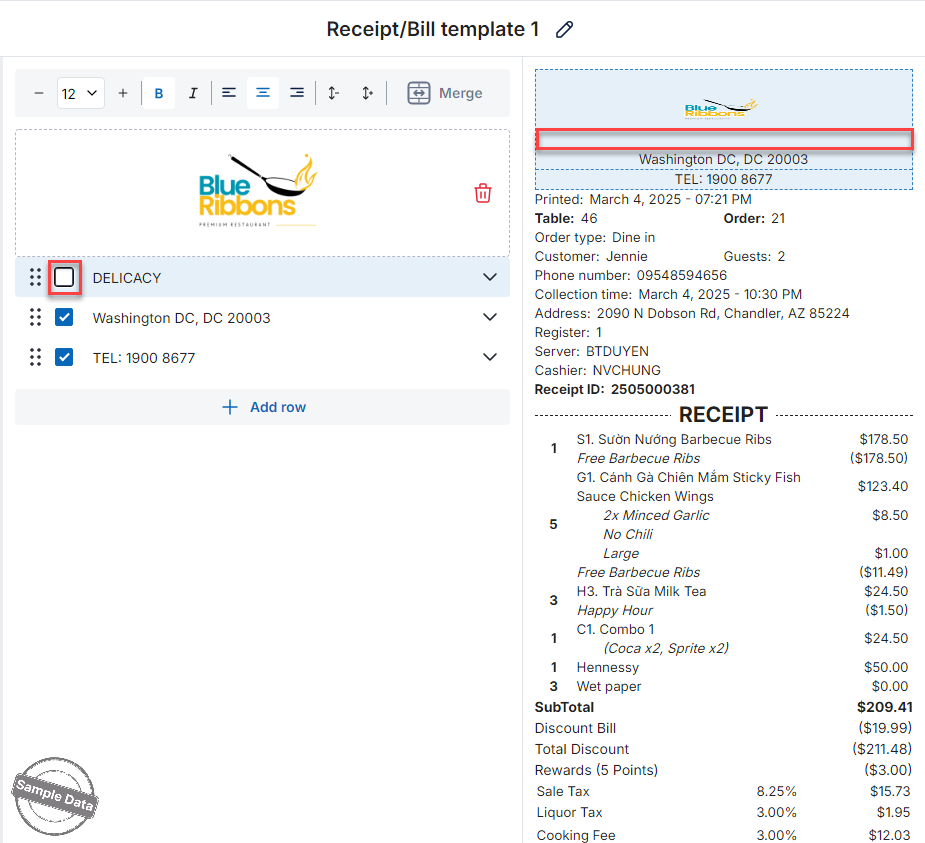
Note: You can deselect any line if you don’t want it to appear on the invoice.
2. Customize kitchen template
Click Add printer template, select Kitchen template and paper size.
Here, you can drag and drop to rearrange the order of information lines.
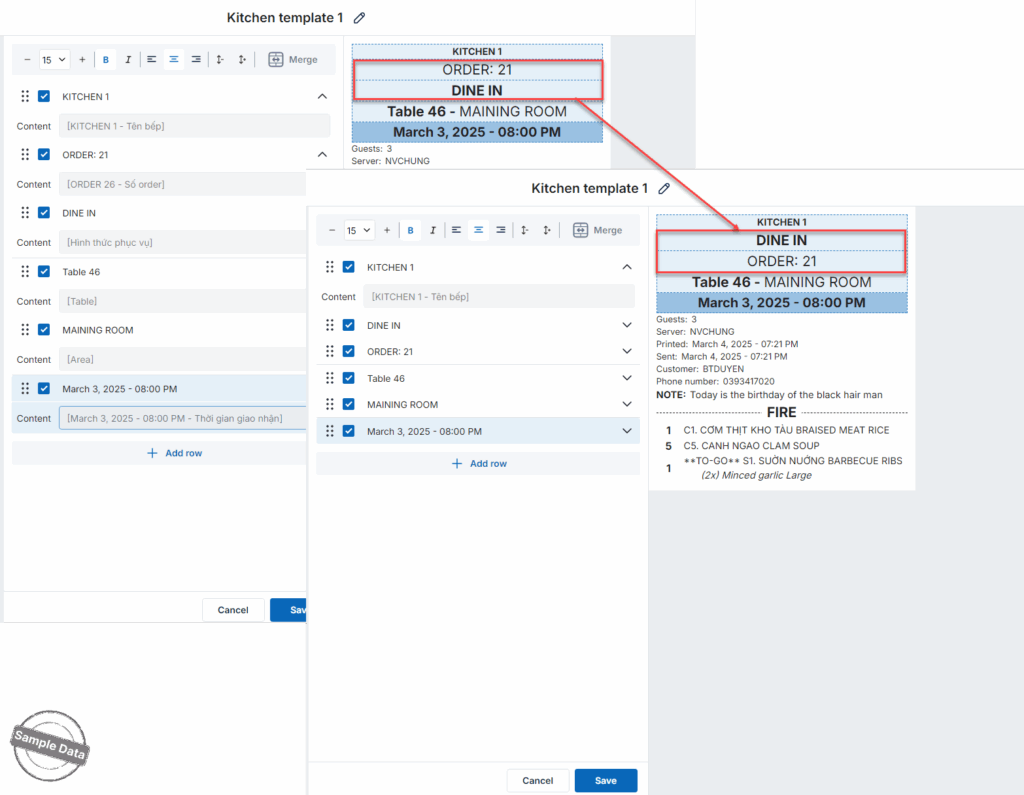
For each line, you can adjust font size, choose bold or italic, and set alignment.
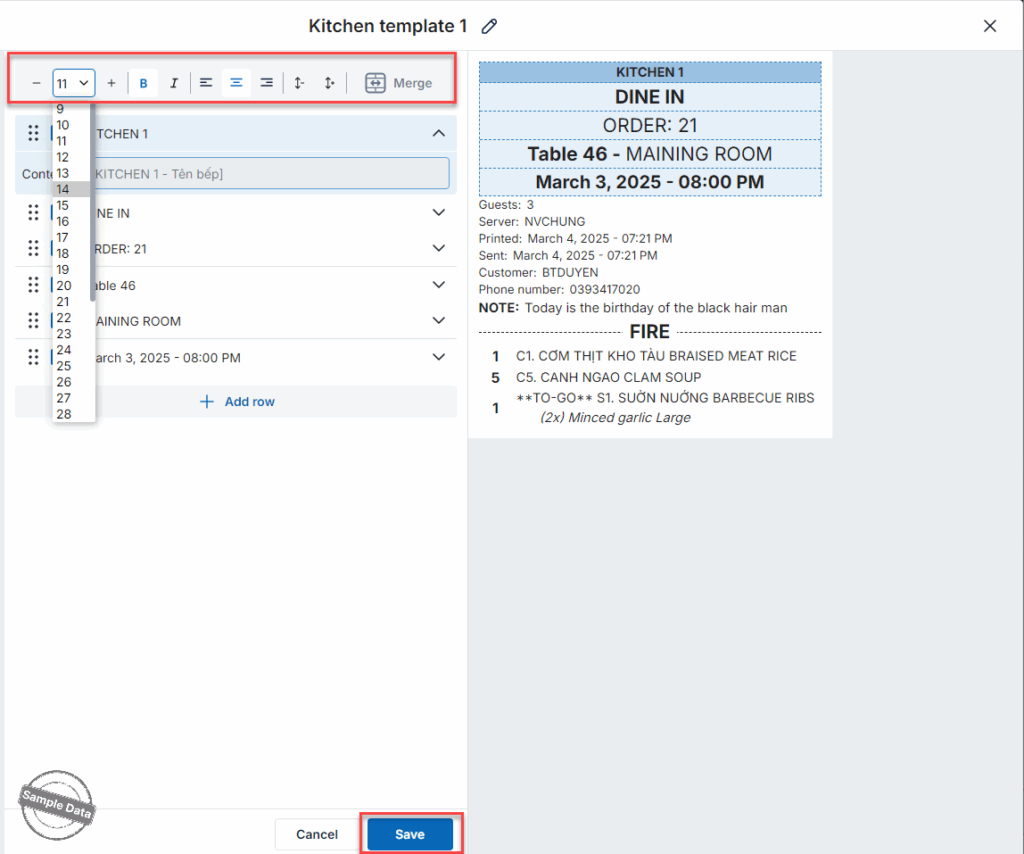
Click Save to save your changes.
3. Select a template on POS
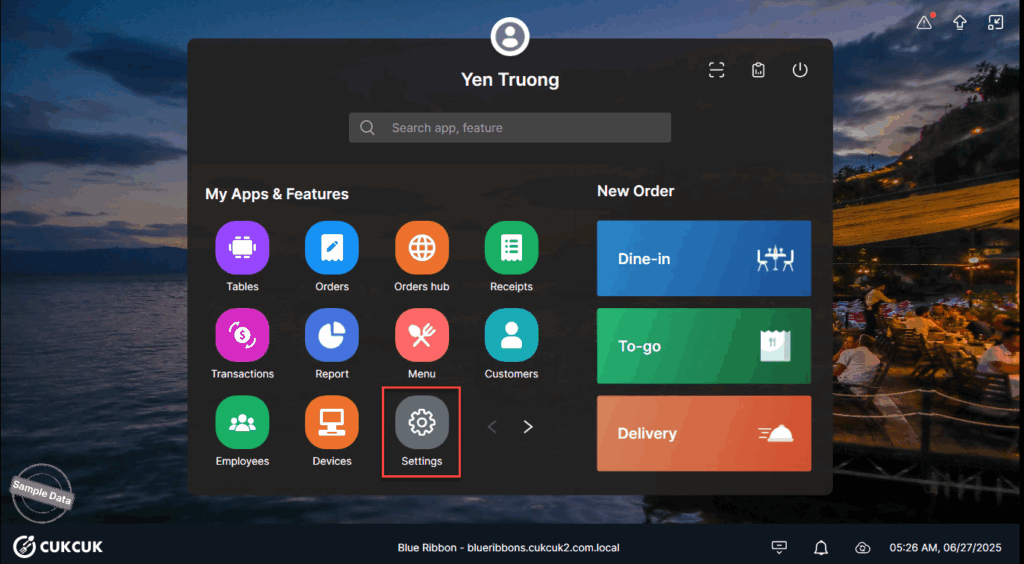
On POS, click Settings.
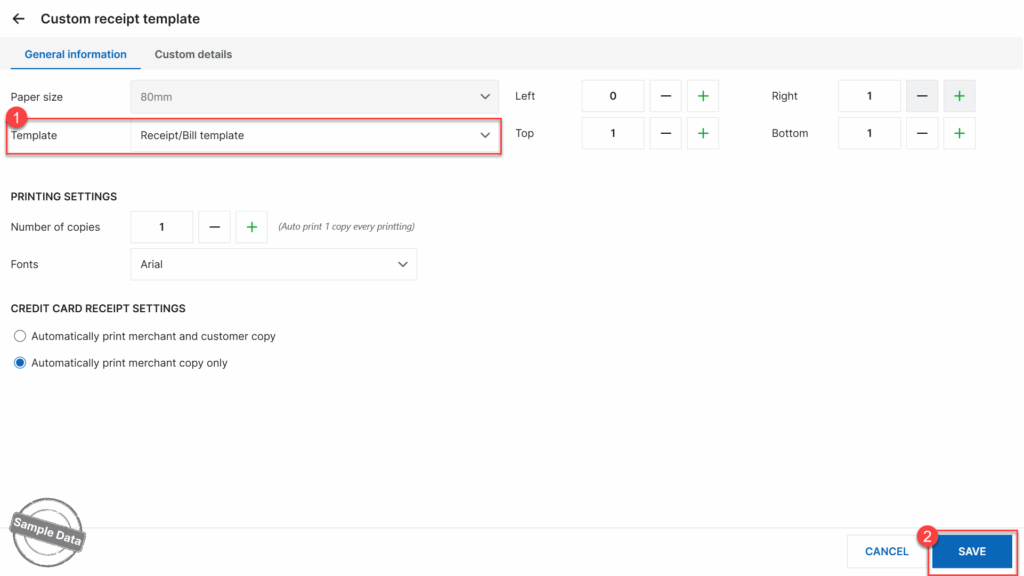
On Printer & Template/Printer & Receipts template tab, click Custom Template.
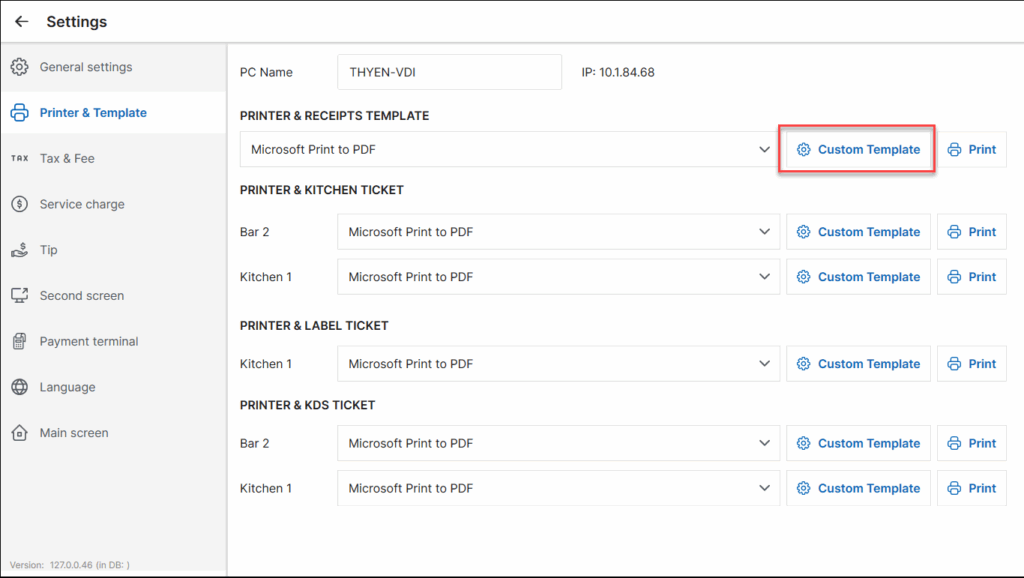
Select the template your restaurant wants to use in Template and click Save to apply.
Have a nice day!


