

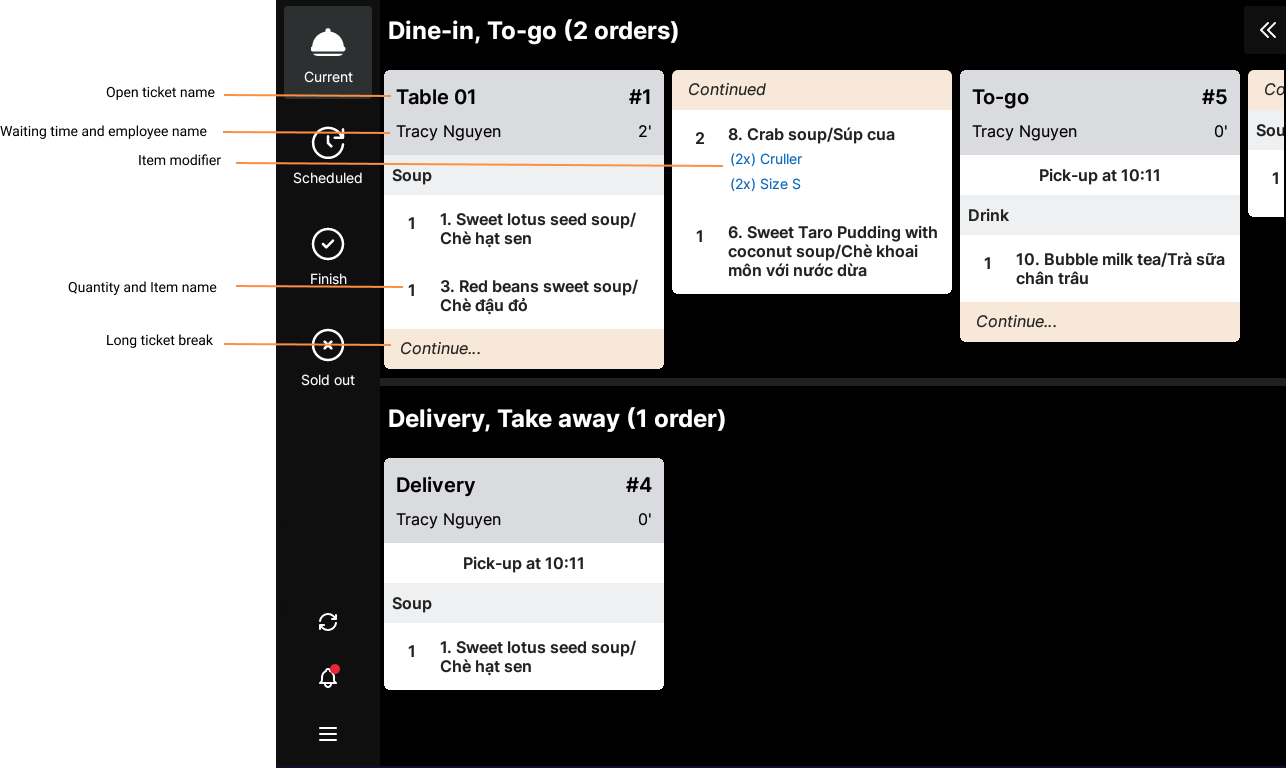
When accessing the KDS device, the orders will appear on the kitchen screen as preparation slips, including a list of items to be prepared.
On the Current tab
- The first line of the preparation slip displays the type of service and the waitstaff. Next is the timestamp showing when the order was created and sent to the kitchen.
- The list of items is displayed by item, grouped according to the menu order set up on the management page. If the orders include Modifiers, the program will list them directly under each item.
- If an order has many items, the program will, by default, split them into multiple sections so you can view the entire list of items to be prepared on one screen without scrolling.
In addition, you can click the icon to view a summary of all items currently needing preparation. For any items that have been marked as completed, the program will automatically decrease the quantity or hide that item.
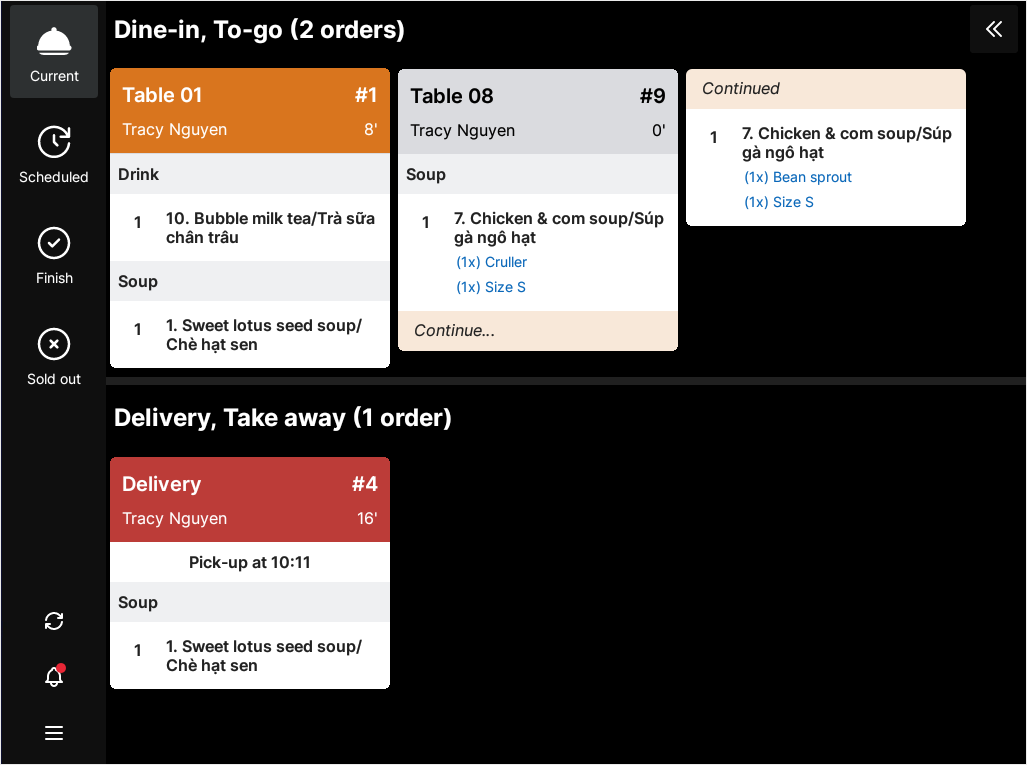
- As time passes, the color of each preparation slip changes from GREY to ORANGE to RED, indicating orders within or beyond the expected preparation time. The time intervals can be adjusted in the Settings/Undo/Transitions time section.
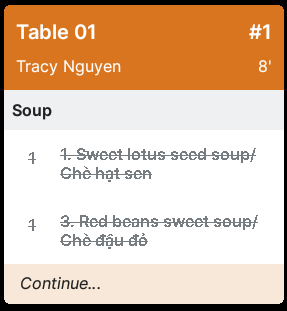
- For items that have been cooked, click on the item in the slip; the program will display a strikethrough to indicate that the item has been completed. You can also click on the entire preparation slip to mark all items as completed when everything is done.
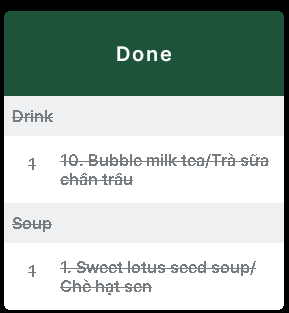
- Select each preparation slip to mark the entire order as completed, or select individual items. Once completed, the Current tab will display the “Done” status, and the program will move the order to the Finish tab.
You can select “Done” to hide the order from the Current tab.
On the Schedule tab
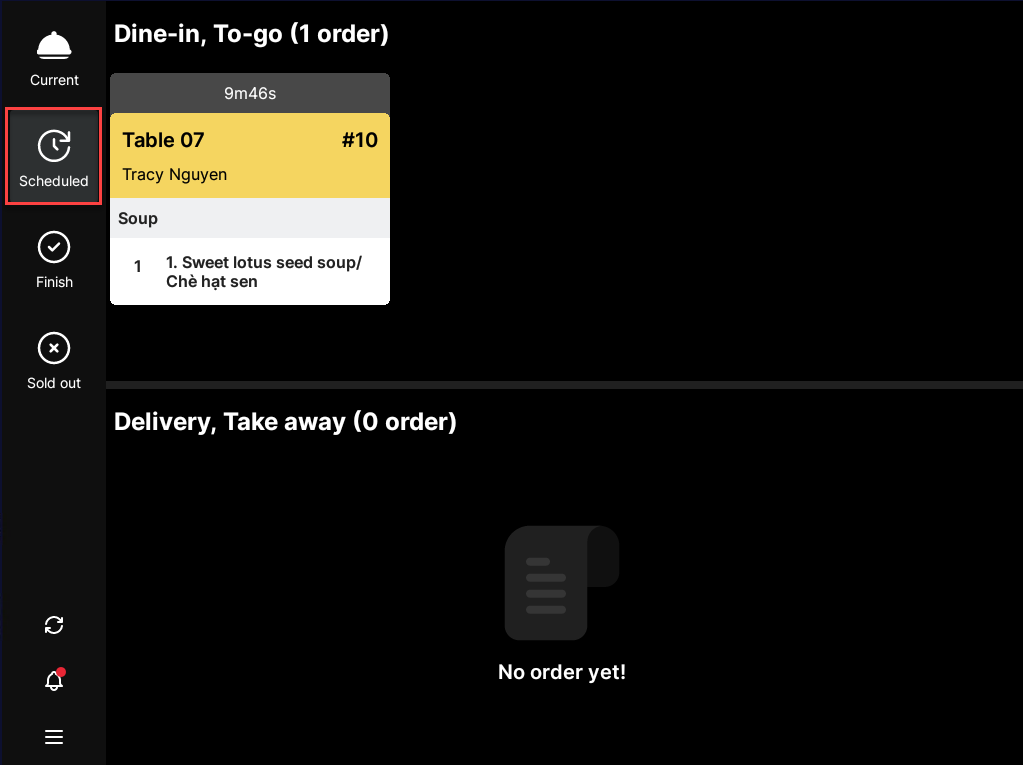
For items not yet scheduled for preparation, the program displays them under the Schedule tab. When the countdown timer reaches zero, the system will automatically move the items to the Current tab for the kitchen to prepare.
On the Finish tab
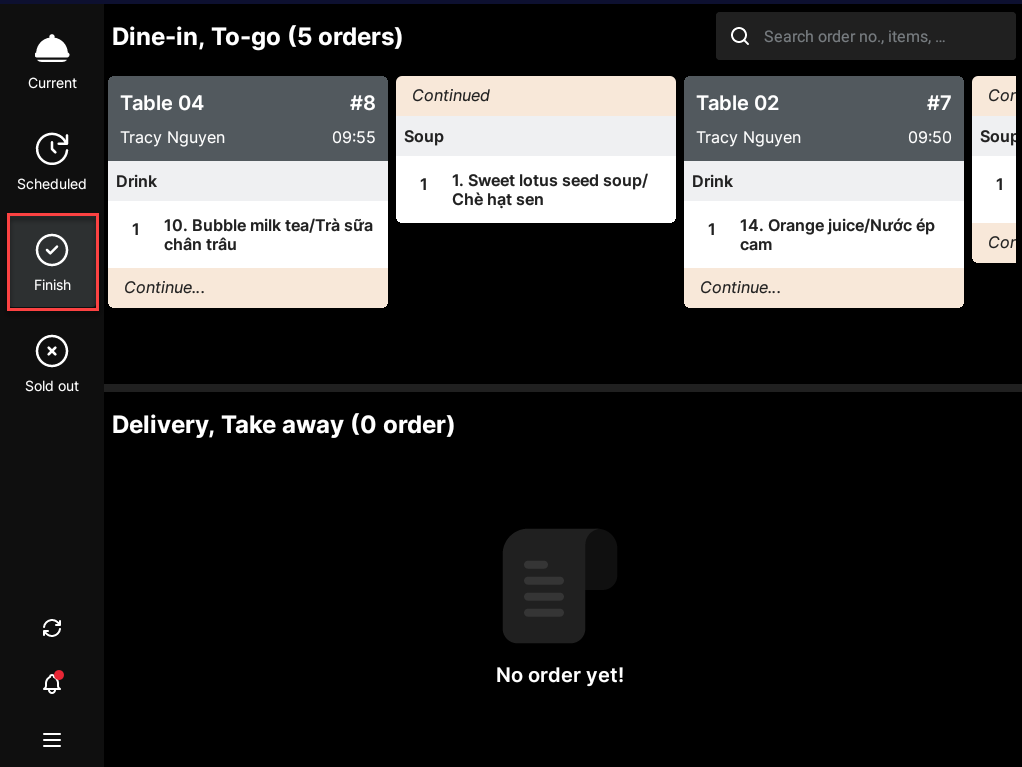
For items marked as completed, the program will automatically move the order to the Finish tab. By default, the most recently completed slips will appear first.
On the Sold out tab
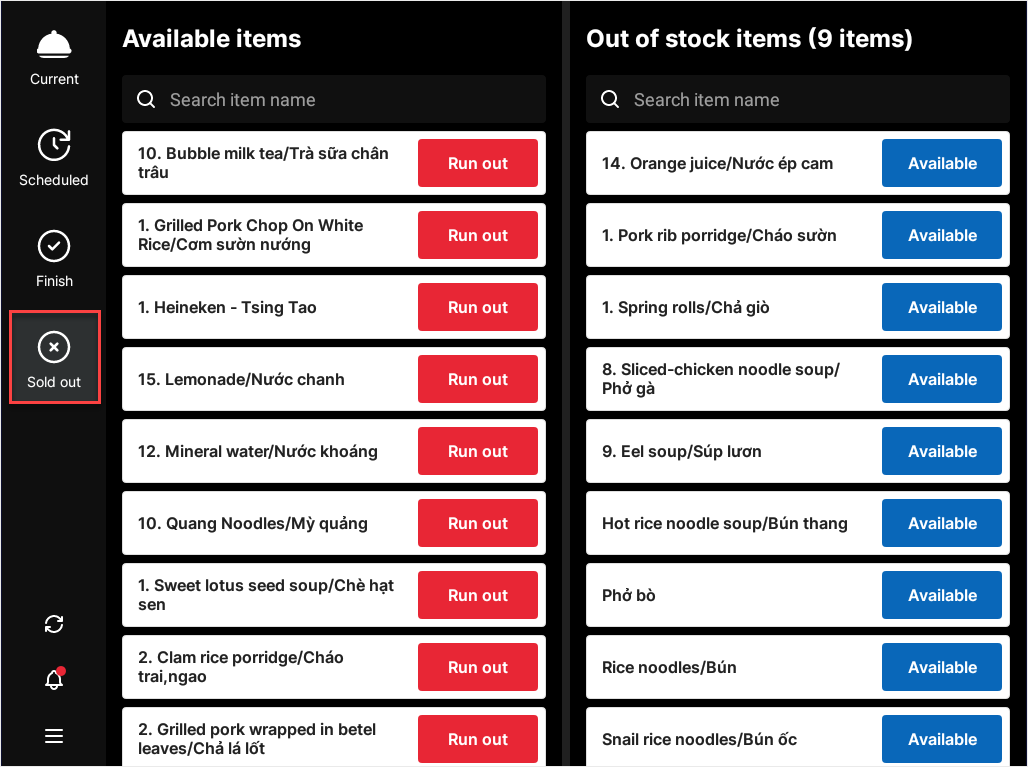
The program will display the list of available and temporarily out-of-stock items based on the settings in the Manual tracking section.
Have a nice day!


