

I. Purpose
The managers can check staff information in their restaurant/cafe and assign roles to each staff.
II. Instruction steps
1. View Current Role Assignments
- Open Dashboard → Settings → Staff.
- Go to the Manage roles tab.
• Every role shows the list of employees currently assigned to it.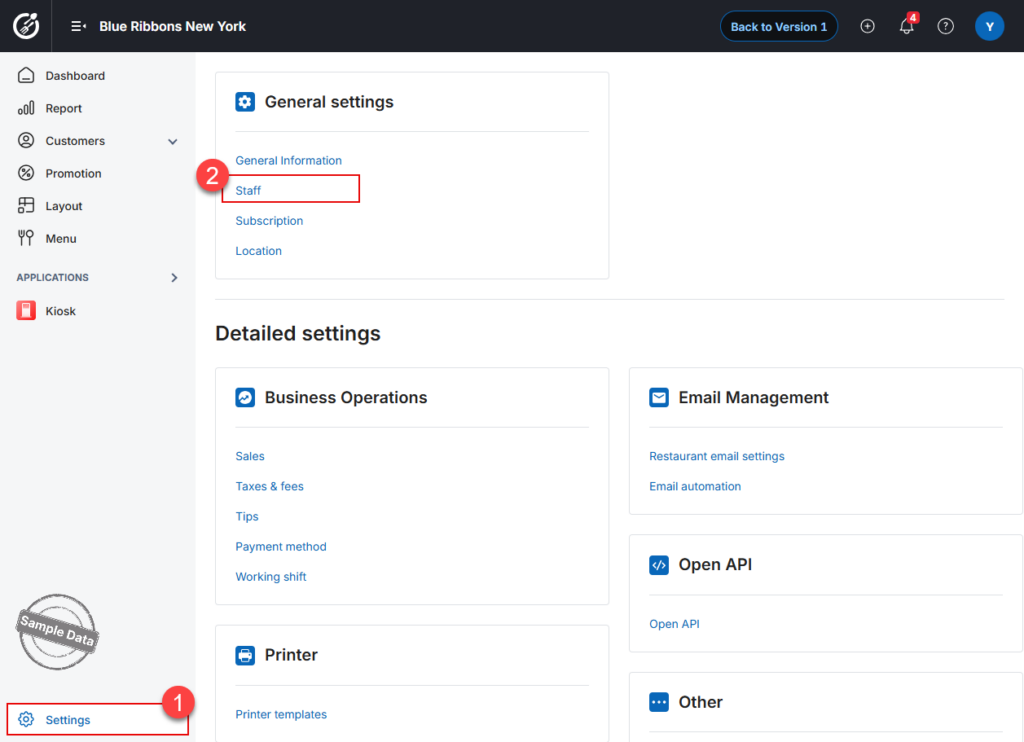
2. Add Employees to a Role
- In Manage roles, locate the role you want to expand.
- Click the Edit icon on that role.
- Go to the Assignee tab.
- Click Select staff and choose the employees to add.
- Click Save.
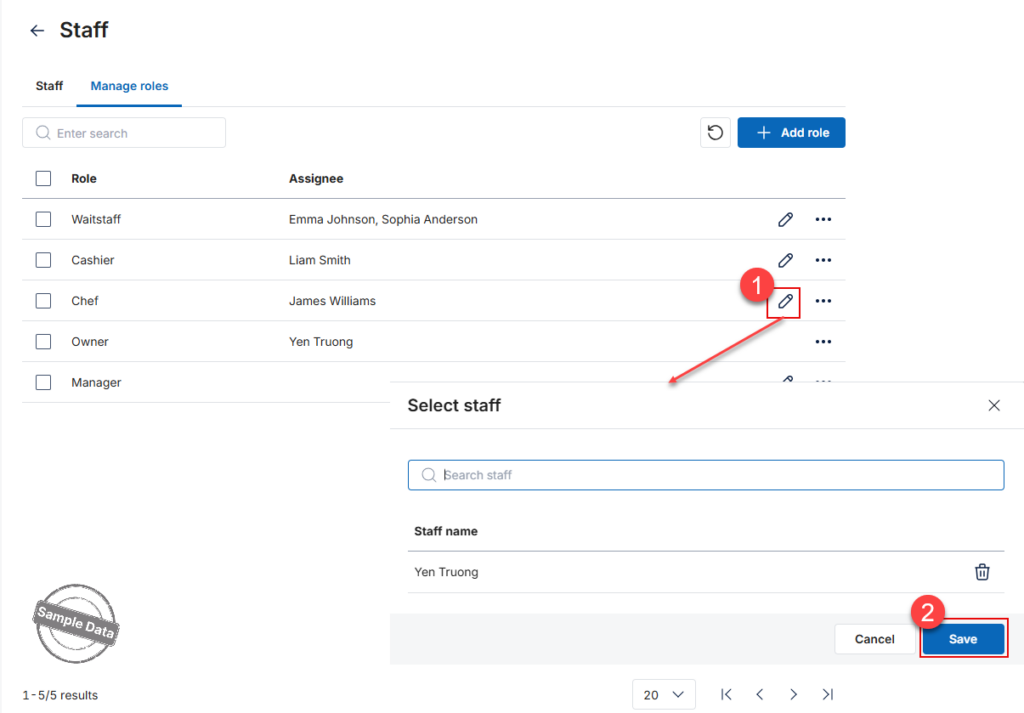
Reminder: Only employees that already exist in Staff can be assigned to roles.
3. Customize Role Permissions
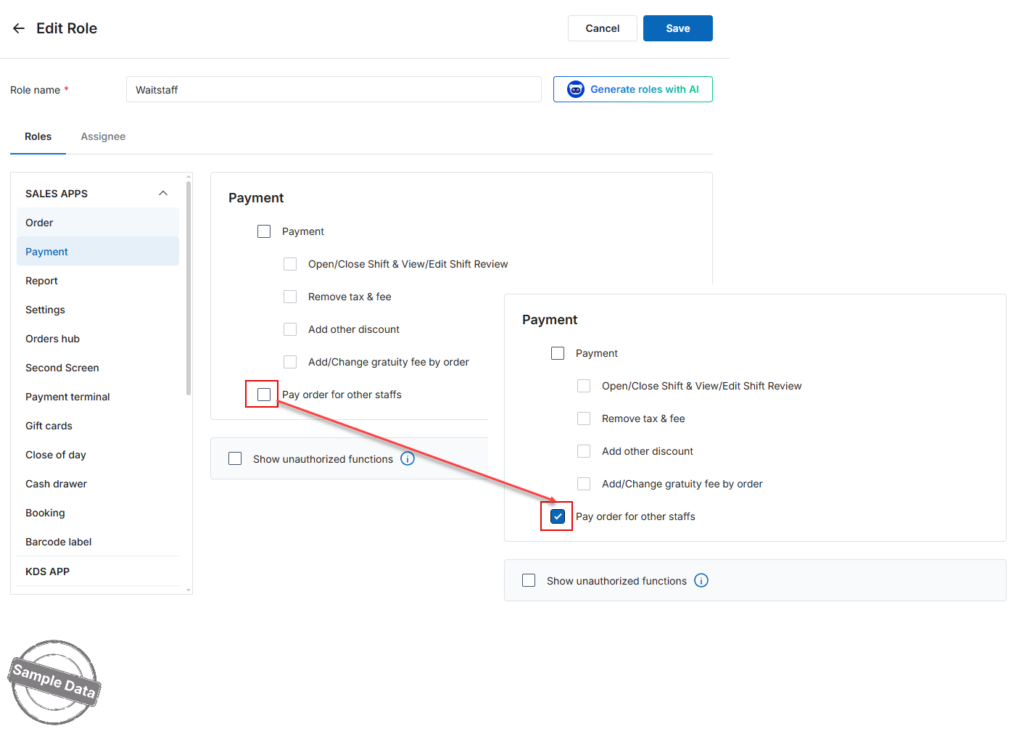
You can grant or revoke specific permissions to better control what each role can do.
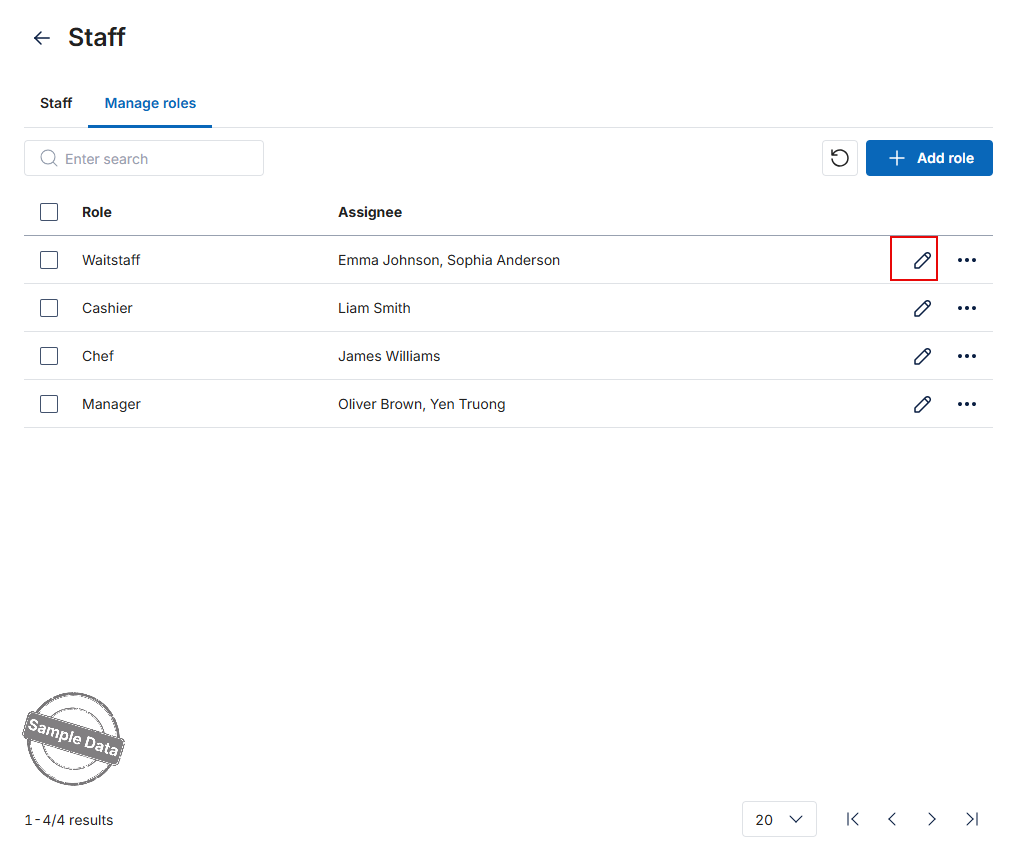
- In Manage roles, click the Edit icon for the desired role.
- Tick a checkbox to add a permission, or uncheck it to remove that permission.
- Click Save to apply the changes.
Have a nice day!


