Nội dung có trong bài
Ẩn
I. Purpose
This feature enables staff to create and manage catering bookings directly from the tablet.
II. Instruction steps
Step 1: Access Catering
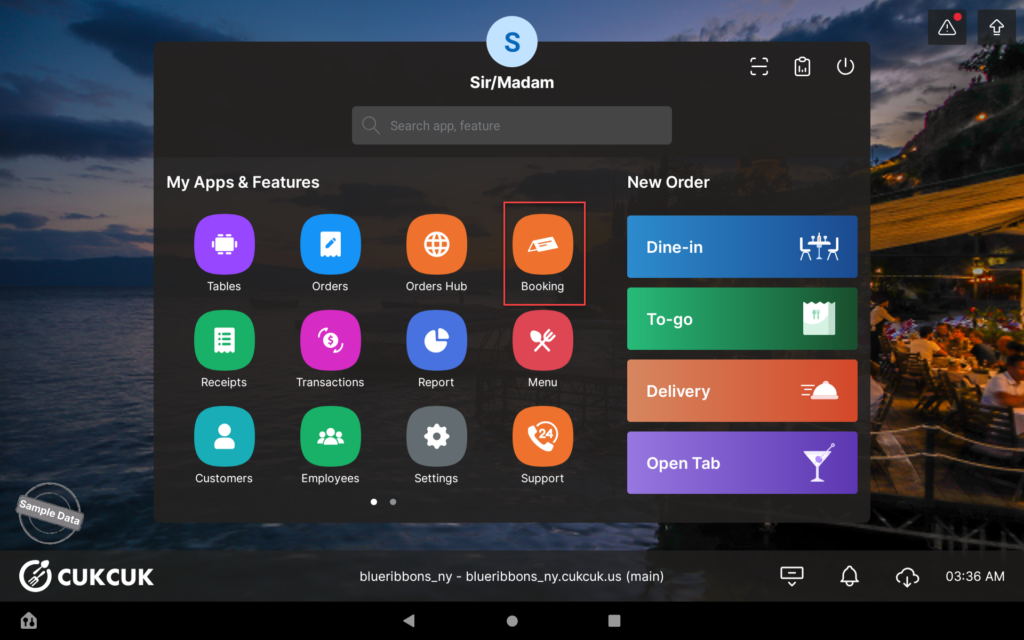
- Open the app and select Booking.
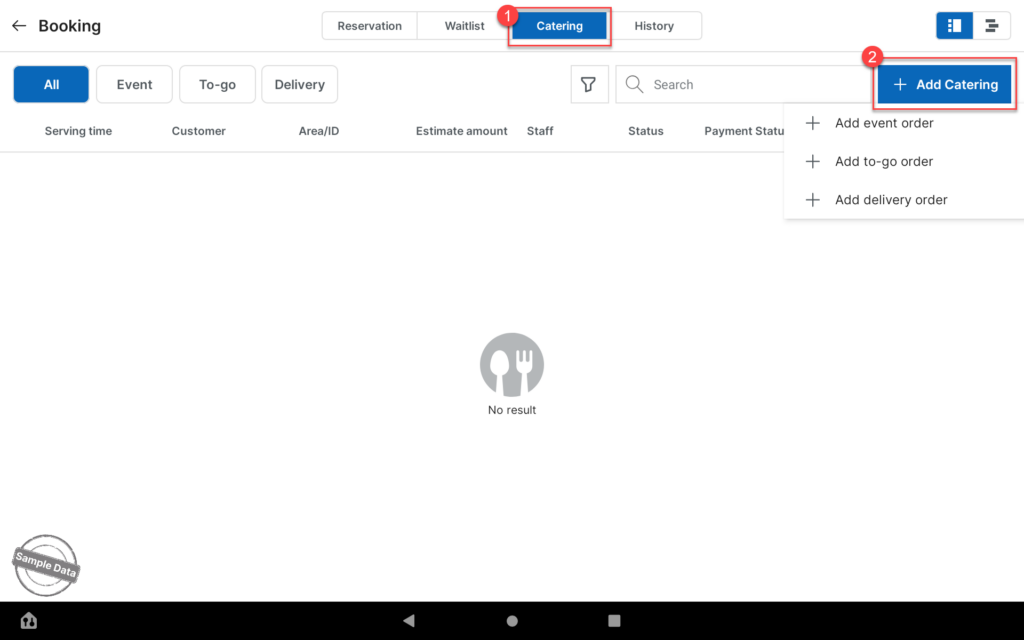
- Go to the Catering tab.
- Click Add Catering.
Choose the appropriate order type:
- Event
- To-go
- Delivery
Step 2: Enter Customer Information
Fill in the required customer details.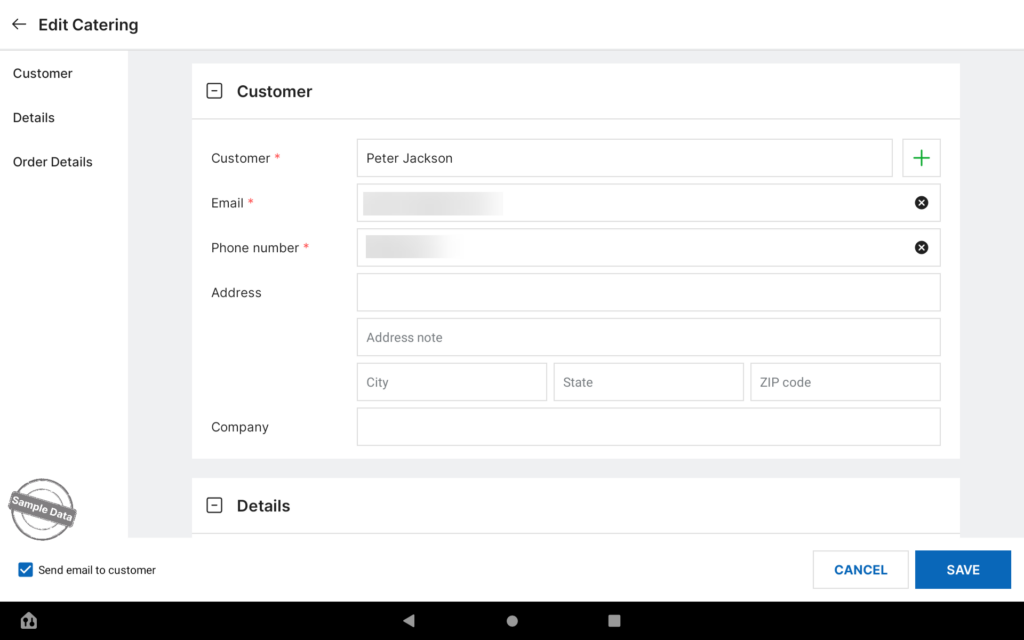
Step 3: Configure Event Details
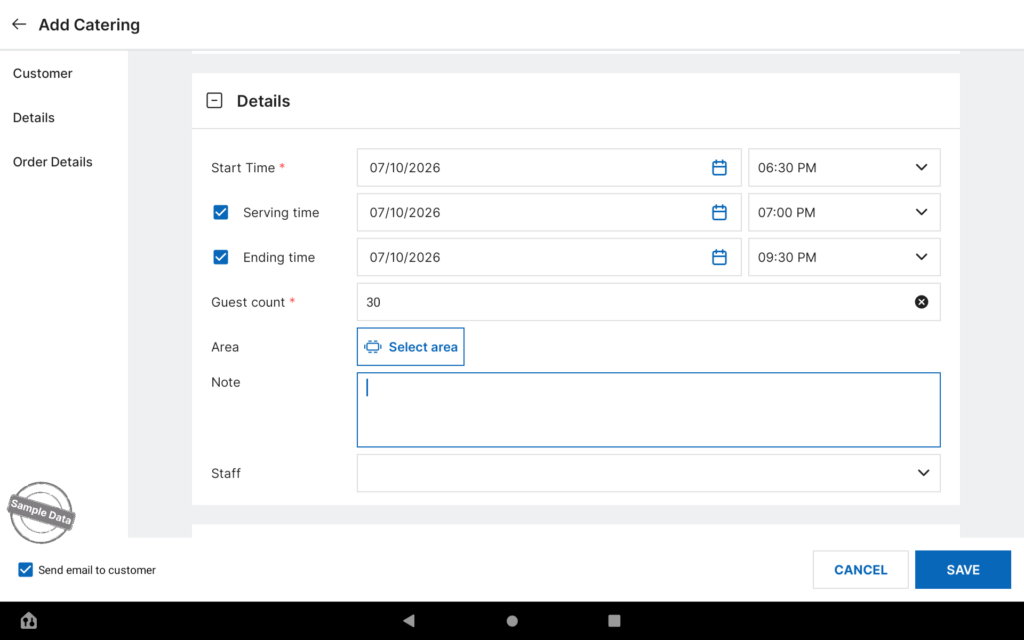
- Go to the Details section.
- Set the Start Time. là thời gian khách bắt đầu đến nhà hàng.
- Enable Serving Time and select the serving time – this is the time when food service begins. If unchecked, the system will automatically set the serving time to 30 minutes after the Start Time.
- Enable Ending Time if applicable – this is the time when the event ends. If not specified, the system will automatically set the ending time to 3 hours after the Start Time.
- Enter the Guest Count.
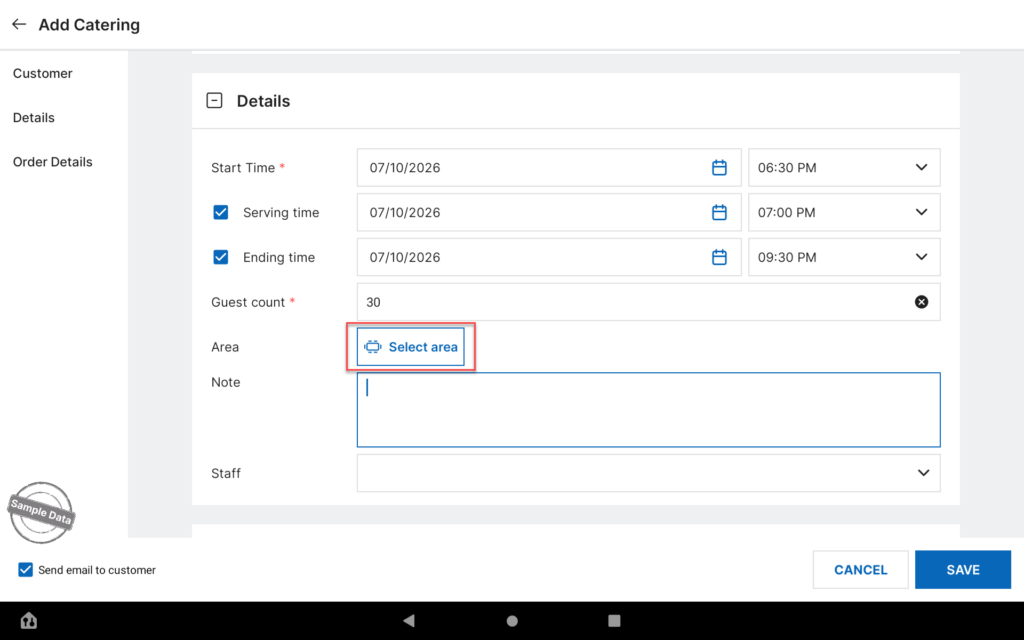
Step 4: Select Serving Area
- Click Select Area to choose the serving location.
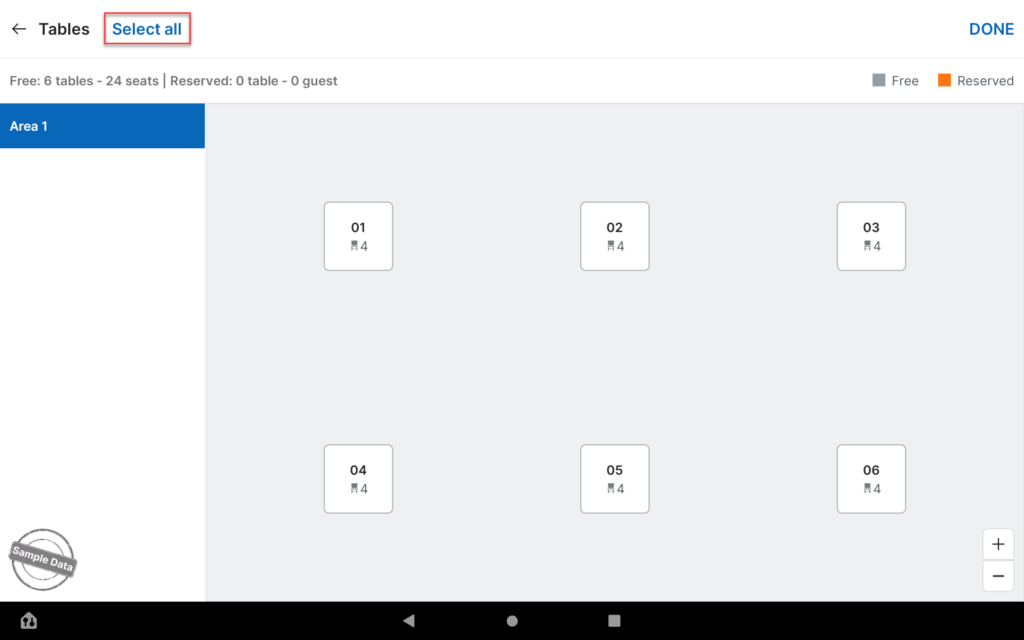
- Select tables:
- Click Select All to reserve all tables in the area, or
- Manually select specific tables.
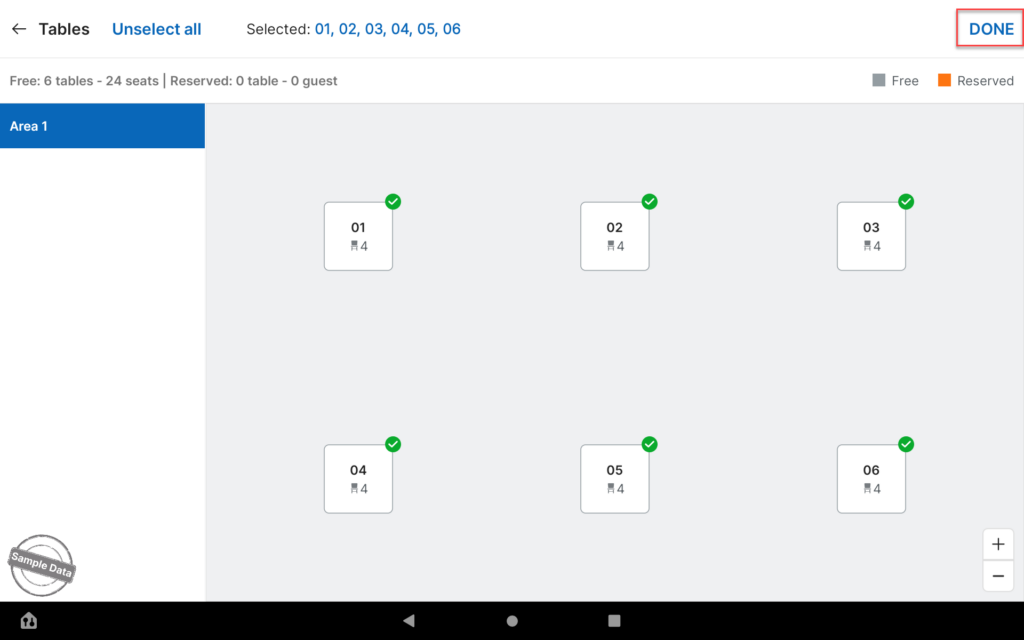
- Click Done to confirm.
Step 5: Add Special Notes
Enter any special requests provided by the customer (if any).
Step 6: Add Menu Items
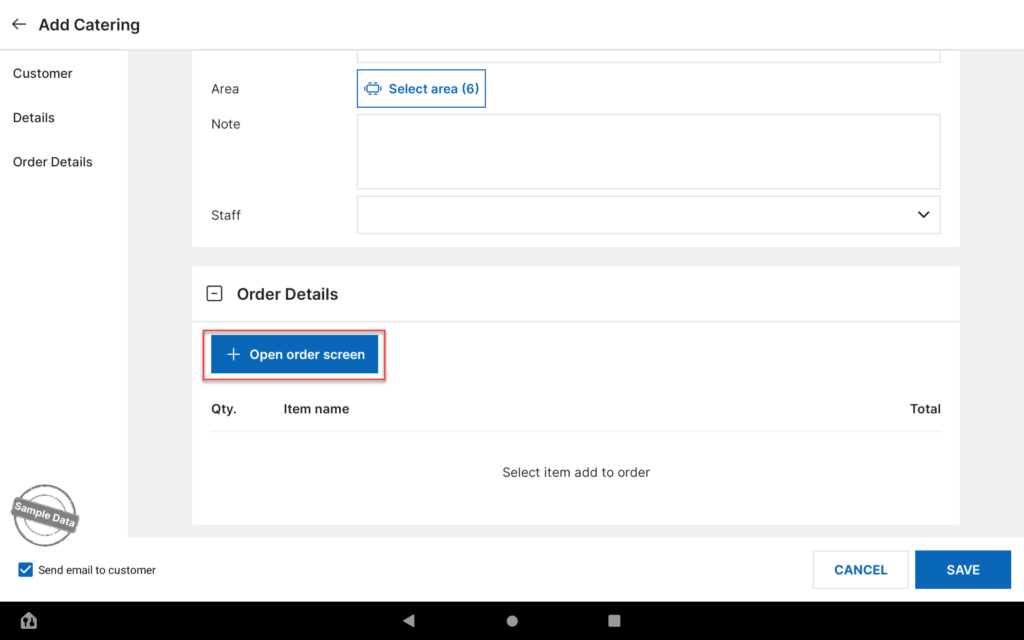
- Go to Order Details.
- Click Open Order Screen to add items in advance (if required).
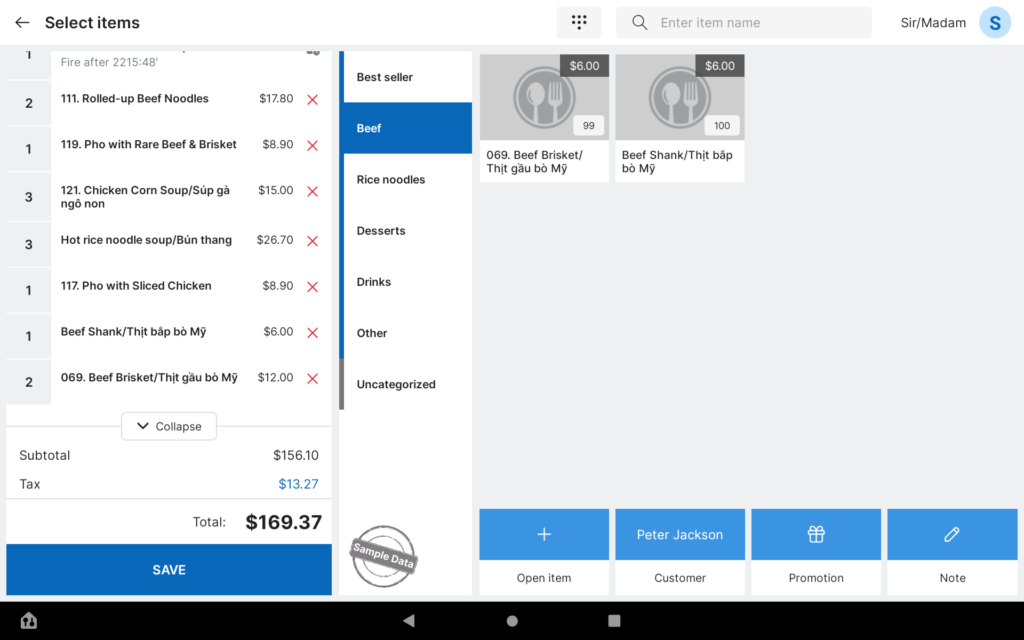
- Select the items.
- Click Save.
Step 7: Set Preparation Time
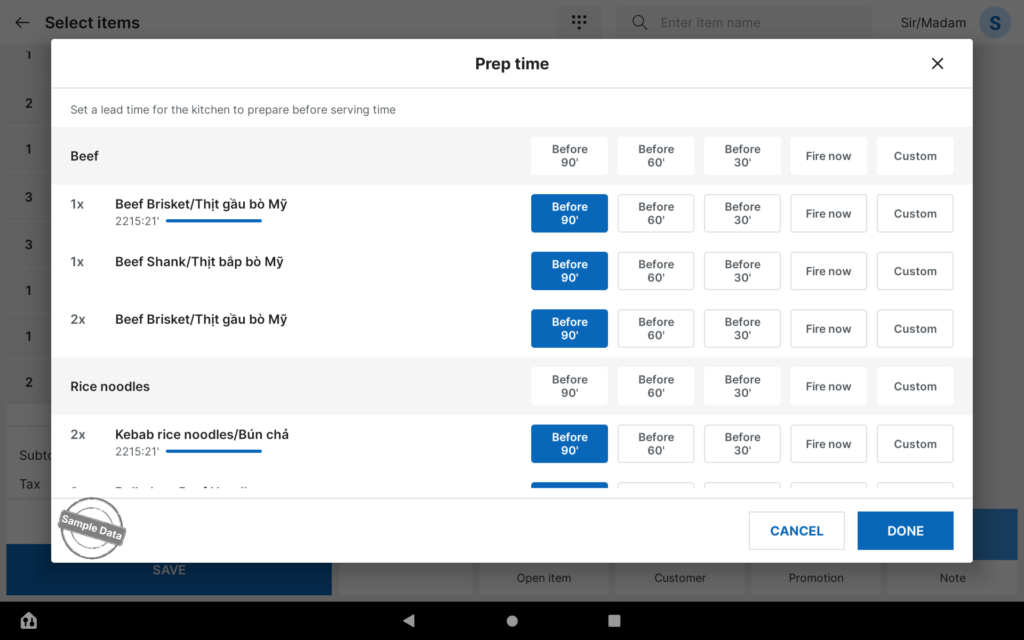
- Configure the Prep Time to determine when kitchen preparation should begin in relation to the serving time. This defines how many minutes before the Serving Time the kitchen starts preparing the food.
- Click Done to save the setting.
Step 8: Review and Confirm
Review:
- Selected items
- Deposit amount to be collected
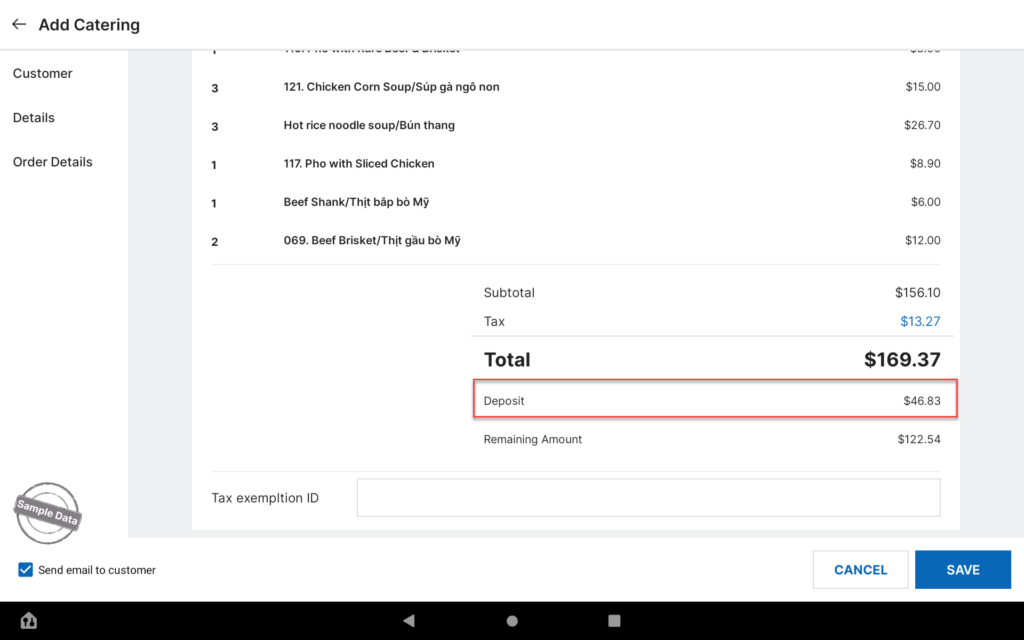
- If you check Send email to customer, the customer will receive an email containing the order details.
- If a deposit is required, the customer can proceed with online deposit payment through the link provided in the email.
Click Save to finalize the catering order.
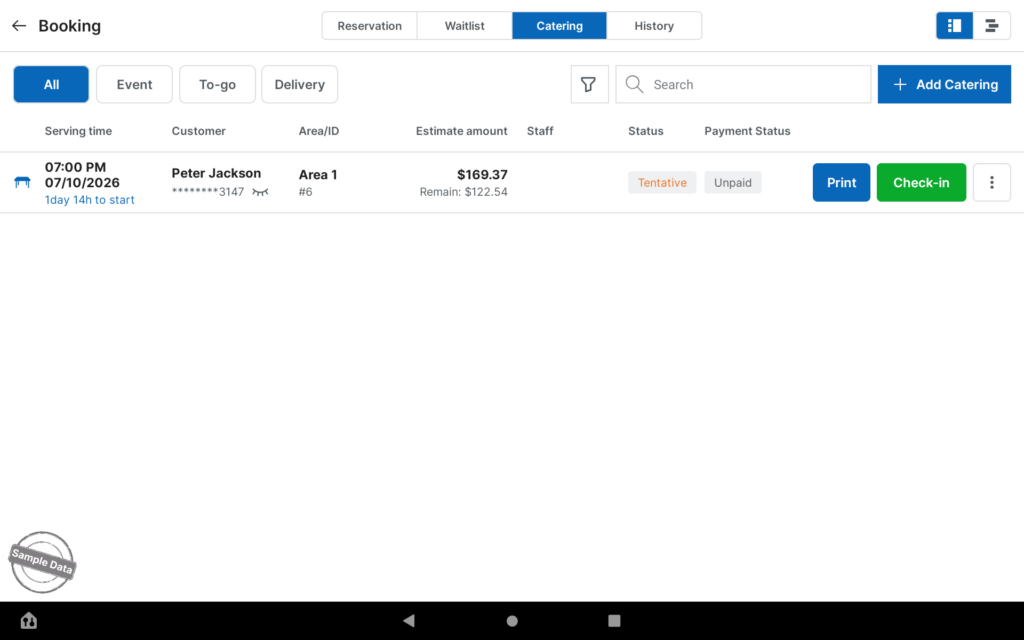
The catering order is now successfully created.
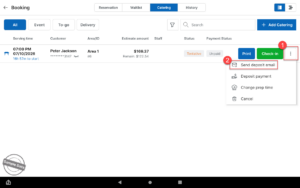
Note: If the catering order has been created but the staff forgot to select Send email to customer, you can click the icon  and choose Send deposit email to resend the deposit payment email to the customer.