

Nội dung có trong bài
Ẩn
I. Purpose
This feature is designed to automatically send business performance reports via email to restaurant owners / managers or employees in charge, allowing them to monitor operations without logging into the system.
II. Instruction steps
Step 1: Access Email Automation Settings
- On the Dashboard, go to Settings.
- Select Email Automation.
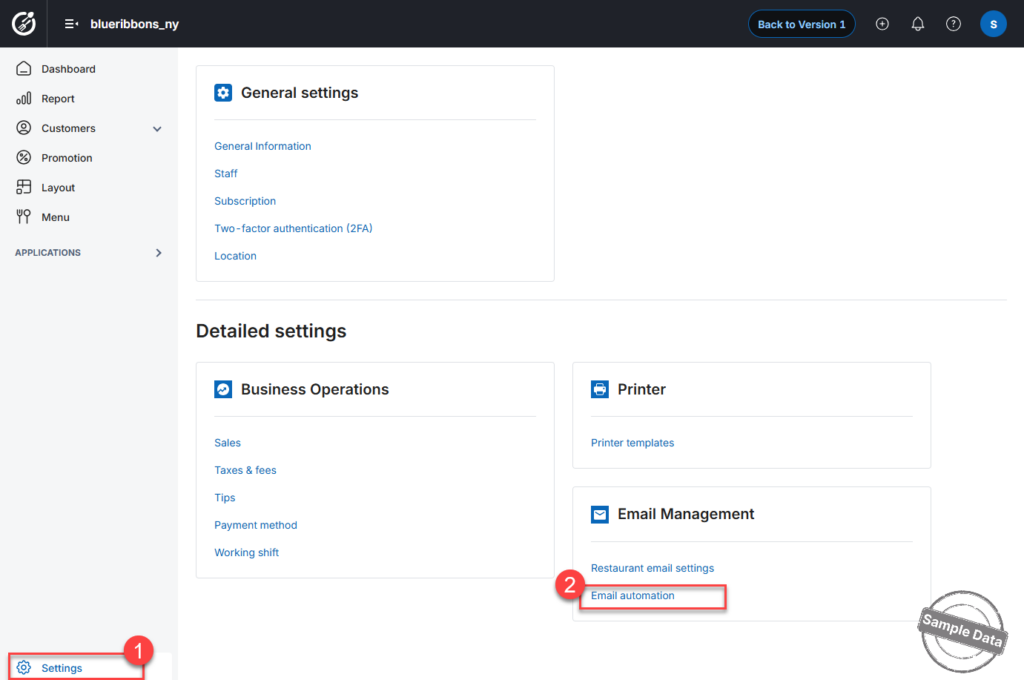
Step 2: Configure Report Delivery
- Click the Edit icon next to the report you want to schedule.
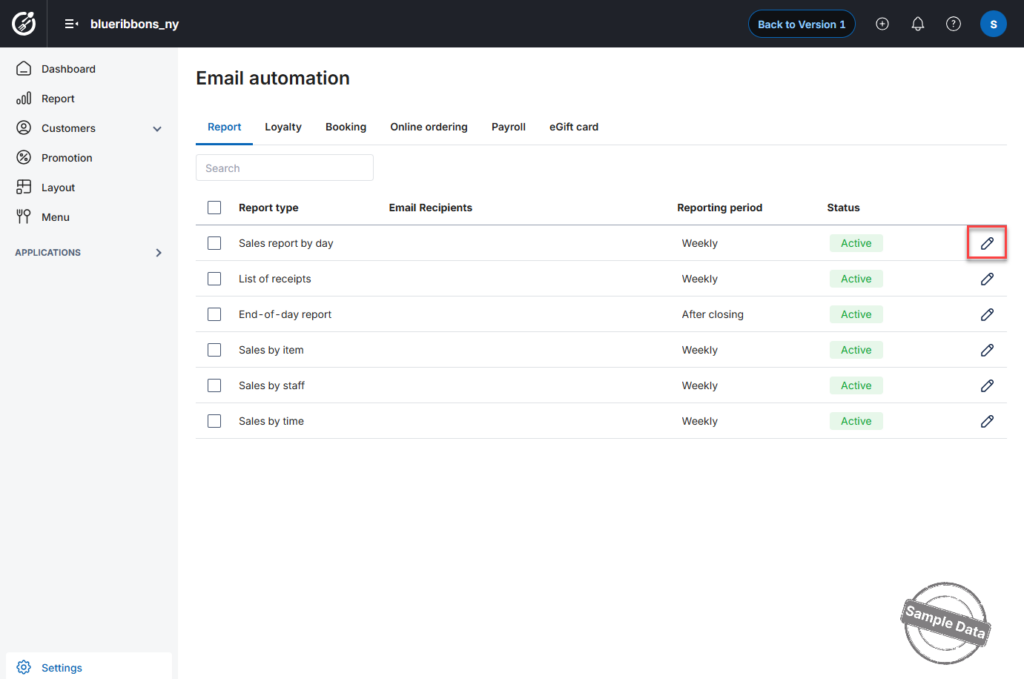
- Enter the email recipient(s).
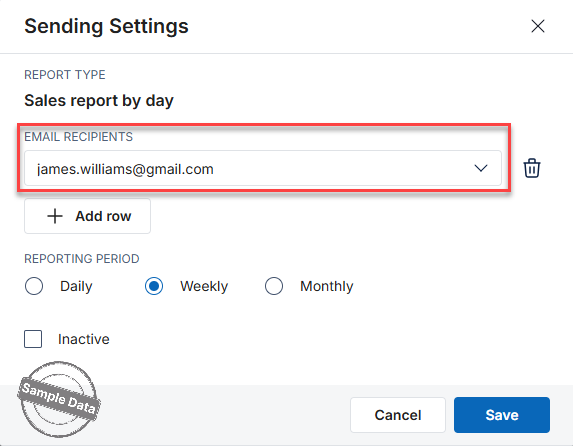
- Click Add row to add additional recipients.
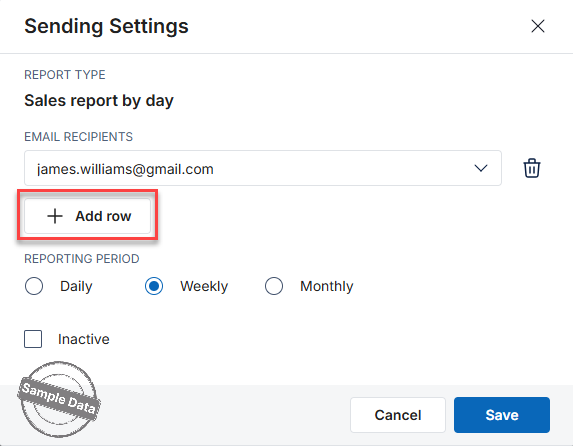
- Click delete icon
 to remove the reccipient.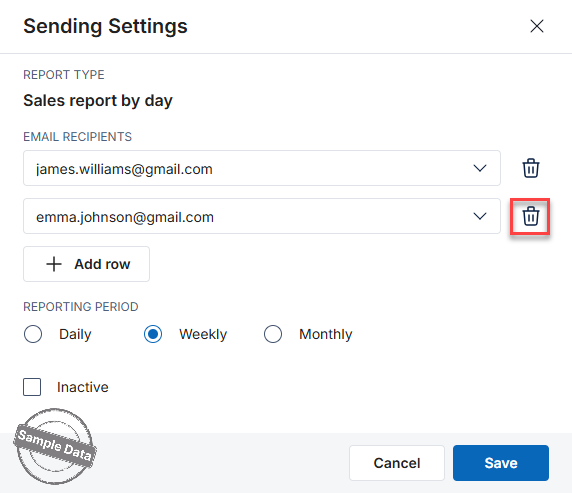
- Click Add row to add additional recipients.
- Select the Reporting Period:
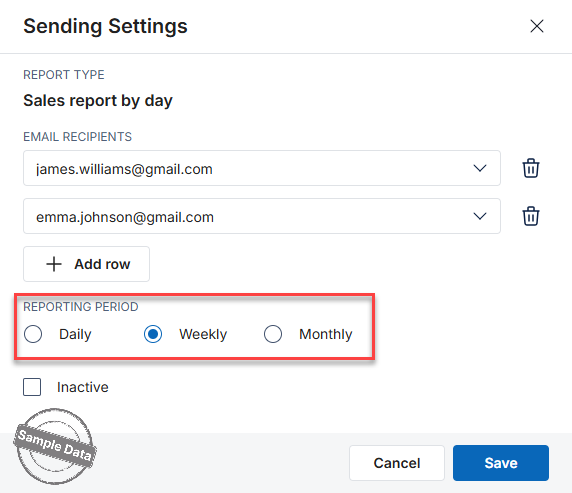
- Daily: Emails will be automatically sent at 6:00 AM the following day.
- Weekly: Emails will be automatically sent at 6:00 AM on the first day of the following week.
- Monthly: Emails will be automatically sent at 6:00 AM on the first day of the following month.
- Regarding End-of-day report, the reporting report defaults to After closing.
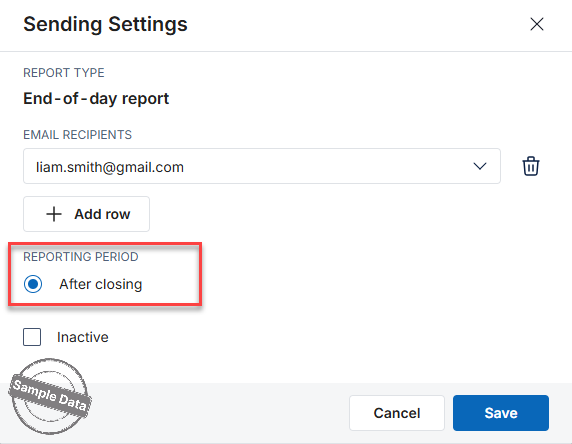
4. Check Inactive if you do not want to automate this email.
Click Save to apply and activate the email schedule.
Follow the same steps for other reports: List of receipts, Sales by item, Sales by staff, and Sales by time.
Have a nice day!


