

I. Purpose
This feature allows Restaurant Managers to configure multi‑station kitchen workflows for menu items that require multiple preparation stages.
II. Instruction Steps
Step 1: Enable Multiple Stations
- On the Dashboard, go to Settings.
- Select Sales.
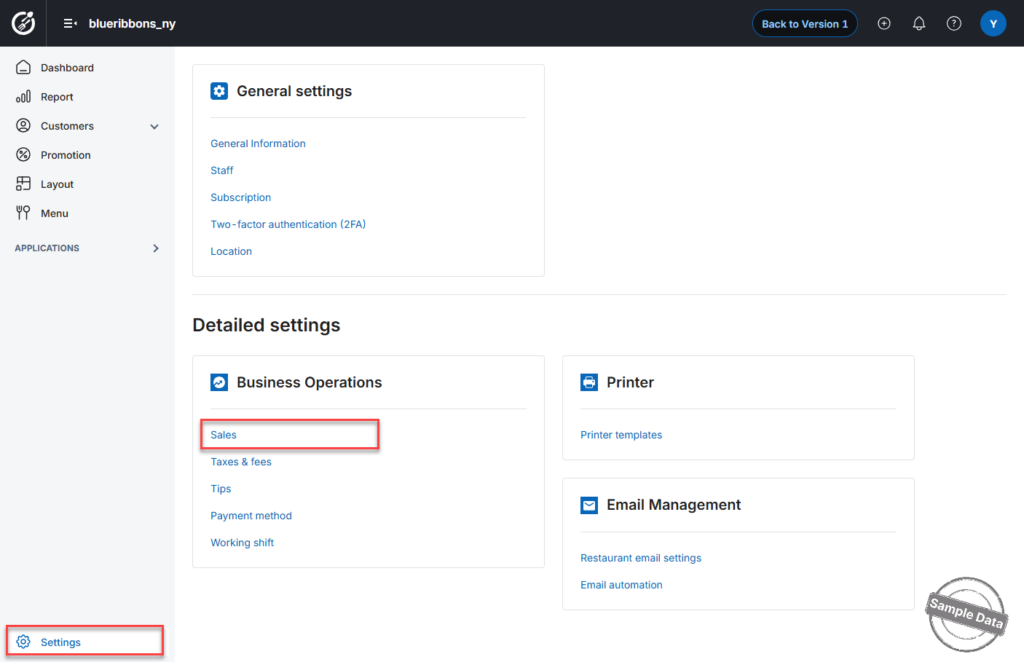
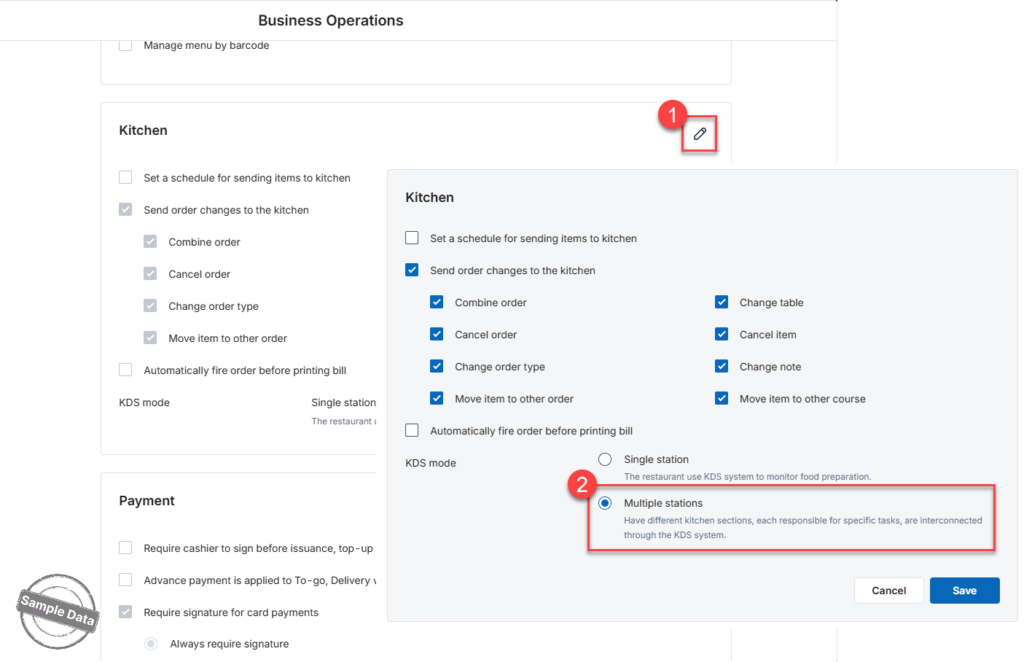
- Scroll down to the Kitchen section.
- Click the Edit icon.
- Check Multiple stations.
- Click Save to apply the changes.
 When prompted, click Yes to confirm.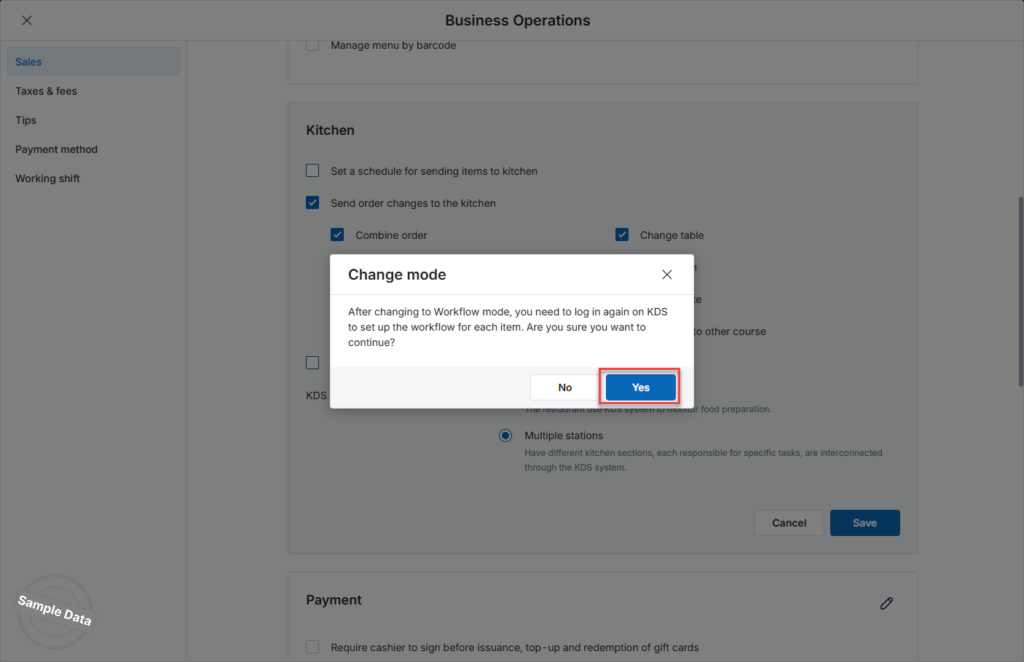
Step 2: Configure Kitchen Stations
Click Settings to configure the kitchen stations.
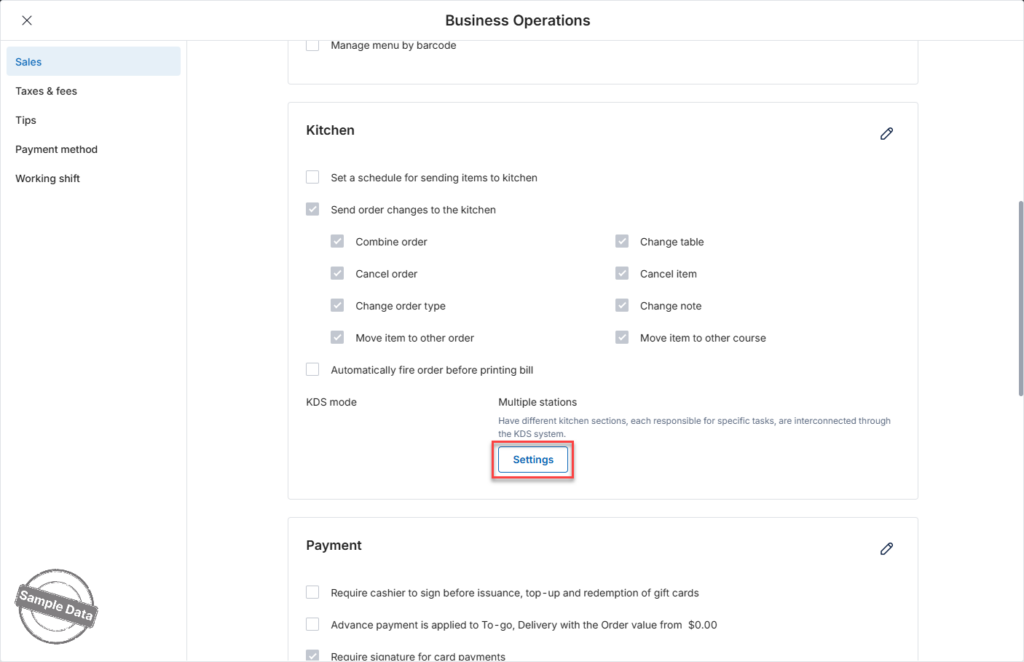
⚠ Important:
To use this feature, you must select No device for the applicable kitchens.
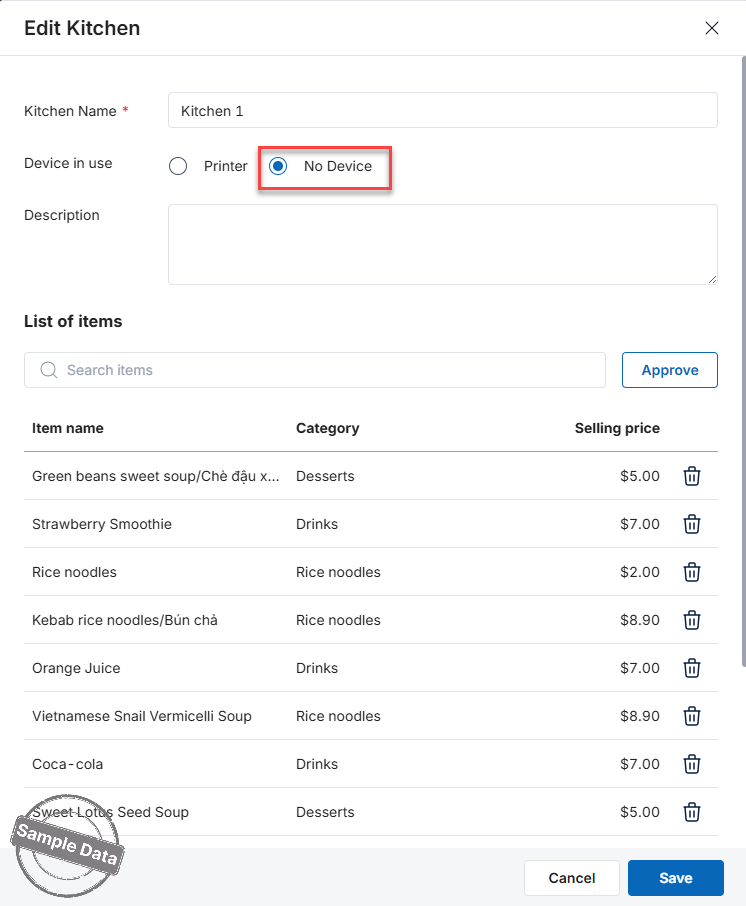
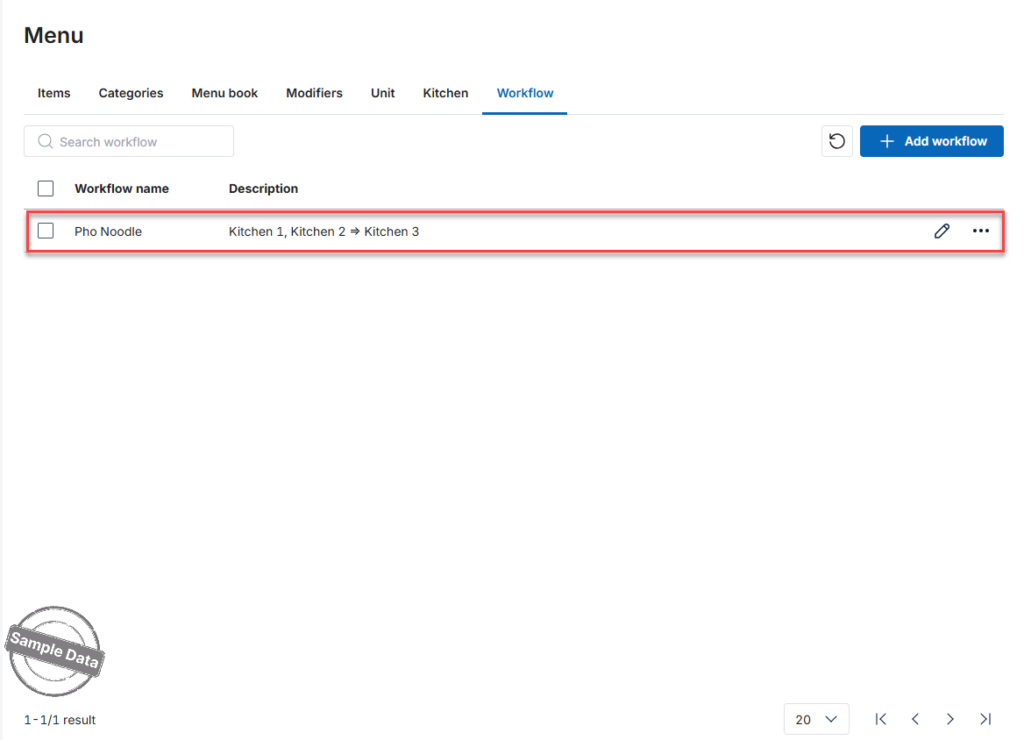
Step 3: Create a Workflow
- Click Add workflow.
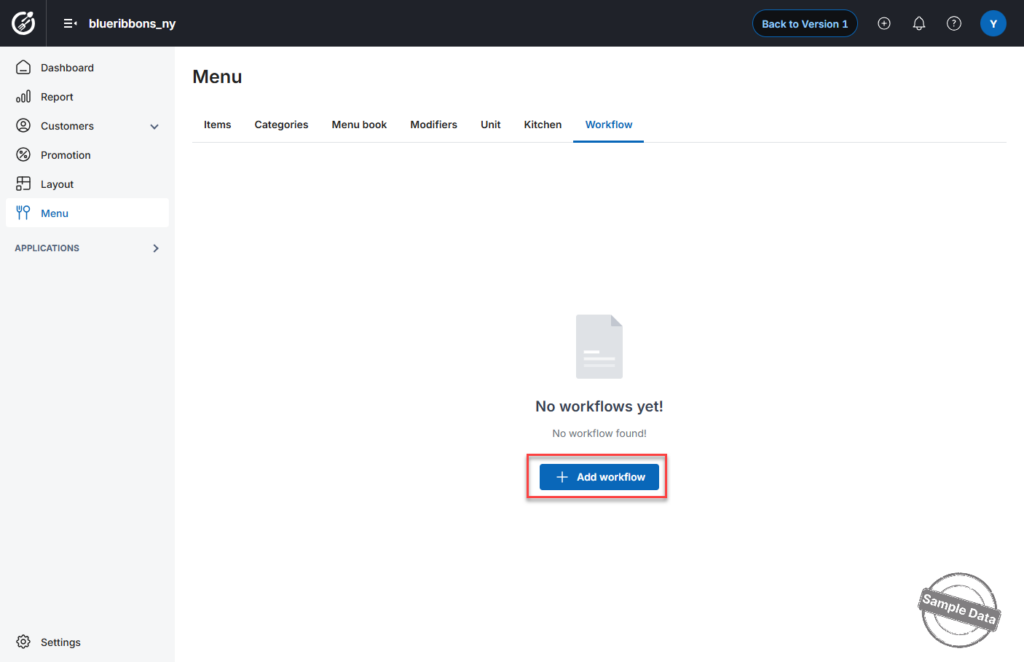
- Enter the Workflow name.
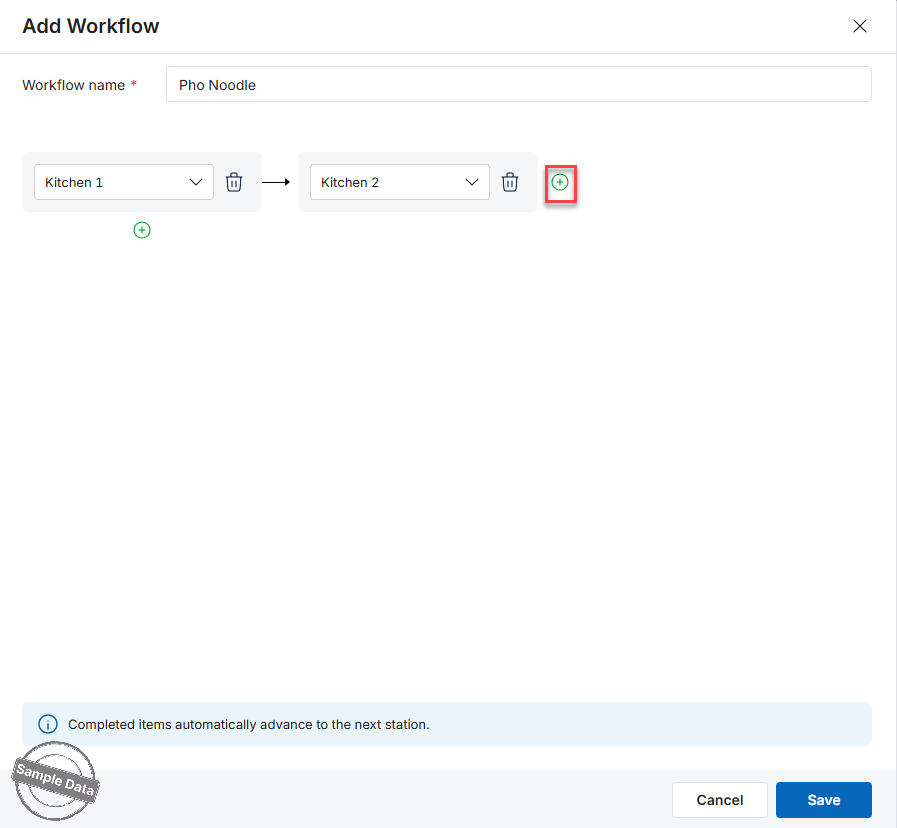
If the item is processed step by step (Sequential Processing)
- Click the plus icon on the right (horizontal layout).
- Select the kitchen for each step in the sequence.
- Each station will complete its step before passing the item to the next station.
If multiple kitchens process the item at the same time (Parallel Processing)
- Click the plus icon below (vertical layout).
- Select the kitchens that will work simultaneously.
- Then click the plus icon on the right to add a final kitchen station responsible for completing the item before serving the guest.
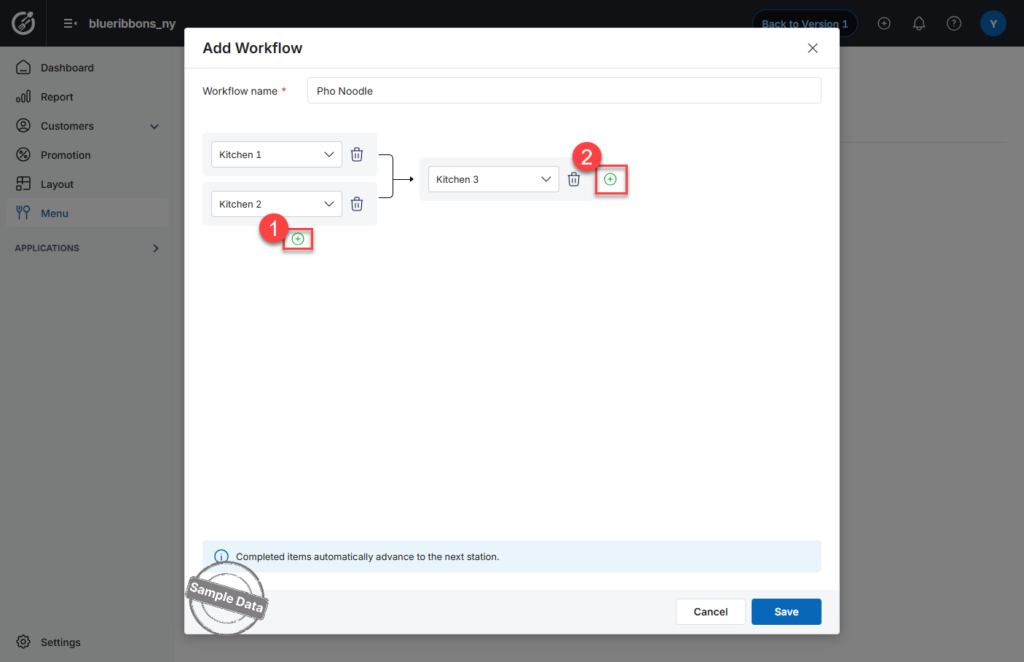
The workflow is now configured for multi‑station kitchen processing.
Have a nice day!


