

I. Purpose
This feature allows large-scale restaurants to activate and configure Catering & Event Management, including deposit collection and automated email notifications.
II. Instruction Steps
1. Enable Catering Feature
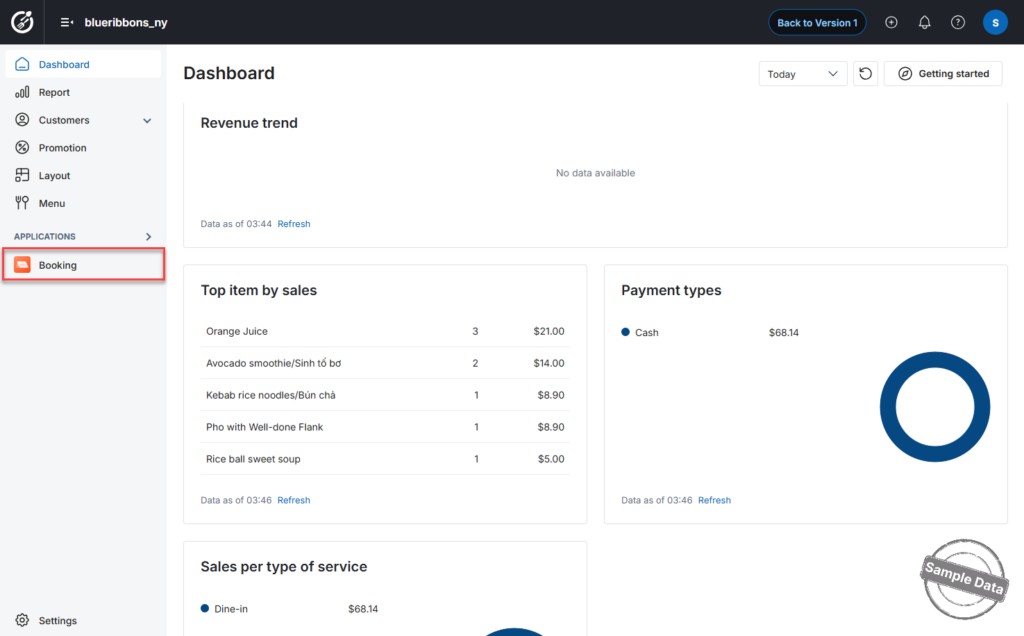
- Go to the Booking app on the Dashboard.
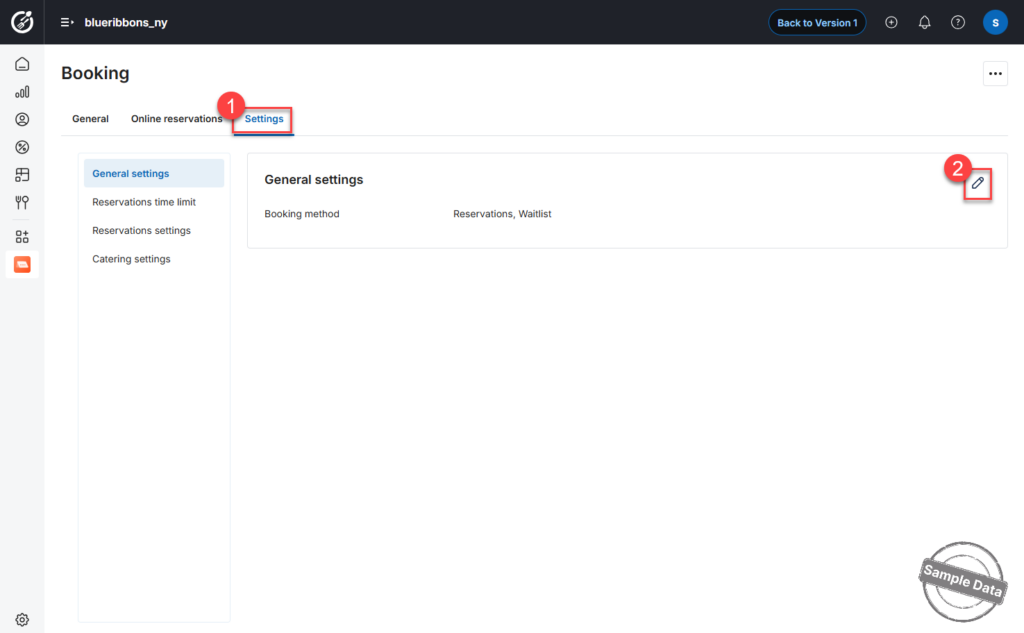
- Open the Settings tab.
- Select General Settings and click the Edit icon.
- Check Catering to activate the feature.
- Click Save.
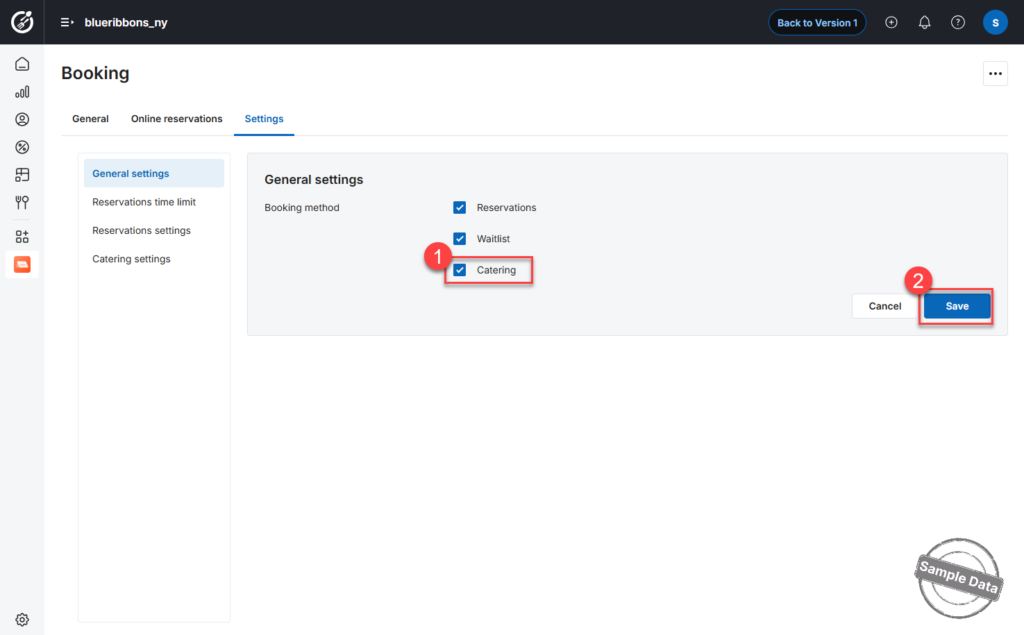
Catering is now enabled in the system.
2. Configure Deposit Settings
- Go to Catering Settings.
- In the Deposit section, click the Edit icon.
Choose one of the following deposit options:
- Open amount
Allows you to manually enter the required deposit amount for each event. - By % of item total amount
Enter the percentage of the order total that the customer must pay in advance.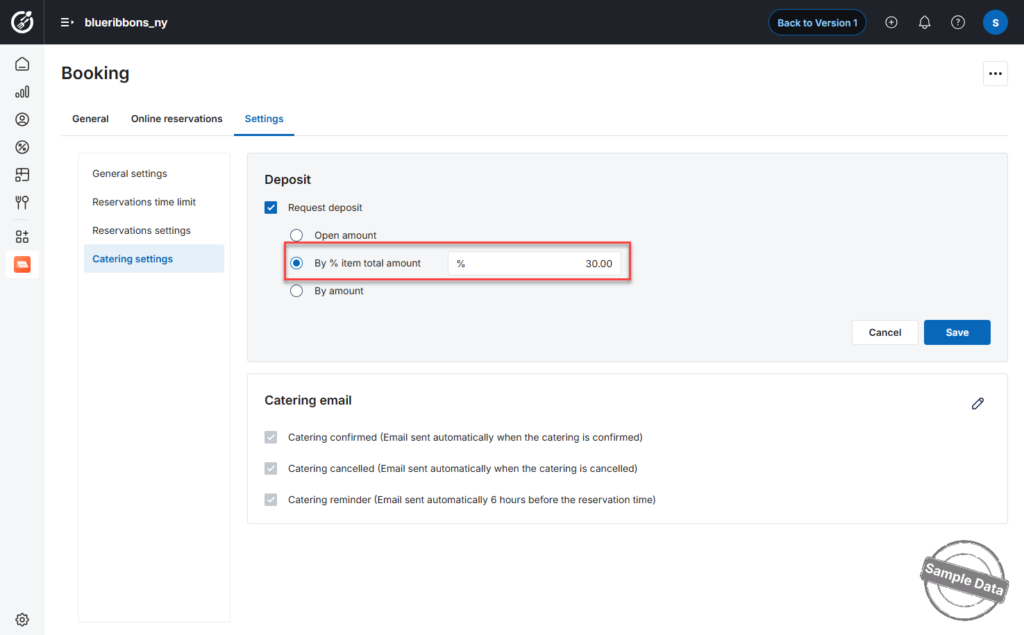
- By amount
Enter a fixed deposit amount required for each order.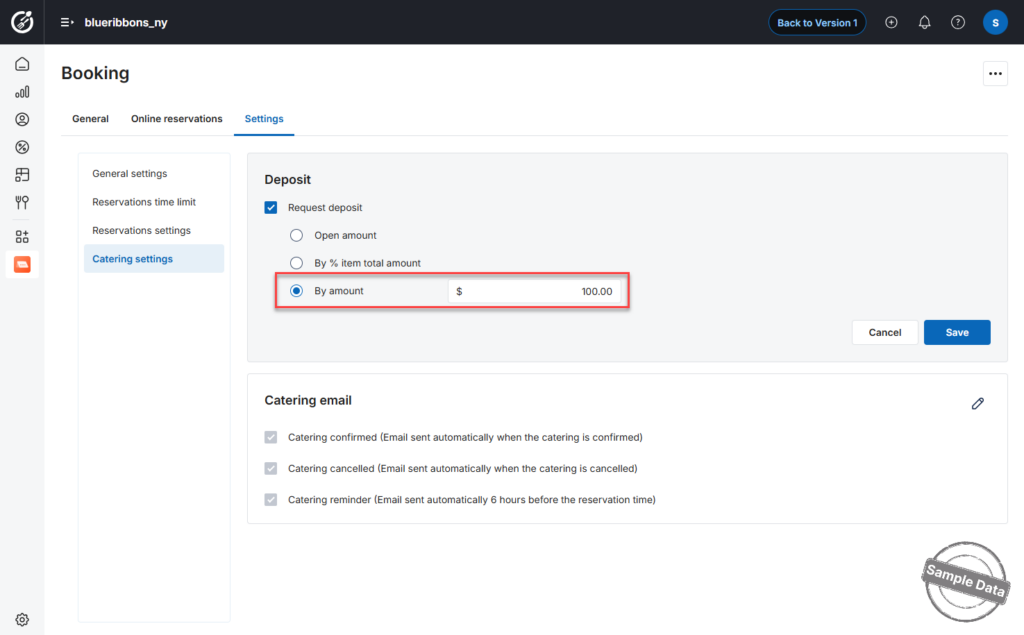
After configuring your preferred option, click Save.
3. Configure Catering Email Notifications
- In Catering Settings, click the Edit icon next to Catering Email.
- Select the types of emails to be sent (e.g., confirmation, cancellation, reminder).
- Enter the number of hours before the event to send reminder emails.
- Click Save.
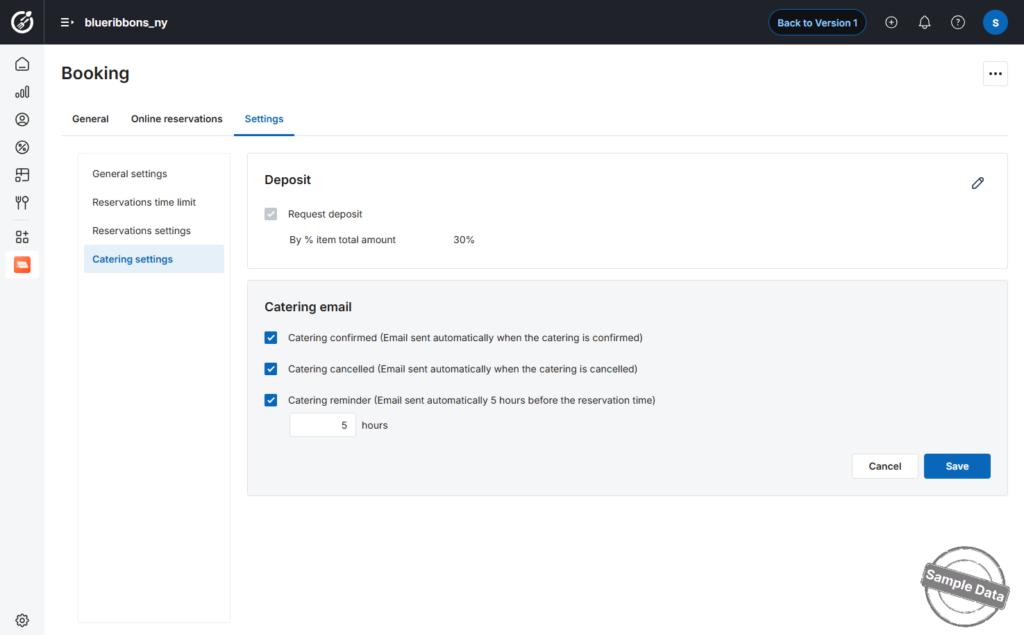 Catering deposits and automated email notifications are now properly configured.
Have a nice day!


