

Nội dung có trong bài
Ẩn
I. Purpose
The reporting module lets you aggregate, analyse, and compare sales revenue by hour, day, or month. With multiple report types and filters, restaurant managers can quickly identify:
- Peak and off-peak selling periods
- Best-selling and underperforming items
- The effectiveness of each promotion
- Staff performance and tax liabilities
II. Instruction steps
1. Open the Reports Workspace
- From the dashboard, click Report in the left-hand menu.
- The page shows:
• A Search box for quick look-up.
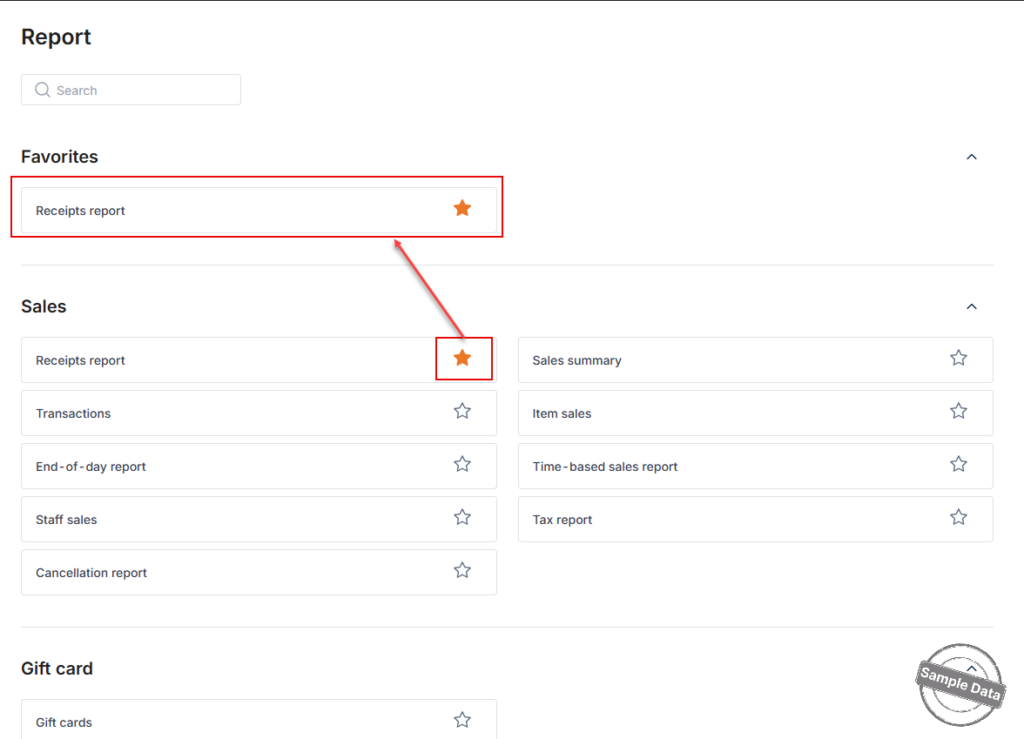
• A Favorites area (empty until you pin reports).
• Collapsible sections such as Sales, Gift card, Marketing, and Cash in/Cash out (see screenshots above).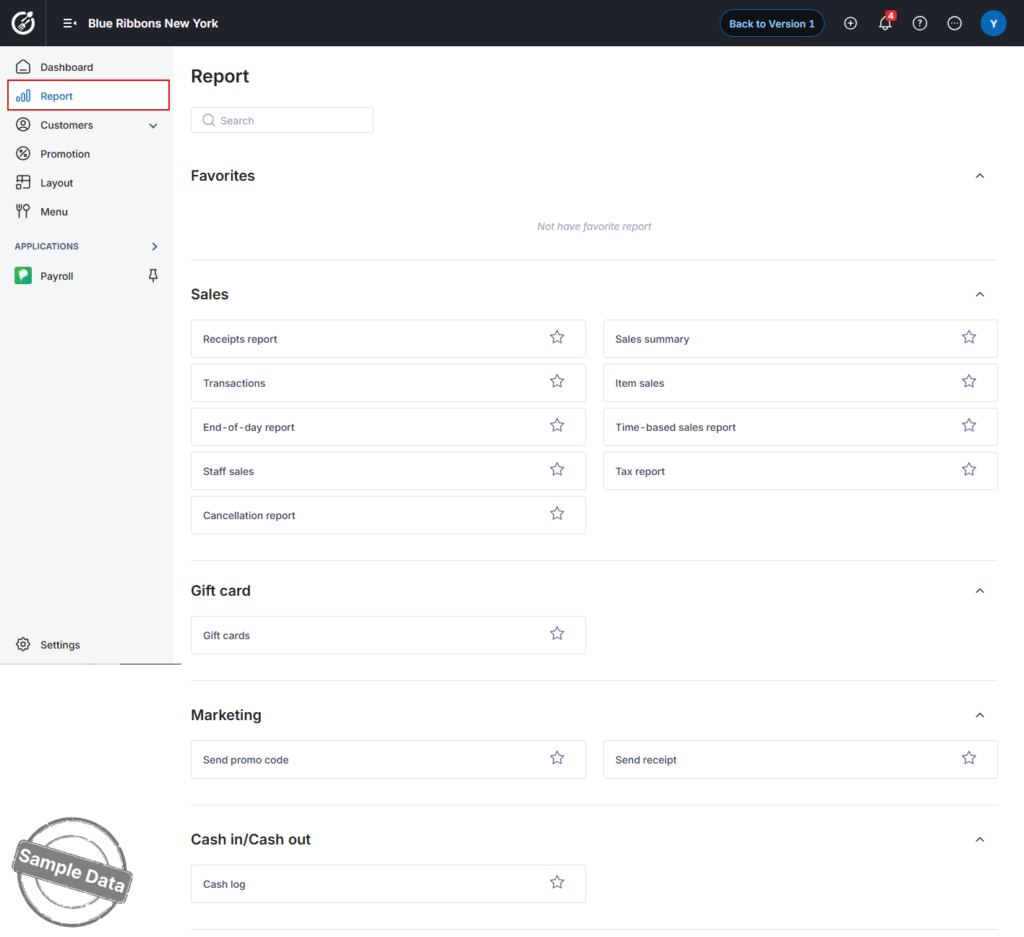
2. Run a report
- Pick the report you need
• In the Sales category, click a report name (e.g., Receipts report, Item sales).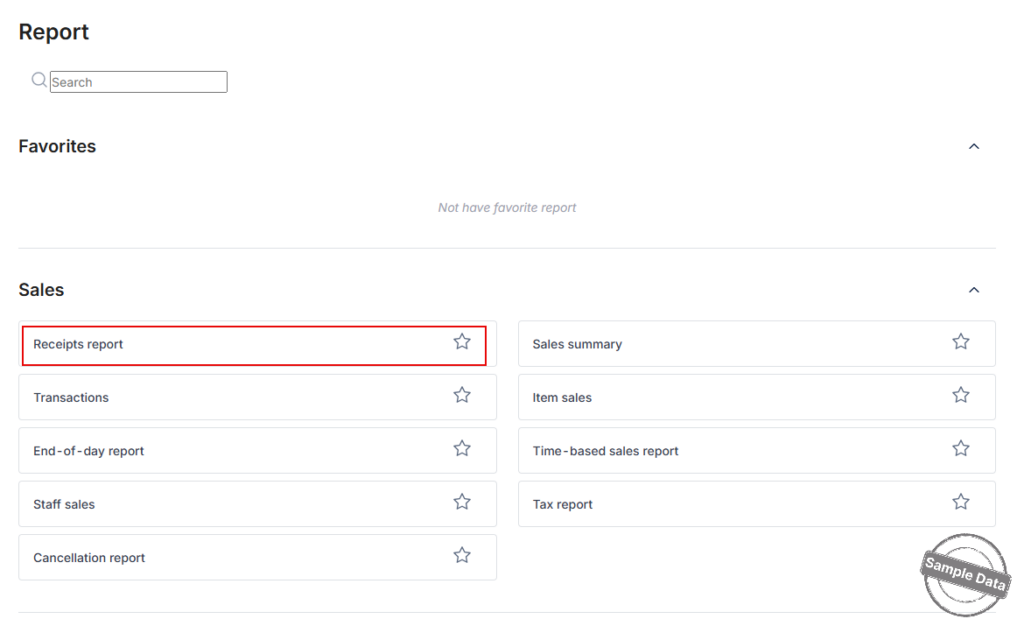
- Set a date range
• Click the calendar in the upper-left corner.
• Choose a quick option such as Today, Last week, This month, or drag across the calendar to select custom start- and end-dates.
• Click Apply.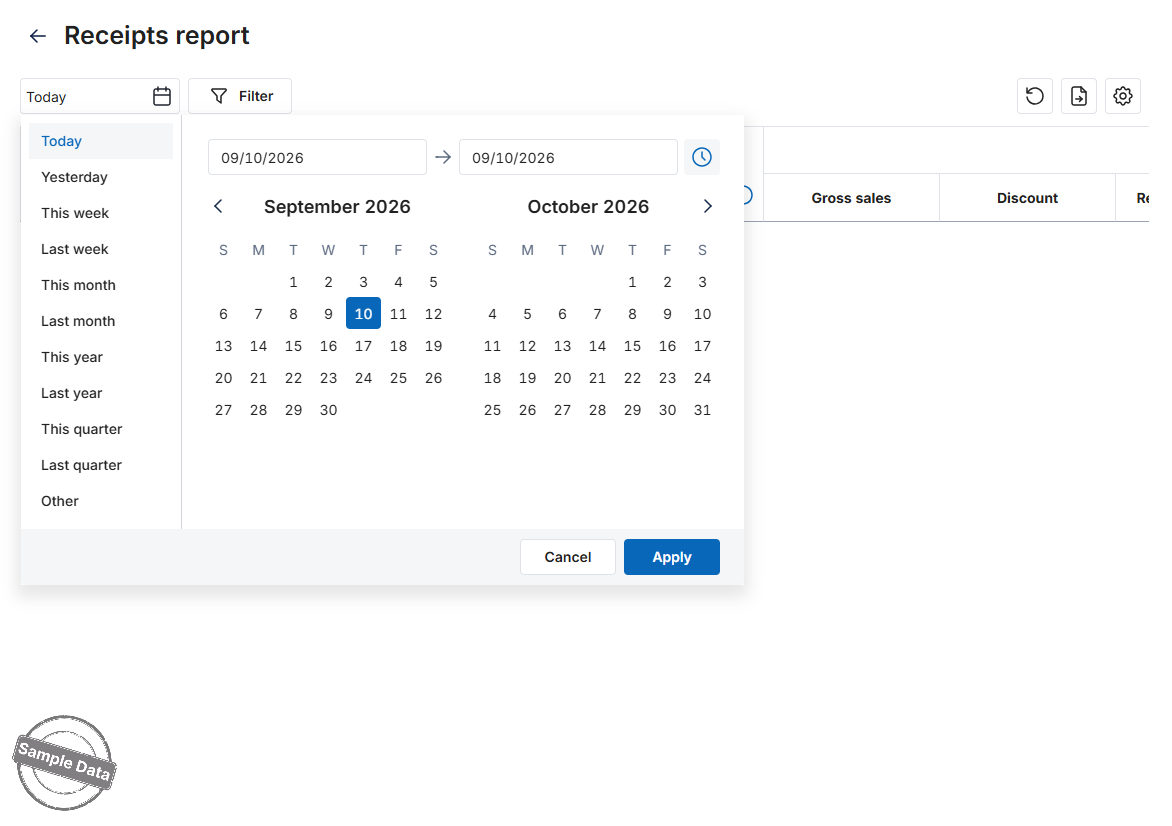
- Open the advanced filter (optional)
• Press Filter to refine the results.
• Use the drop-downs to narrow by Order type, Payment type, Employee, Guest, or change the Sort order.
• When finished, click Apply.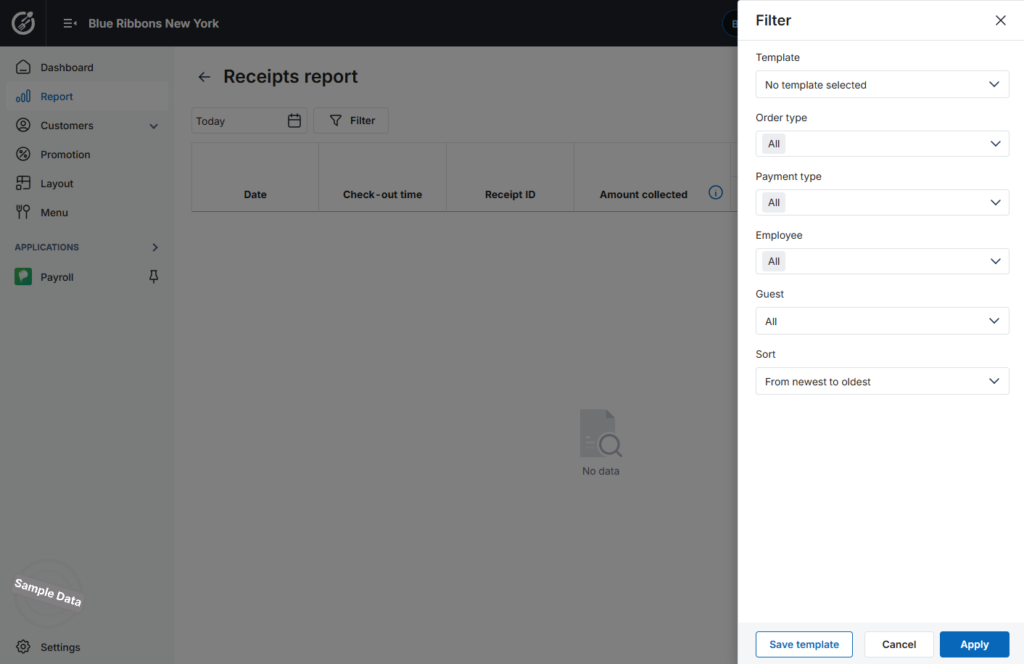
- Generate the report
• The grid refreshes with data that matches your filters.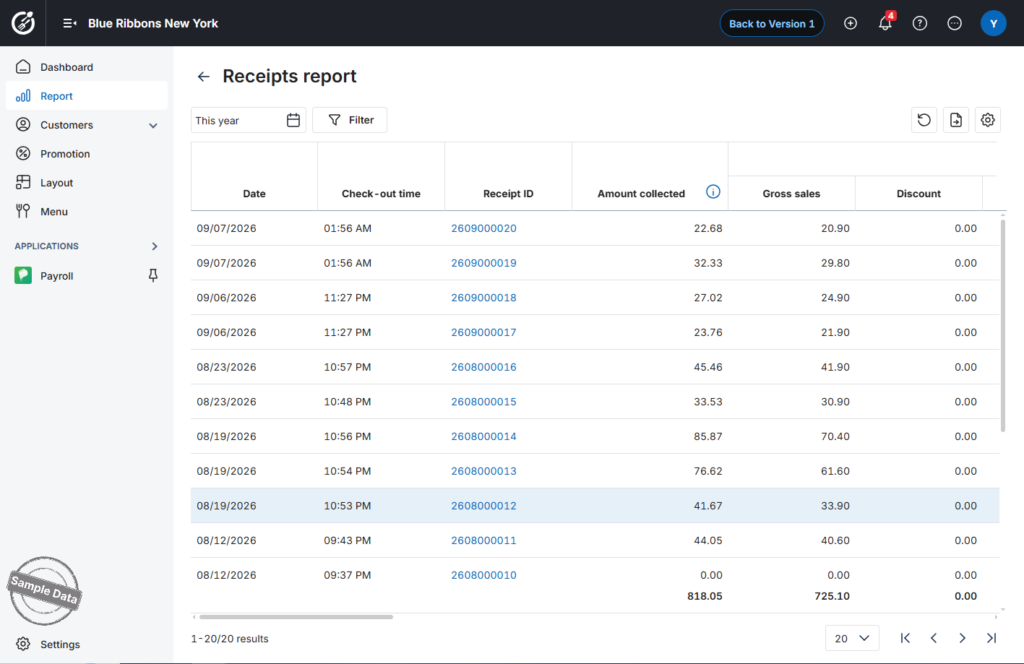
- Add to Favorites for one-click access
• Click the ⭐ icon beside the report title.
• The report now appears under Favorites at the top of the Reports page.
3. Overview on reports
Below is a quick reference to every report currently available in the Report workspace. Use it to decide which report best answers your question before applying filters.
| Category | Report | What You’ll Learn |
|---|---|---|
| Sales | Sales summary | Daily totals: invoices, gross revenue, cash collected. |
| Receipts report | Line-by-line details for every receipt. | |
| End-of-day report | Revenue for each shift close (day / month / quarter / year). | |
| Item sales | Best-sellers vs. low performers; useful for menu decisions. | |
| Staff sales | Sales totals per waitstaff or cashier for payroll & bonuses. | |
| Tax report | Collected tax, pre-refund tax, refunded tax. | |
| Promotion report | How many invoices used promotions, reasons, and usage limits. | |
| Transactions | Full audit trail tied to each invoice. | |
| Cancellation report | Counts & reasons for voided orders or items. | |
| Gift card | Gift cards | Issuance, redemptions, top-ups, and remaining balances. |
| Marketing | Send promo code | History of promo codes sent, delivery status, redemption rate. |
| Send receipt | Log of e-receipts emailed or texted to guests. | |
| Cash in / Cash out | Cash log | All cash-drawer adjustments with reason codes and staff IDs. |
Quick Tips:
- Search first: Type part of a report name in Search to find it instantly.
- Favorites: Star key reports so they appear under Favorites at the top of the page.
- Collapse sections: Click the ▾/▸ arrow beside a section title (e.g., Sales) to hide or show its reports, keeping the list tidy.
You’re ready to explore your sales reports and make informed decisions!
Have a nice day


