

Nội dung có trong bài
Ẩn
I. Purpose
The manager can set up business hours on Uber Eats
II. Instruction steps
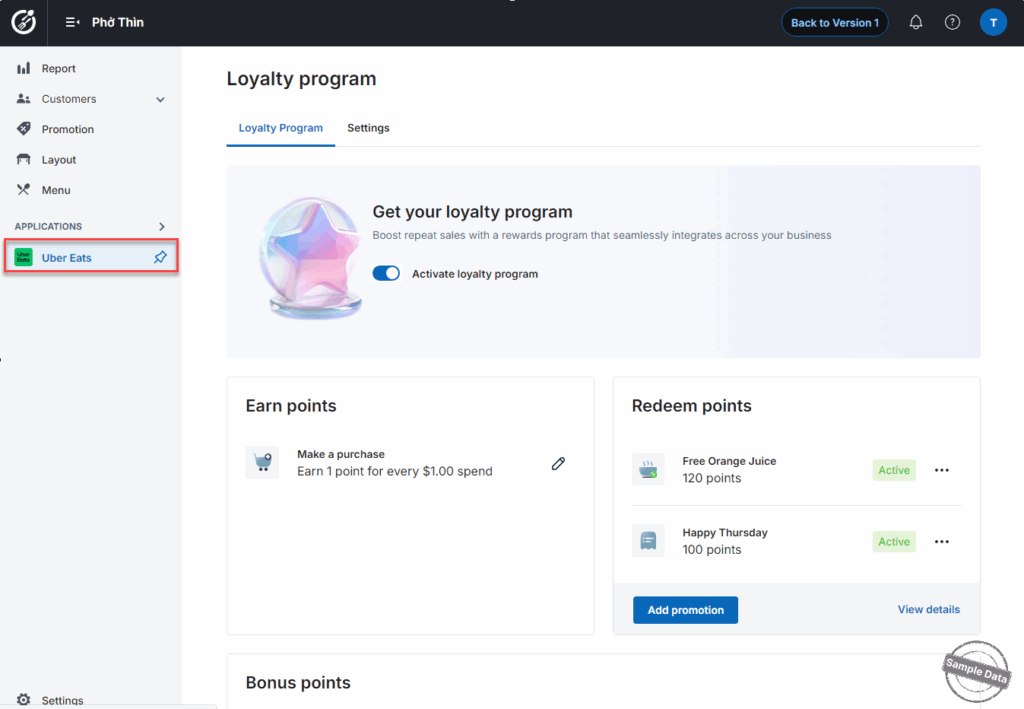
Step 1: Access Uber Eats Settings
- On the Dashboard, go to Uber Eats.
- (Optional) Click the pin icon
 to pin this app for quick access.
Step 2: Configure Business Hours
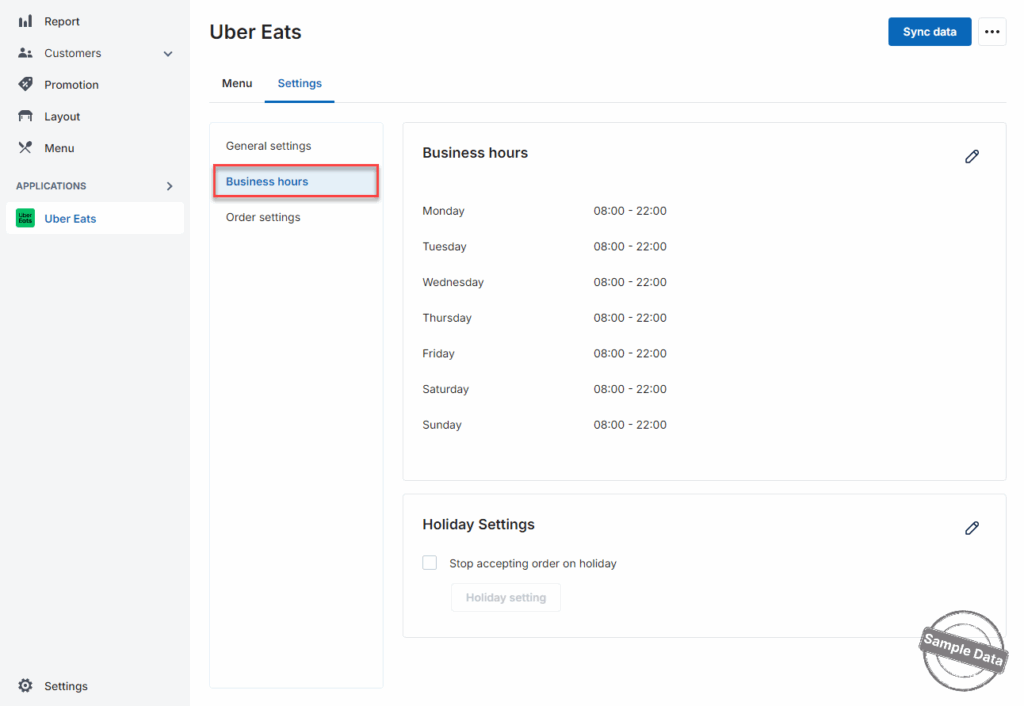
- Go to the Settings tab.
- Select Business Hours.
- Click the edit icon to modify the schedule.
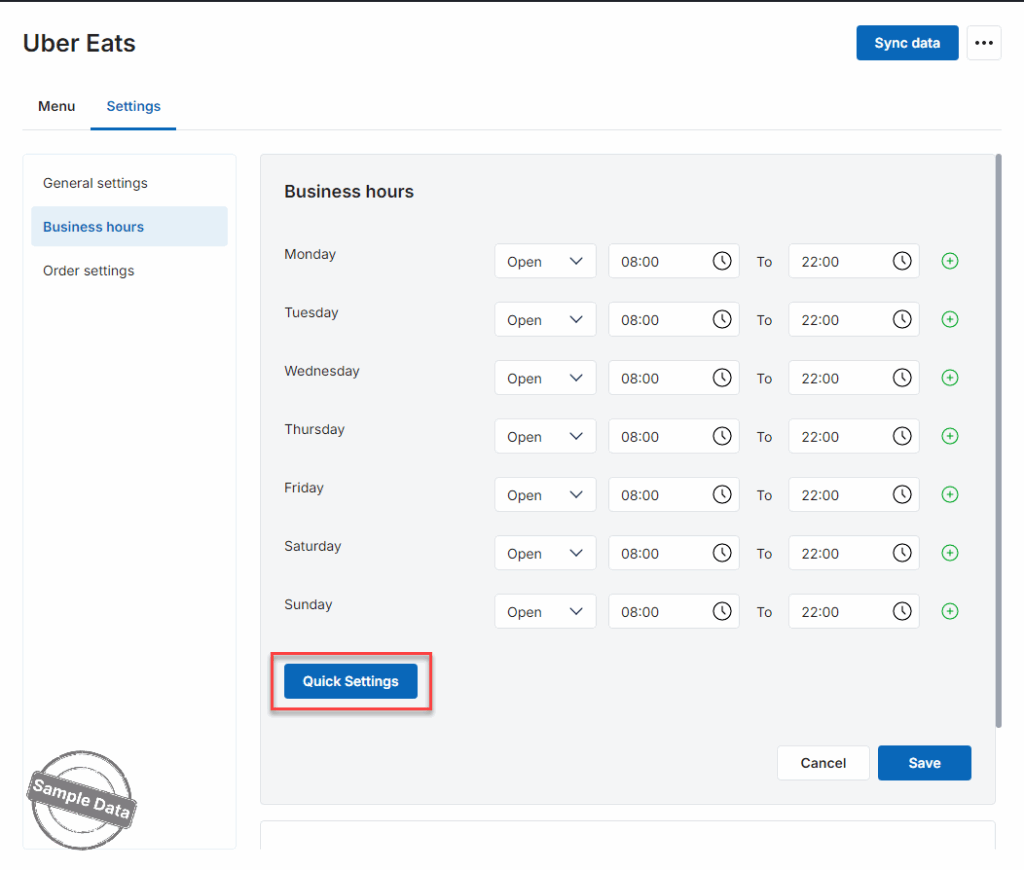
If business hours are the same every day
- Click Quick settings to apply the same hours to all days at once.
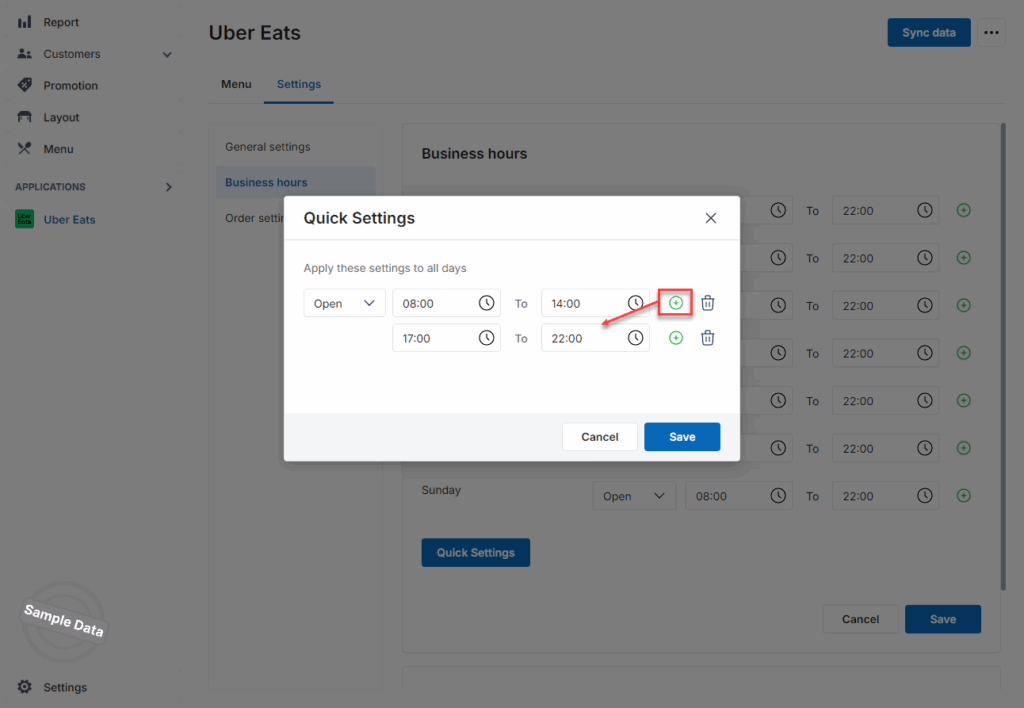
If you need multiple time slots in a day
- Click the Add icon
 to create additional schedules (for example, lunch and dinner shifts).
 - Click Save after completing the setup.
If business hours vary by day
- Select the specific day you want to edit (e.g., Tuesday).
- If the restaurant is closed on that day, select Close.
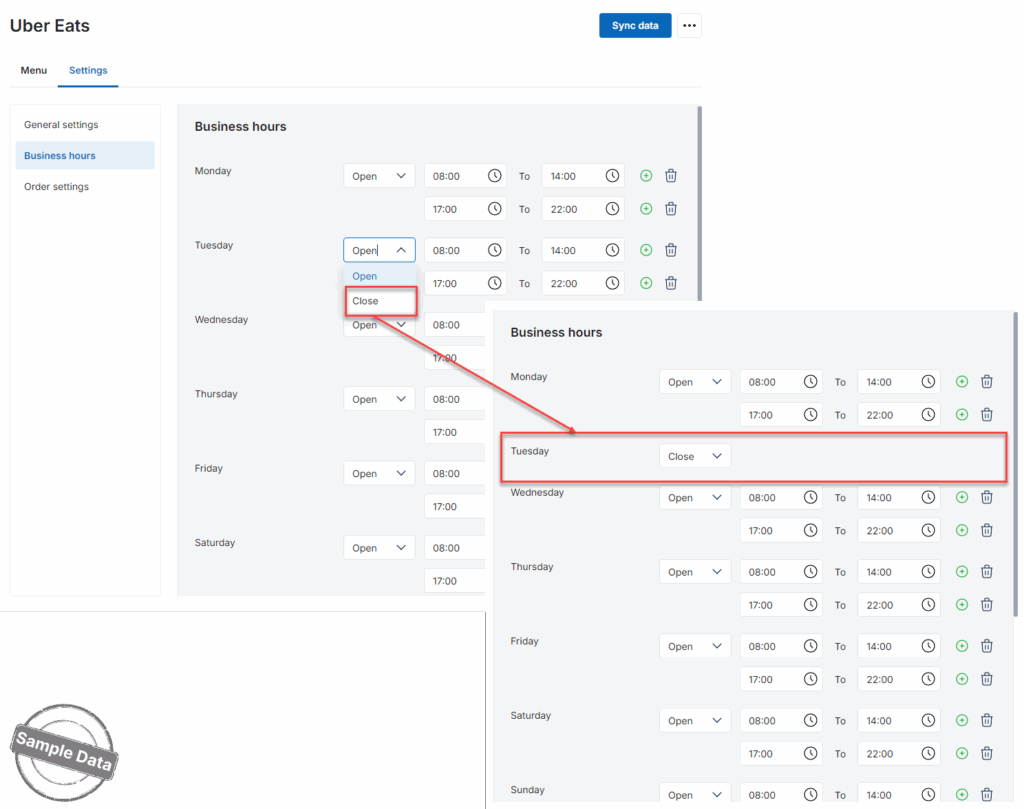
After finishing all adjustments, click Save to apply the changes.


