

I. Purpose
Enable your restaurant to create and synchronize its menu on DoorDash, Grubhub, and Uber Eats via the Ally Now integration.
II. Instruction steps
1. Add items to the platform
You can add items to these platforms in 2 ways:
a. Bulk-add items to all platforms
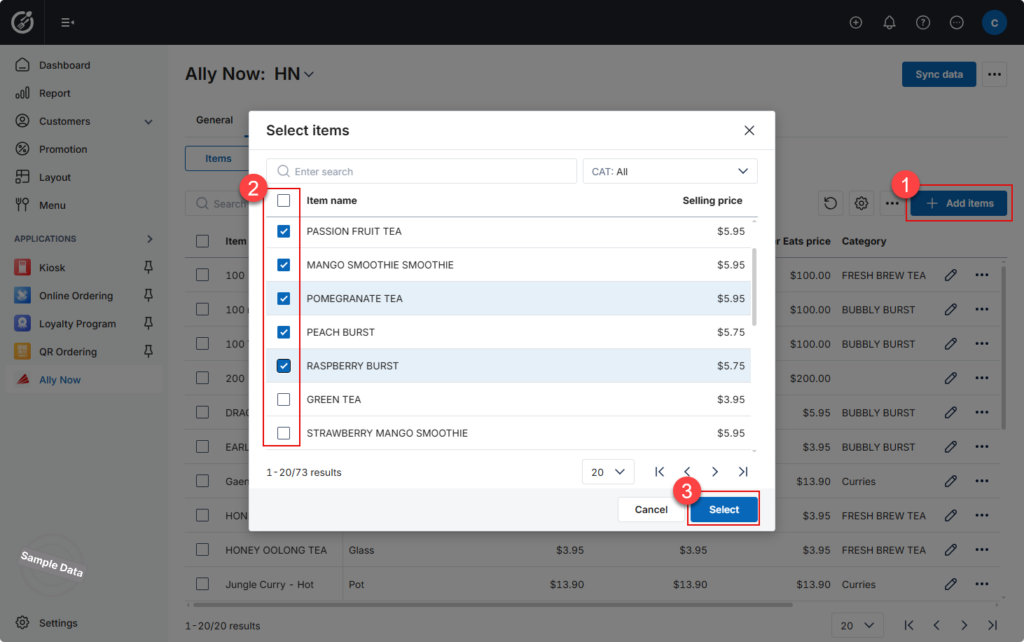
- Dashboard → Applications → Ally Now.
- Open the Menu tab → click Add items.
- Tick the products you want to publish → click Select.
• The chosen items are sent to DoorDash, Grubhub, and Uber Eats with their current details.
b. Publish a single item
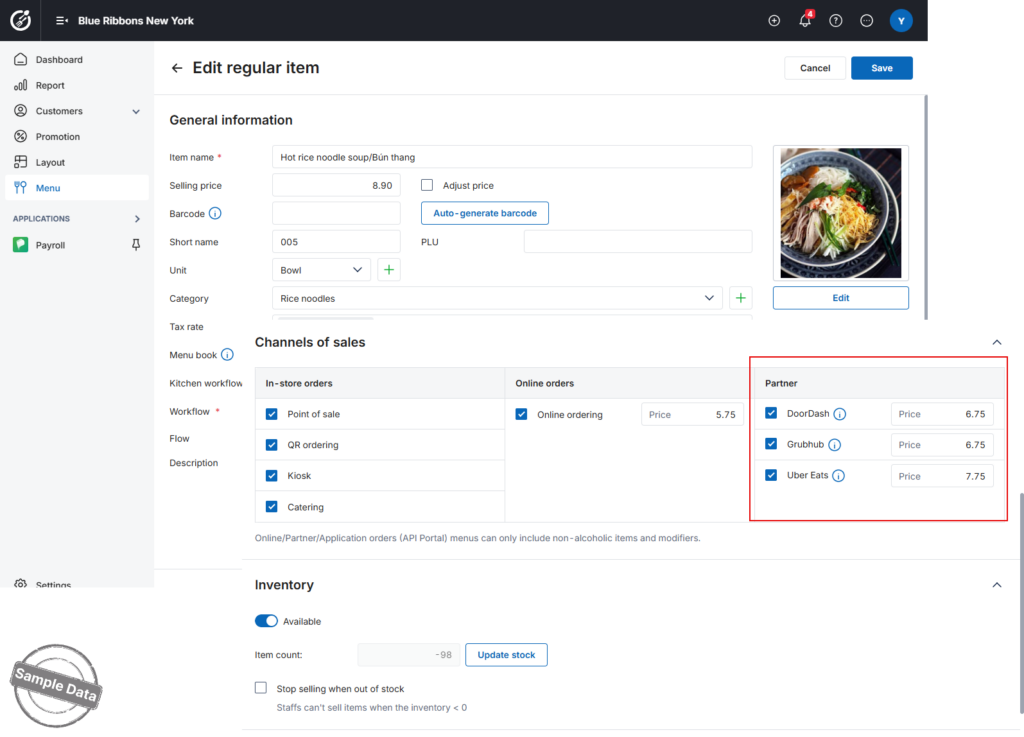
- Dashboard → Menu → choose the item.
- Scroll to Channels of Sales.
- Tick each marketplace (DoorDash, Grubhub, Uber Eats) where the item should appear.
- Enter the selling price for every checked platform (optional).
- Click Save.
3. Hide modifiers on the platform
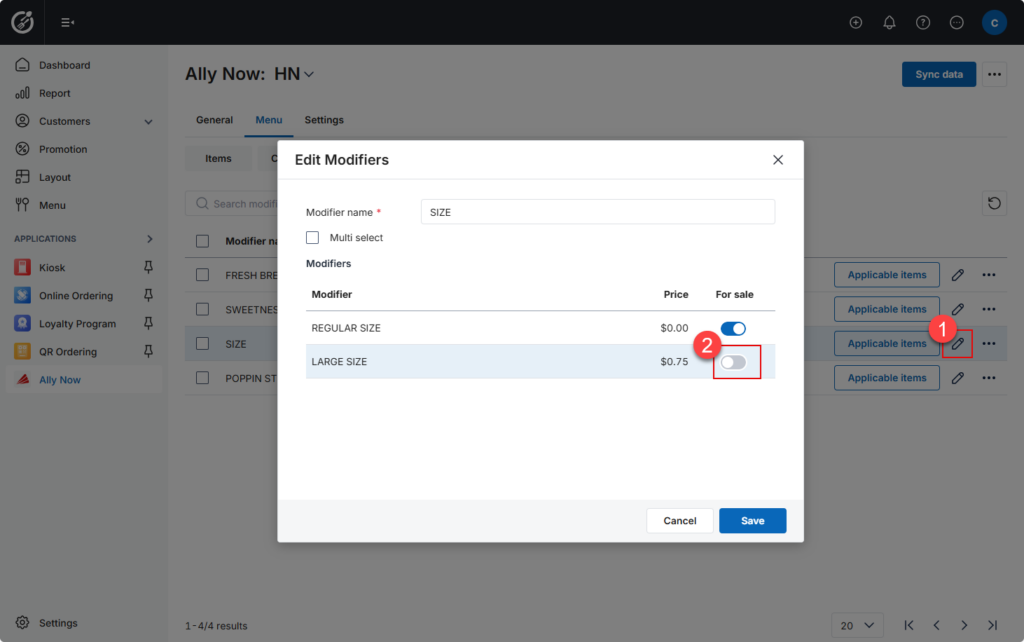
Modifiers such as Size, Sweetness, Toppings are synced automatically upon adding items to the platform. To remove a modifier from the platform:
- Dashboard → Applications → Ally Now → Menu / Modifiers.
- Click the modifier group containing the option (e.g., Size) → the Edit Modifiers pop-up appears.
- In the For sale column, switch OFF any modifier you no longer wish to offer.
- Click Save.
Have a nice day!


