

Nội dung có trong bài
Ẩn
I. Purpose
Let restaurants decide whether a delivery order should be sent out immediately or after a preset preparation window.
II. Instruction steps
1. Configure on the dashboard
On the dashboard, go to Settings –> Sales.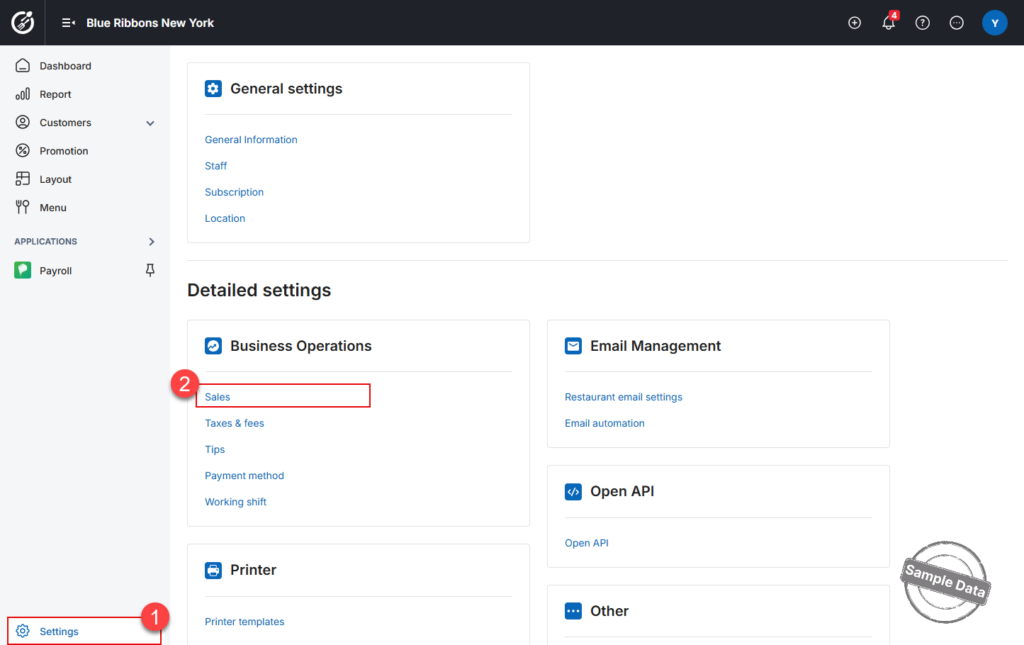
Scroll to the Orders section –> click edit icon.
In Set estimated delivery time after, type the number of minutes the kitchen needs before the order leaves the store.
• Enter 0 for ASAP delivery (order is prepared right away).
• Enter any other value (e.g., 30) to delay dispatch by that many minutes.
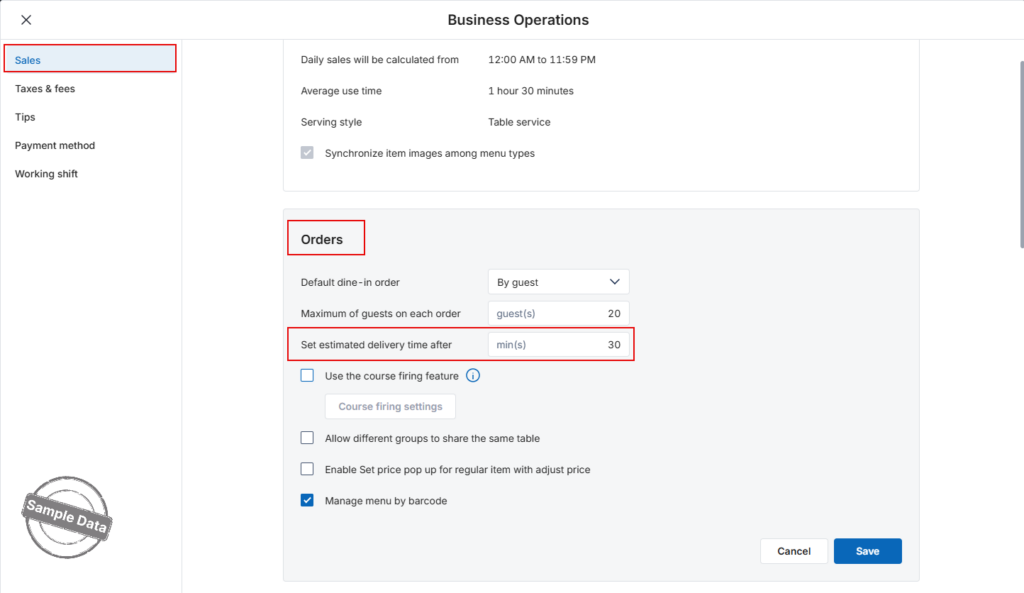 Click Save to apply, or Cancel to discard.
2. How It Works on the POS
- When staff create a delivery order on the POS, the pickup time is automatically calculated as order time + estimated minutes.
- If you set the timer to 0, the pickup time equals the order timestamp, signalling the kitchen or bar to start preparing immediately.

Have a nice day!


