

I. PURPOSE
The manager can set up automatic collection of surcharge fees when customers pay their bills by card, and choose whether or not to display this information on the second screen or receipts.
II. INSTRUCTION STEPS
1. On the dashboard
- On the dashboard, go to Settings → Sales
- Go to the Taxes & fees tab.
- Scroll to Payment method pricing → click Edit.
- Check Payment method pricing and select Non-cash Adjustment:
- By % bill:Select this radio button to charge a percentage of the bill. Enter the rate.
- By amount: Select this radio button to charge a fixed amount per bill. Enter the value.
- Rename: Change the label that appears on the POS and receipts.
- Not displayed on the secondary screen, receipts…: Tick if you do not want the surcharge line to show on the customer-facing display or printed receipts.
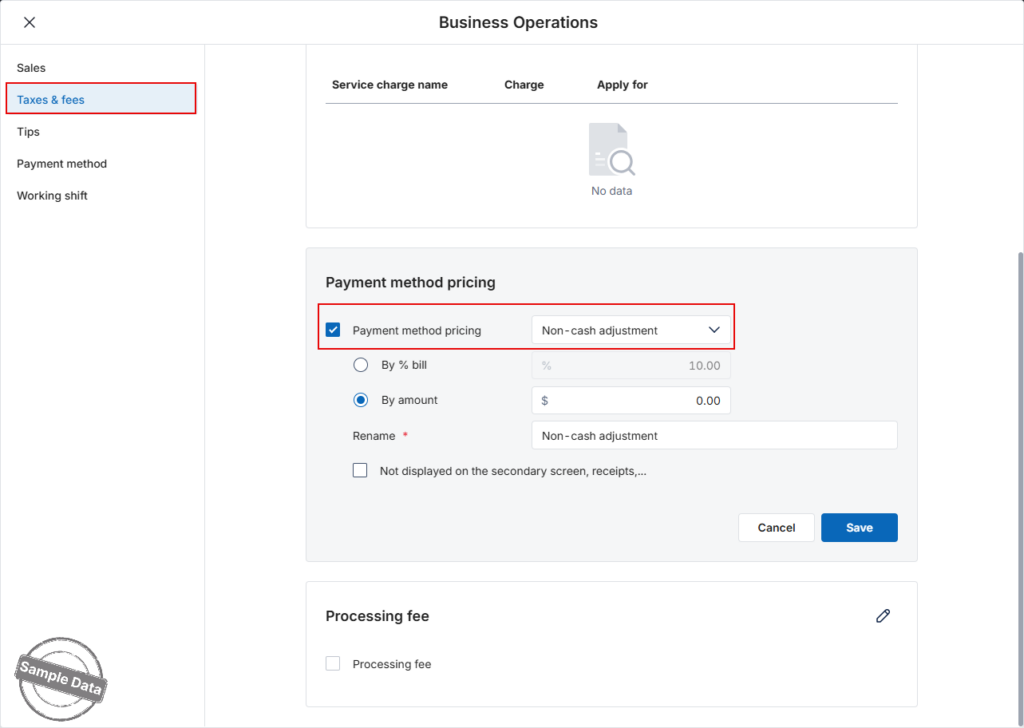
Click Save to apply, or Cancel to discard.
2. On POS
Select Settings
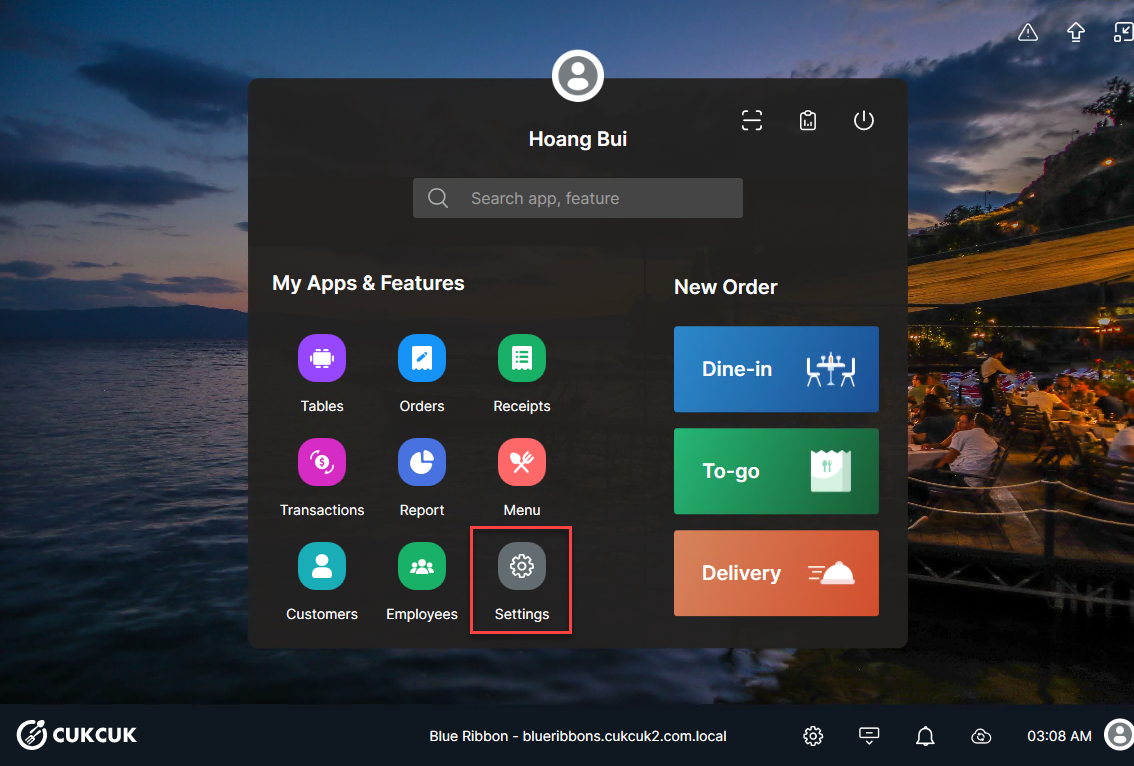
On Tax & Fee tab, check Non-cash Adjustment, fill in dicount By % bill or By amount when the customers pay by card. Check Not displayed on the secondary screen, receipts,… if you do not show Non-cash adjustment fee on the second screen and receipts.

Note: The manager can change the name at Display Name box.
Upon choosing to pay by card, the system will automatically apply the preset fee. If you choose not to display the “Non cash adjustment” information on the second screen and the receipt, this information will not appear there.

It will also not be shown on the printed receipt for the customer.

The revenue report will display the total amount of fees collected when customers pay by card.

Have a nice day!


