

I. Purpose
Allow staff to send an order to the kitchen with clear course sequencing (appetizer → main course → dessert) so chefs know exactly which items to prepare first.
II. Instruction Steps
1. Configure course firing on the dashboard
- On the dashboard, go to Settings → Sales.
- Scroll to Orders → tick Use the course firing feature.
- Click Course firing settings.
- The system starts with four default courses.
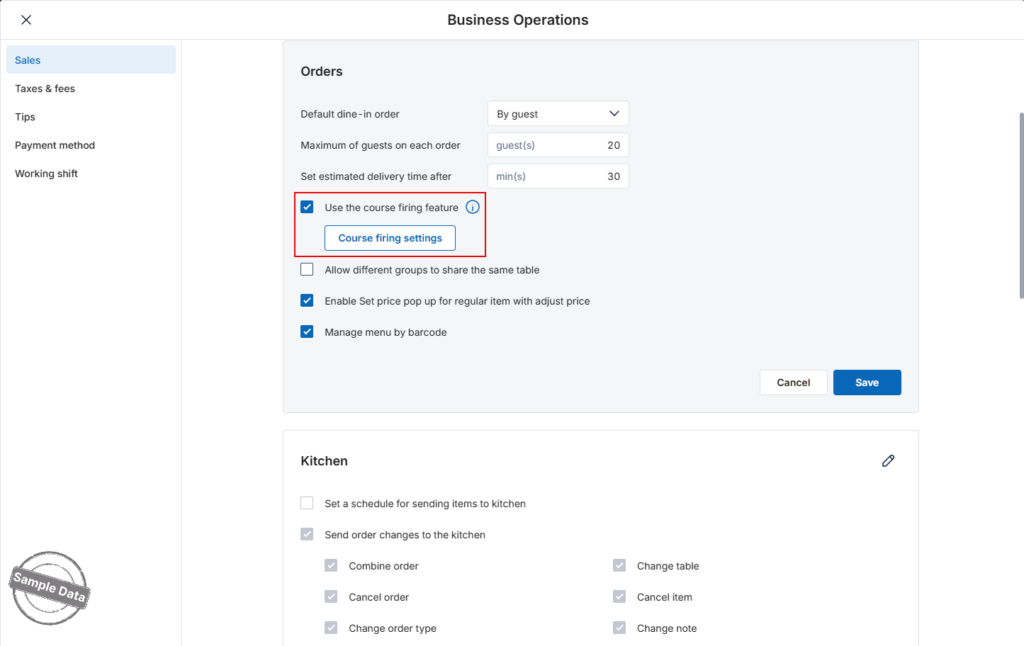
- The system starts with four default courses.
- Click each course to add the item groups that belong to it.
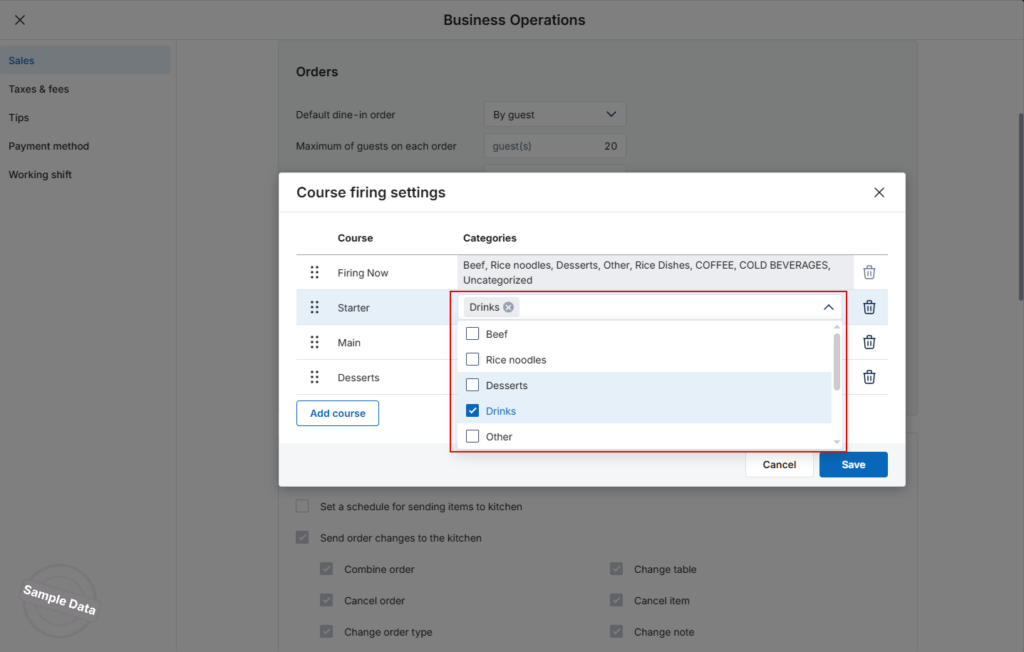
Option What You Can Do Rename a course Type the label that matches your in-house terminology. Add course Insert an extra course. Delete a course Click the trash icon. Rule Each item group can belong to one course only. - Click Save when finished.
2. Use course firing on the POS/PC
- When you add items to an order, they are automatically placed into the course defined for their item group.

- To move an item to a different course:
- Press and hold the item, then drag it to the desired course or tap the ︙ menu → Move to other course.

- Select the target course → Done.

- The item now appears under its new course.

- Press and hold the item, then drag it to the desired course or tap the ︙ menu → Move to other course.


