

Nội dung có trong bài
Ẩn
I. Purpose
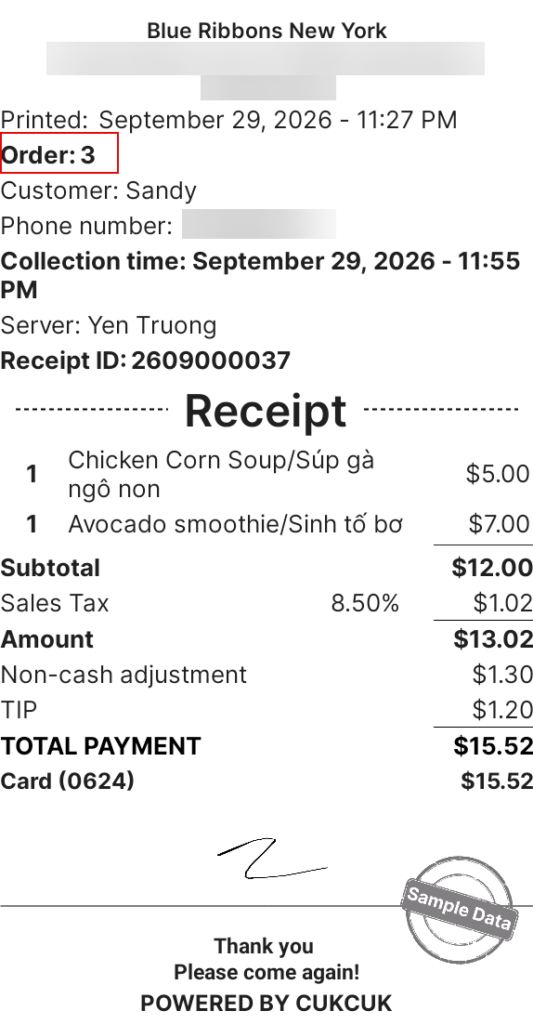
When guests place an order and pay on a self-service Kiosk, the system automatically prints a ticket that shows the order number. Staff can then call orders by this number, speeding up service and preventing mix-ups.
II. Instruction steps
1. Set up on the dashboard
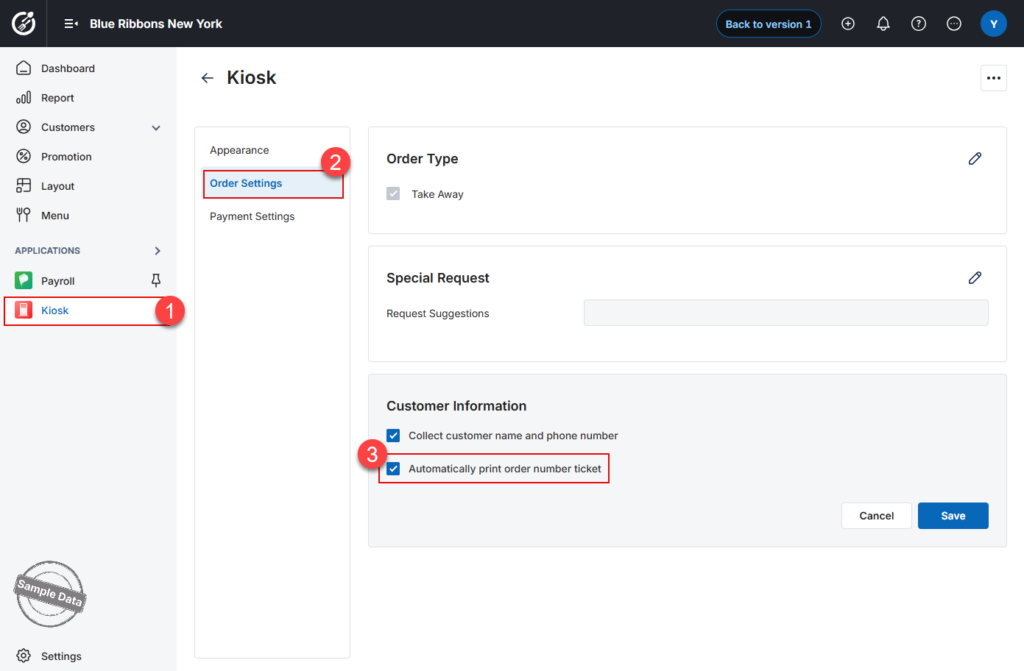
- On the dashboard, go to Applications → Kiosk → Order settings.
- Scroll to Customer information, tick Automatically print order number ticket.
- Unchecked (default) – the Kiosk prints only the regular receipt after payment.
- Checked – once the guest pays in full, the Kiosk immediately sends a print job for the Order Number Ticket to the receipt printer assigned to that Kiosk.
- Guests can still choose to print an additional receipt if they wish.
- Click Save to apply the change.
2. How It Works on the Kiosk
- The guest completes a self-order and pays with a supported method.
- The Kiosk sends a command to its configured receipt printer, which prints the Order Number Ticket.
- The ticket shows the order number, so guests and staff can identify it easily.
- Kitchen or bar staff call the ready orders by this number.
Notes:
• Any user with Kiosk configuration rights can change this setting.
• The ticket prints from the receipt printer mapped to each individual Kiosk.
• If no printer is assigned, no Order Number Ticket is printed.
• The ticket layout follows the default format; it is not affected by other back-end rules.
From now on, every Kiosk transaction will produce a clear order number, enabling faster and more accurate service.
Have a nice day!


