

I. Purpose
Near closing time, some dishes may still be plentiful. This feature lets the cashier create ad-hoc discounts (or free offers) to encourage guests to order those items.
II. Instruction Steps
1. Grant the permission on the dashboard
- On the dashboard, go to Settings → Staff.
- In Manage roles, click the edit icon for the role you wish to grant access.
- Scroll the Payment tab, check Add other discount.
- Click Save.
2. Create a Discount on the POS
a. Item NOT yet sent to the kitchen
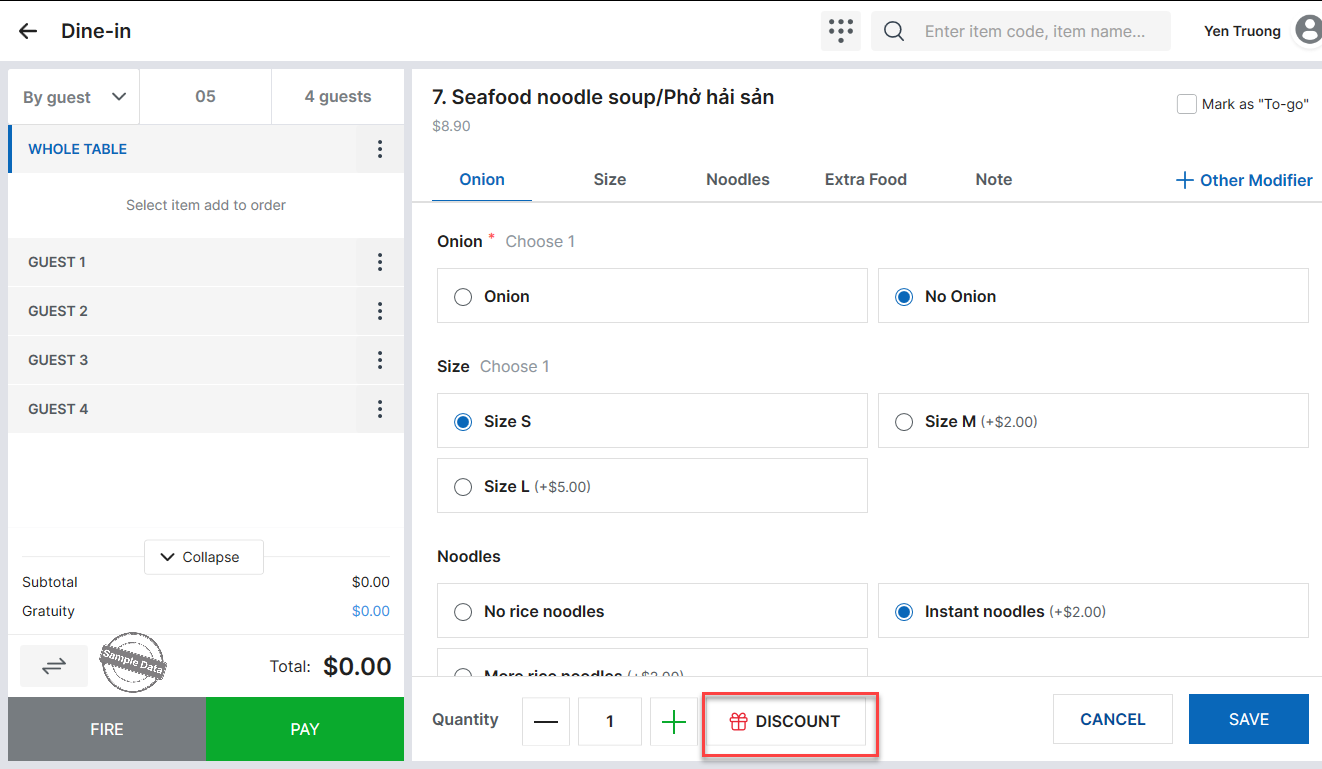
- Add a discount while taking a new order: Tap the item → Click Discount.
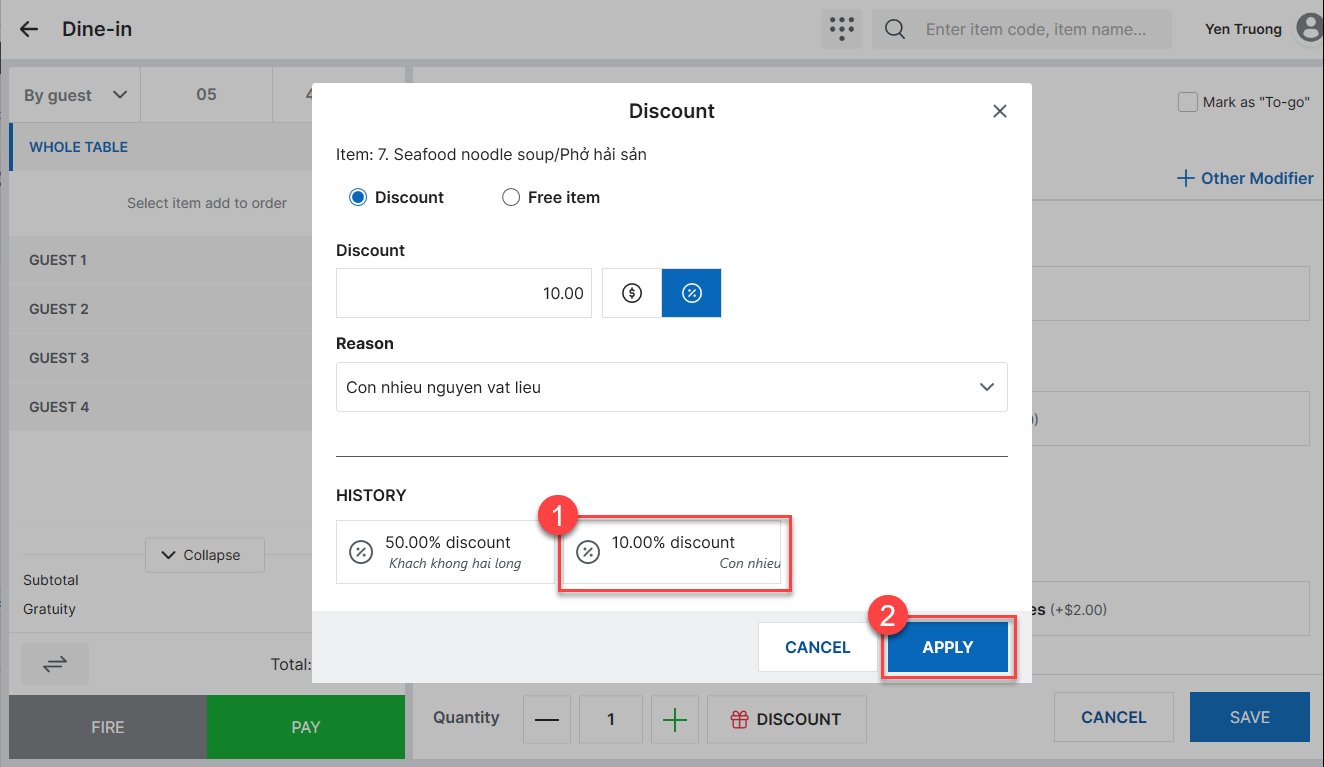
- Select an existing promo: Choose from the list → Click Apply.
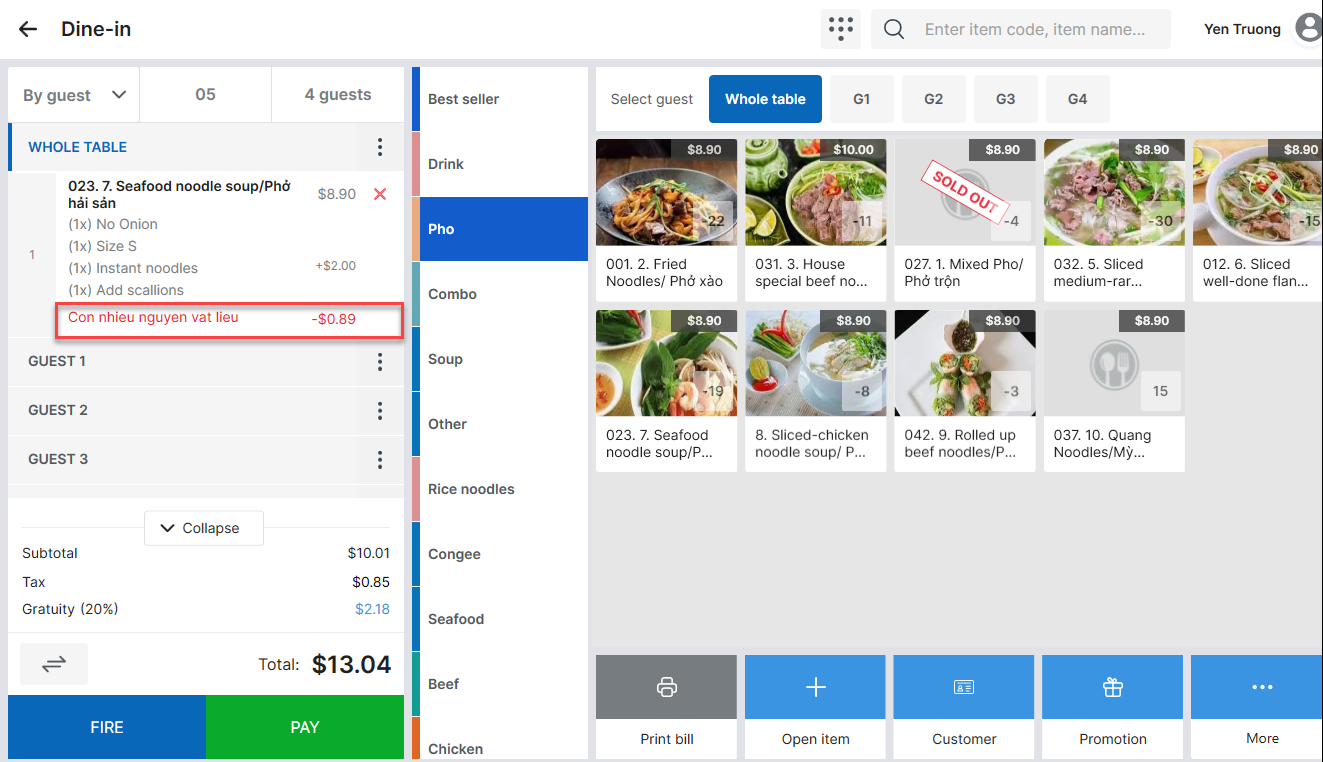
- The reason and discount value appear directly under the item line.
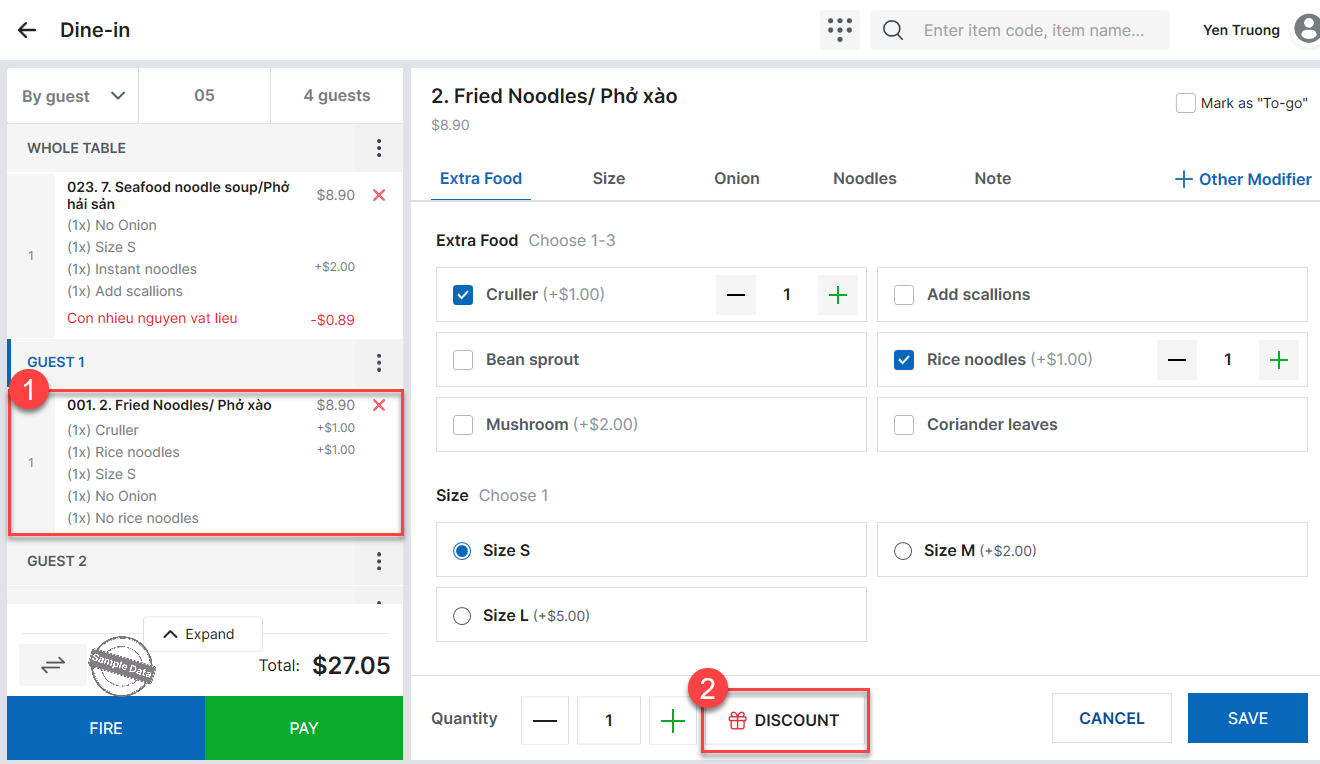
- For items already added to the order, select the item and tap Discount.
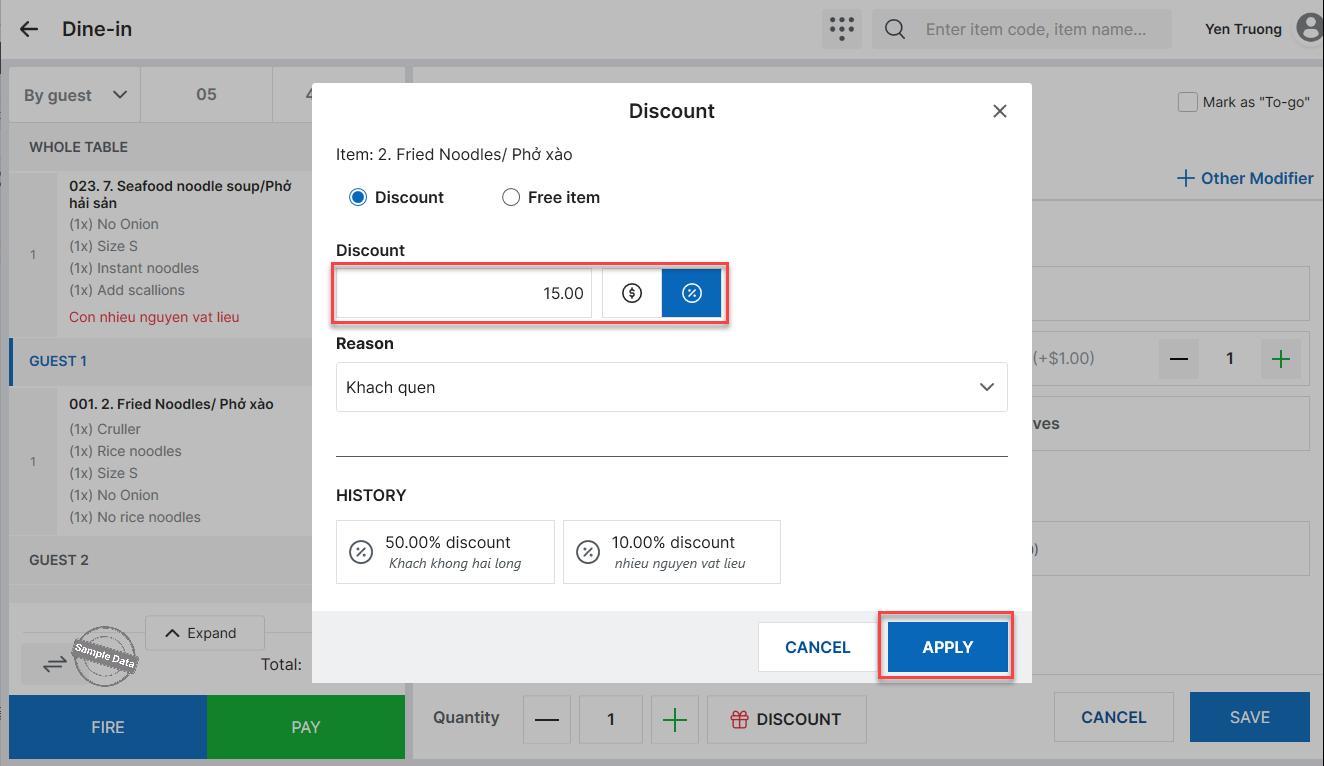
- If no suitable promo exists, create a new one:
- Tick Free item to give the dish for free.
- Tick Discount and choose the $ icon to reduce by a fixed amount, or the % icon to reduce by a percentage.
- Tap Apply to use the discount.
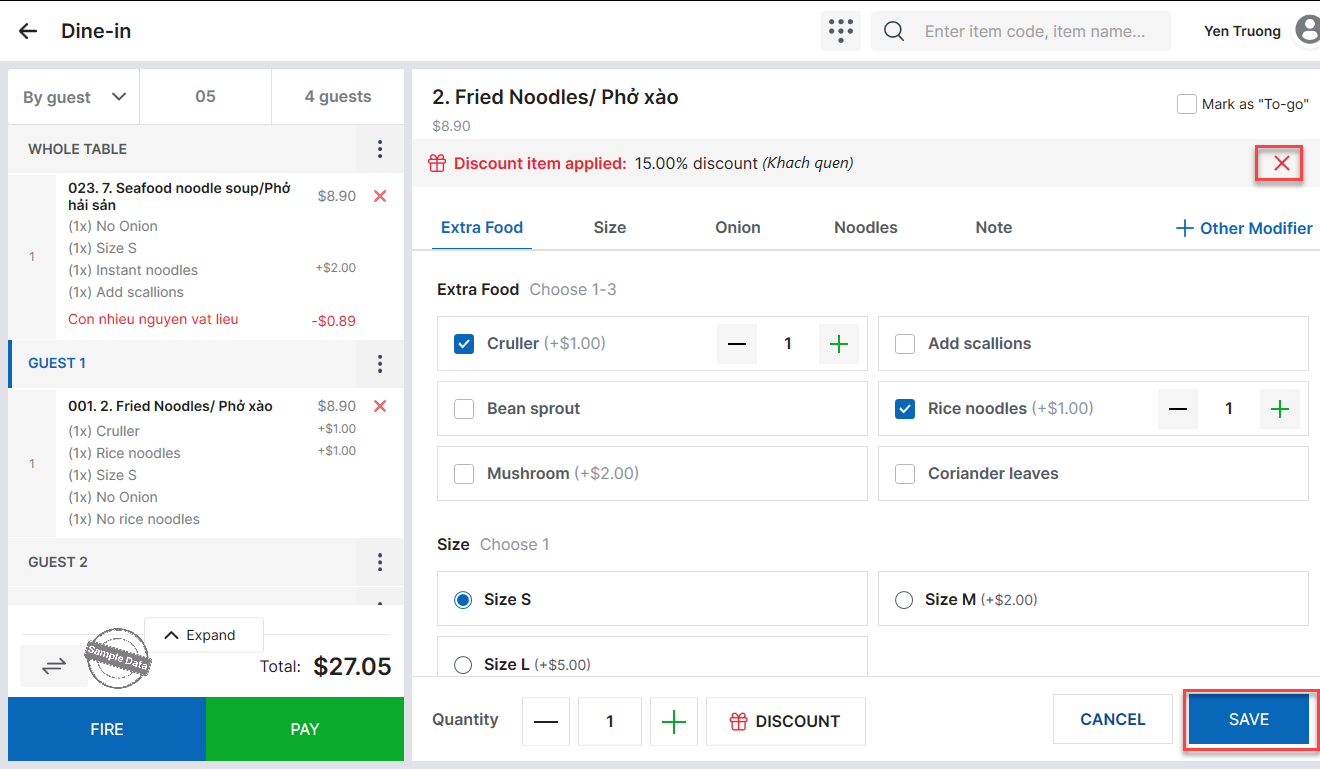
- Tap the trash icon to cancel the discount, or Save to store the promo and apply it to the item.
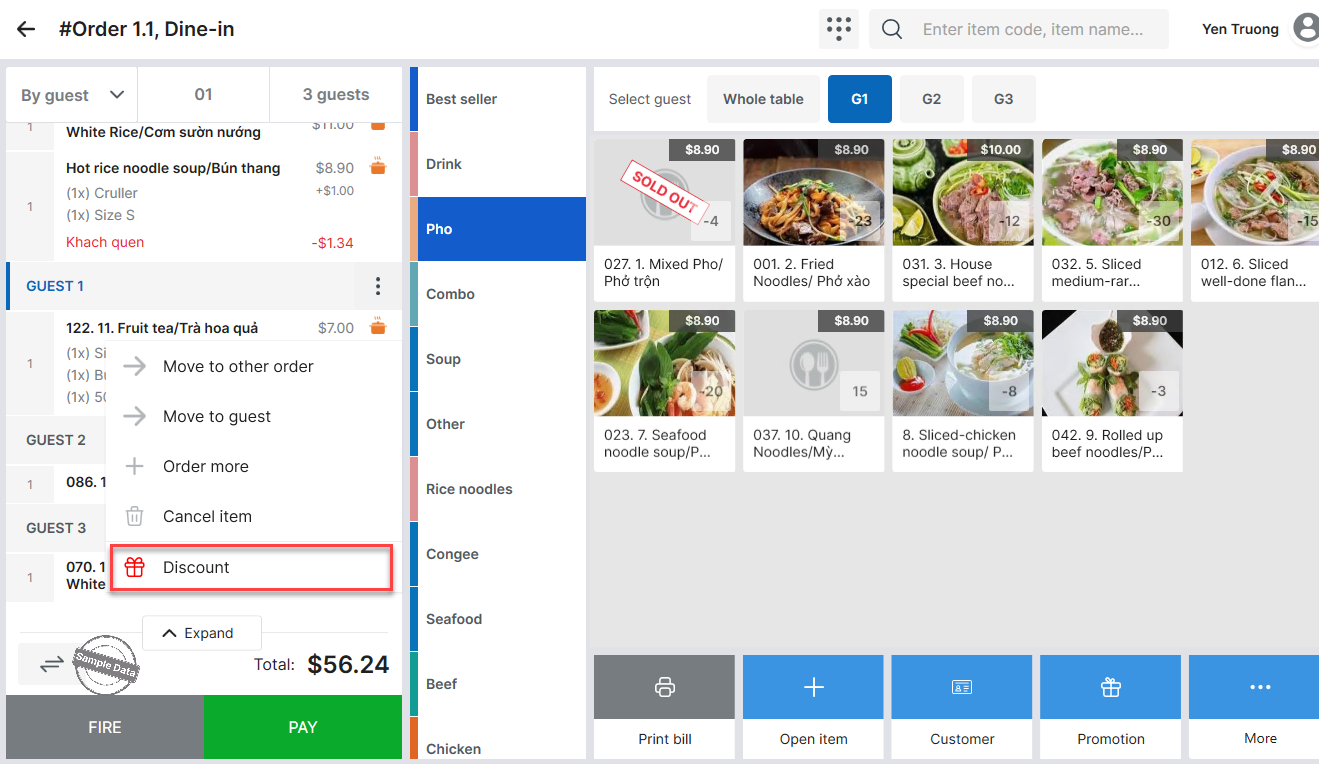
b. For items ALREADY sent to the kitchen
- Open the order → tap Discount.
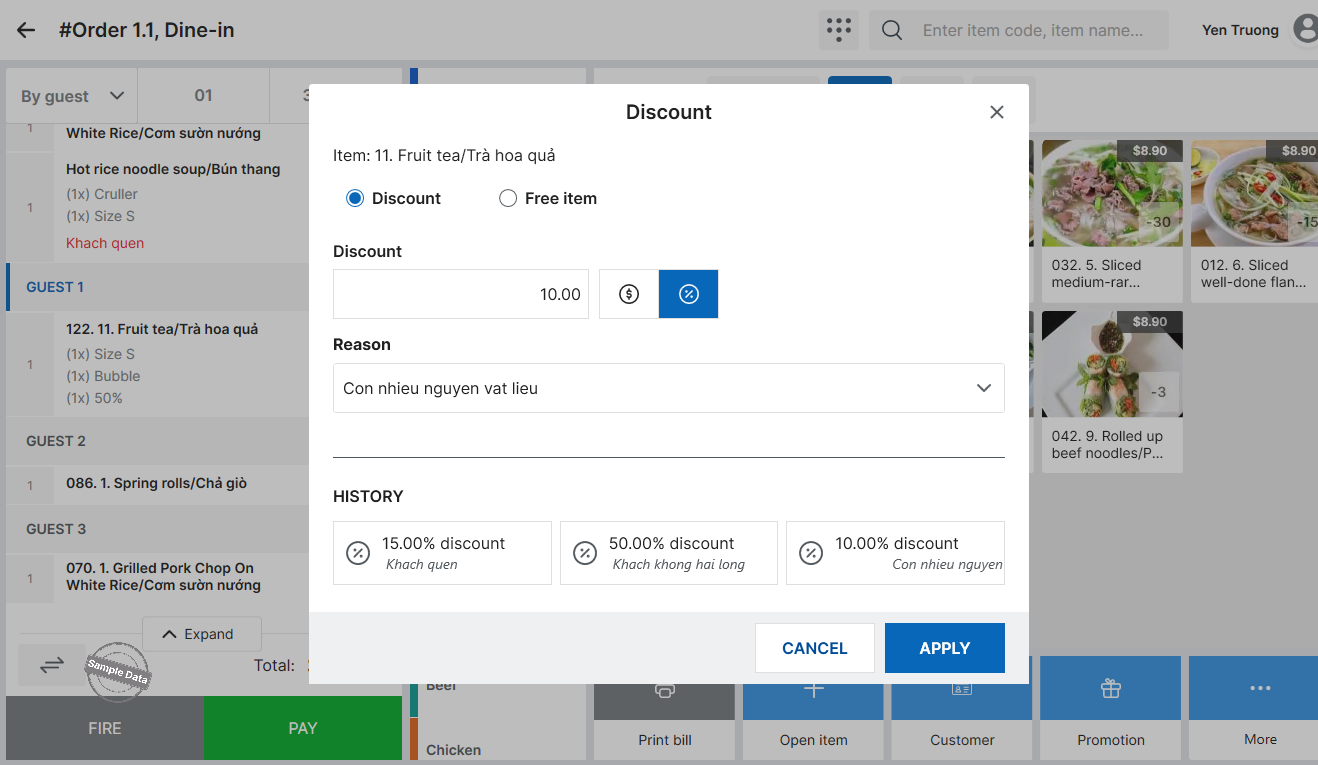
- Select an existing promo or create a new one as above.
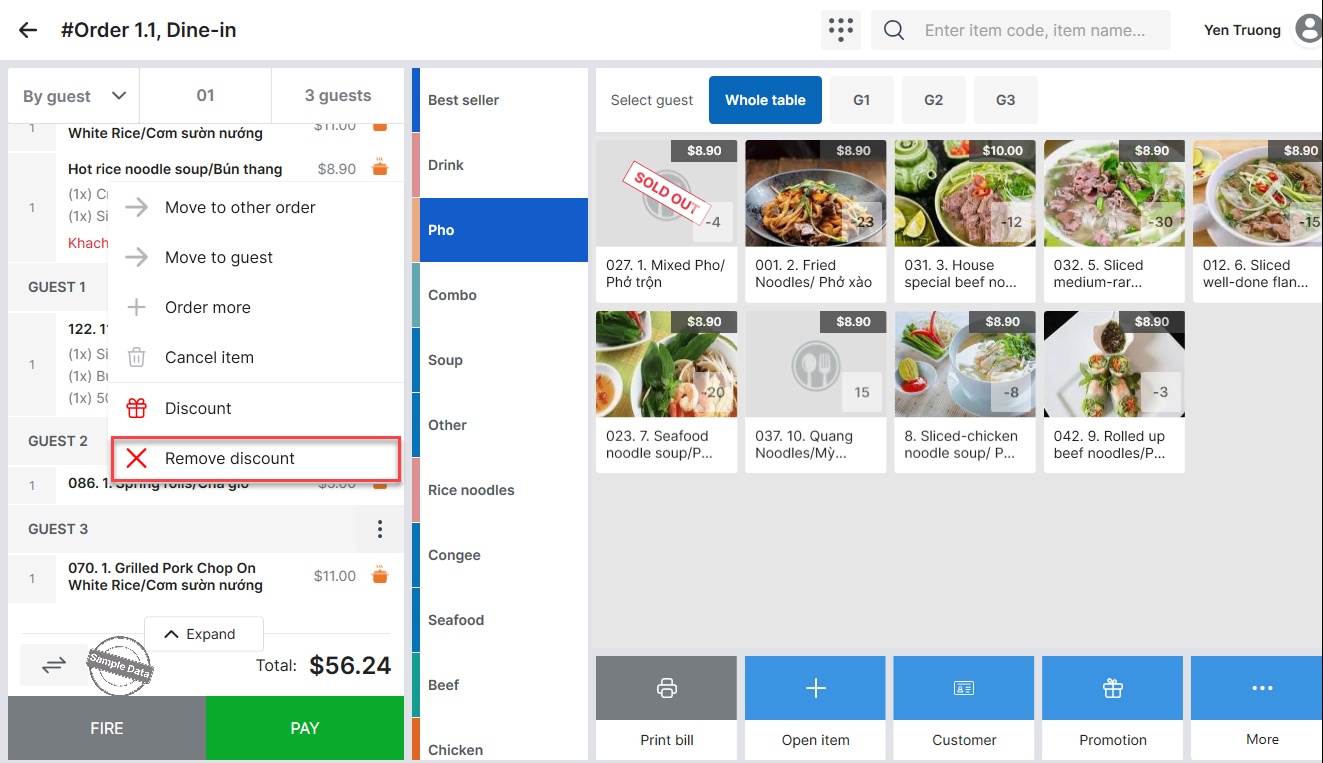
- To remove a discount, tap the item → Remove discount.
Note:
The system keeps the three most recently created ad-hoc promos for quick reuse.
Have a nice day!


