

Nội dung có trong bài
Ẩn
I. Purpose
Let waitstaff know exactly which dishes are ready so they can deliver food and drinks to the correct table without delay.
II. Instruction steps
Follow these steps to make the POS print a “Ready to Serve” ticket whenever the cook or bartender taps Serve on the KDS / Kitchen app.
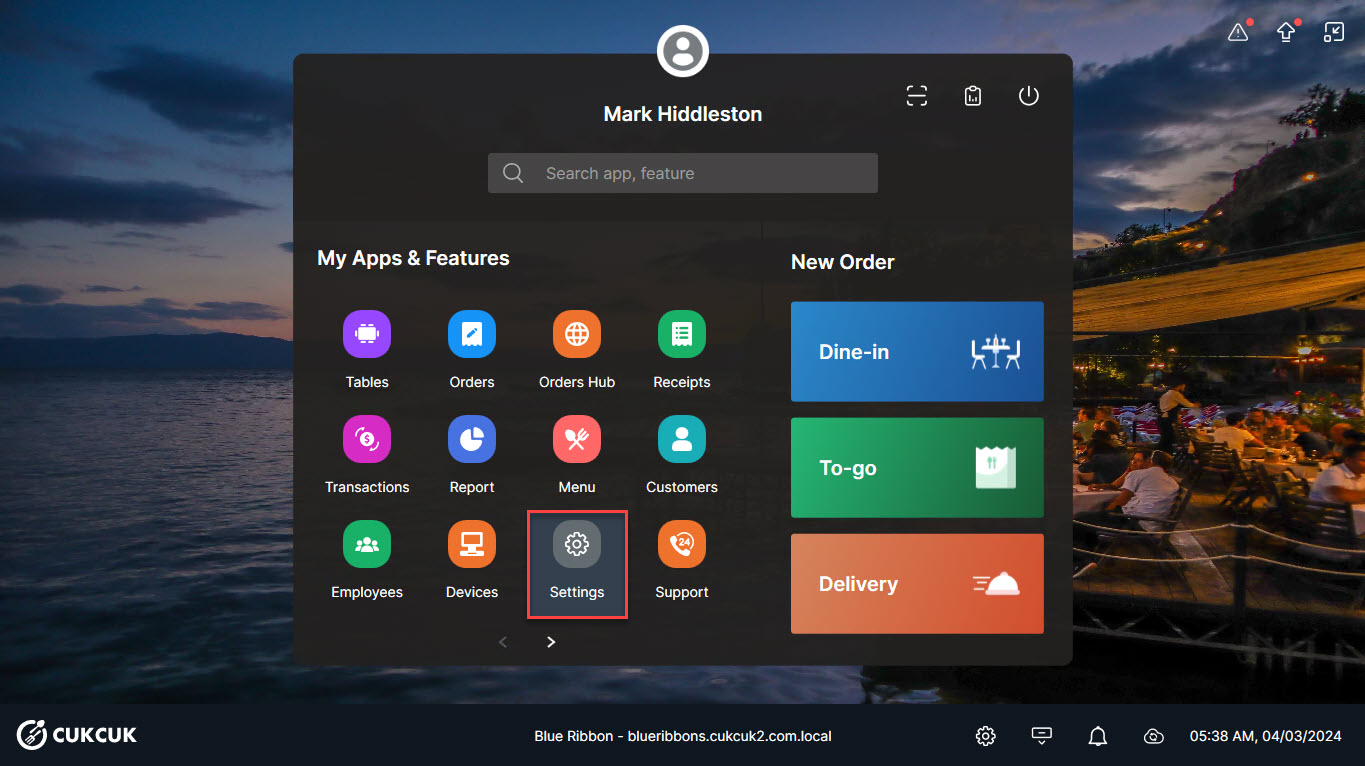
- POS main screen → Settings
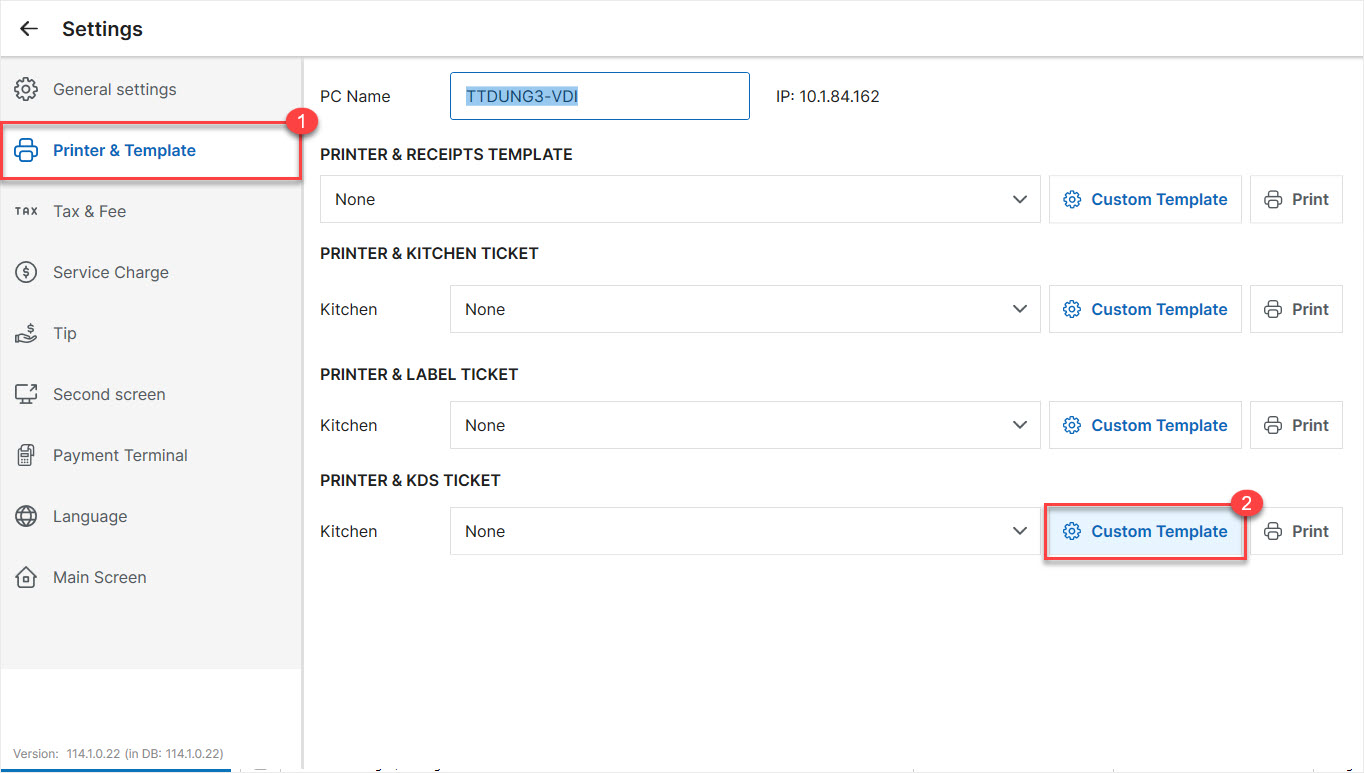
- Tap Printer & Template.
- In the PRINTER & KDS TICKET tab, choose Custom Template.
- Tap Custom details and arrange the fields you want to appear on the ticket.
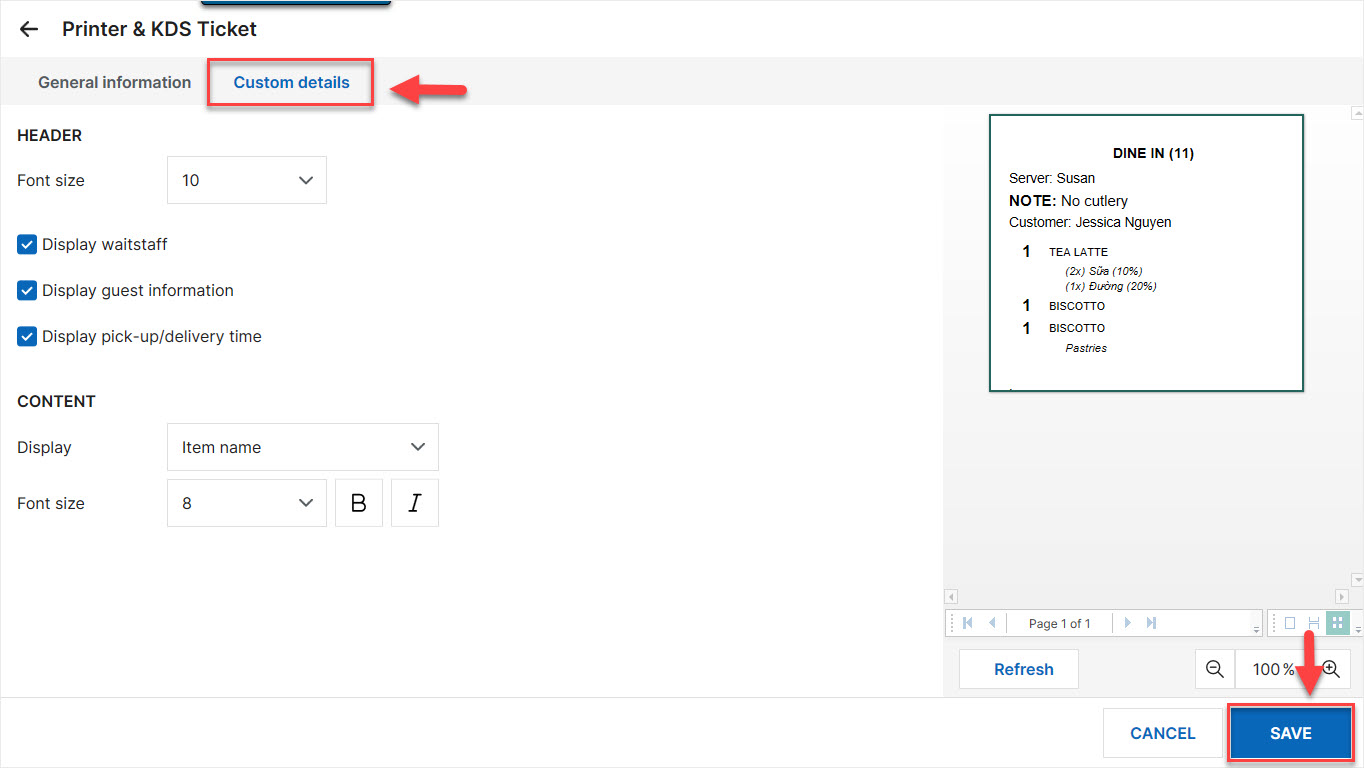
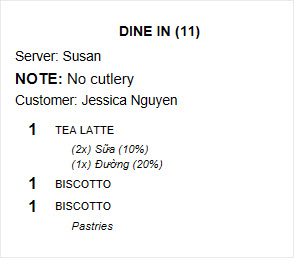
- Tap Refresh to preview the ticket with the latest changes. Adjust the layout again if necessary.
- Tap Save to store the template.
From now on, when the kitchen or bar staff press Serve on the KDS, the connected printer will issue a “Ready to Serve” ticket based on your custom template—helping waitstaff deliver dishes to the right table promptly.
Have a nice day!


