

I. PURPOSE
This article is intended for restaurant owners and kitchen staff who are getting started with the Android KDS (Kitchen Display System).
II. DEVICE REQUIREMENTS
To set up the Kitchen Display System, please note the following:
- It is recommended to use Android tablets to install and run the KDS application.
- Recommended tablet specifications:
- Minimum screen size: 7 inches
- Recommended: 10-inch tablet for better visibility
- The tablet should be placed in landscape mode.
- Ensure that both the POS device and the KDS tablet are connected to the same Wi-Fi network.
Note: Make sure your Android device is running the latest supported operating system version.
III. INSTALLING THE APPLICATION
- Download the KDS application for Android tablets.
IV. CUSTOMIZE KDS SETTINGS
To log in to the KDS application:
Step 1: Launch the KDS application.
Step 2: On the Login Screen
- Tap the icon
 and select the IP address.
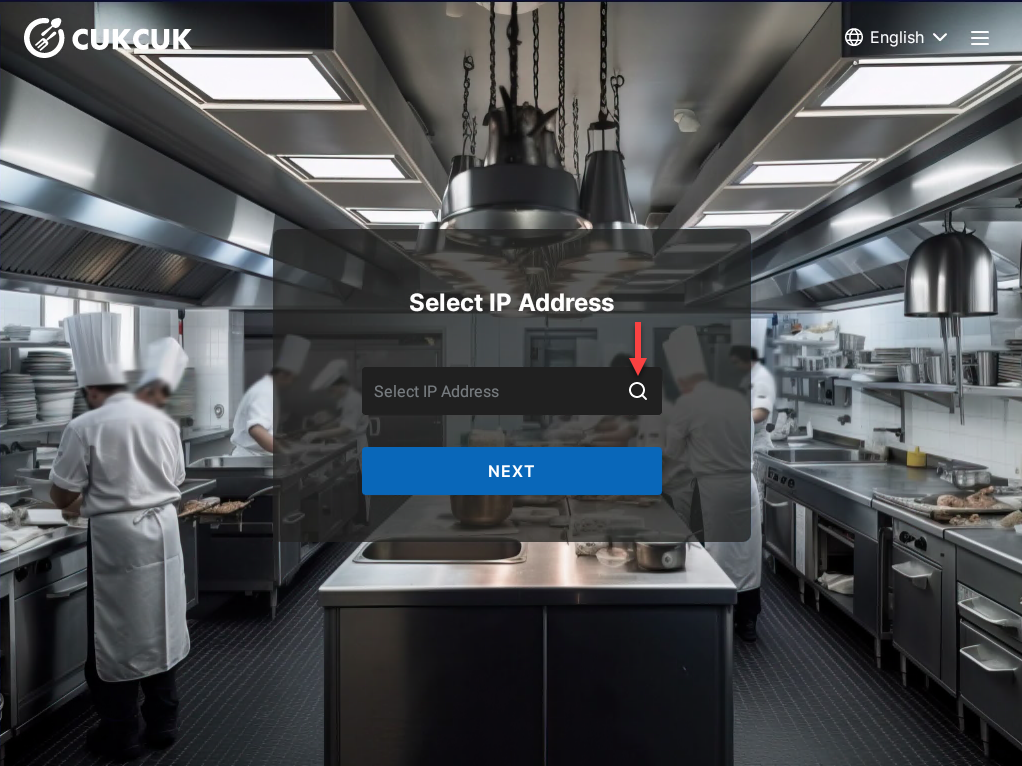
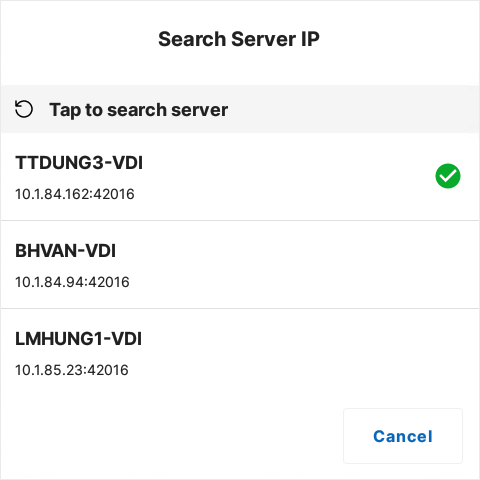
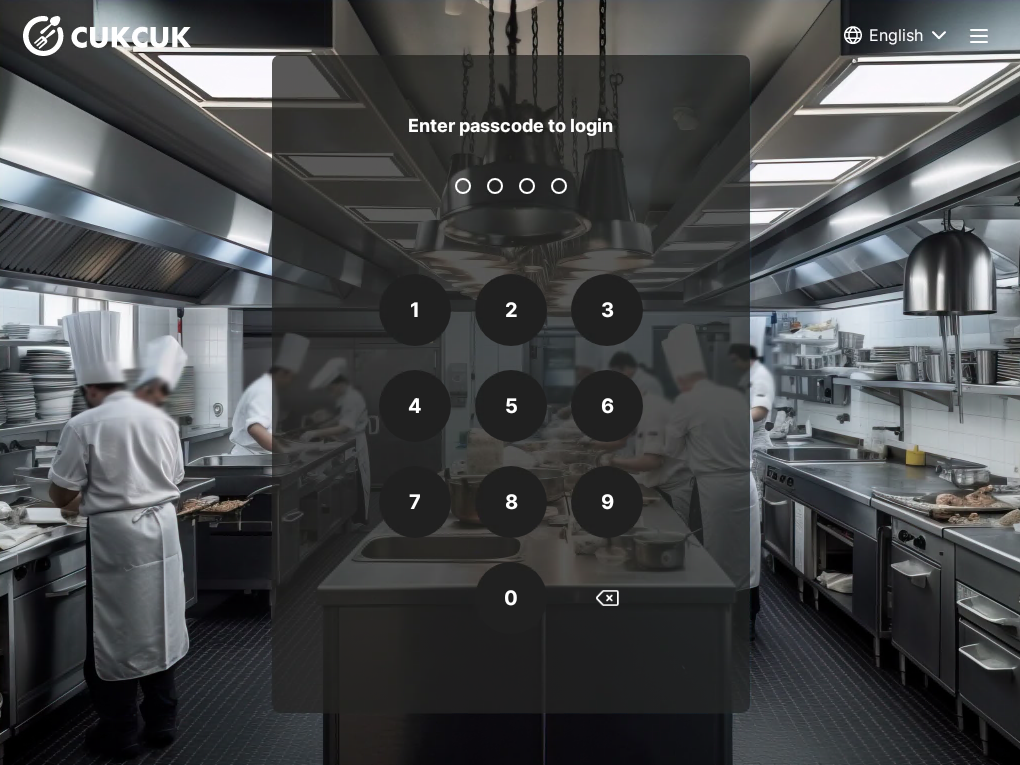
- Enter the passcode to access the KDS application.
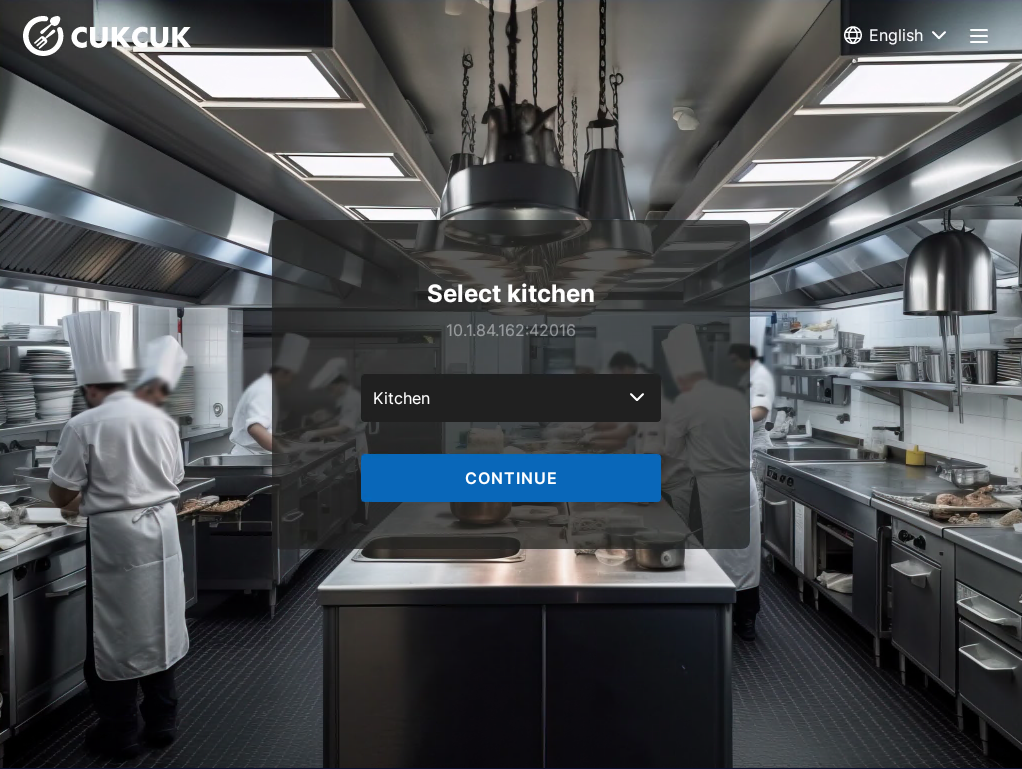
- Select the Kitchen station that will receive preparation requests.
- Tap Continue.
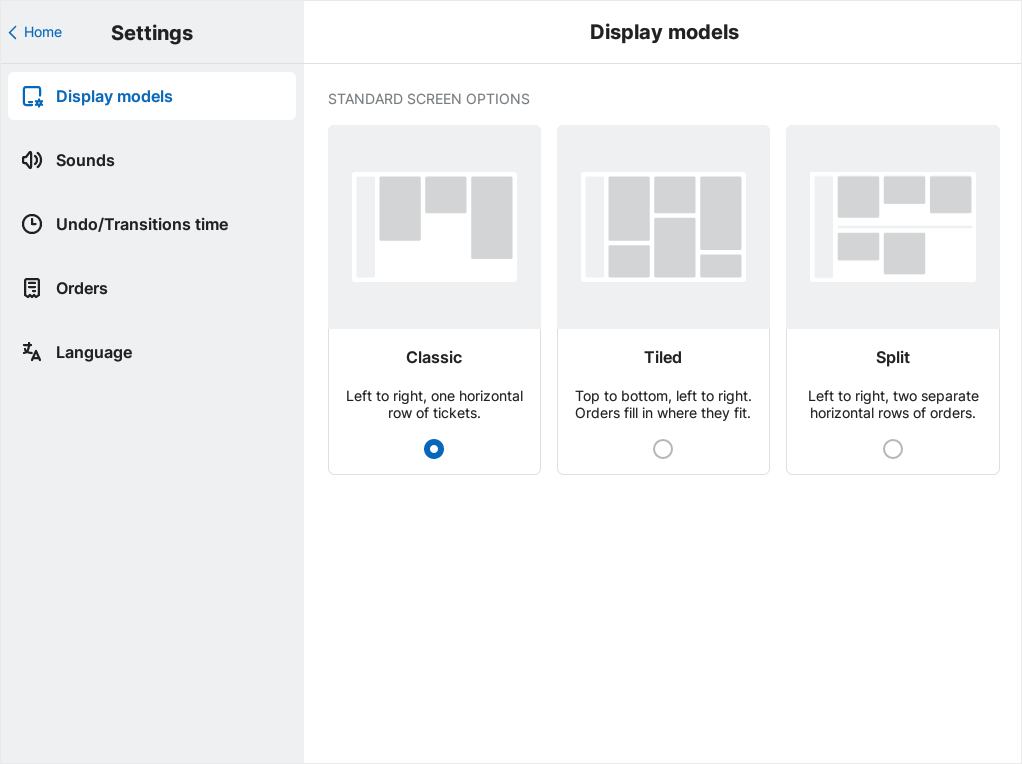
Go to the menu at the top-left corner of the screen, tap the icon  and select Settings to customize:
- Sound
- Display mode
- Transition time
1. Sound settings
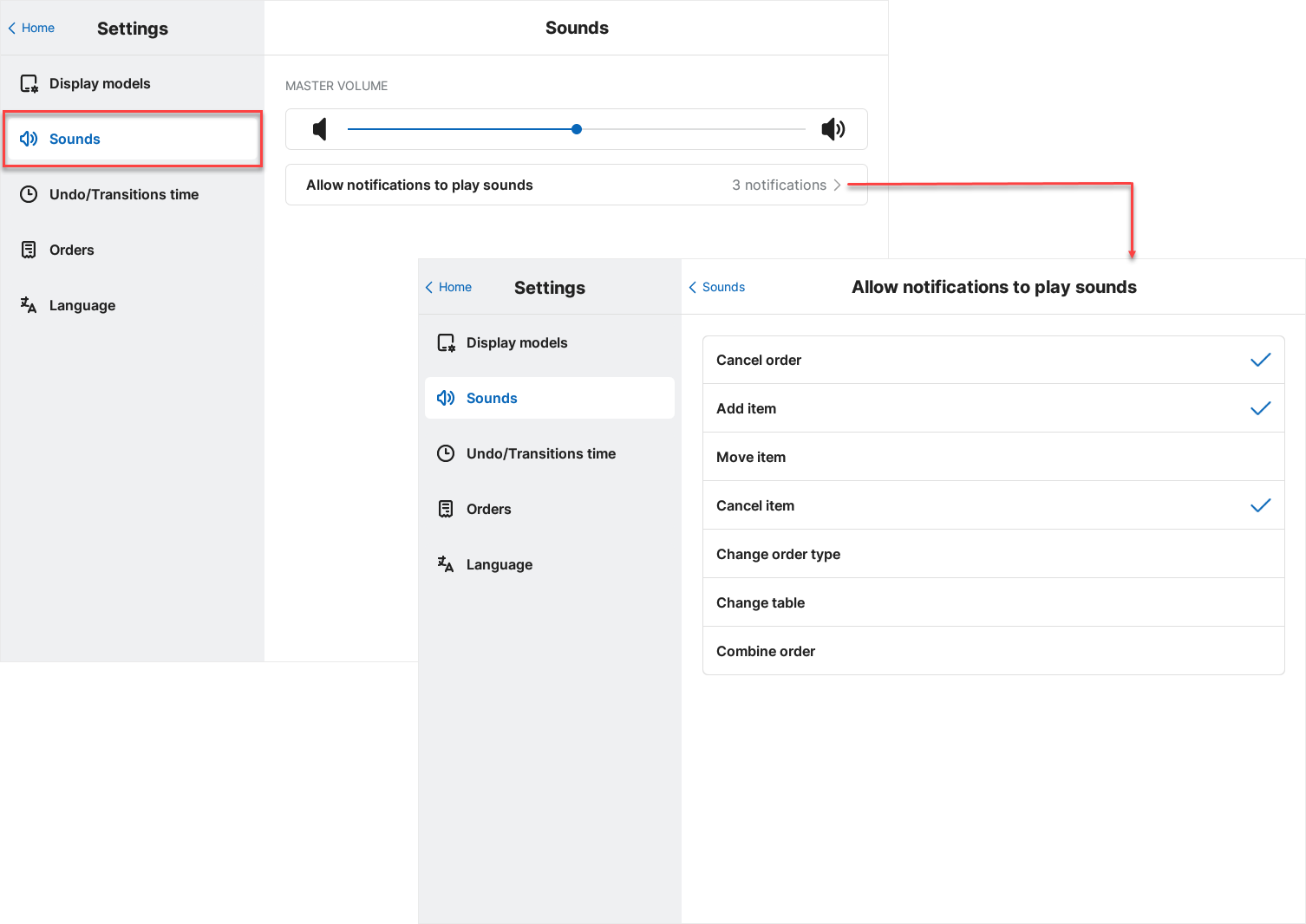
To enable sound notifications:
- Select Sounds.
- Adjust the volume using the slider.
- Enable notification sounds if needed.
A sound will play whenever a new order appears.
2. Undo & Transition time settings
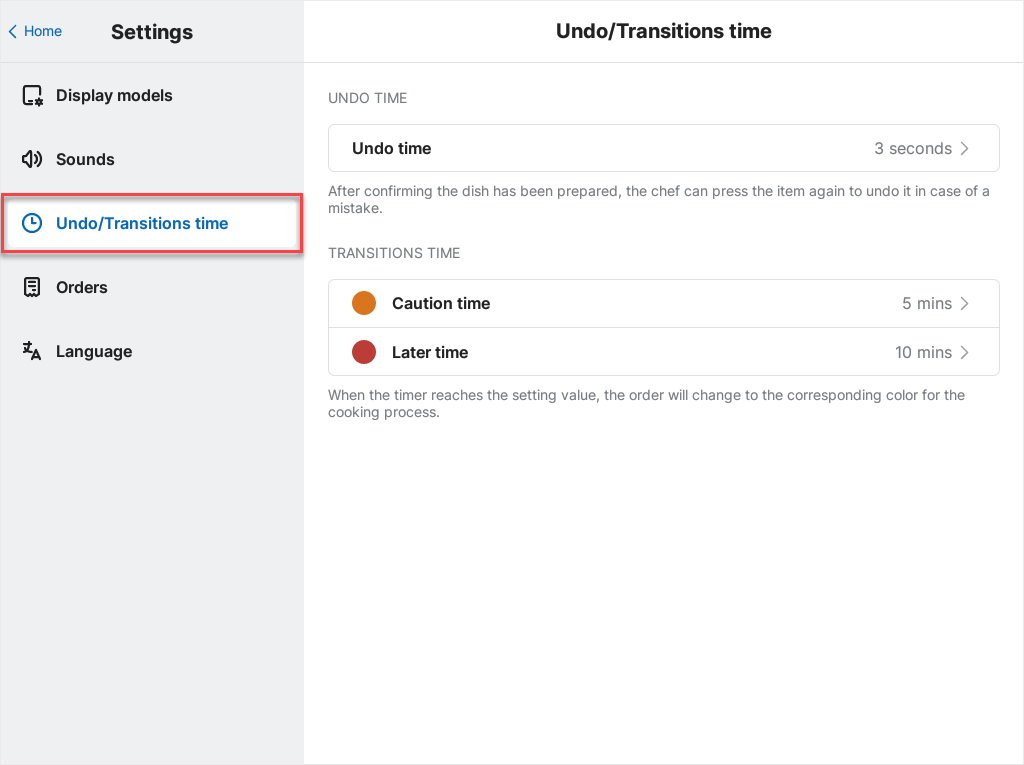
Select the Undo / Transitions time tab to configure timing options.
| Setting | Description |
|---|---|
| Undo time | After marking an item/order as completed, the chef can tap it again within a set time to undo the action in case of mistake. Default is 5 seconds, and it can be adjusted. |
| Transitions time | Set color change timing for orders to help the kitchen identify status:
• Caution time: Order turns orange while being prepared. Default later time is 10 seconds, and it can be adjusted. |
3. Order Display Settings
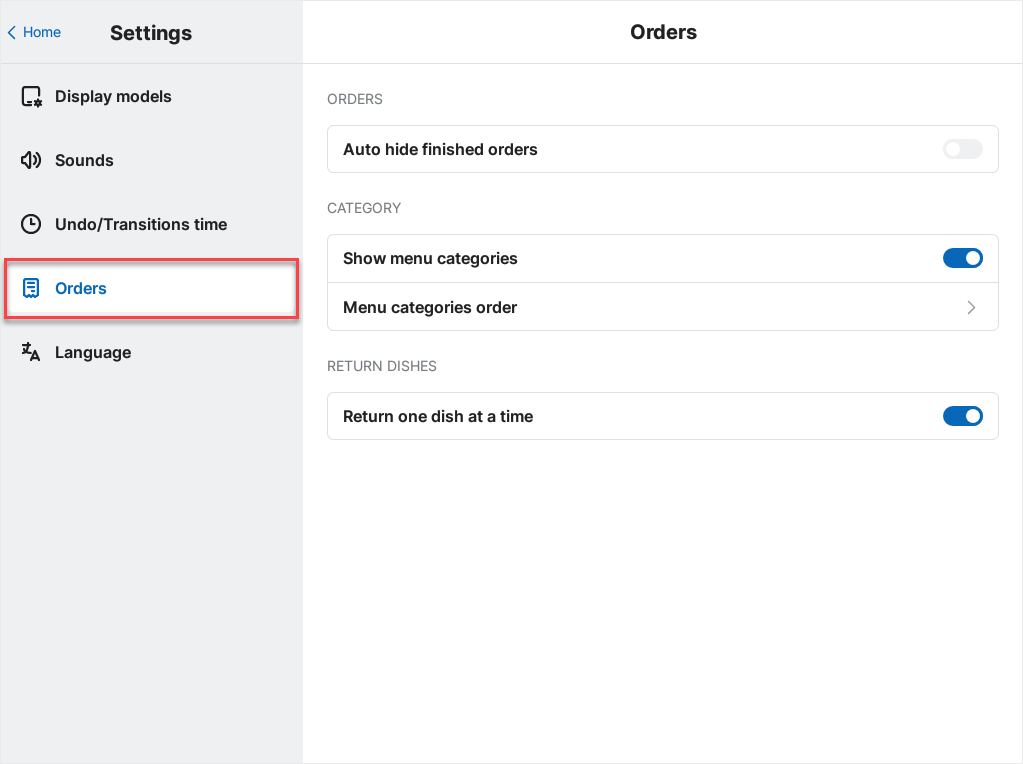
To configure how orders are displayed and managed, select the Orders tab.
| Setting | Description |
|---|---|
| Auto hide finished orders | When enabled, completed orders are automatically hidden from the preparation screen. |
| Show menu categories | When enabled, items are displayed according to the menu categories set up on the management page. |
| Menu categories order | It can be rearranged by dragging and dropping them to the desired position. |
| Return one dish at a time | When enabled, you can return items one line at a time within an order. |
Have a nice day!


