

I. Purpose
This feature allows restaurants to import an existing customer list from an Excel file into the system. It is especially useful when a restaurant is starting to use the software and already has customer information stored in an Excel file.
II. Instruction Steps
Follow the steps below to import a customer list:
Step 1: Access Customer Management
- On the dashboard, go to Customers → Customers list.
- Click this icon
 and select Import.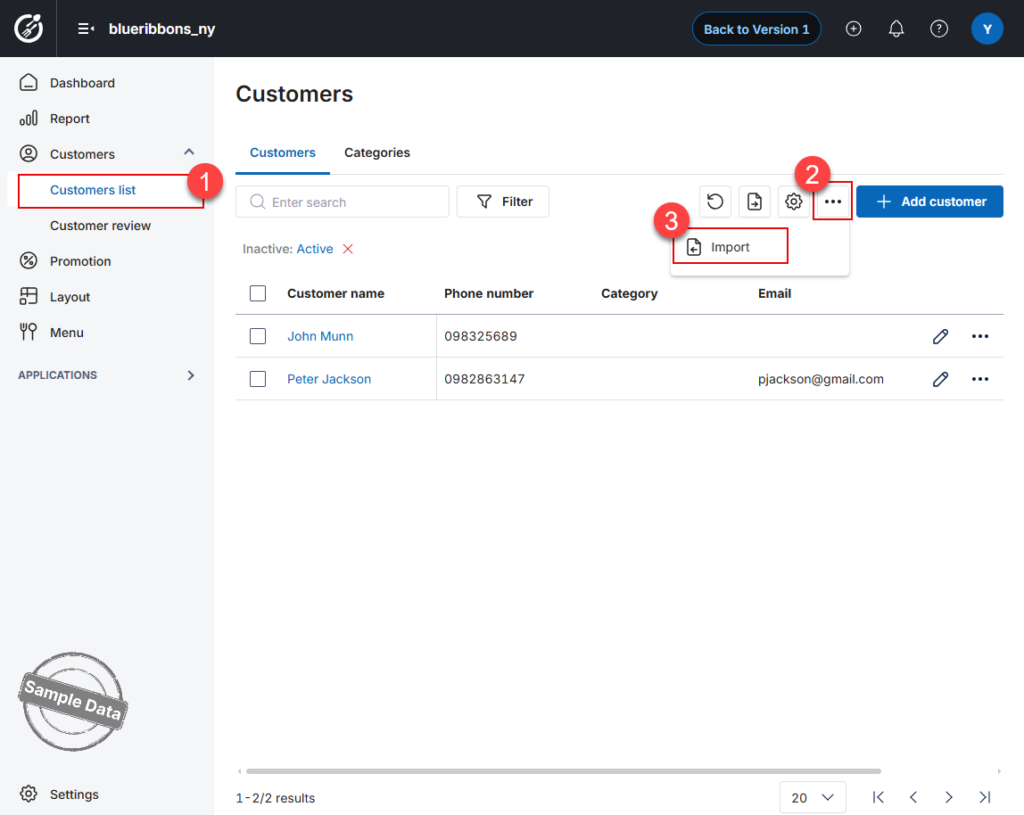
Step 2: Download the Excel Template
Download the system-provided Excel template to your computer by clicking Download template.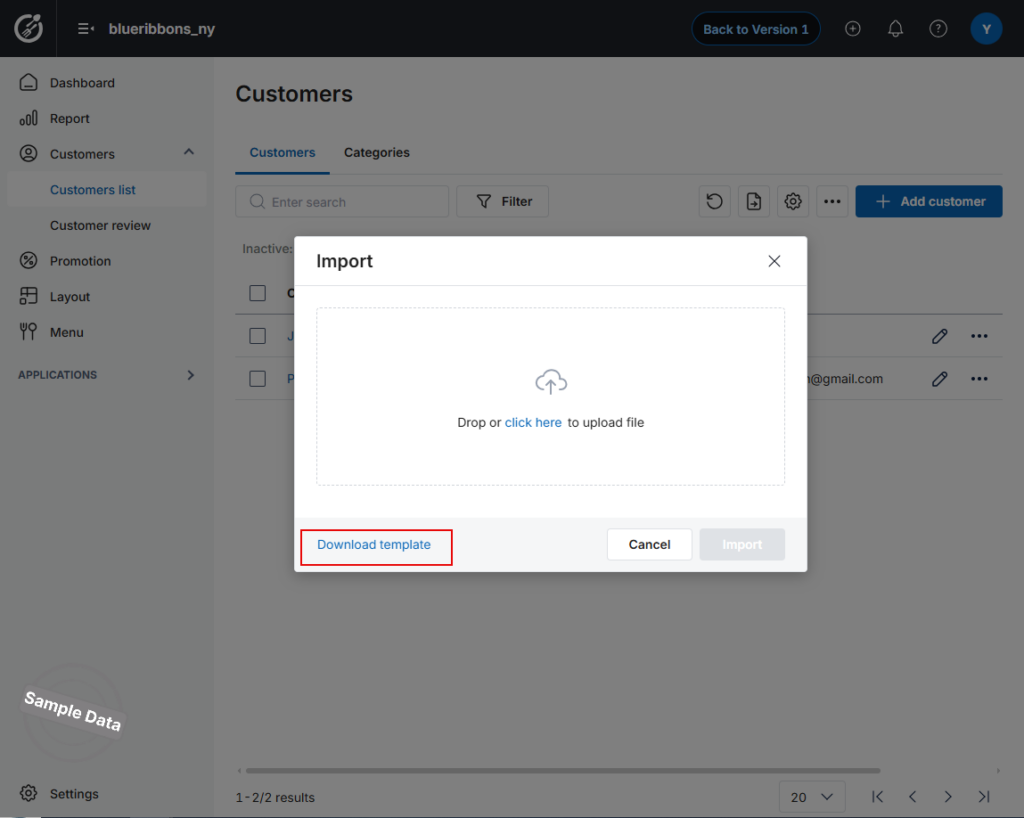
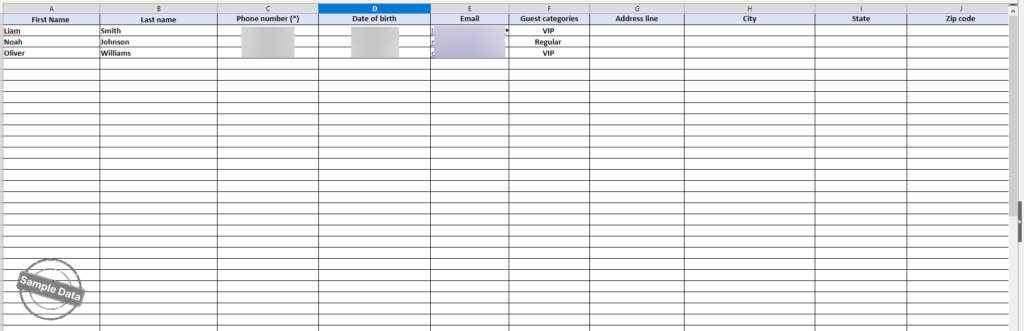
Step 3: Prepare the Customer List
Open the downloaded template and copy the customer information you want to import into the corresponding columns.
Note: Do not change the template structure or column headers to help ensure that the file is imported successfully.
After entering all customer information:
- Save the Excel file.
- Close the file before uploading it to the system.
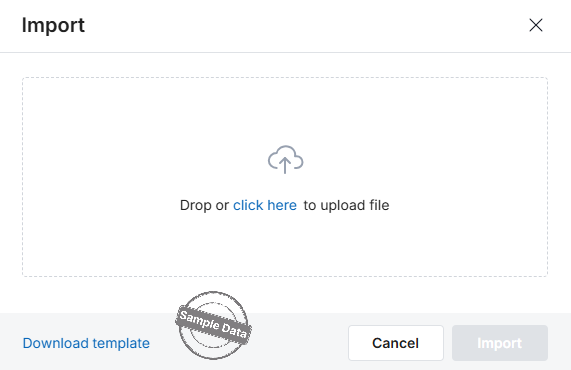
Step 4: Upload the Import File
Drag and drop your completed Excel file into the upload area, or click click here to browse and select the file from your computer.
Step 5: Finalize the Import
After successfully uploading your file, follow these steps to complete the data import process:
- Verify the Uploaded File: Ensure the correct file is displayed. If you need to upload a different file, click Replace file.
- Handle Duplicate Entries (Optional):
- To update information for existing customers based on their phone number, check the box: “Overwrite if phone number is duplicated”.
- To add only new customers and skip those who already exist in the system, leave this box unchecked.
- Complete the Import: Click the Import button at the bottom right to start processing the data.
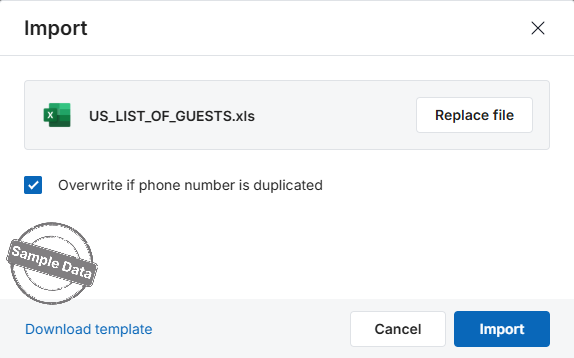
After the system finishes processing the file, an import results window will appear.
- Review the summary:
Check the number of successfully imported records. For example, the system may display “3/3 imported successfully.”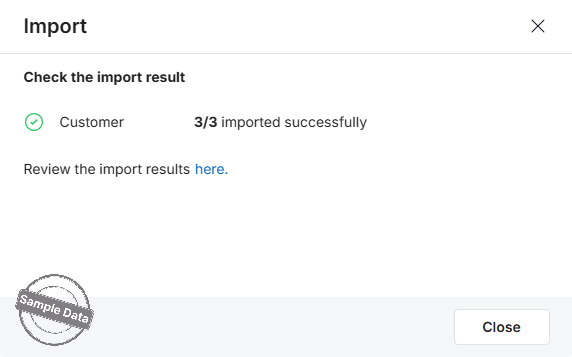
- Review detailed results (if needed):
If some records failed to import, click here in the message “Review the import results here” to view the details and reasons for the errors. If any records fail to import, correct the errors in the Excel file and import it again.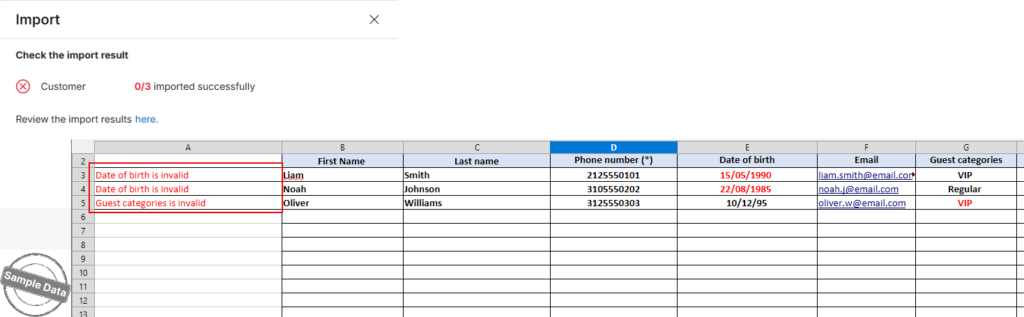
- Complete the process:
Click Close to close the results window and return to the customer management screen.
Have a nice day!


