

Nội dung có trong bài
Ẩn
I. PURPOSE
The restaurant owners/managers can set up basic information such as the restaurant name, address, and other details to be used during sales operations.
II. INSTRUCTION STEPS
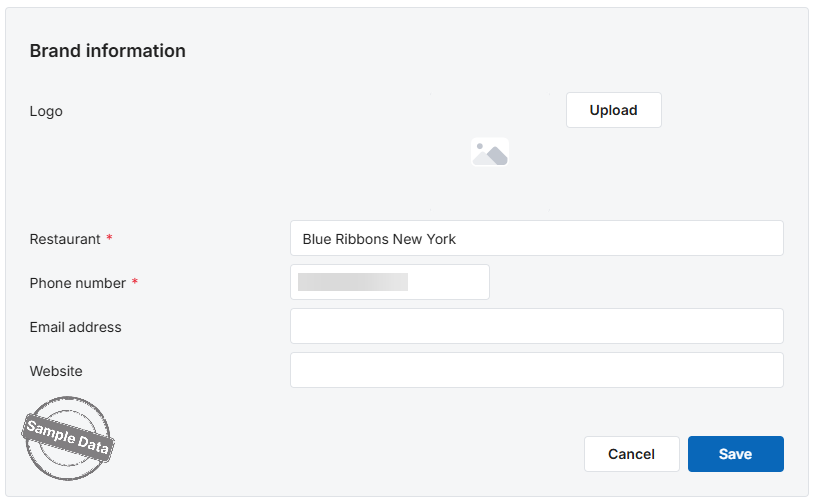
When logging in to the CUKCUK software for the first time, the system will display the following screen:
Step 1: Brand Information
- Logo – Click Upload to add the restaurant logo (if any).
- Restaurant Name, Phone Number, Website – These details appear on customer receipts.
- Email Address – Used by the restaurant manager to recover the password if it is forgotten.
Step 2: Currency, Date/Time Format & Utilities
A. Currency
- Currency: Select the main transaction currency (e.g., USD, VND).
- ID (Currency symbol): Symbol that appears on receipts (e.g., $, ₫).
- Position of ID: Decide where the symbol is placed in relation to the amount:
$n→ symbol before the number (e.g., $500).n$→ symbol after the number (e.g., 500$).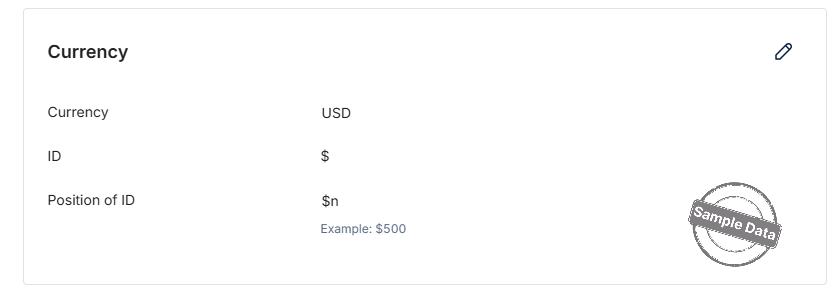
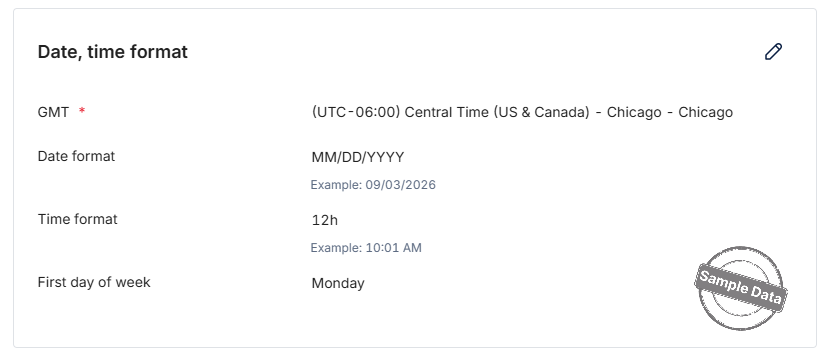
B. Date & Time Format
- GMT: Choose the time zone of the location (e.g., Central Time (US & Canada) – Chicago).
- Date format: Display style for dates (MM/DD/YYYY, DD/MM/YYYY, etc.).
- Time format:
- 12-hour → 10:01 AM / 9:30 PM.
- 24-hour → 10:01 / 21:30.
- First day of week: Set the starting day (Monday, Sunday, etc.) to align reports.
C. Utilities for All Locations / Selected Location
- Customers / SMS Marketing / Loyalty & Gift Cards
- All locations: Enable the utility for every branch.
- Selected location: Activate only for the current branch being configured.
→ Tick the option that matches your business policy.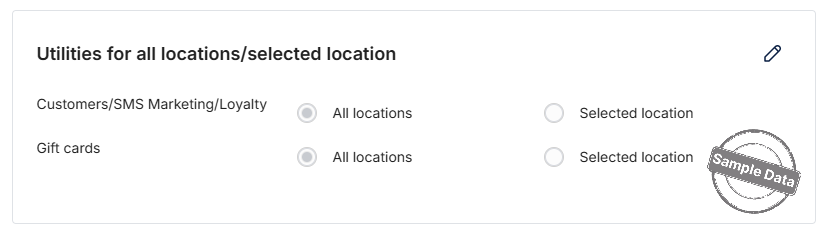
Tip: Click the Edit icon in each block to open the edit window. After updating, remember to Save so the system records your changes.
Have a nice day!


