

I. PURPOSE
This feature allows restaurants to set up an Online Ordering website, enabling customers to access and perform actions such as:
- Viewing the menu
- Placing orders
- Making payments
II. Instruction steps
Step 1: Install Online Ordering App
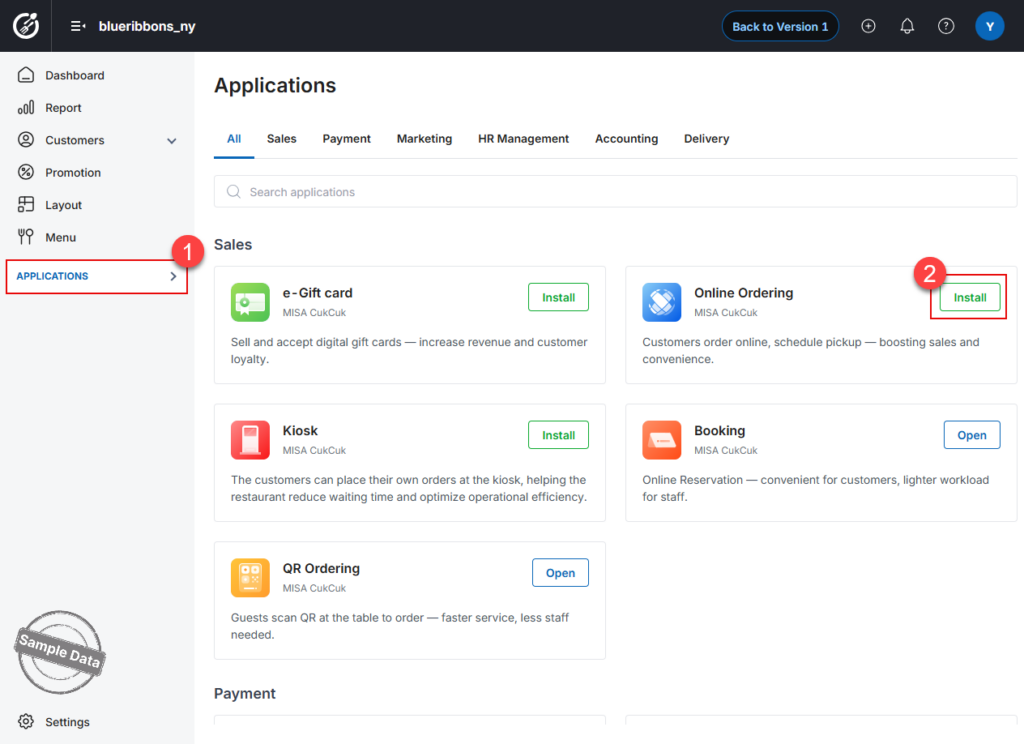
- On the Dashboard, go to Applications.
- Find the Online Ordering app and click Install.
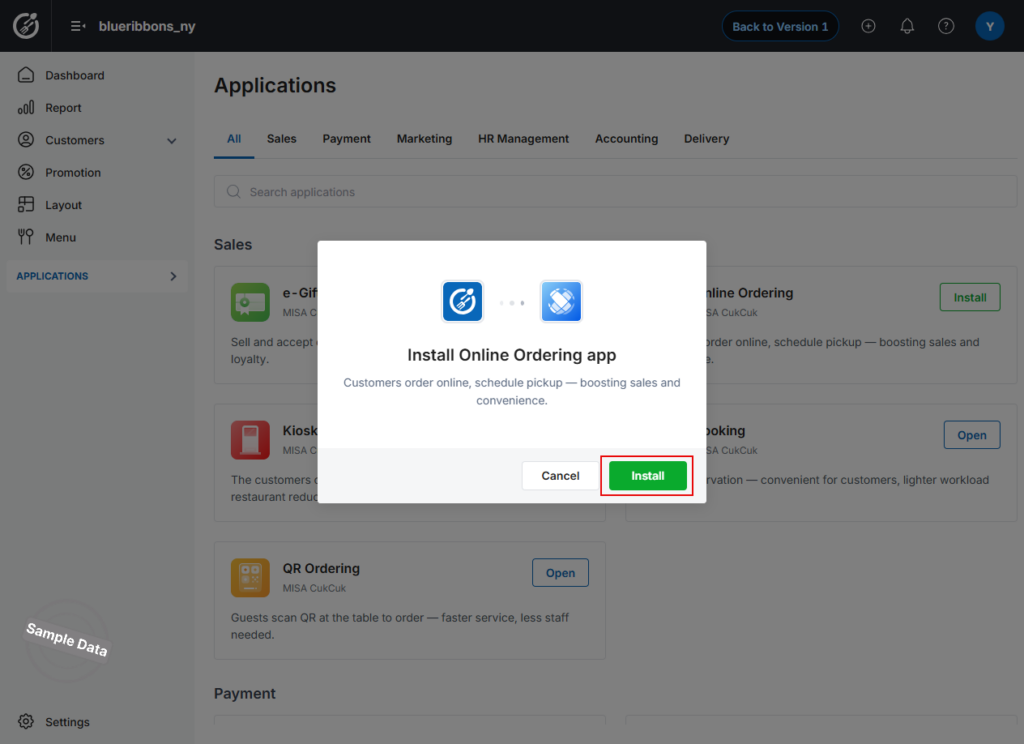
- Click Install again to confirm.
Step 2: Enable Online Ordering Website
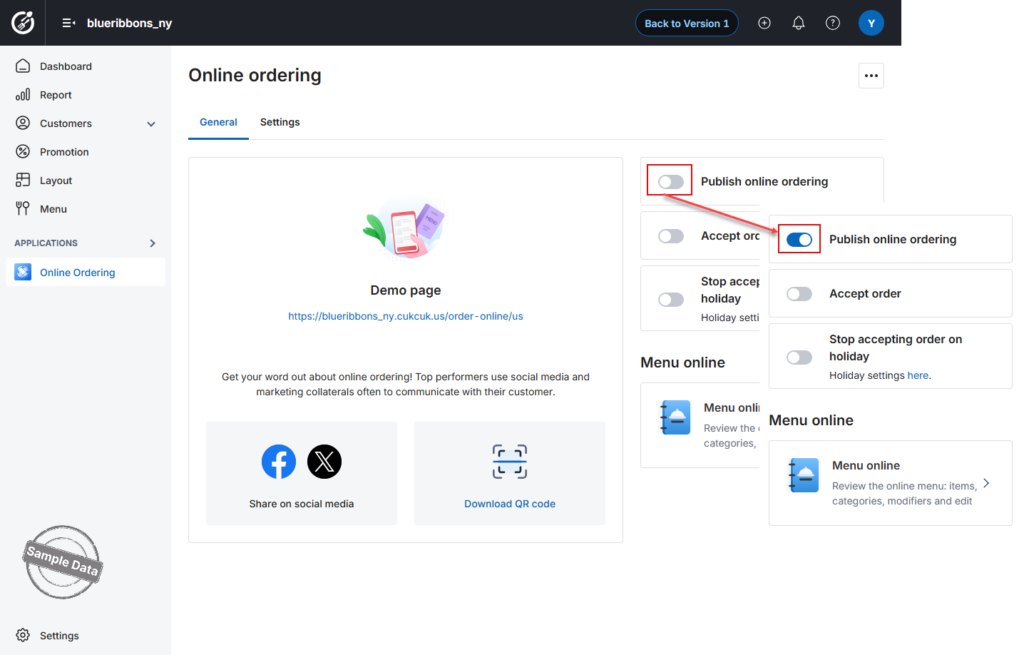
Turn on Publish Online Ordering. Once enabled, customers can access your restaurant’s online ordering website.
Step 3: Share Your Online Ordering Link
You can share the website with customers using the following options:
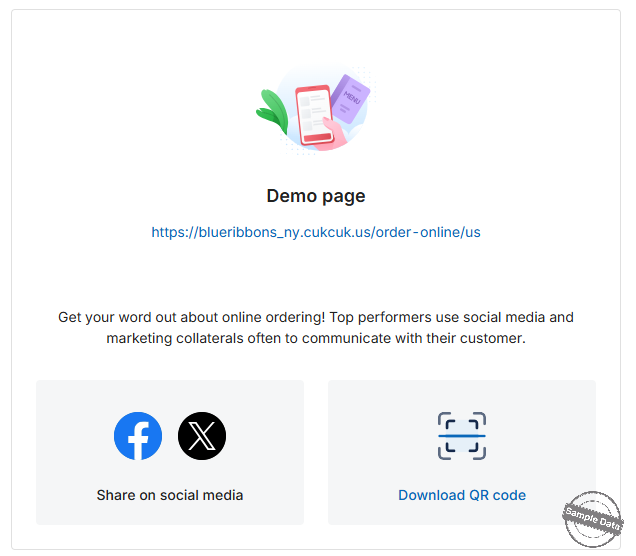
- Click Download QR Code to get the QR code and place it on tables.
- Click Share on social media to share the website link.
Note: If Publish Online Ordering is turned off:
- Customers accessing the link will see: “The restaurant closed.”
- You can still configure:
- Holiday settings
- Online menu
- Other settings
However, you cannot enable/disable Accept Orders or Holiday settings, or modify these settings while it is turned off.
Step 4: Enable Accept Orders
Turn on Accept Orders to allow customers to place orders via the website. 
Step 5: Configure Holiday Settings
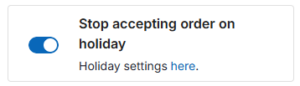
- Turn on Stop accepting orders on holidays.
- Click Holiday settings to configure holidays.
Add a Holiday
- Click Add holiday.
- Enter the holiday name.
- Select the date.
- Click Save.
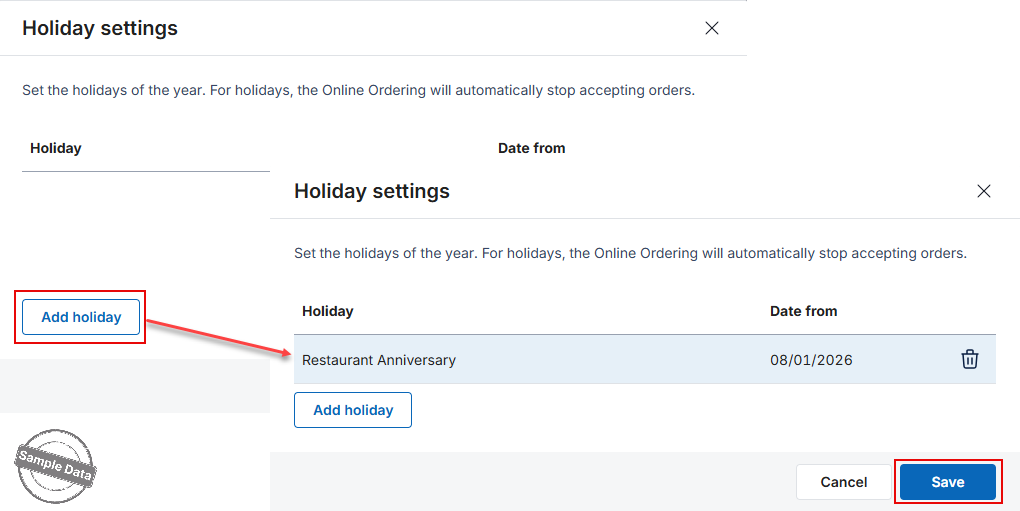
On configured holidays:
- Accept Orders will be automatically turned off
- It cannot be turned on for those dates until you delete them.
Have a nice day!


