

I. Purpose
Helps restaurants set up and use the timekeeping feature to track and manage employees’ working hours:
- Set up timekeeping on the management web portal
- Employees clock in at the start and clock out at the end of each shift
II. Instruction steps
1. Set up timekeeping on the management page
1.1. Install Timekeeping app
On the dashboard, go to Application and install Timekeeping.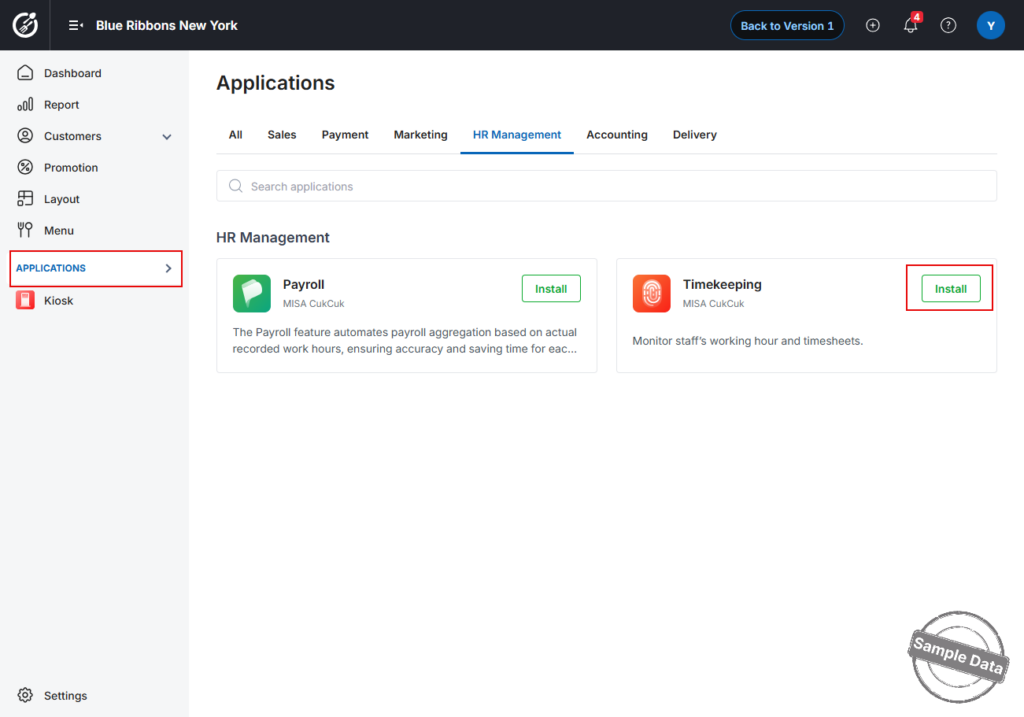
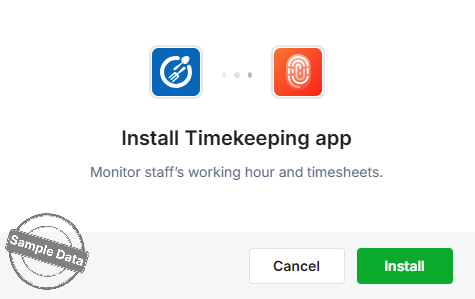
Click Install.
1.2. Configure General Settings
- Open the Settings tab
In the left-hand menu, click Settings to display the available configuration panels. - Review the default options
Two panels are shown by default:a. Working schedule / Scheduling
- Tick Use Working schedule/Scheduling feature if you want to manage staff rosters directly in the system.
b. Close day
- Remind employees to clock in – sends a gentle reminder when staff forget to clock in.
- Required to clock in before starting work – blocks POS access until the employee clocks in.
- Use the tablet’s camera to capture employees in clock-in and clock-out – takes a photo for attendance verification.
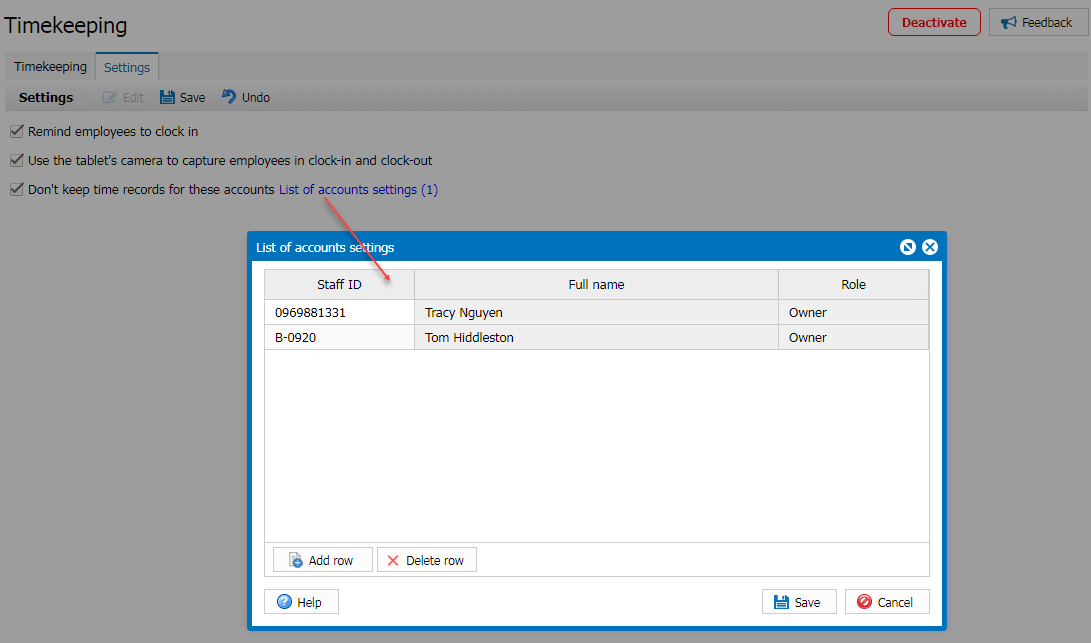
- Don’t keep time records for these accounts – exclude selected service accounts (e.g., kitchen display) from timekeeping.
- Log out after clock-out – forces an automatic logout when an employee clocks out.
- Edit a panel
- Click the Edit icon in the upper-right corner of a panel.
- Check or clear the options to match your restaurant’s workflow.
- Click Save to apply the new settings, or Cancel to discard them.
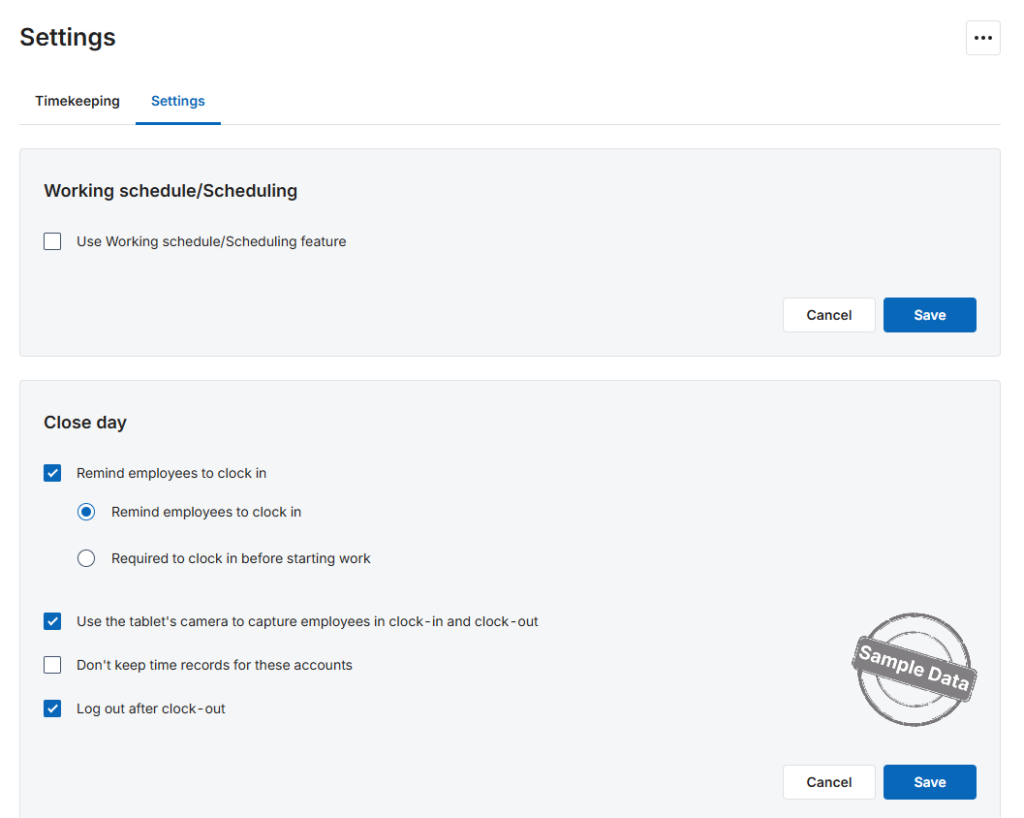 Your timekeeping and close-day preferences are now updated—employees will see the new rules the next time they clock in or out.
1.3. View a Timesheet
The Timekeeping tab lets you track each employee’s working hours and adjust clock-in/clock-out records when necessary.
- Open the Timekeeping tab.
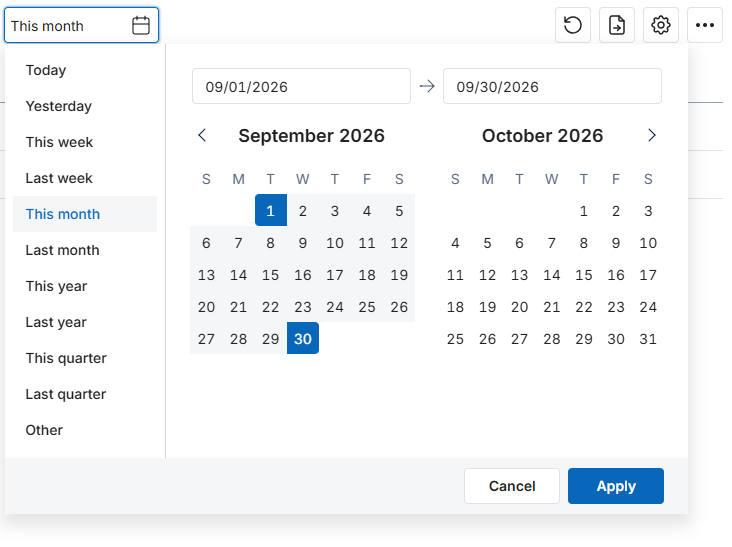
- Choose a Start date and End date, then click Apply.
- The system shows:
• Total hours worked for each employee.
• Tip, Total, and Date.
- The system shows:
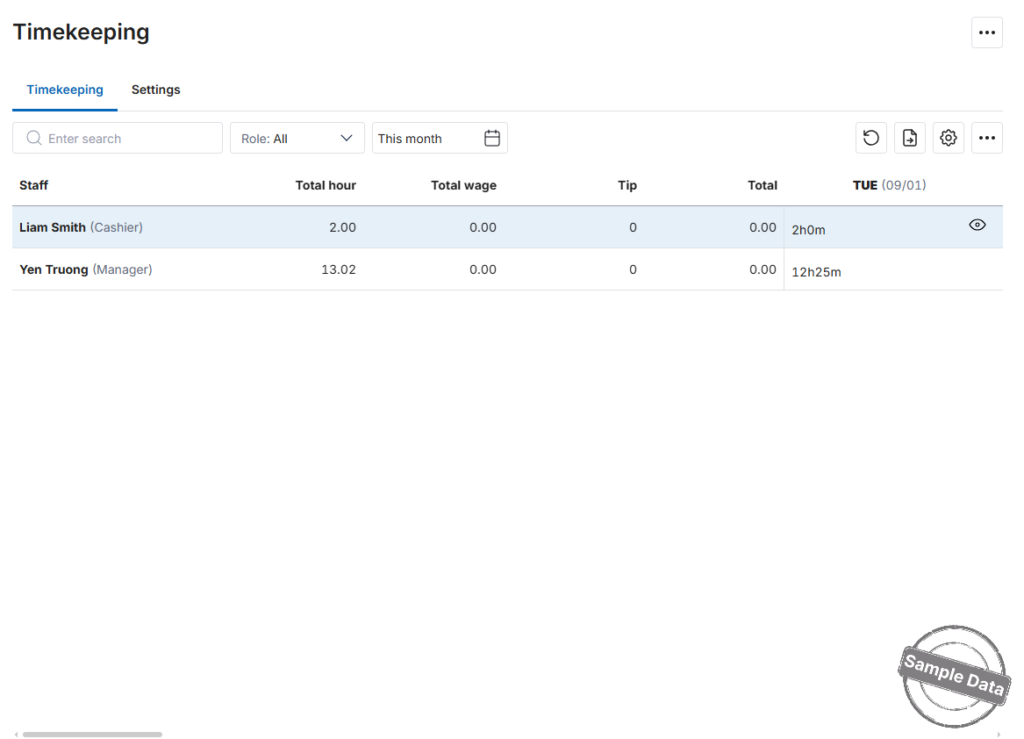
Note: You can display up to 31 consecutive days. Selecting a longer range triggers the warning “Your date range cannot exceed a month. Try a smaller range.”
1.4. Update Clock-In / Clock-Out Data
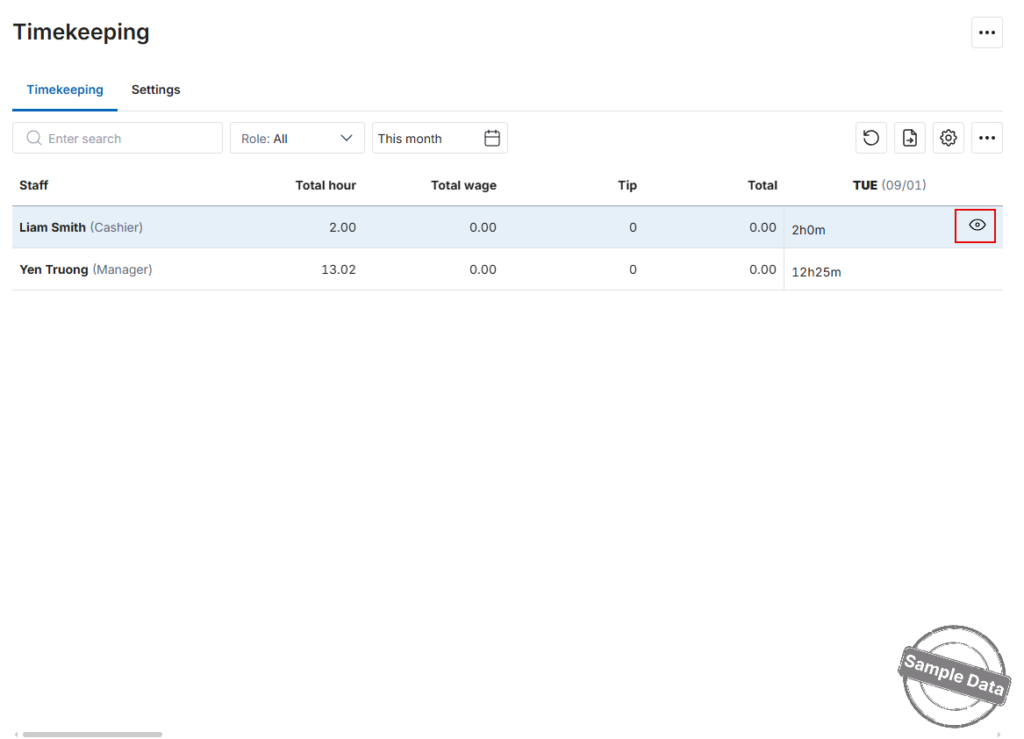
- Find the employee that needs a correction and click the eye icon to open their record.
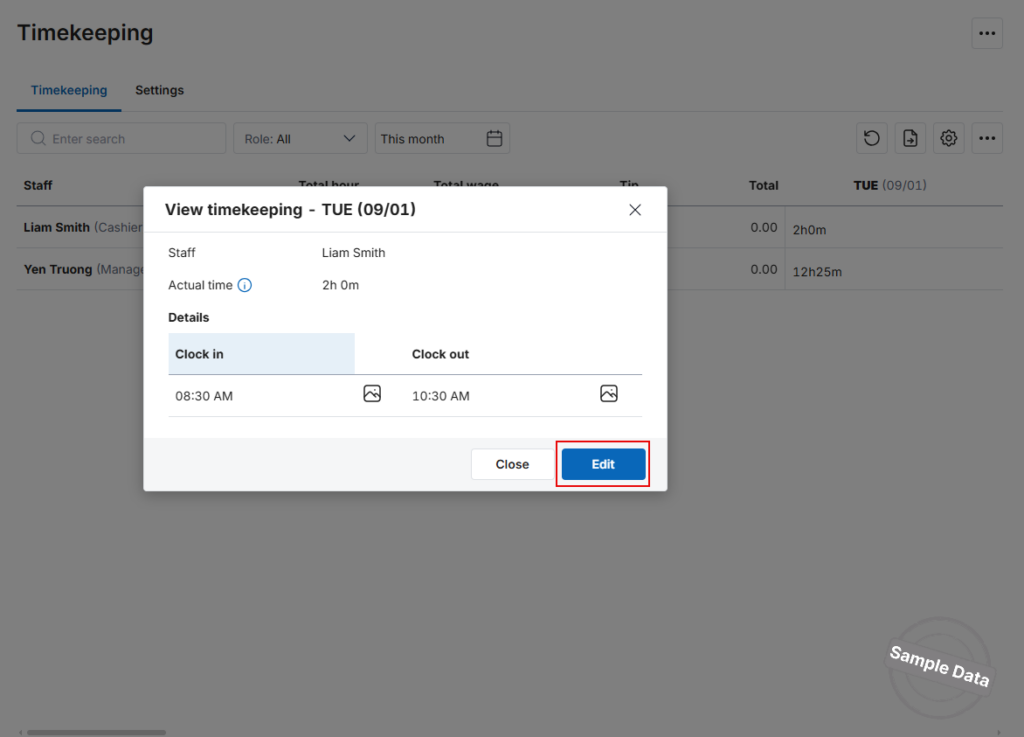
- Click Edit.
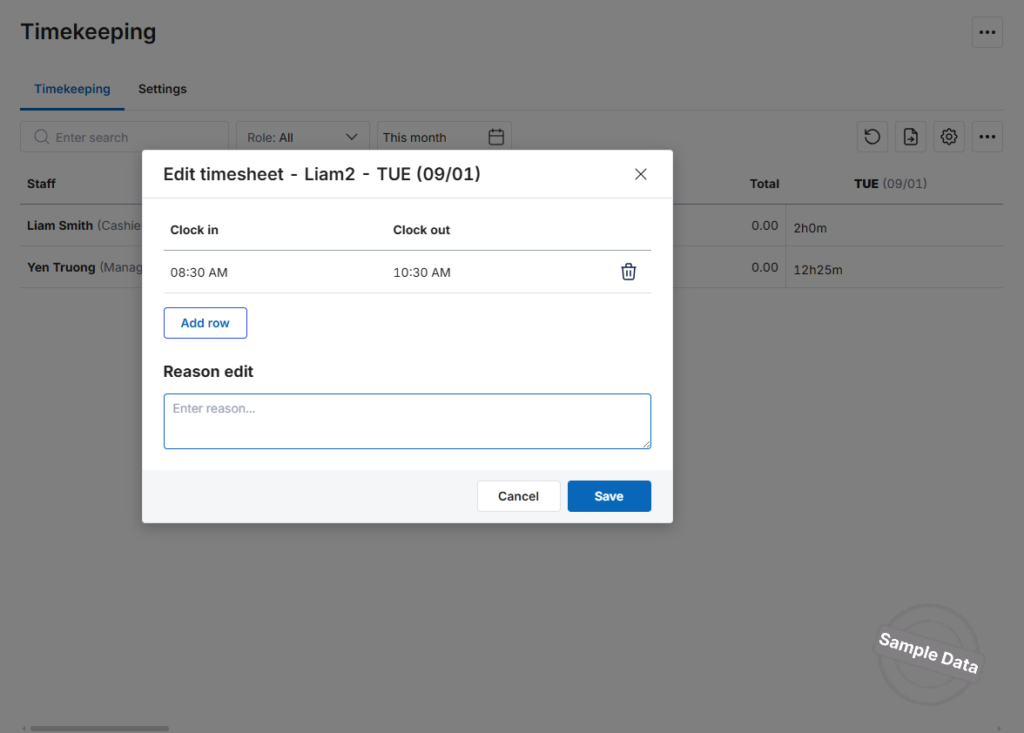
- Use Add row or Delete row to insert or remove time entries.
- Enter a brief Reason for the change.
- Click Save to confirm.
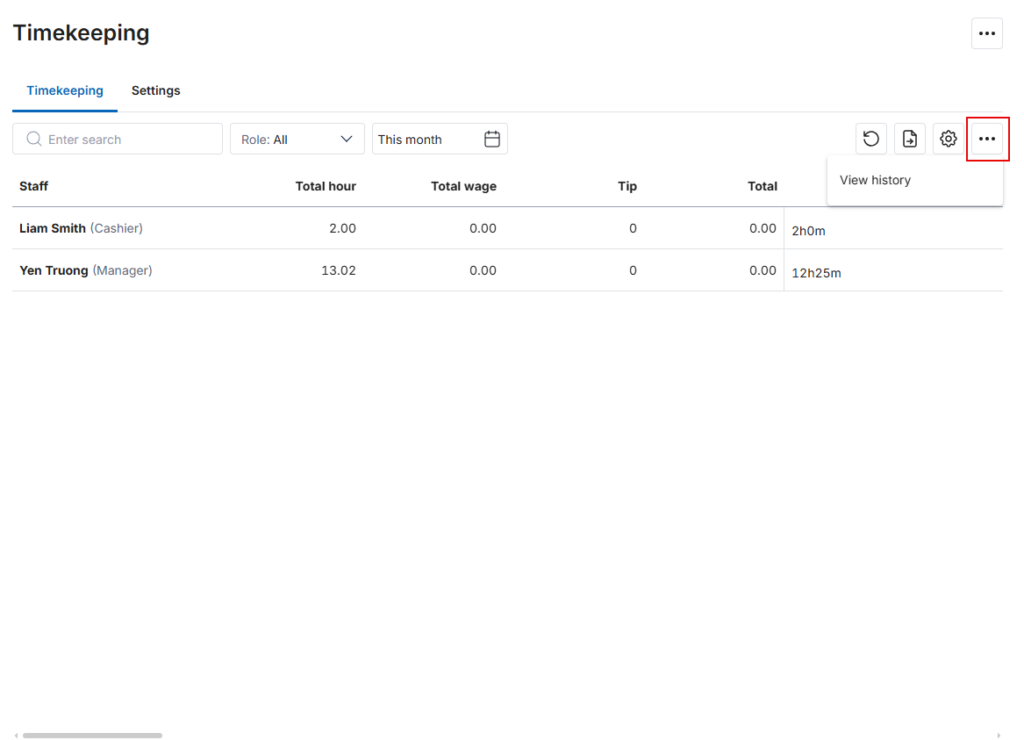
1.5. Check Edit History
Click the icon  to review every timesheet adjustment made for all employees.
Your timesheets are now up to date and fully audited.
2. Employees clock in at the start and clock out at the end of shift
2.1. Clock-in
To clock in, employees should:
- Log in to the PC sales software.
Case 1: If the restaurant has enabled Remind employees to clock in in Timekeeping/Settings on the management page:
- A clock-in notification will appear. Click Clock in to confirm your attendance.
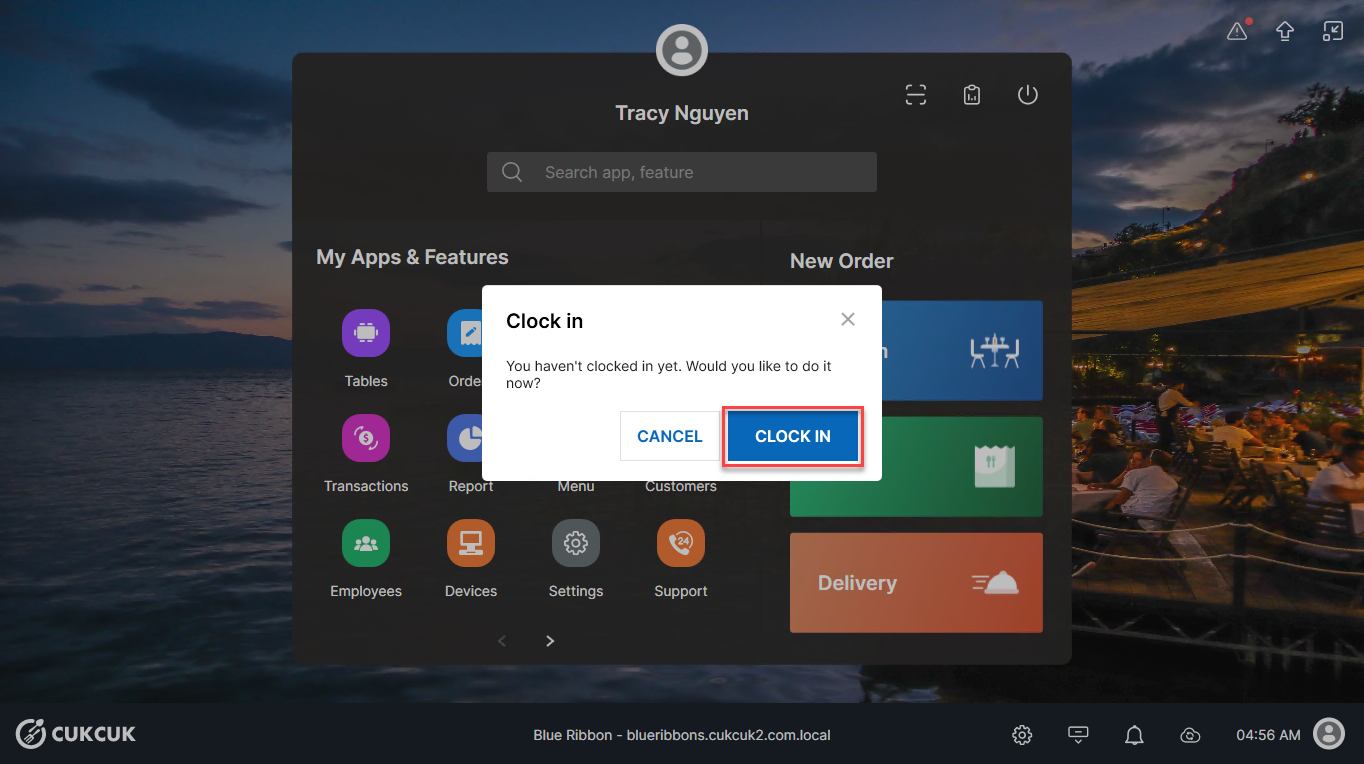
– This message will appear.
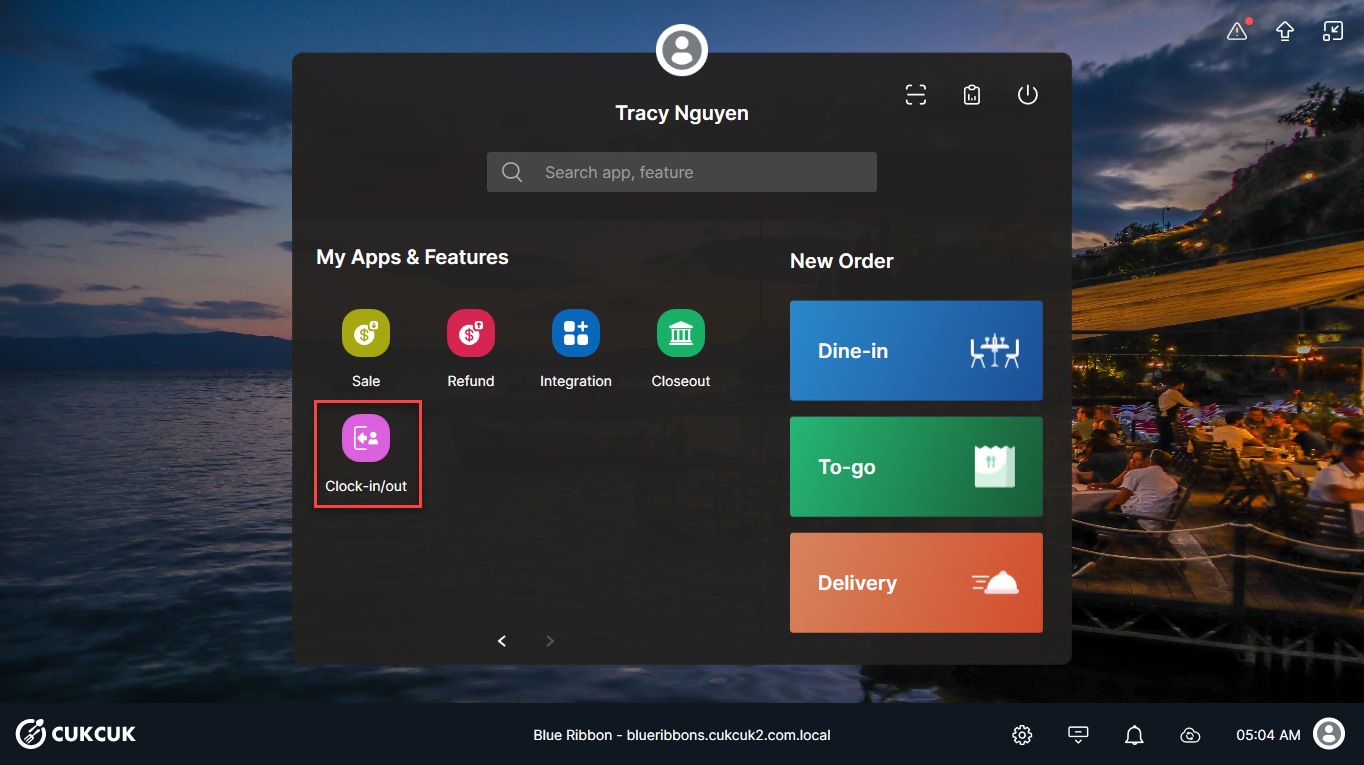
Case 2: If the reminder setting is not enabled:
- On the main screen, click Clock-in/out.
- On the Clock-in/Clock-out screen, click Clock in to confirm.
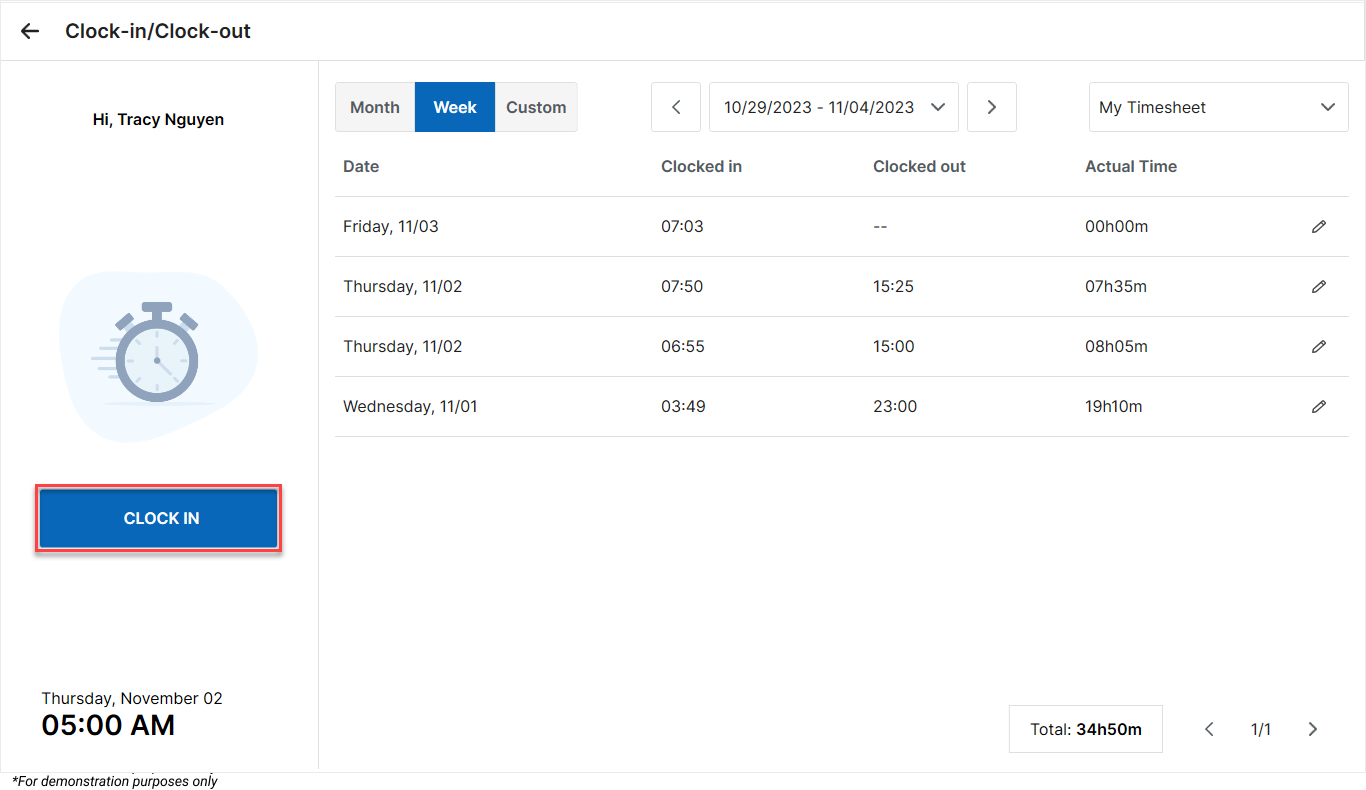
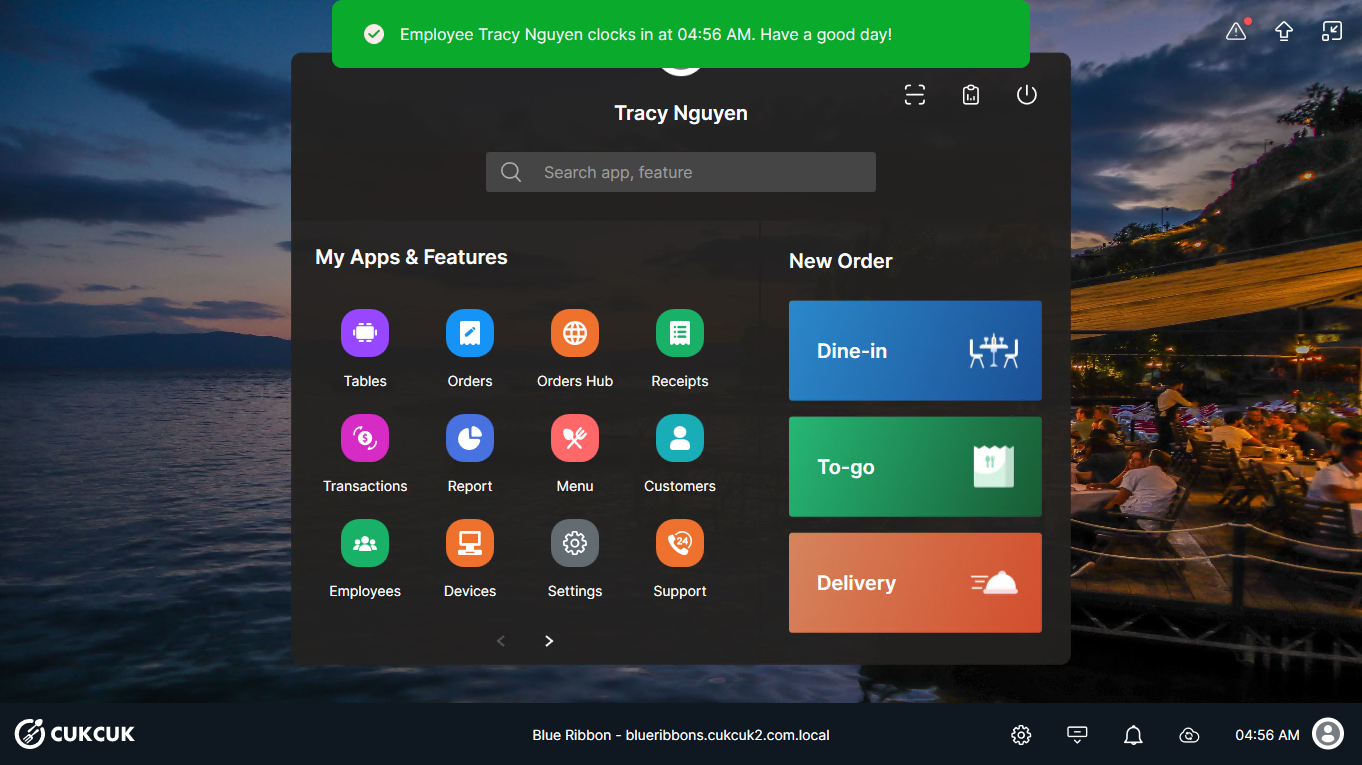
- The screen will display a “successful clock-in” message.
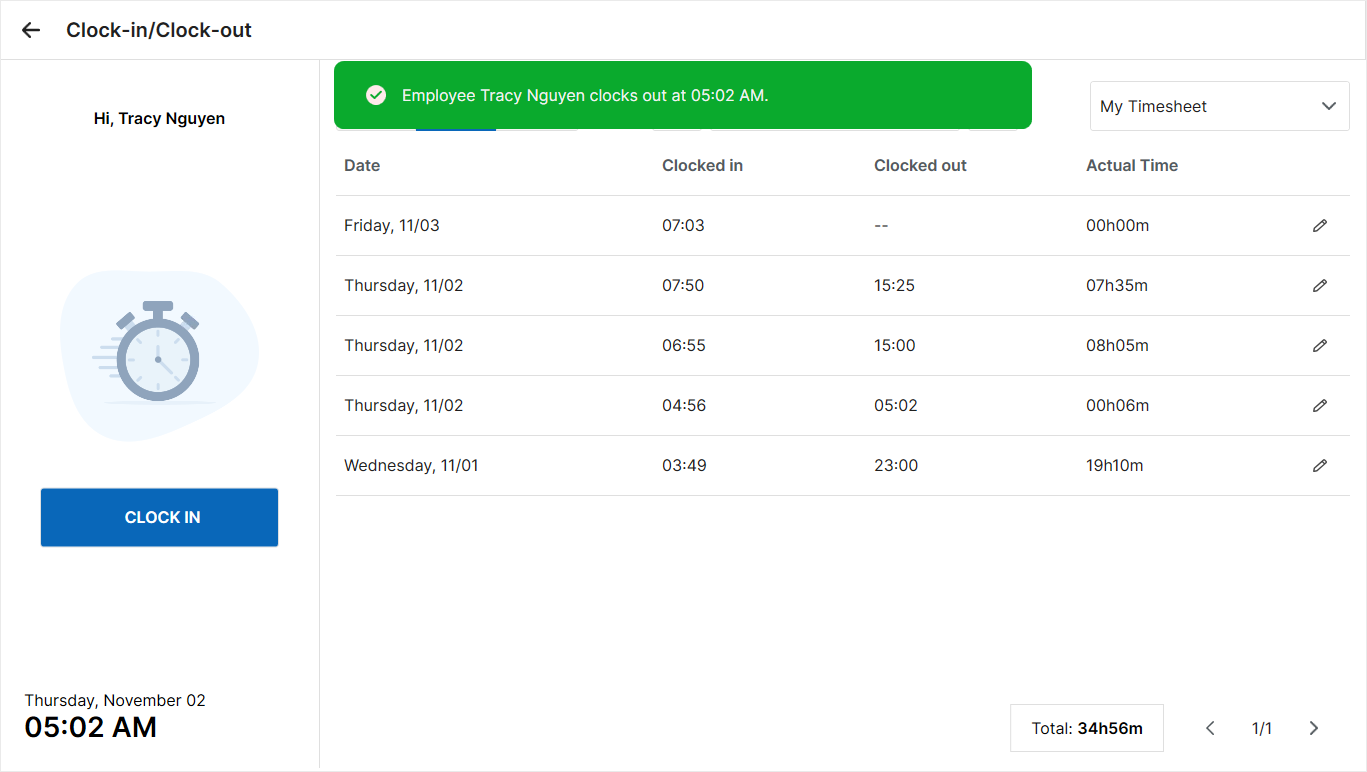
2.2. Clock-out
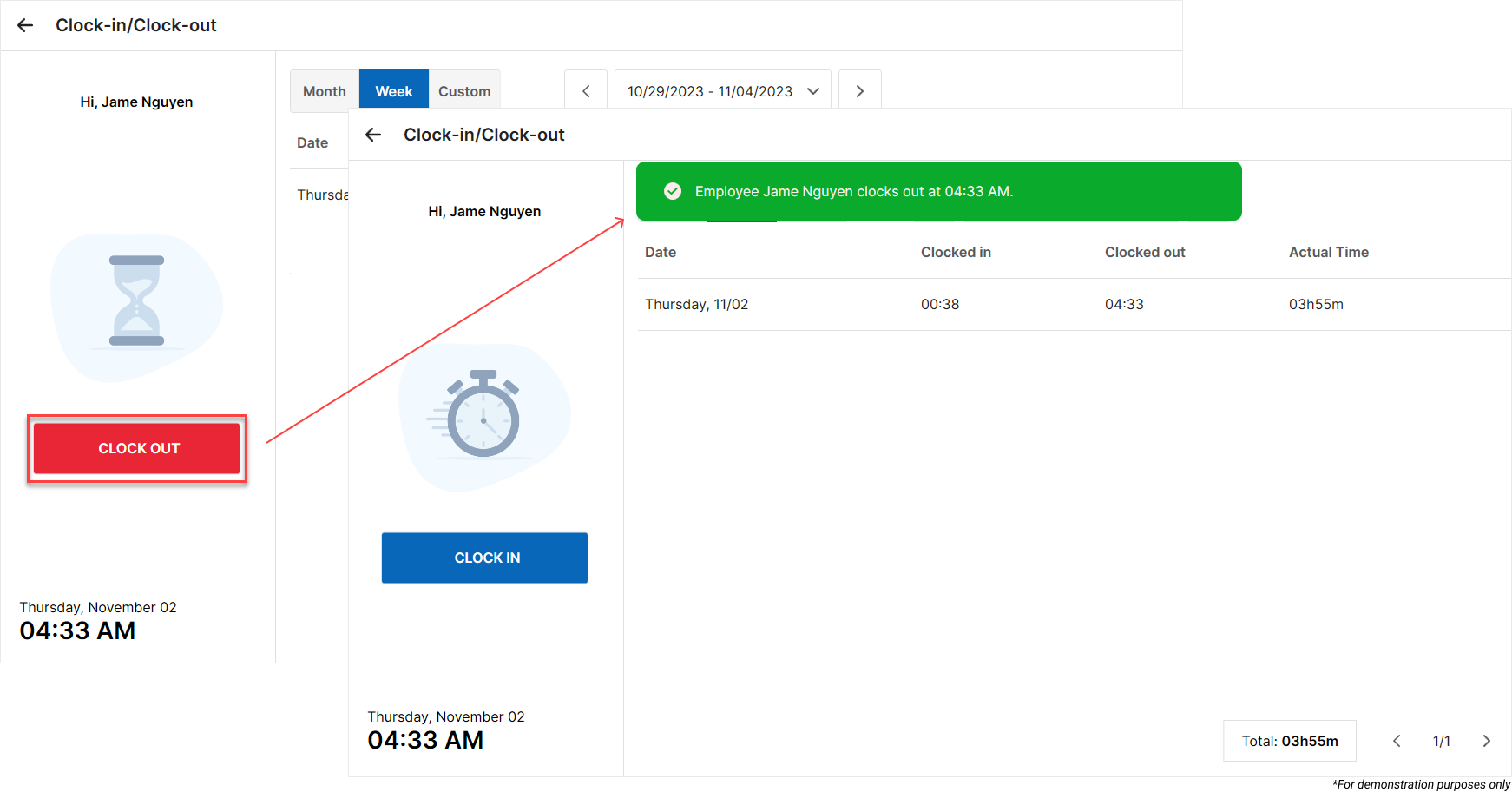
At the end of the shift, employees should repeat the above steps to Clock-out.
2.3. Edit Timekeeping Records
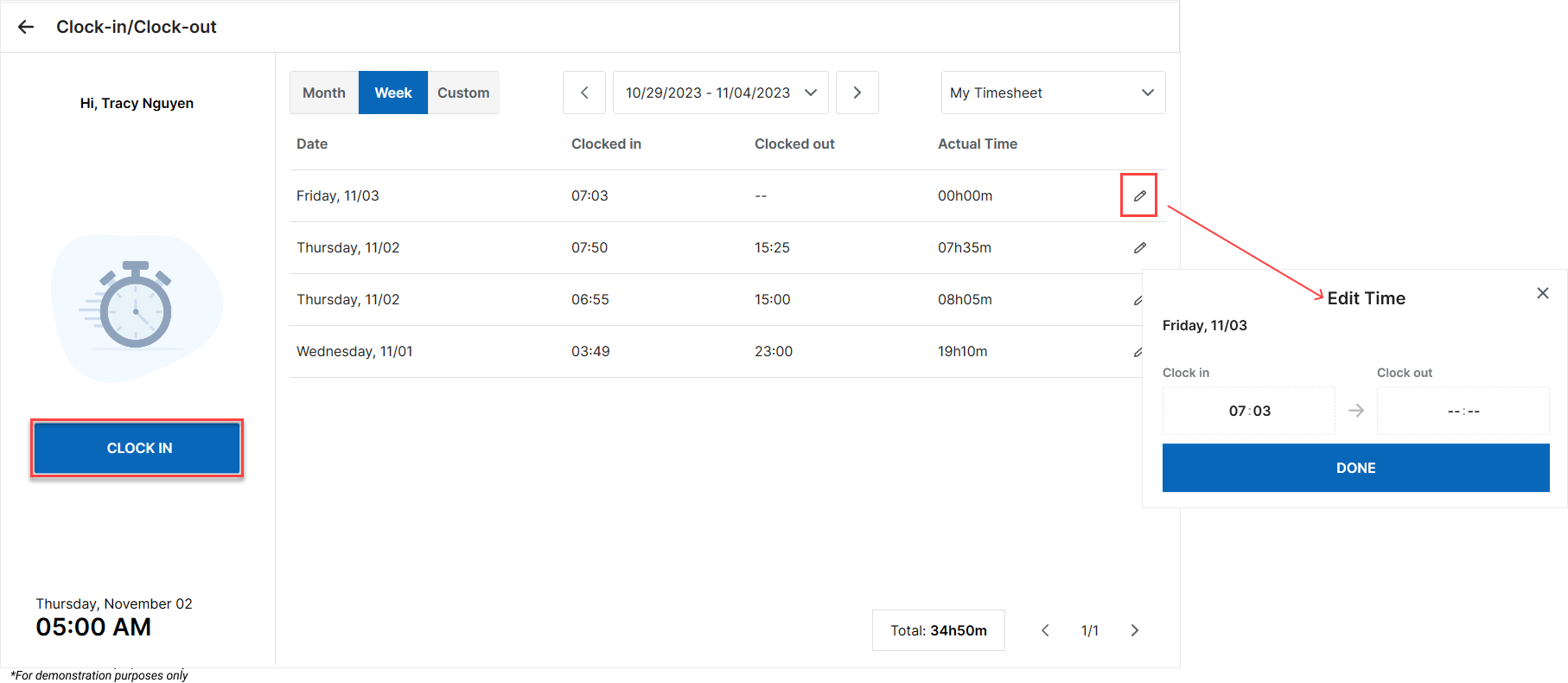
Employees with the Timekeeping permission in Role Management can:
- View their own clock-in history and edit time records for themselves or other employees.
- Edit their own or other employees’ clock-in/out times.
Click the icon  to make adjustments if you haven’t clocked out or need to correct a time entry.
Then, click Done to save your changes.
Additionally, CUKCUK supports timekeeping for employees on the Tablet App—the steps are the same as on the PC sales software.
IV. NOTES
| Setting Description | Details |
|---|---|
| 1. Remind employees to clock in | After logging in to the PC sales software, a notification appears allowing employees to clock in for attendance. |
| 2. Use the tablet’s camera to capture employees in clock-in and clock-out | Allows restaurants to use the tablet camera to record employees’ timekeeping images when logging into the sales app. |
| 3. Don’t keep time records for these accounts / List of account settings | Allows restaurants to select employee accounts that do not need timekeeping when logging into the sales software/app.
|
- Have a nice day!


