

I. PURPOSE
This feature helps restaurants take orders faster and more conveniently by using PLU (Price Look-Up) codes when serving customers.
II. INSTRUCTION STEPS
1. On the dashboard
- Log in to the dashboard using your account.
- From the navigation menu, select Menu and click Add item.
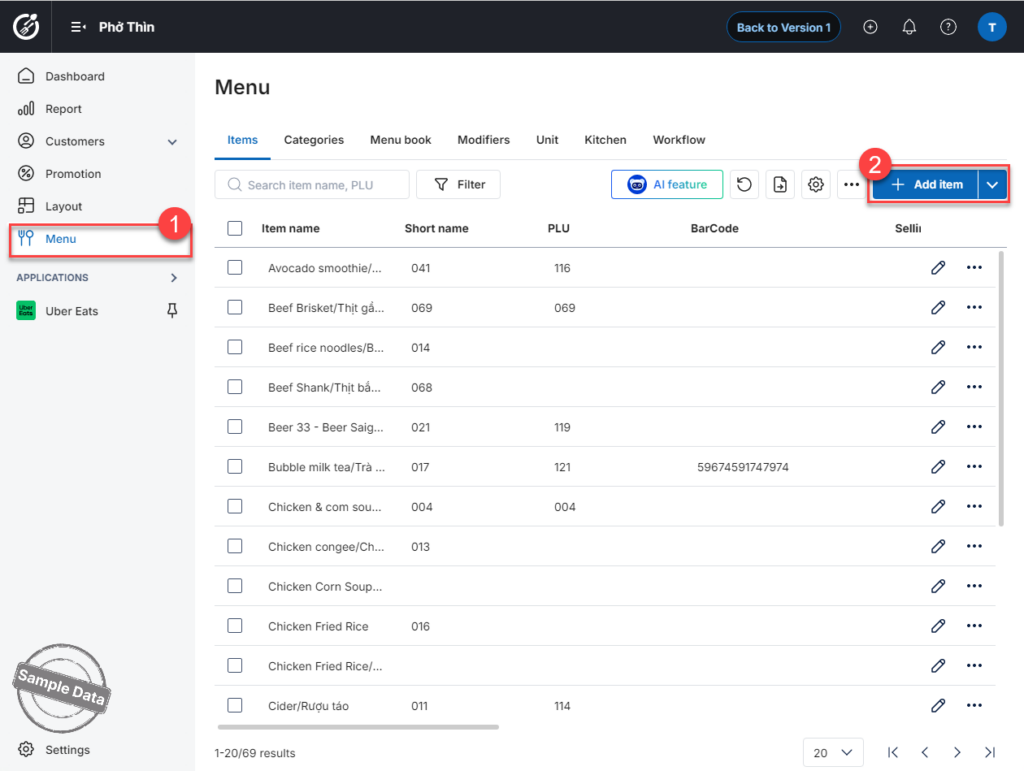
- Add PLU information to menu items, including: Regular items, Items with variants, and Combo items
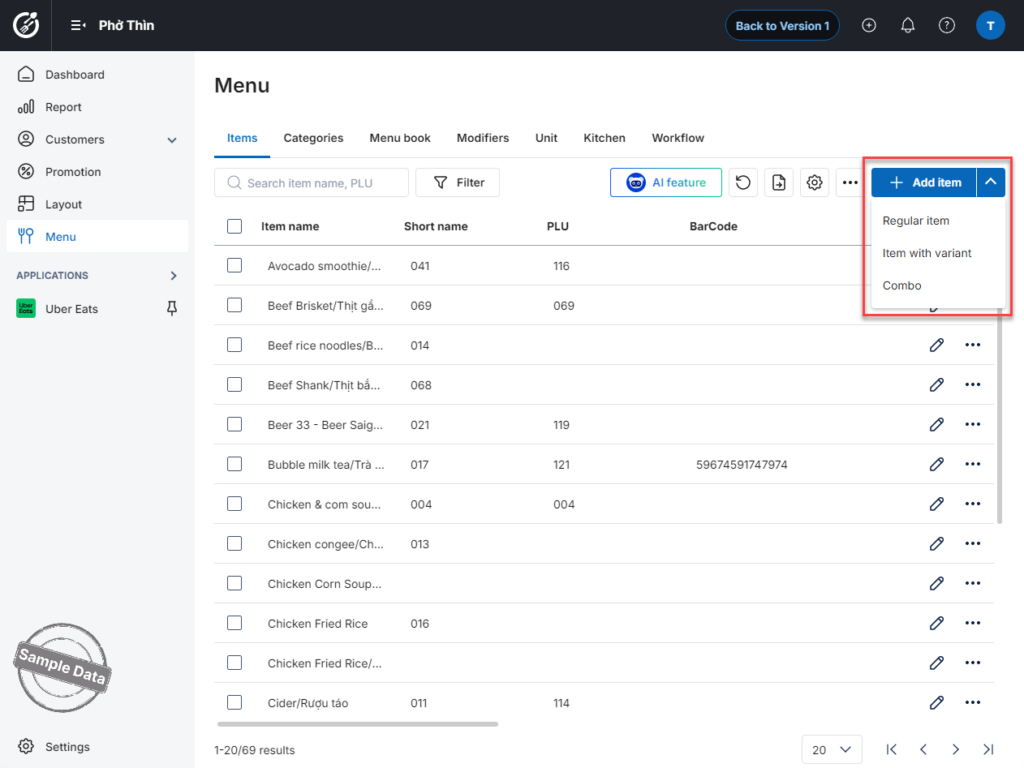
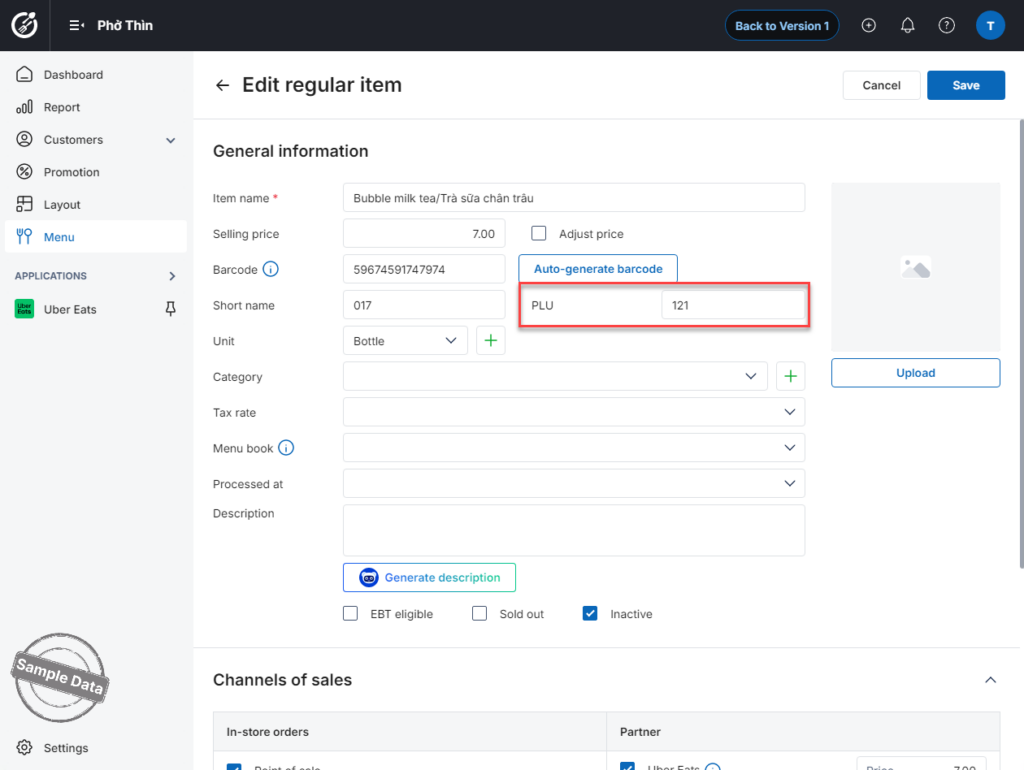
1.1. Configure PLU for Add Regular item/ Combo:
- Enter the PLU code in numeric format. The system supports up to 22 characters by default.
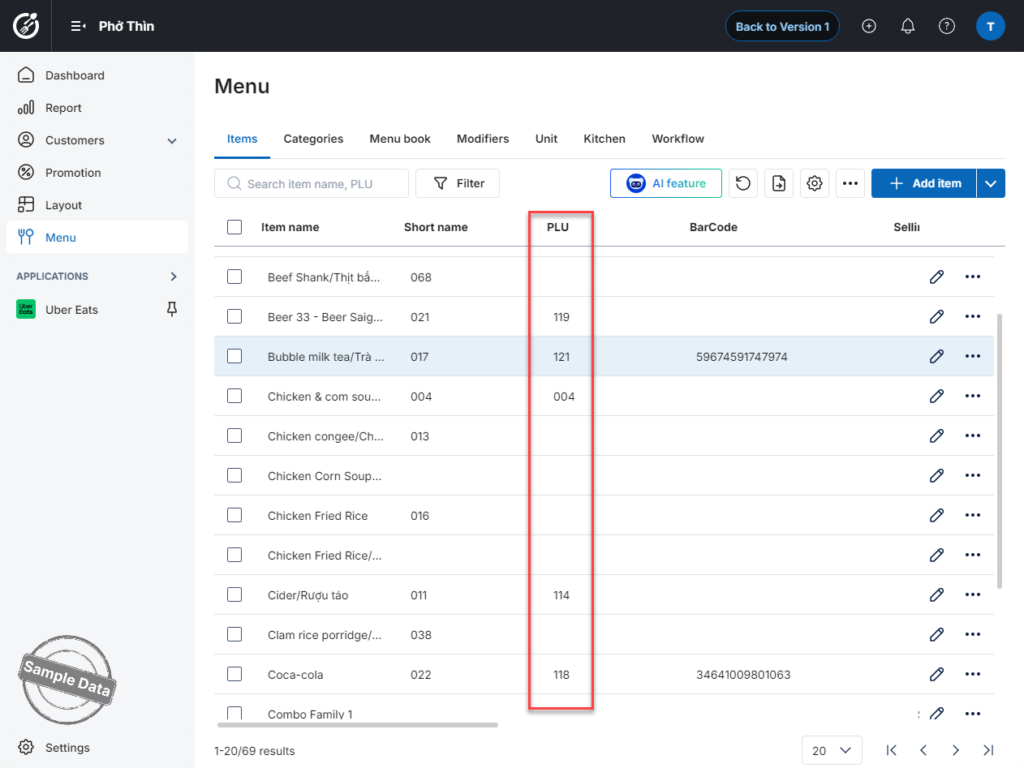
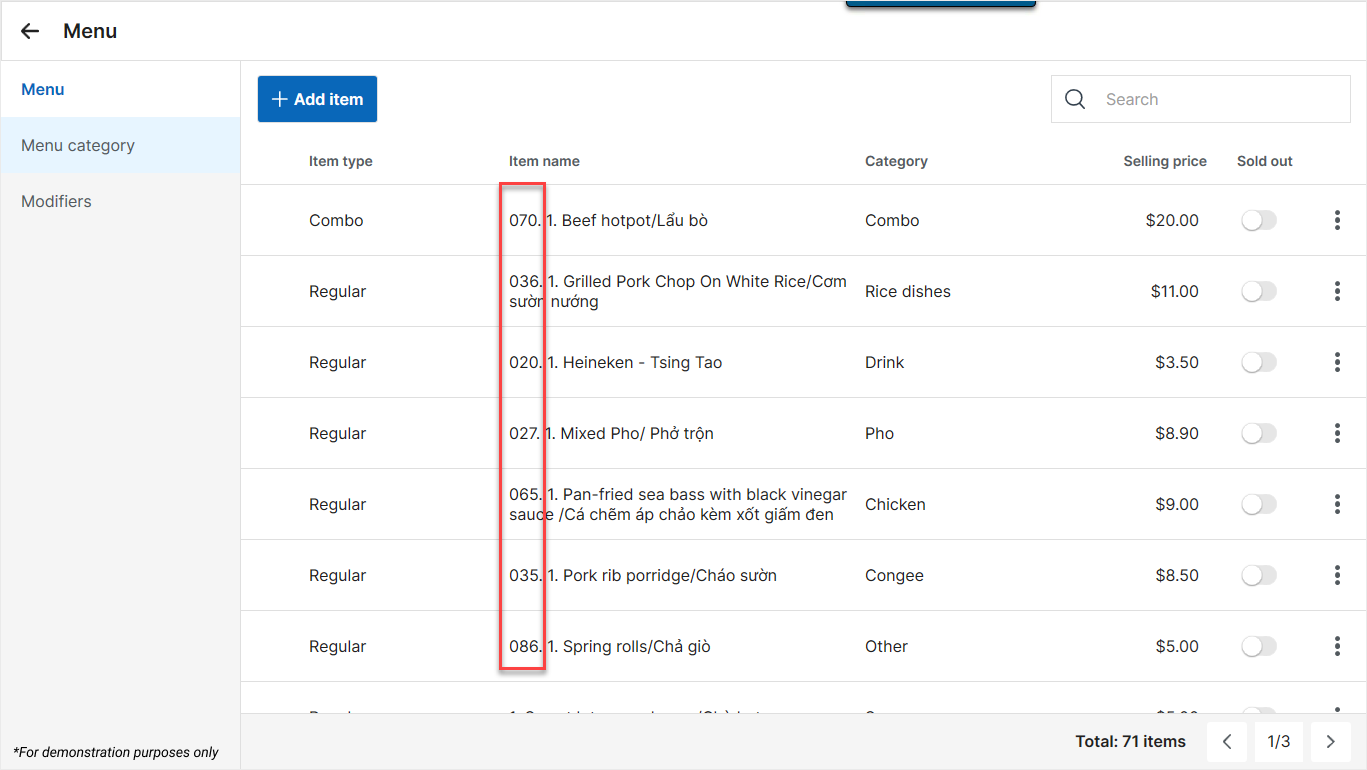
- After completing the setup, the PLU code will appear in the item list screen, making it easier to search and serve customers.
- Managers can also quickly edit PLU codes by clicking this icon
 and selecting Quick Edit.
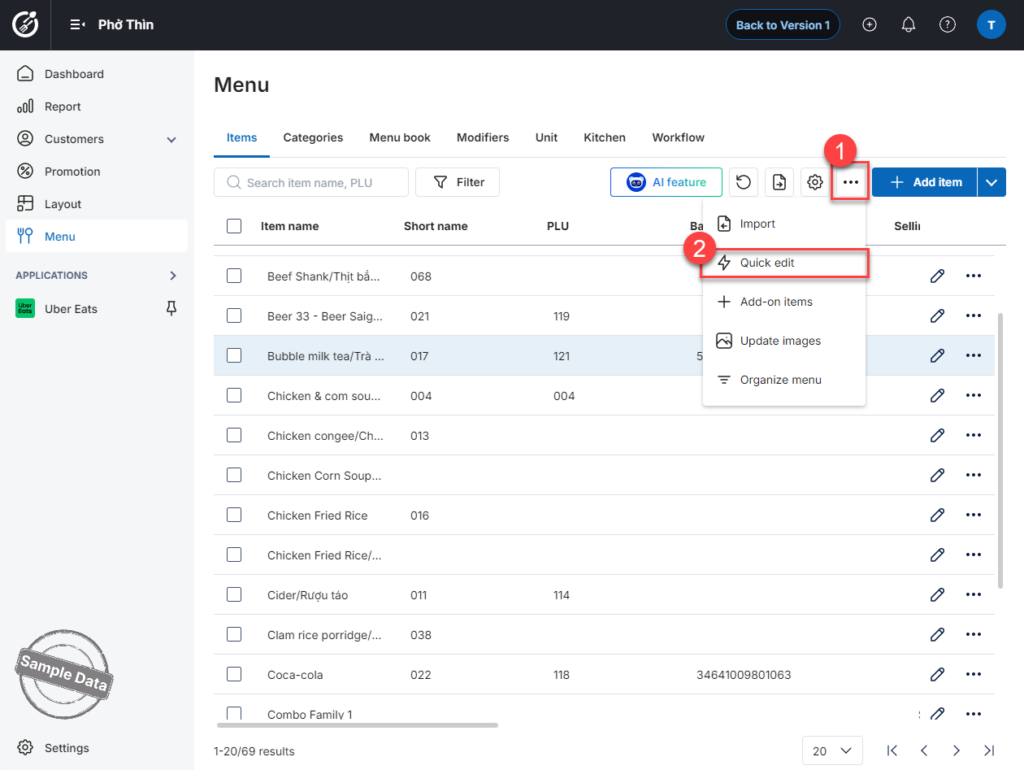
- Quickly assign PLU codes to items without PLU.
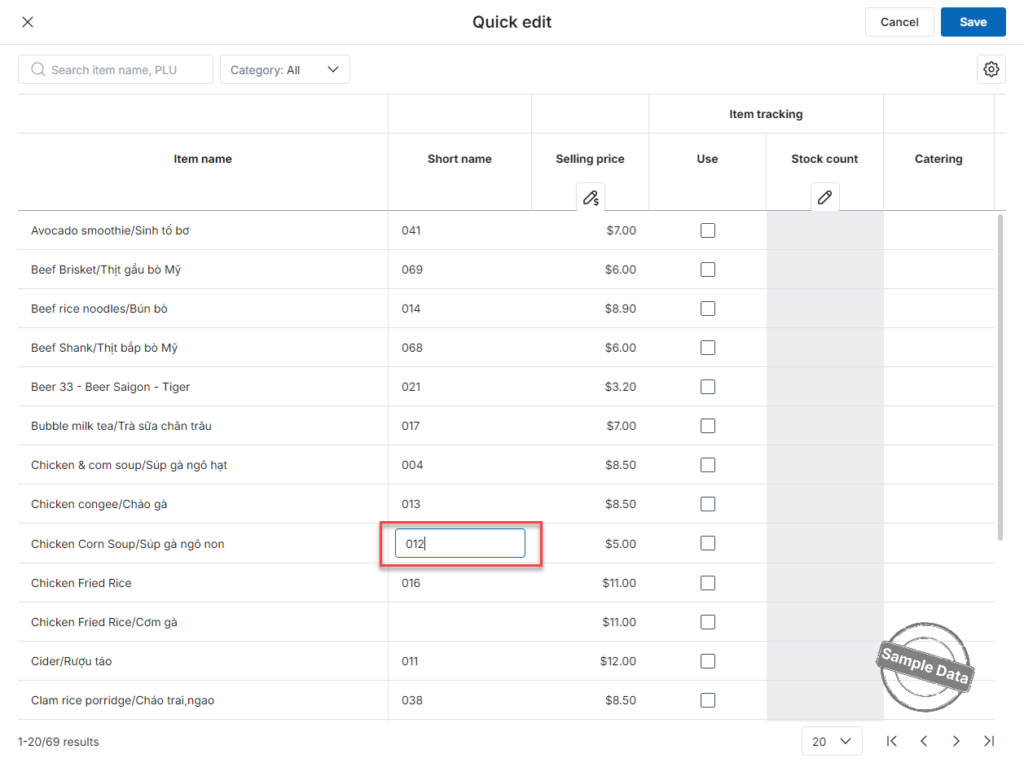
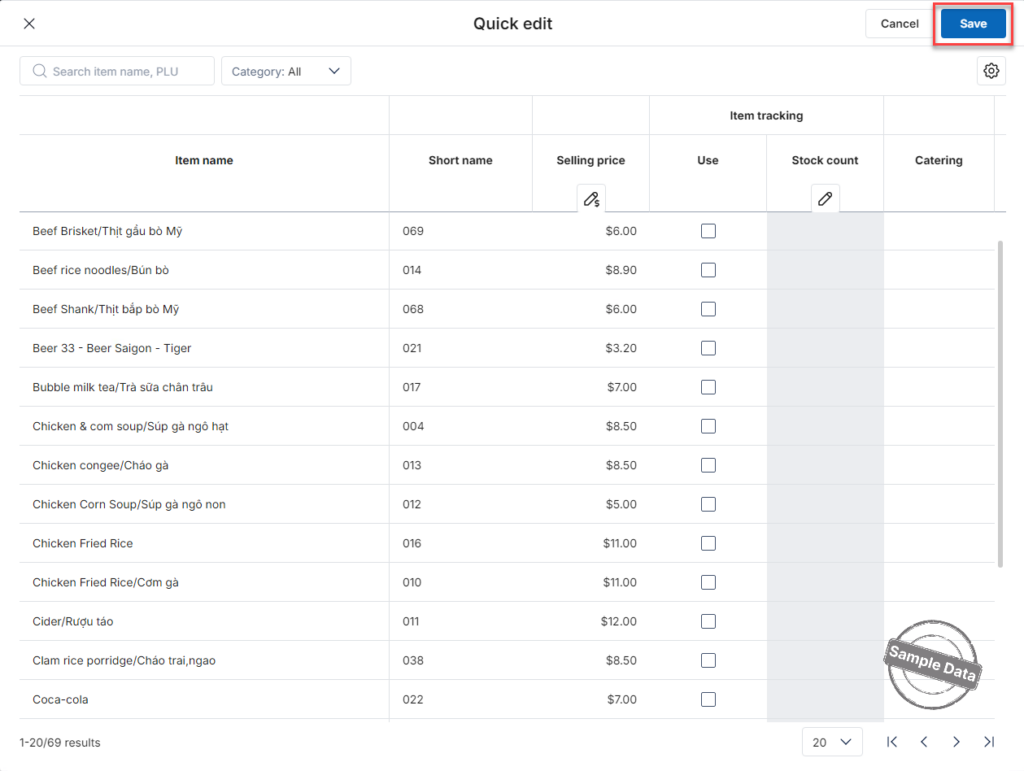
- Click Save to apply the changes.
1.2. Configure PLU for Items with Variant
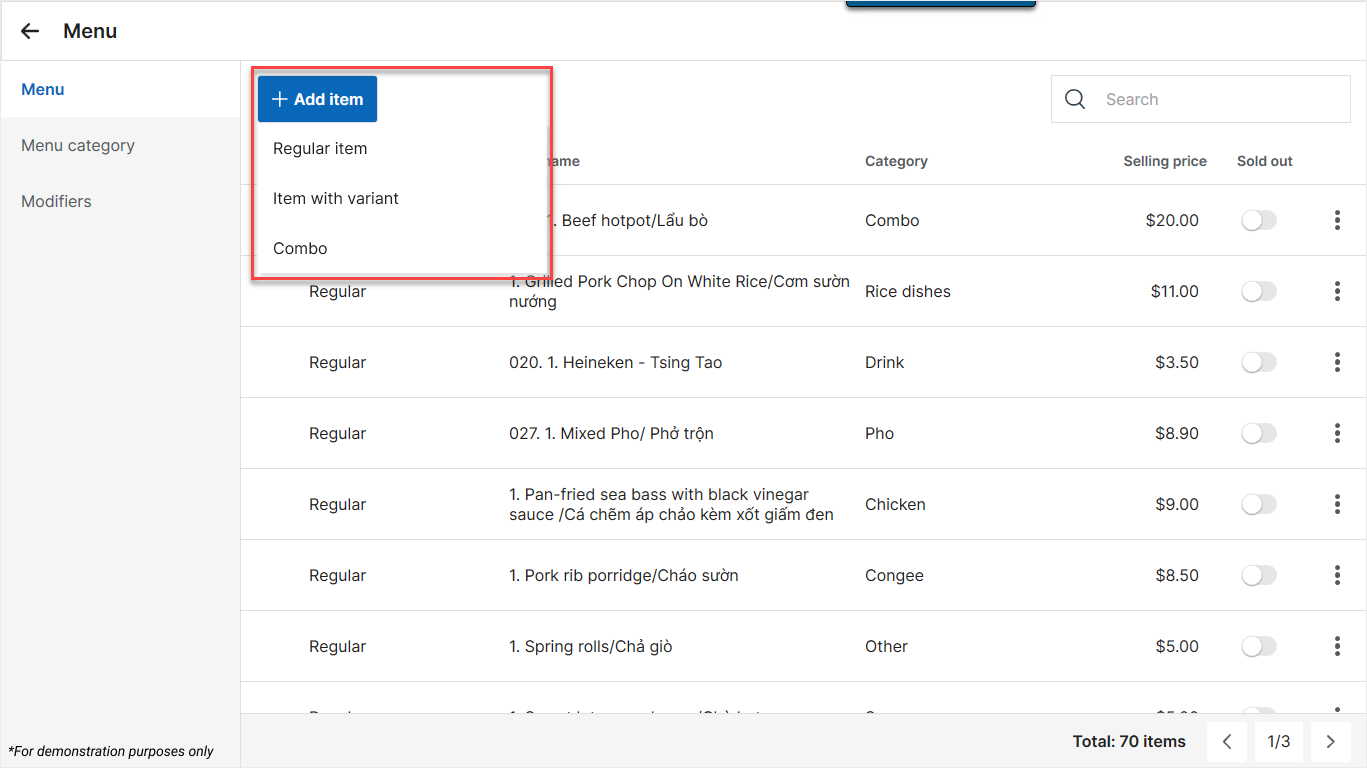
- Click Add item and select Item with variant.
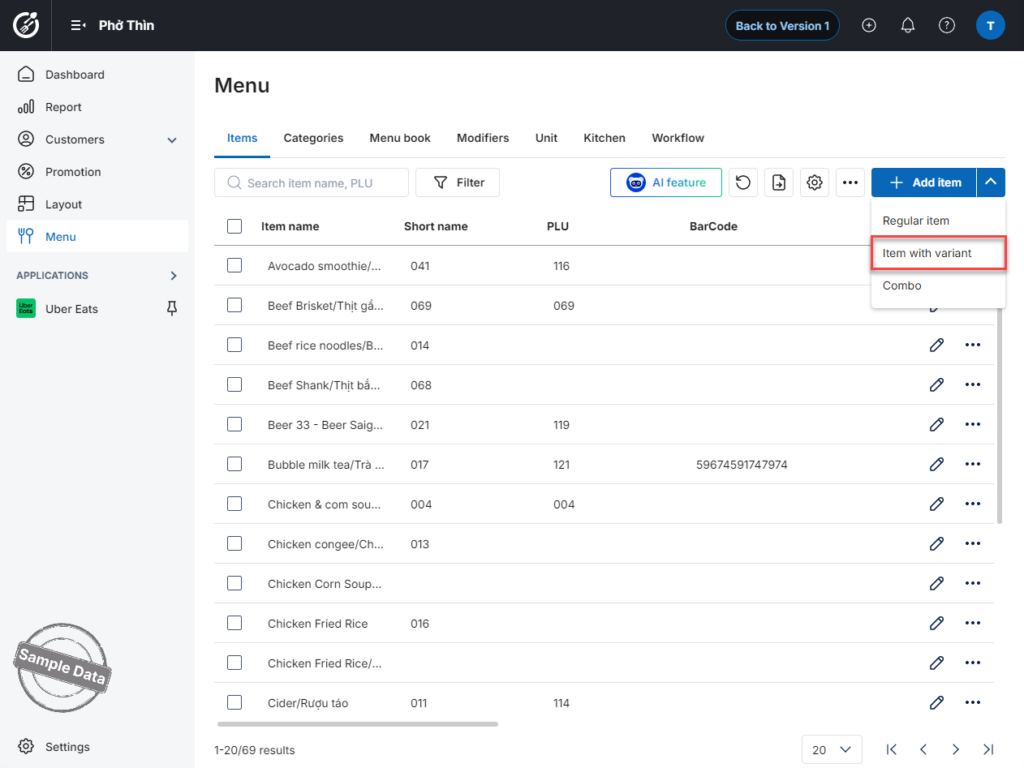
- Enter the PLU for the parent item.
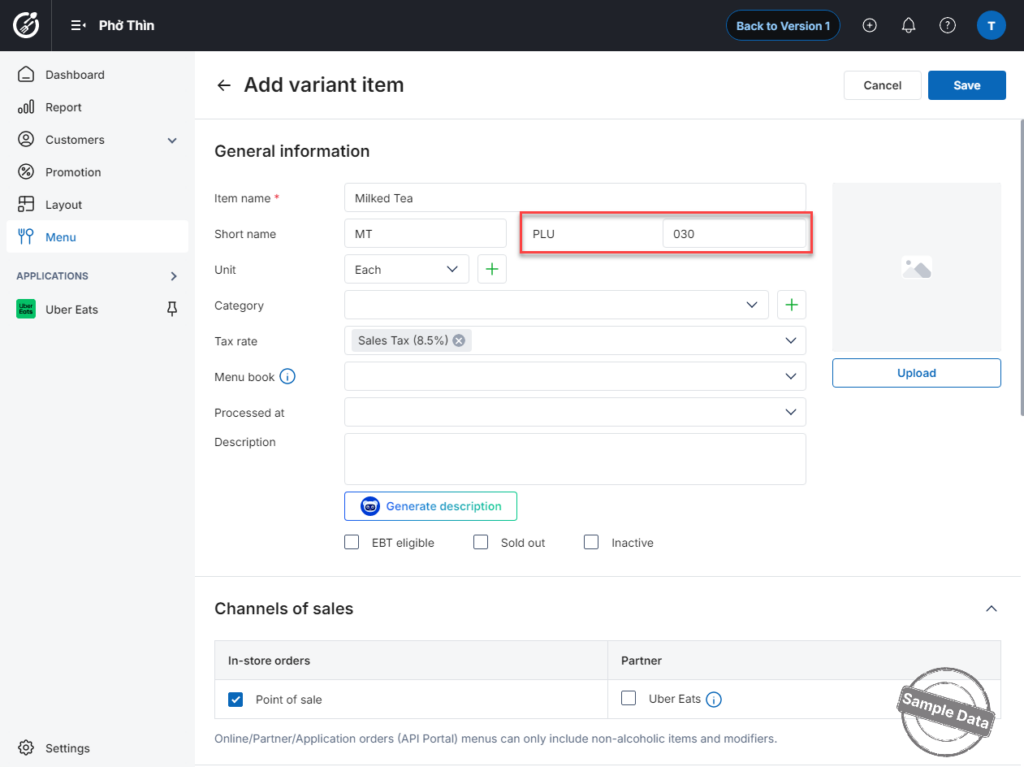
- Scroll down to the varient items and enter numeric PLU codes (maximum length: 22 characters).
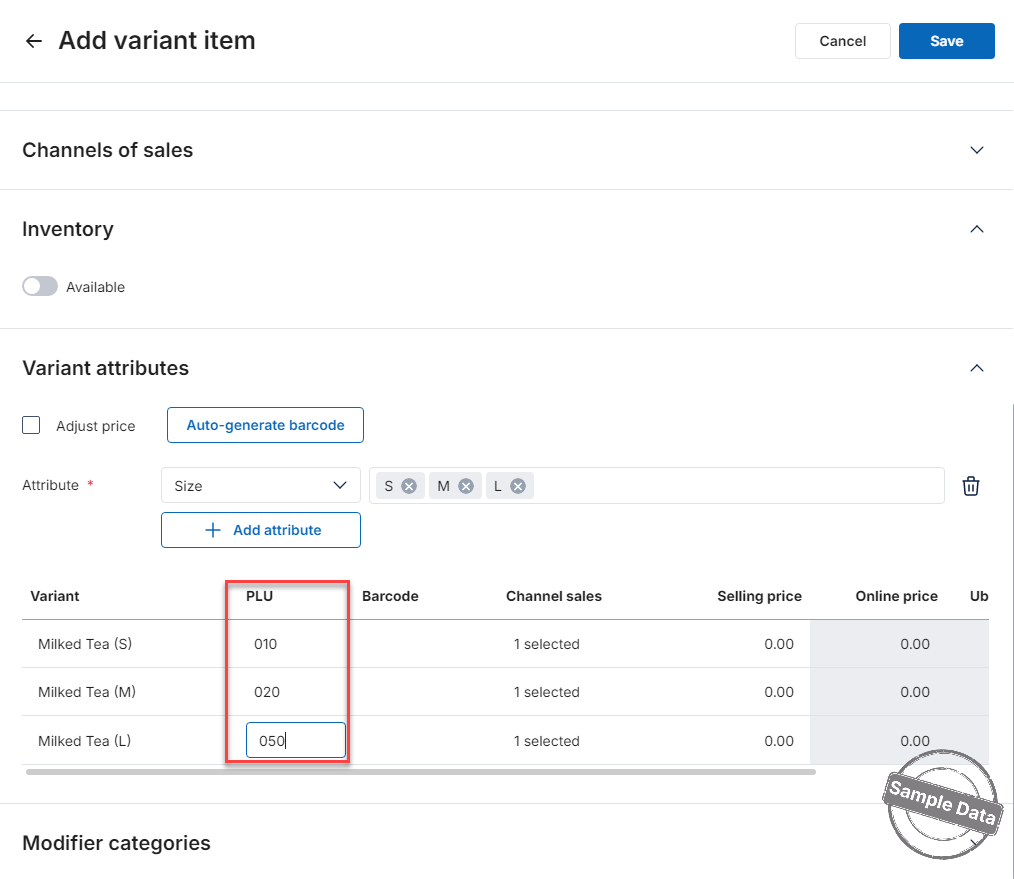
If a duplicate PLU or invalid character is entered, the system will display: “This PLU already exists. Please enter again.”

Additionally, the PLU field is available in the Import/Export file, allowing easier tracking and management.
2. On the POS
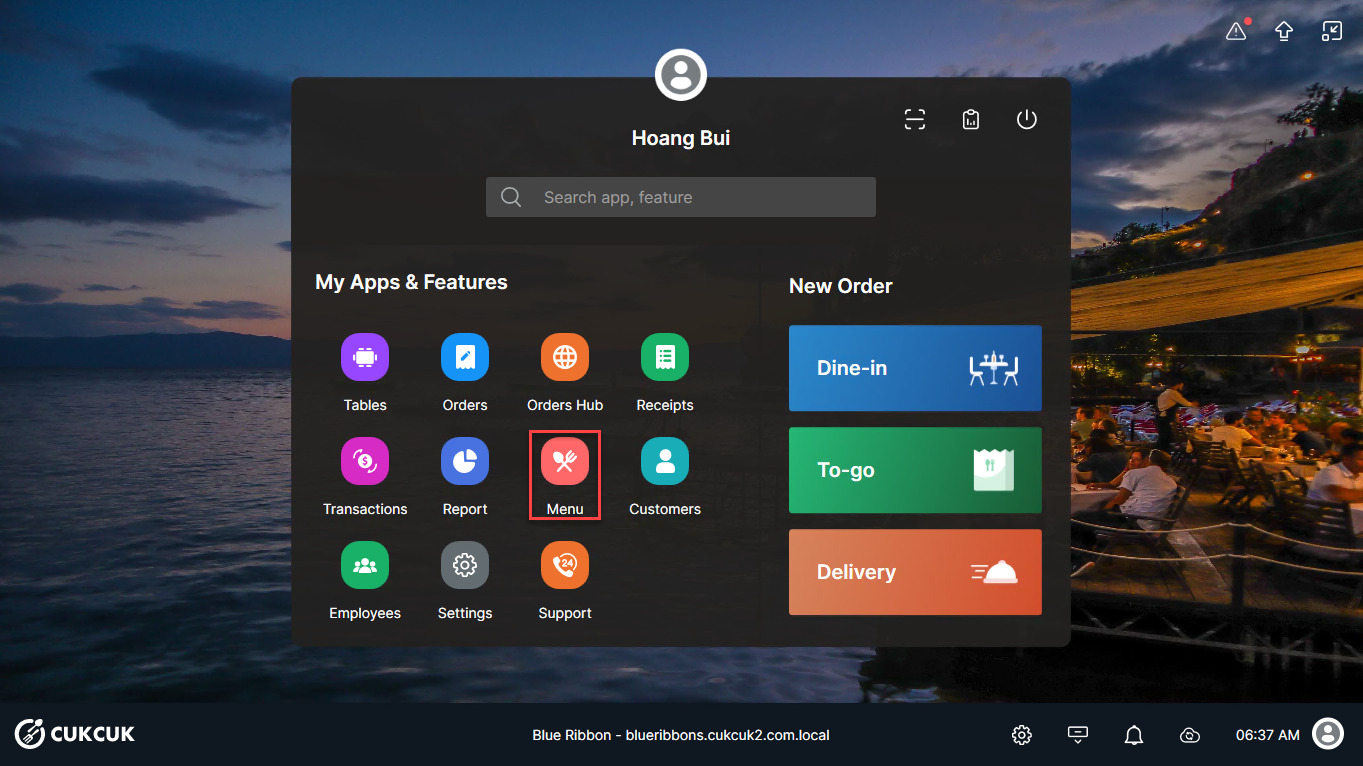
On the main screen, select Menu.
Add PLU information to items (Regular, Variant, Combo).
Enter the PLU in the General Information tab. Then click Save.
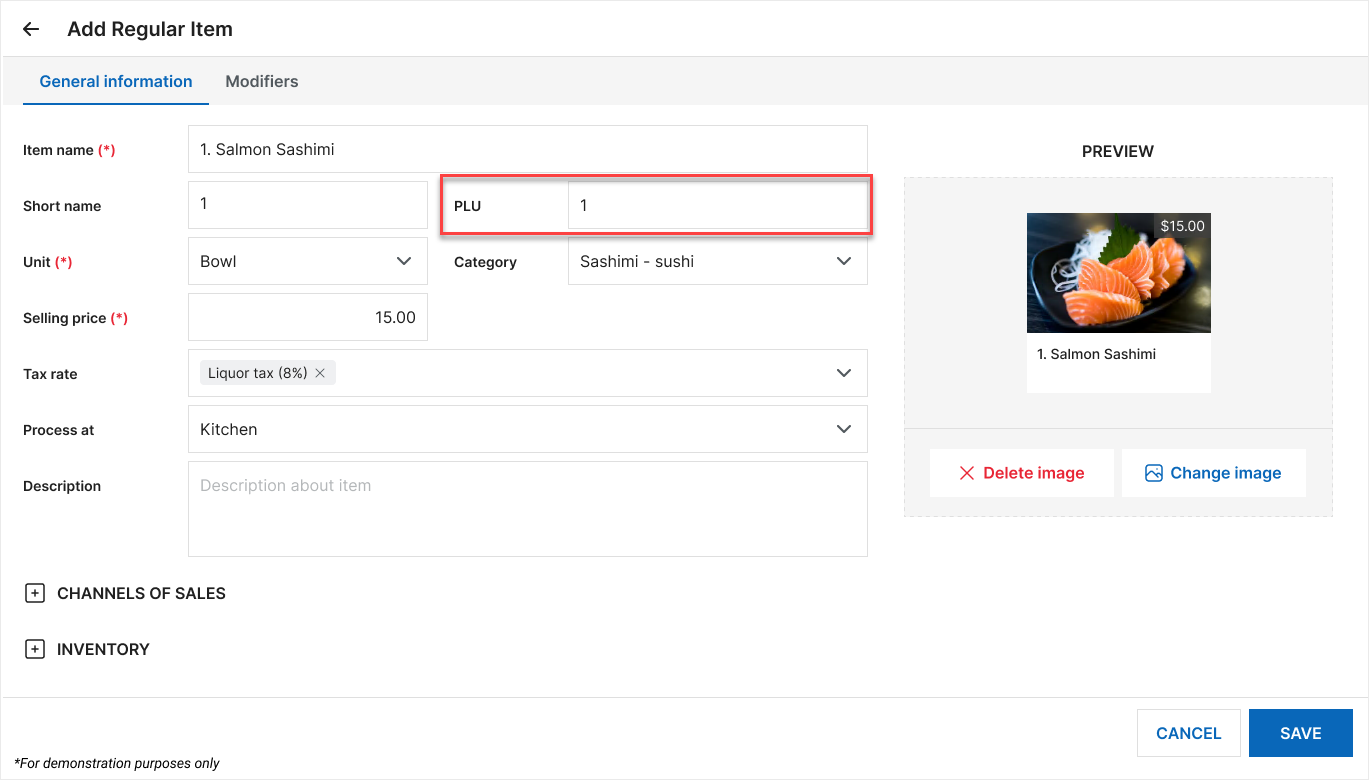
After setup is complete, staff will see the PLU displayed in the item list screen for faster searching and ordering.
3. Use PLU to Take Orders
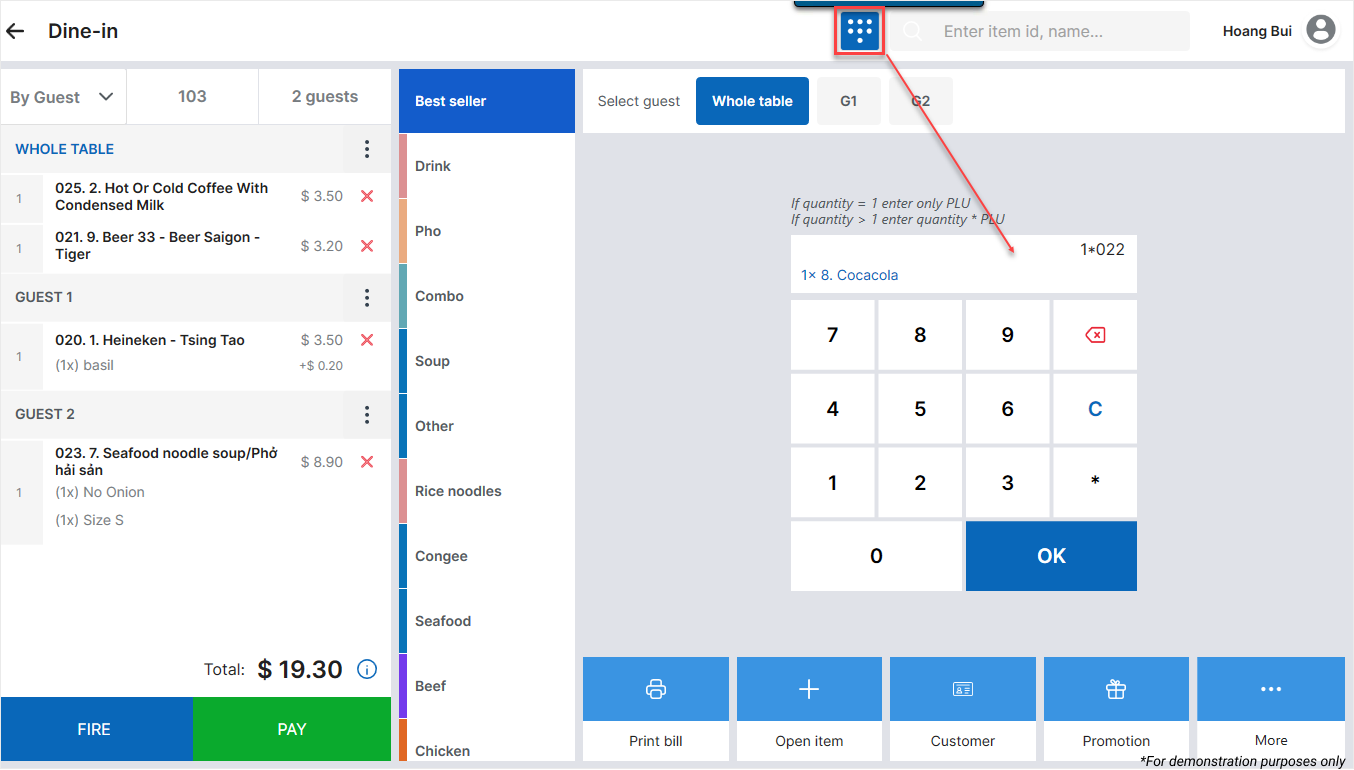
On the order screen, enable the PLU keypad ordering function  Enter items using the formula: Quantity of items * PLU
Example: Customer orders 1 Coca-Cola with PLU code 022 → Enter: 1*022
NOTES
- If PLU is not configured for an item, the PLU ordering icon will not appear on the order screen.
- If the cashier prefers not to use PLU ordering, click the icon
 to return to the normal order screen.
 - On the normal order screen, item names will display in the format: PLU + (.) + Item name.
Have a nice day!


