

I. Purpose
Allow dine-in customers to order directly from their table using their phones, without waiting for a server.
II. Instruction Steps
The order handling process consists of two main steps:
1. Access the Ordering Page
Once the restaurant owner has enabled QR Ordering, customers can scan the QR code to open the table ordering page.
For setup instructions, see Set Up QR Ordering.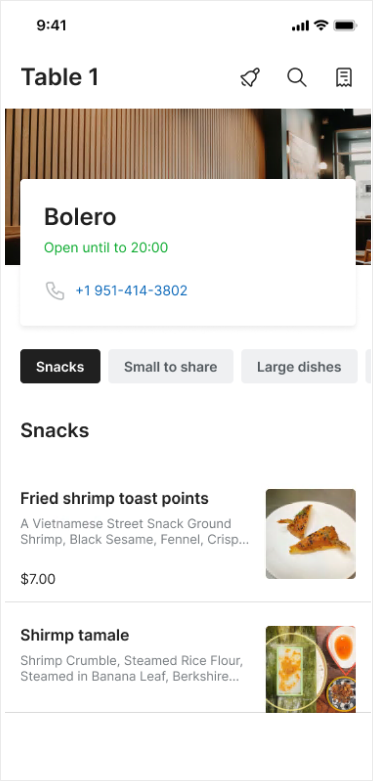
2. Select Items
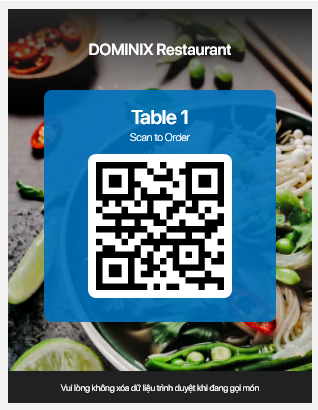
- Scan the ordering QR code on the standee at the restaurant. The Select items screen appears, allowing customers to choose their items.
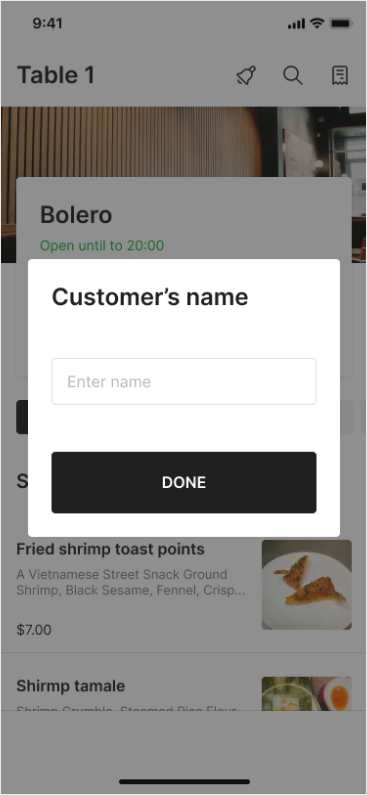
- Enter the customer name, then tap Done.
- Select the items to order.
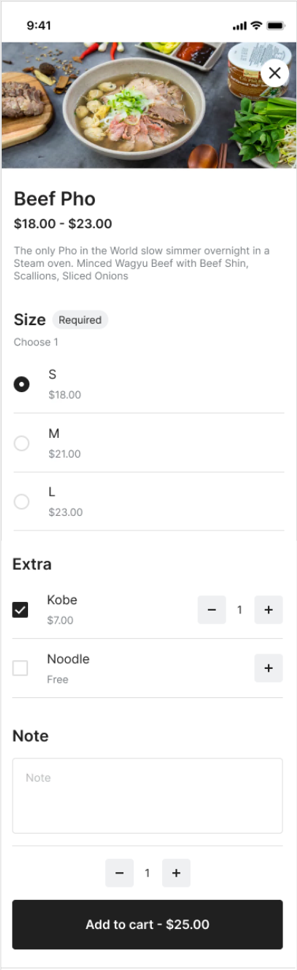
Customers can also tap the search icon to search for items by name.
3. Review the Cart and Submit the Order
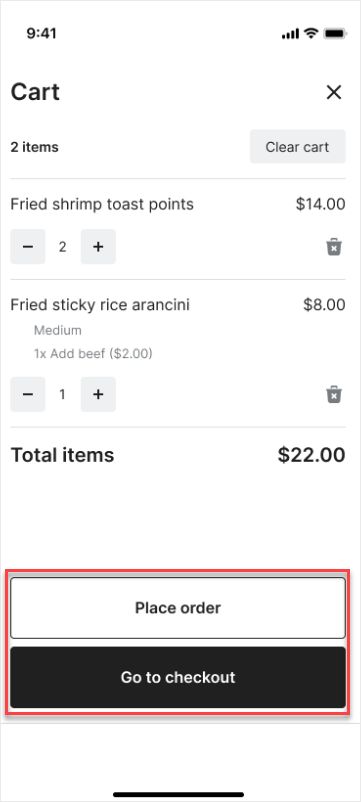
After selecting items, open Cart to review your selections.
You can:
- Tap + or − to adjust item quantities.
- Tap the trash icon to remove an item.
- Tap Clear cart to remove all items from the cart.
- Review the total item amount under Total items.
After reviewing the cart, select one of the following:
- Place order: Submit the order to the restaurant.
- Go to checkout: Proceed to the checkout screen.
4. Enter Contact and Payment Information
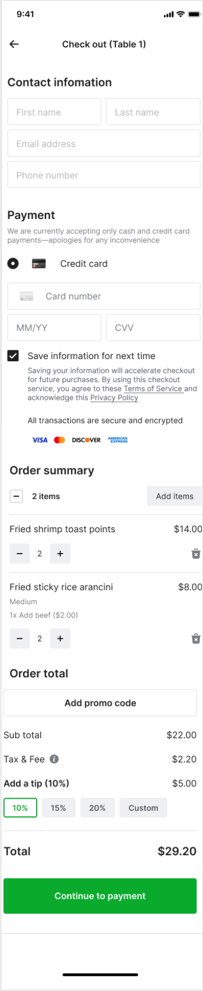
On the Check out screen:
- Under Contact information, enter:
- First name
- Last name
- Email address
- Phone number
- Under Payment, select a payment method. If you select Credit card, enter:
- Card number
- MM/YY: Expiration month and year.
- CVV: Card security code.
- Select Save information for next time if you want to save your information for future checkout.
- Review the items under Order summary. You can adjust quantities, remove items, or tap Add items to order more.
5. Apply a Promotion
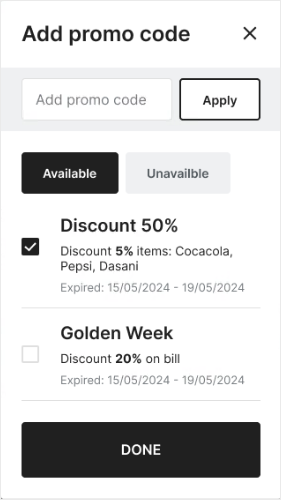
- Under Order total, tap Add promo code.
- Enter a promo code and tap Apply, or select a promotion from the list:
- Available: Promotions that can be applied.
- Unavailable: Promotions that cannot be applied.
- Tap DONE to confirm.
- Review the discount amount under Discount on the checkout screen.
6. Add a Tip and Complete Payment
- Under Add a tip, select a suggested tip of 10%, 15%, or 20%, or select Custom to enter a different amount.
- Review the amounts under Order total:
- Sub total: Total item amount.
- Tax & Fee: Taxes and fees.
- Discount: Applied discount, if any.
- Add a tip: Tip amount.
- Total: Total payment amount.
- Tap Continue to payment and follow the on-screen instructions to complete payment.
After successful payment, the Done screen displays the order number, customer information, ordered items, total amount, and Paid status.
7. Track Orders and Order More Items
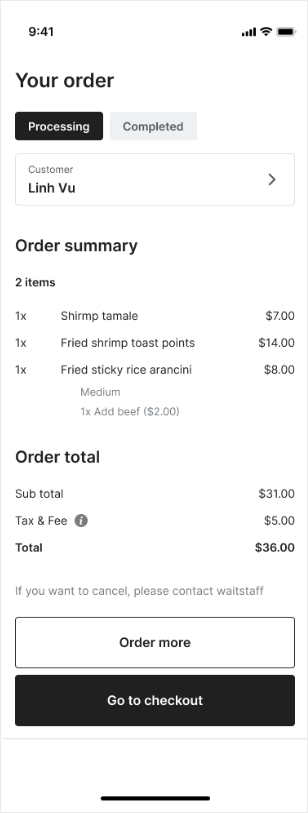
On the Your order screen, you can track orders using two tabs:
- Processing: Displays items in orders that are being processed.
- Completed: Displays completed and canceled orders. Orders canceled by restaurant staff appear with the status Cancelled by Cashier.
You can:
- Tap Order more to continue ordering.
- Tap Go to checkout in the Processing tab to proceed to payment.
- Tap an order in the Completed tab to view its details.
8. Cancel an Order
When the Cancel order confirmation message appears:
- Tap YES to confirm cancellation.
- Tap NO to keep the order.
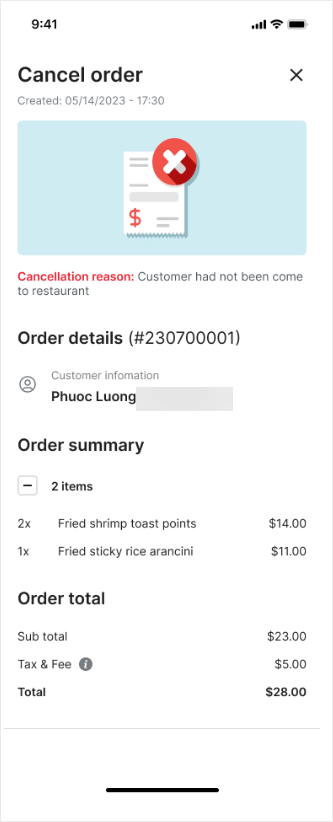
After cancellation, the order details screen displays the order information and Cancellation reason.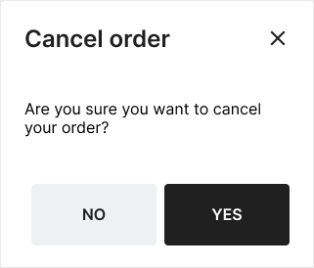
Notes:
- Restaurant staff can cancel an order if the customer does not arrive at the restaurant or calls to cancel the order.
- Orders canceled by restaurant staff appear in the Completed tab with the status Cancelled by Cashier. Customers can open the order details to view the Cancellation reason.
9. Call Restaurant Staff
During ordering, customers can request assistance:
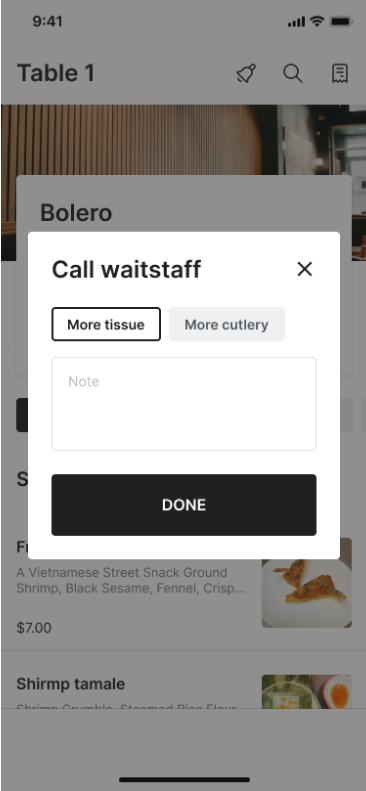
- Tap the bell icon on the ordering page.
- In Call waitstaff, select a request:
- More tissue: Request additional tissues.
- More cutlery: Request additional cutlery.
- Enter any additional information under Note, if needed.
- Tap DONE to send the request to the restaurant.
Have a nice day!


