

I. Purpose
The manager can quickly import items with variant.
II. Instruction steps
- On the Dashboard, go to Menu.
- Click the icon
 and select Import.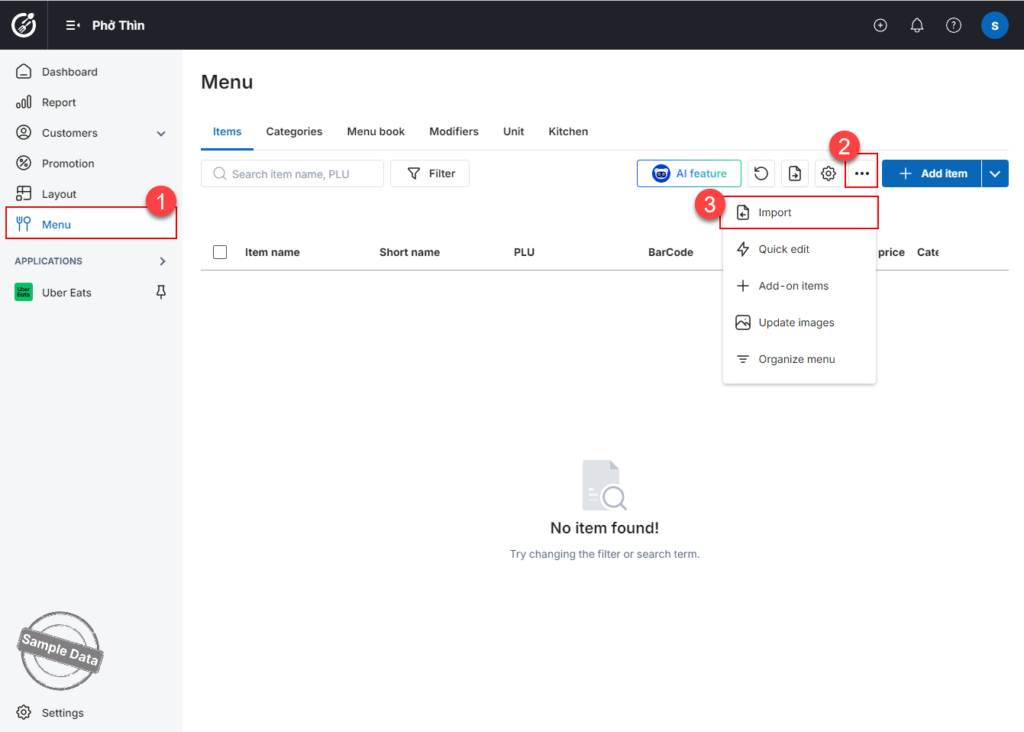
- Then click Download template to download the Excel template file.
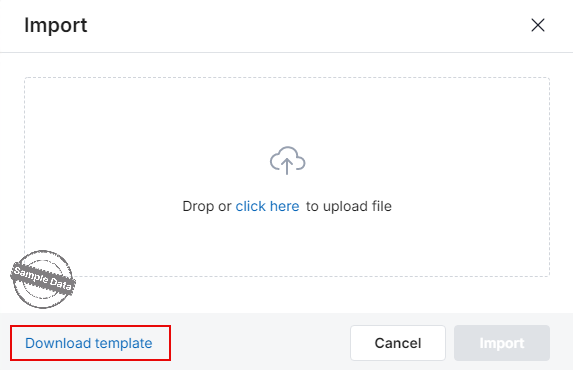
Note: Even if you have an existing menu in Excel format, we highly recommend downloading the official system template. Using the provided template ensures that all data—such as item names, prices, and categories—is mapped to the correct columns, guaranteeing a seamless and successful import process.
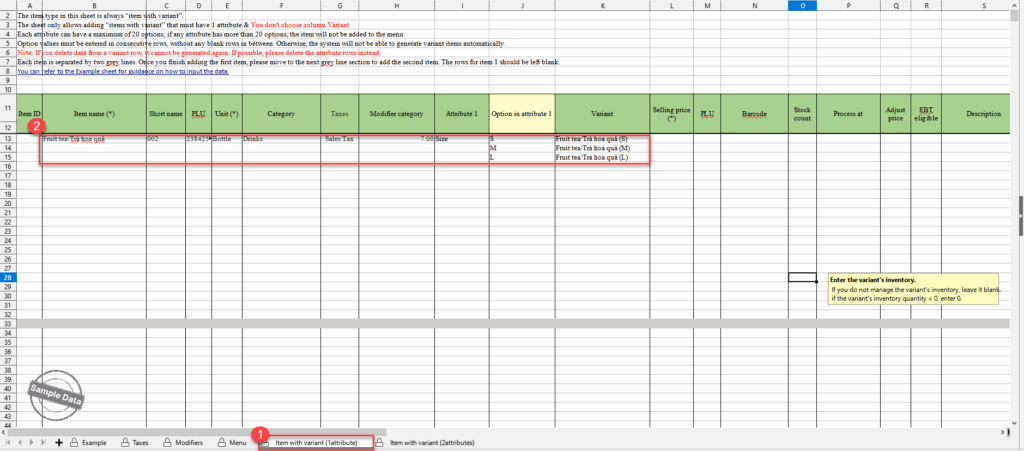
If the item has 1 attribute, select Item with variant (1 attribute) tab. Enter the attribute and its options. The program will automatically generate variants.
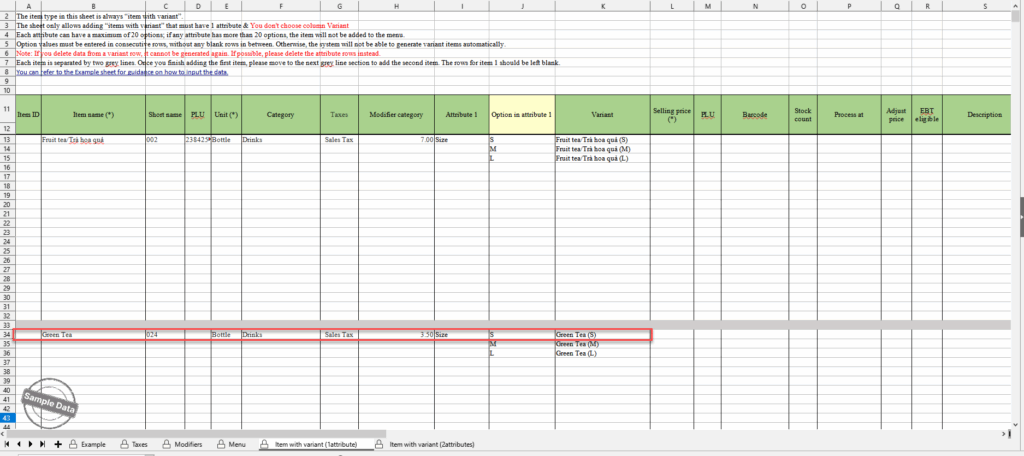
Note: Always enter next item below the grey line.
If the item has 2 attributes, select Item with variant (2 attributes) tab. Enter the attribute and its options. The program will automatically generate variants.
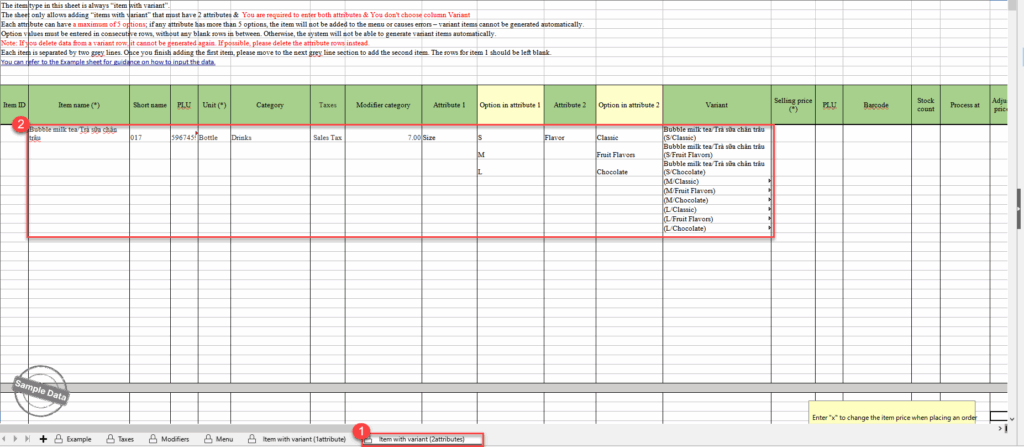
After you finish entering all items with varient, return to the Dashboard to import the completed file.
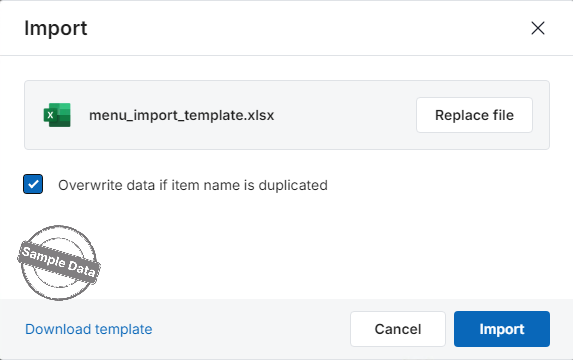
- Drag and drop the file into the upload area, or click Click here to select the file
- Then click Import to continue
If you want the system to update existing items when the item name is duplicated, check: Overwrite data if item name is duplicated
In the Import results step, the system will display the number of successfully imported items, modifiers, and taxes.
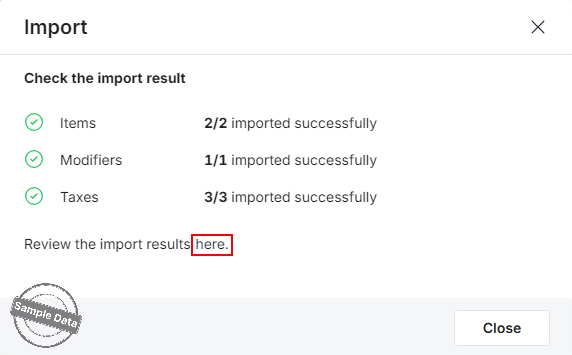
If there are any errors, click here in Review the import results to fix the issues and import the file again.
Have a nice day!


