

I. Purpose
Help staff add menu items with options such as size and flavor to an order, select required attributes and customer preferences, enter quantities, and send items to the Kitchen/Bar immediately or at a scheduled time.
II. Instruction steps
Follow the steps below to add items with selectable options to an order.
Step 1: Add items and select options
- Tap an item in the menu to add it to the order. The item details display the available options and modifiers, helping staff advise customers on their selections.
- Set the quantity:
- Each tap adds one serving.
- Alternatively, tap the item’s Quantity field in the order to enter the quantity directly.
- Select the applicable size, flavor, or other options and modifiers.
- Tap Save.
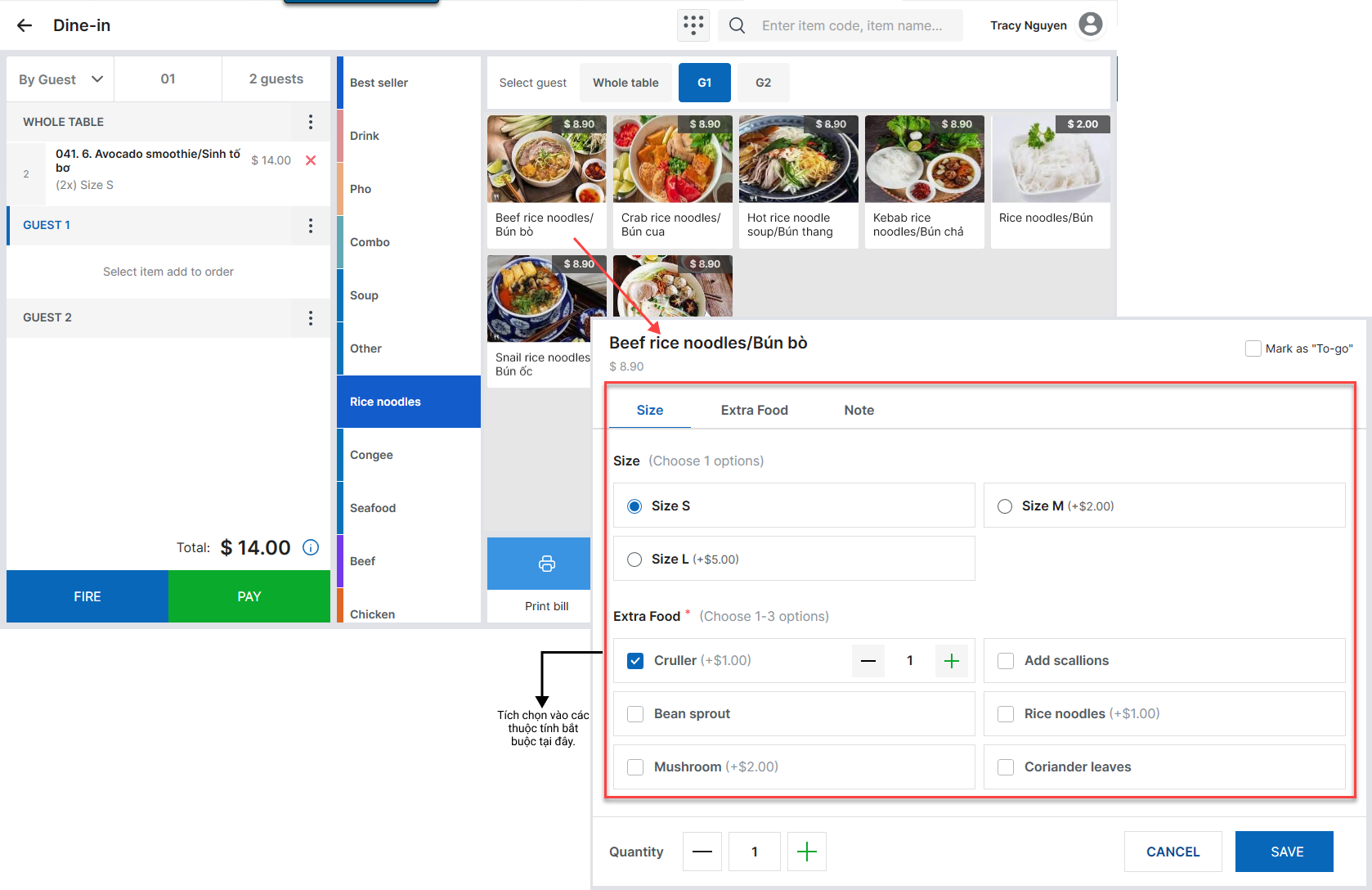 Note: Attributes with the star mark must be selected before saving. If a required attribute is left unselected, the system displays:
“[Attribute name] is required.”
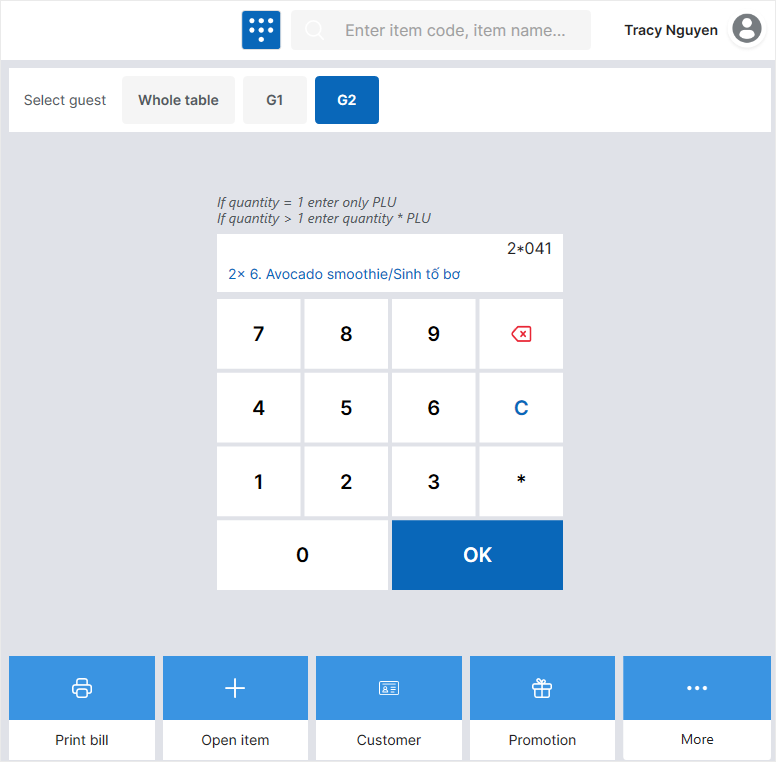
Staff can also tap the PLU keypad icon  to quickly enter items using their item codes.
Use the following format:
Quantity * Item code
Example: A customer orders 2 avocado smoothies with the item code 041. Enter 2*041.
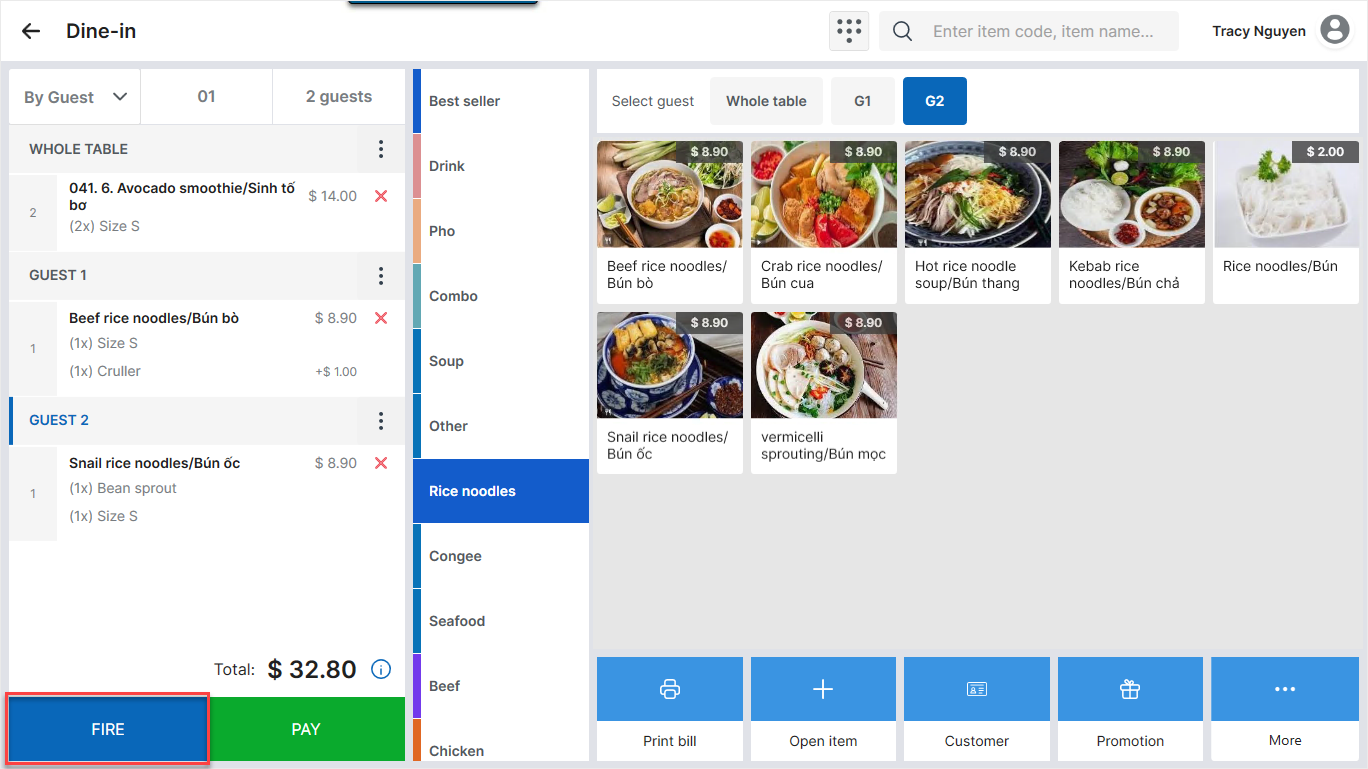
Step 2: Send Items to the Kitchen/Bar
- Tap Fire.
- In the scheduling dialog, select when to send the items for preparation:
- Select a preset sending time.
- Select Custom to specify a different time.
- Tap Fire now to send all courses to the Kitchen/Bar immediately.
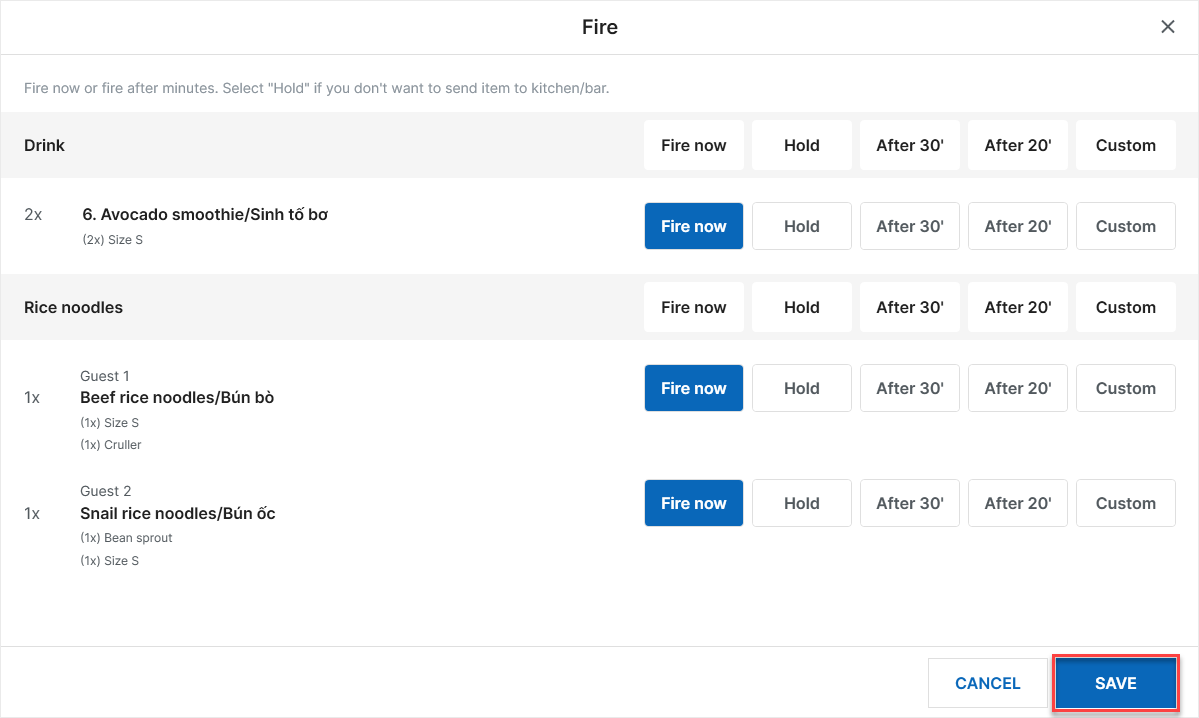
- Tap Save.
Depending on the restaurant’s kitchen/bar setup, the items will automatically:
- Appear in the preparation list on the kitchen/bar tablet.
- Be printed on the kitchen/bar printer.
Have a nice day!


