

I. Purpose
Help staff record customers’ preferences by adding modifiers to order items, so the Kitchen/Bar can prepare each item as requested. Staff can select required modifiers, specify modifier quantities, and update modifiers for items that have not yet been sent to the Kitchen/Bar.
II. Instruction Steps
Cashiers assigned the Menu management role by their manager can quickly add modifiers as follows.
1. Add items with required modifiers
On the Order entry screen:
- Add an item that has required modifiers.
- Select the modifiers requested by the customer.
- Specify the modifier quantities.
- Tap Save.
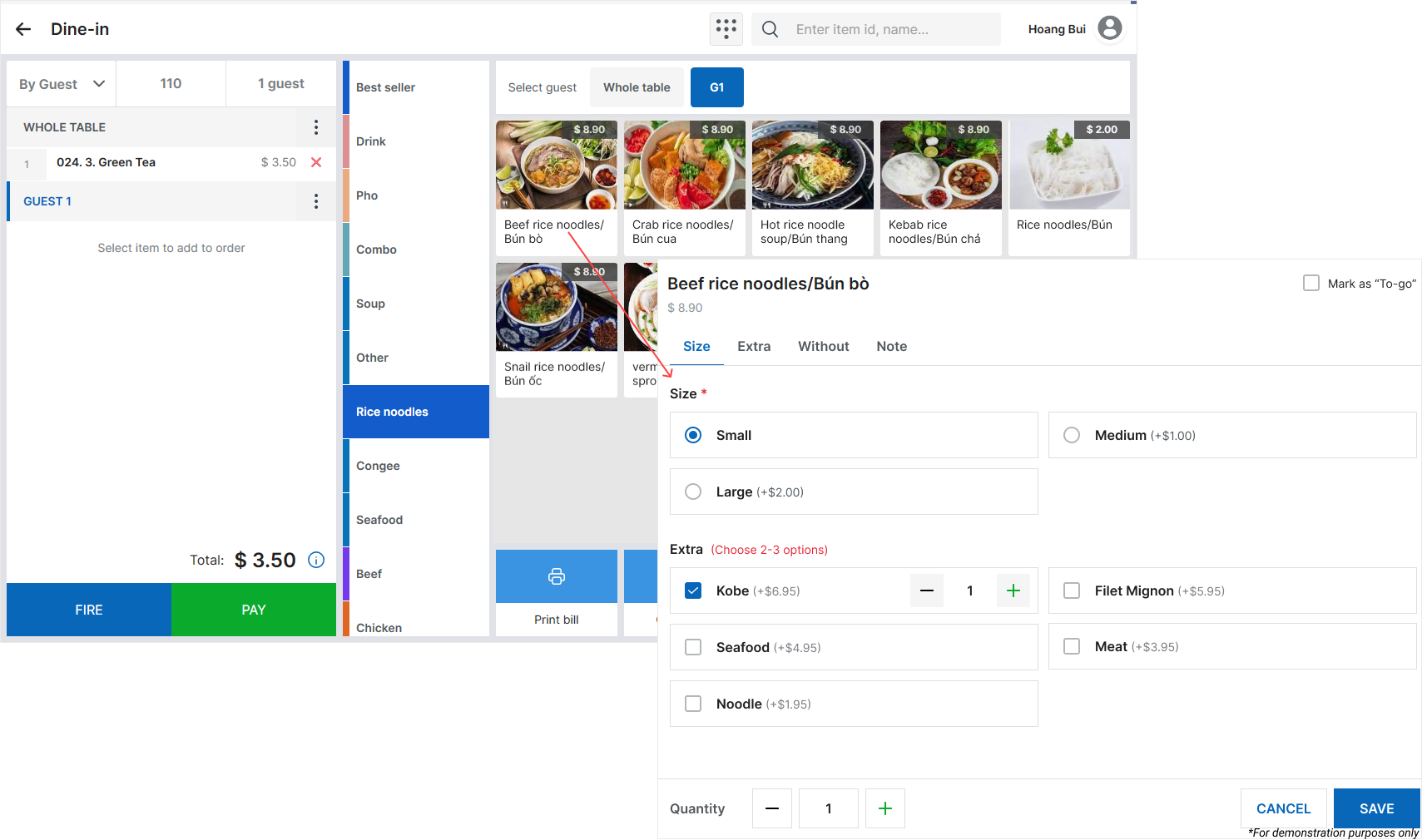
Notes:
- Required modifiers cannot be left unselected. If no modifier is selected in a required group, the system displays:
“<Modifier category> is required.”
- If the selected modifier quantity exceeds the allowed maximum, the system displays:
“<Modifier category>: Select a maximum of x.”
Here, x is the maximum allowed modifier quantity.
2. Add Modifiers at the customer’s request
- On the Order entry screen, tap the item the customer wants to customize.
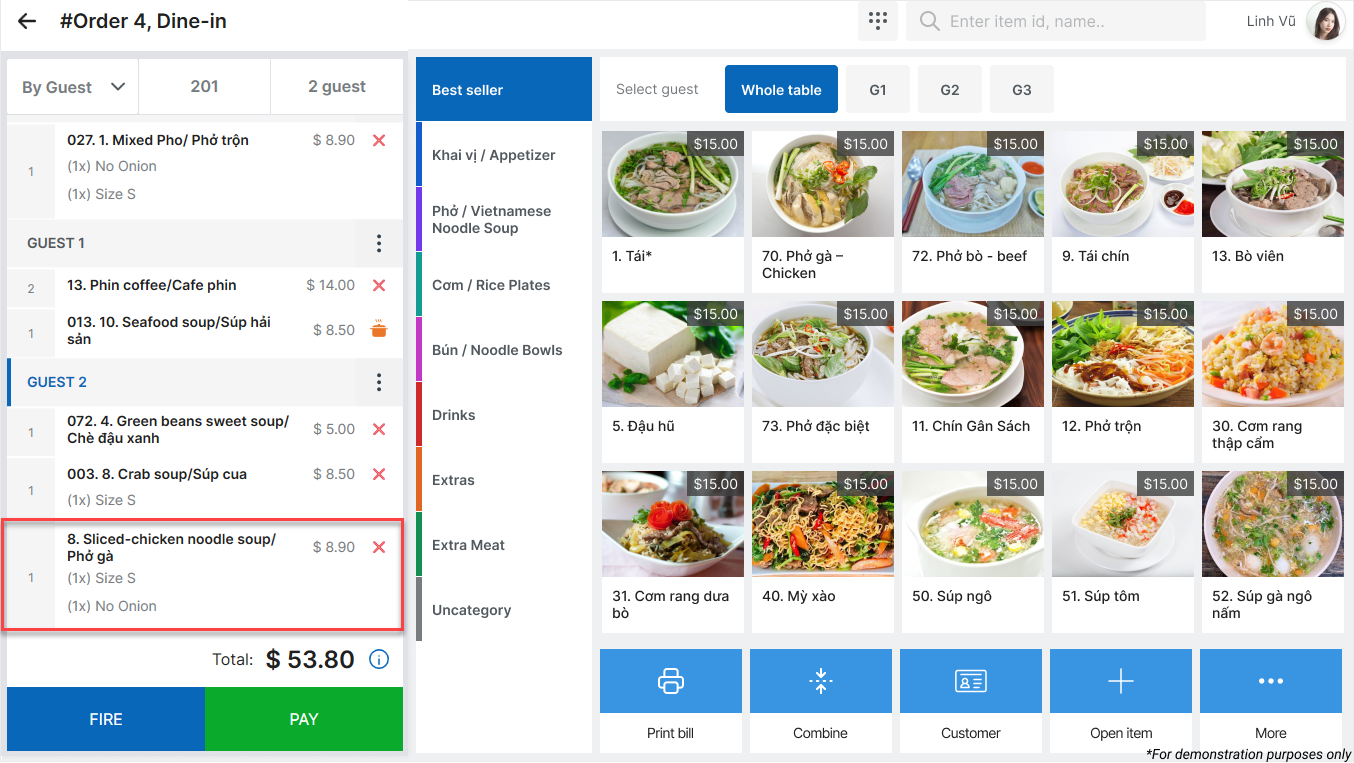
- Select Modifiers.
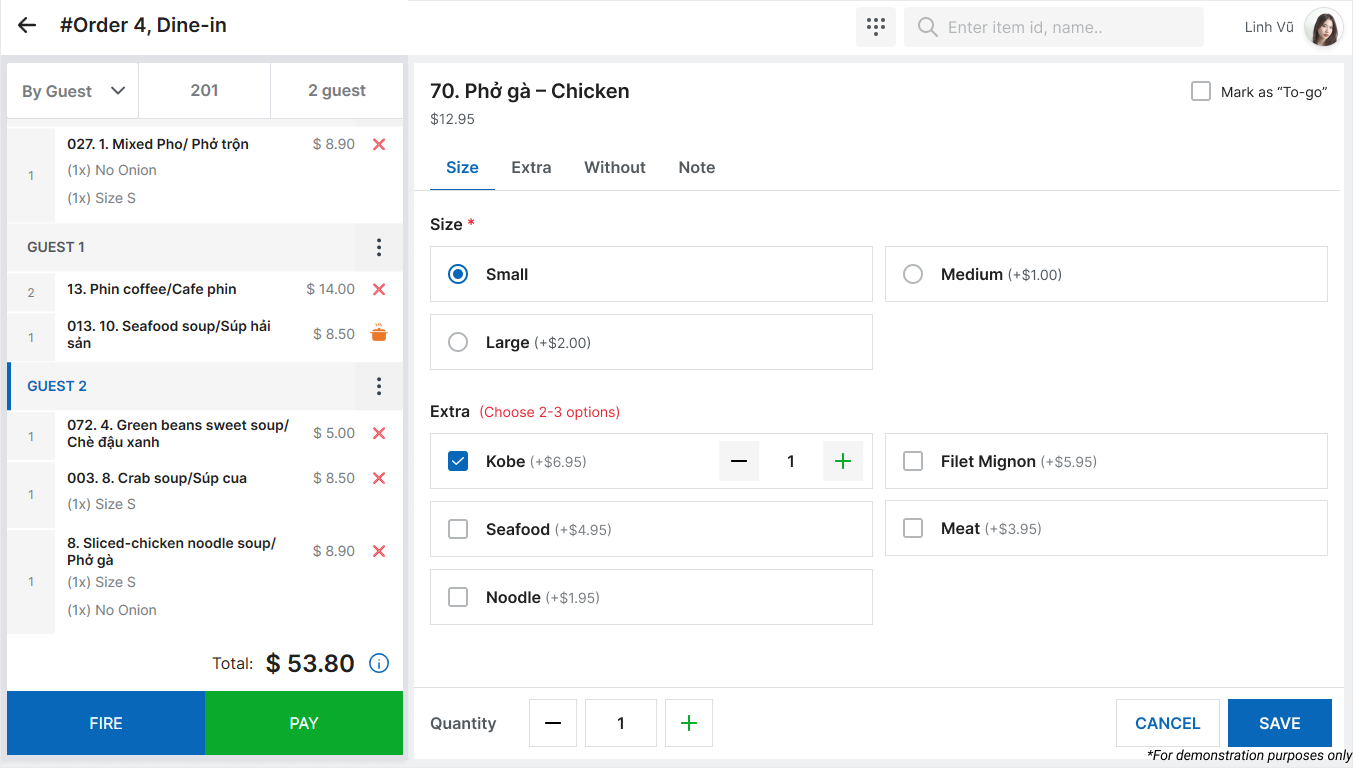
- Select the modifiers requested by the customer.
- Tap Save.
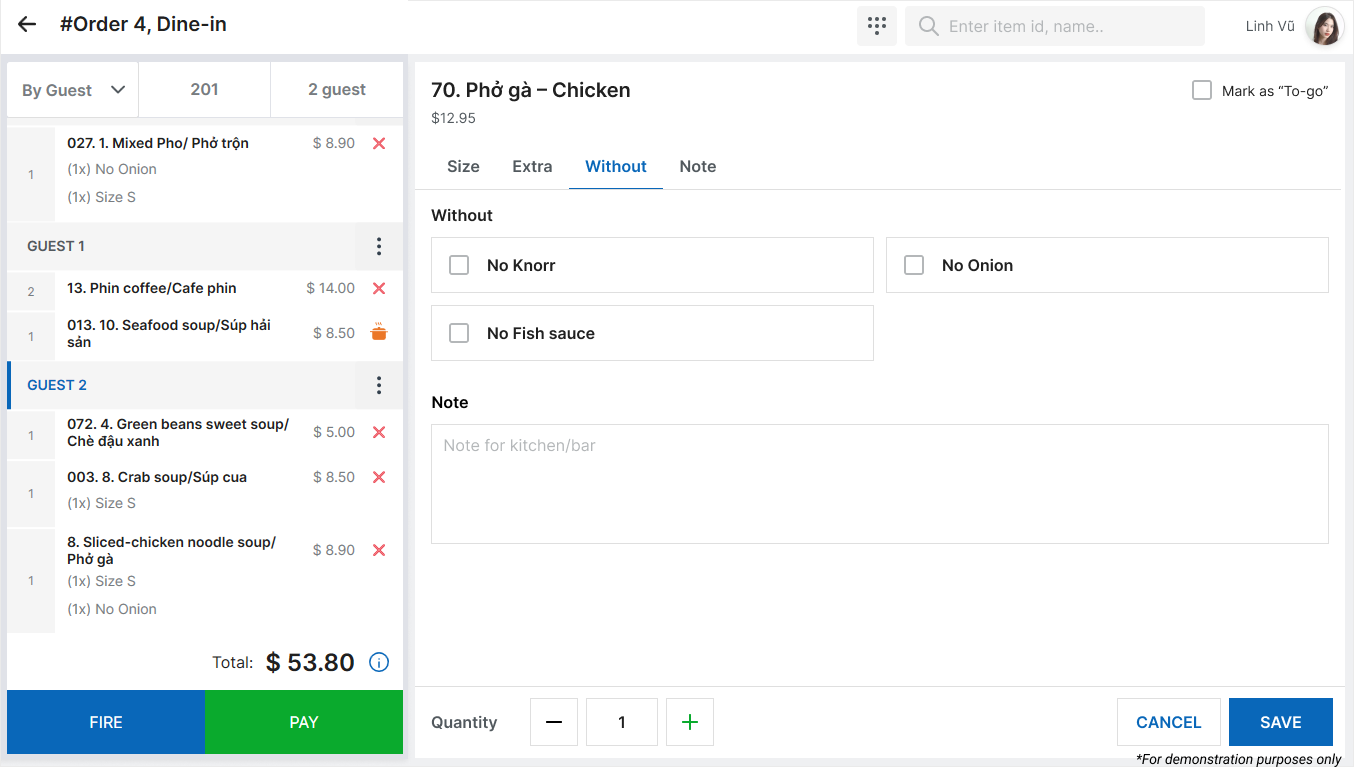
Note: Modifiers can only be updated for items that have not yet been sent to the Kitchen/Bar.
Have a nice day!


