

I. Purpose
Help staff add customers’ requested menu items to an order, enter quantities by selecting items or using PLU codes, and send items to the Kitchen/Bar immediately or at a scheduled time.
II. Instruction Steps
Follow the steps below to add regular menu items to a dine-in order.
Step 1: Create an Order
Tap an item to add it to the order. Each tap adds one serving.
Alternatively, tap the item’s Quantity field in the order to enter the quantity directly.
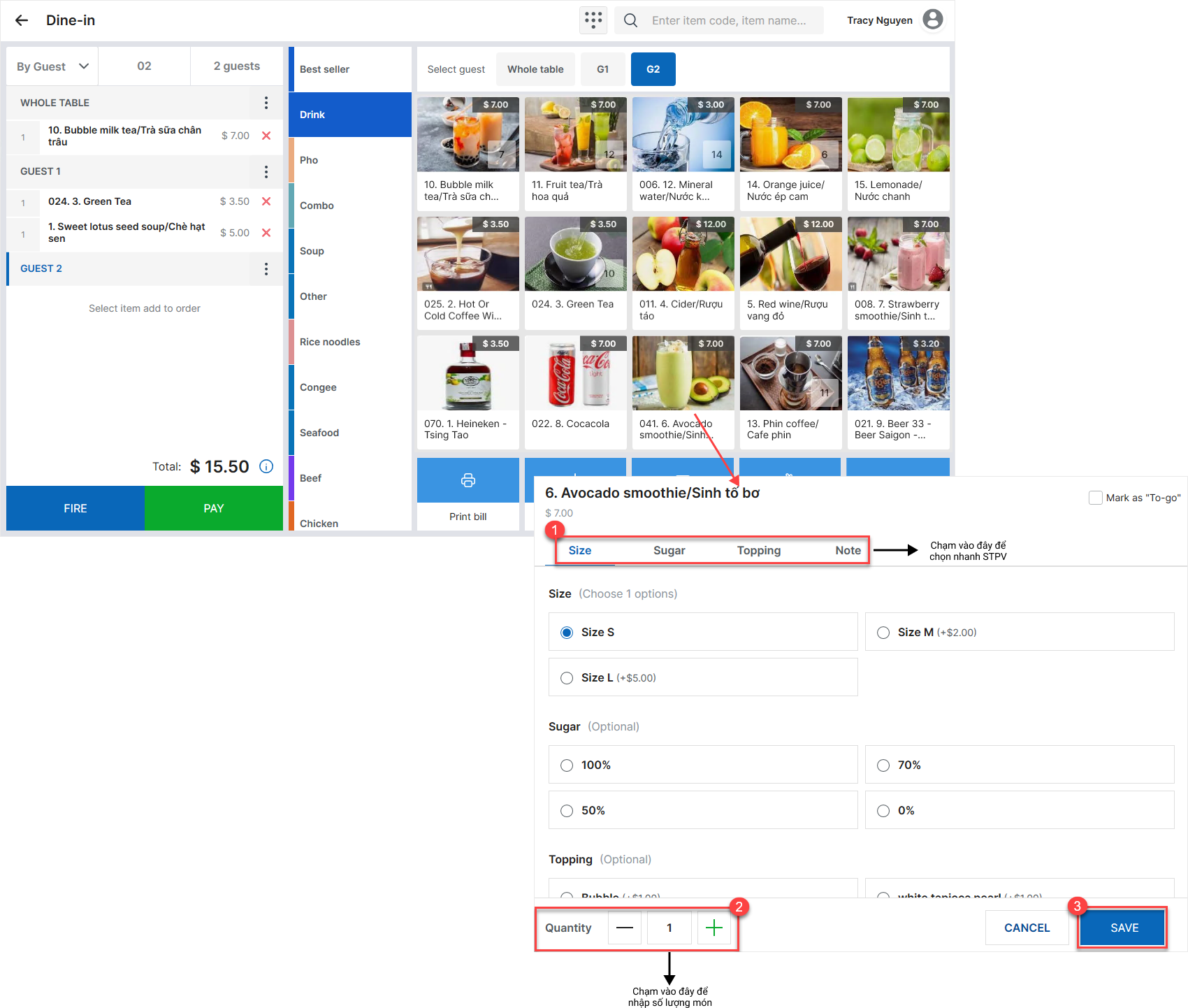
Staff can also tap the PLU keypad icon  to quickly enter items using their item codes.
Enter the quantity and item code in the following format:
Quantity * Item code
Example: A customer orders 2 avocado smoothies with the item code 041. Enter 2*041.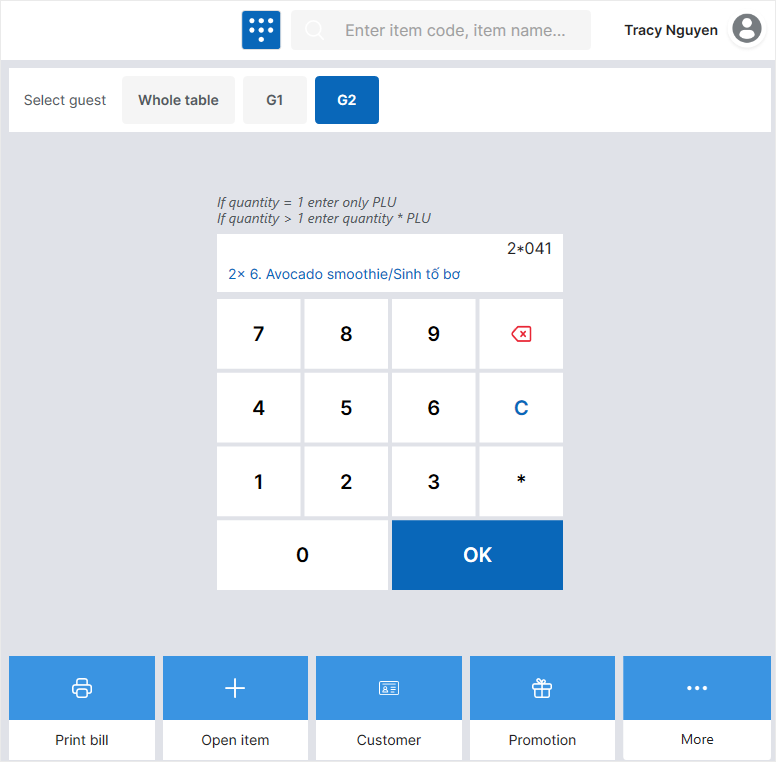
Step 2: Send Items to the Kitchen/Bar
Tap Fire to send items for preparation.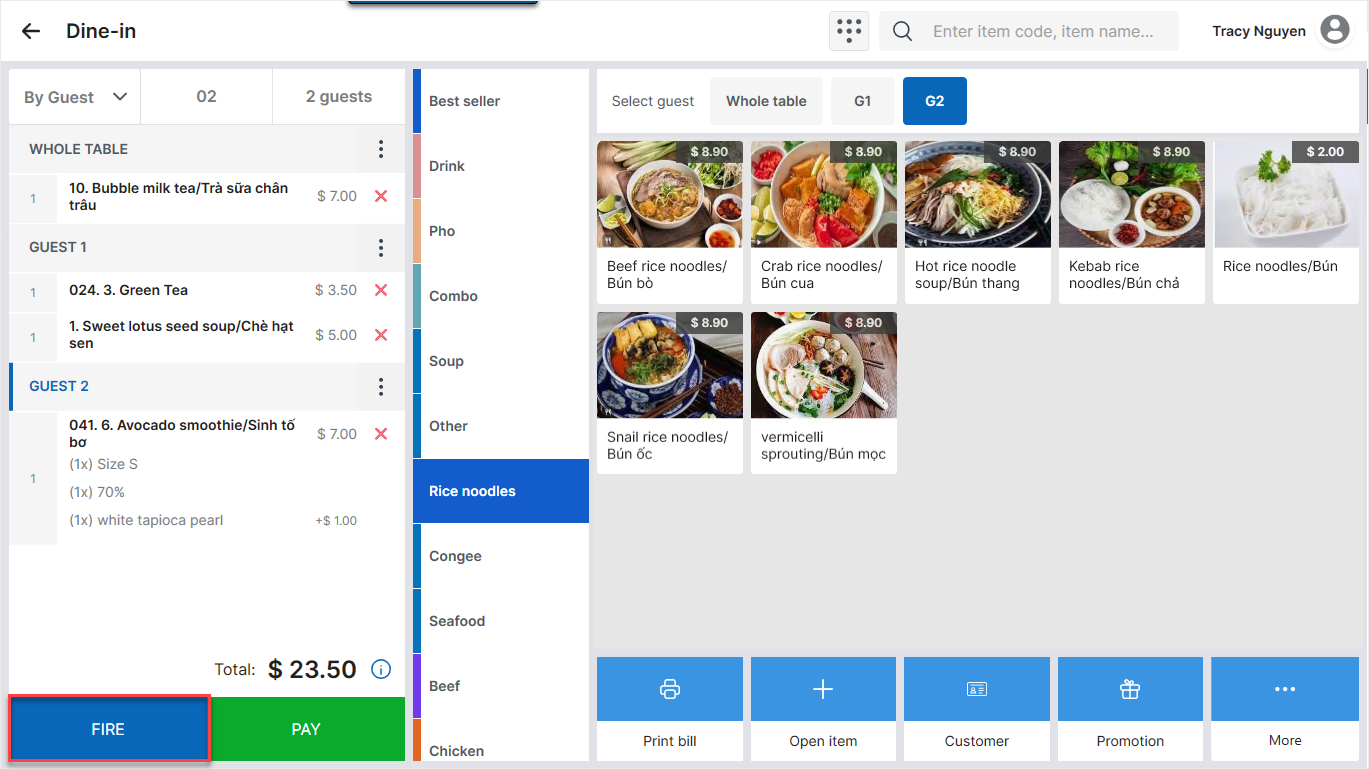
The system displays a dialog for scheduling when each item is sent to the kitchen. You can:
- Select a preset sending time.
- Select Custom to specify a time that differs from the preset options.
- Tap Fire now to send all courses to the Kitchen/Bar immediately.
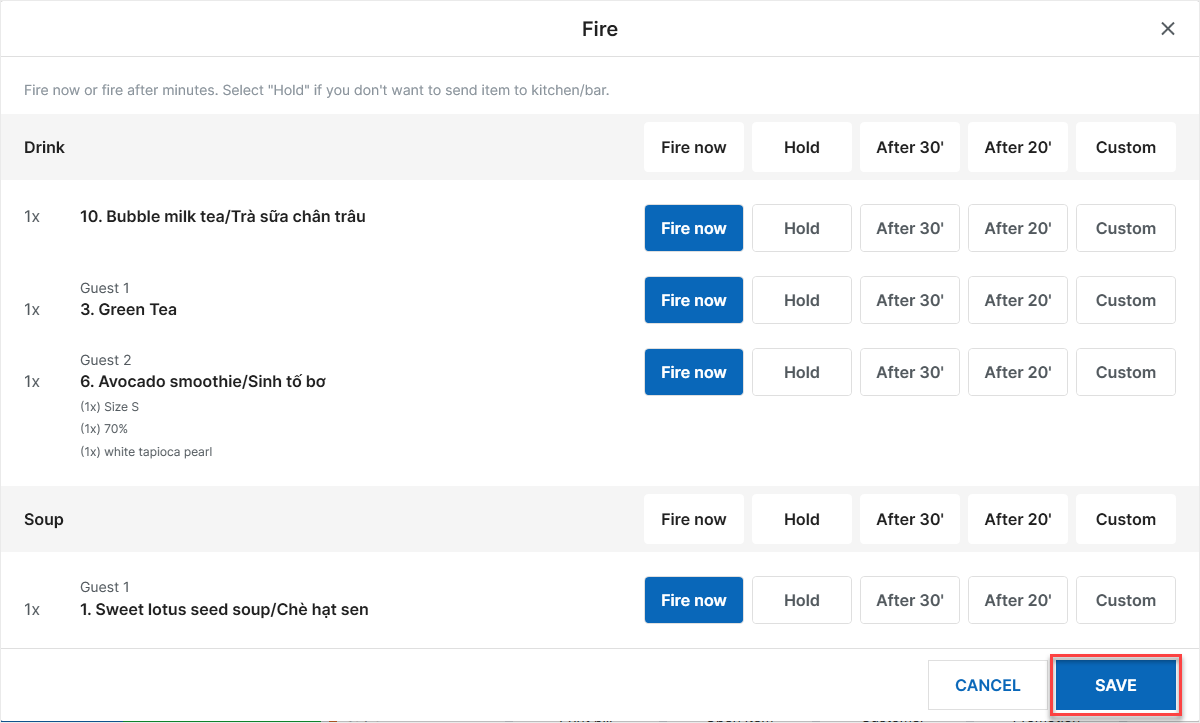
Then tap Save.
Depending on the restaurant’s kitchen/bar setup, the items will automatically:
- Appear in the preparation list on the kitchen/bar tablet.
- Be printed on the kitchen/bar printer.
Have a nice day!


