

I. Purpose
The Timekeeping app lets you define shift rules, create work schedules, and assign those schedules to employees for accurate, shift-based payroll.
II. Instructions
1. Enable shift-based timekeeping
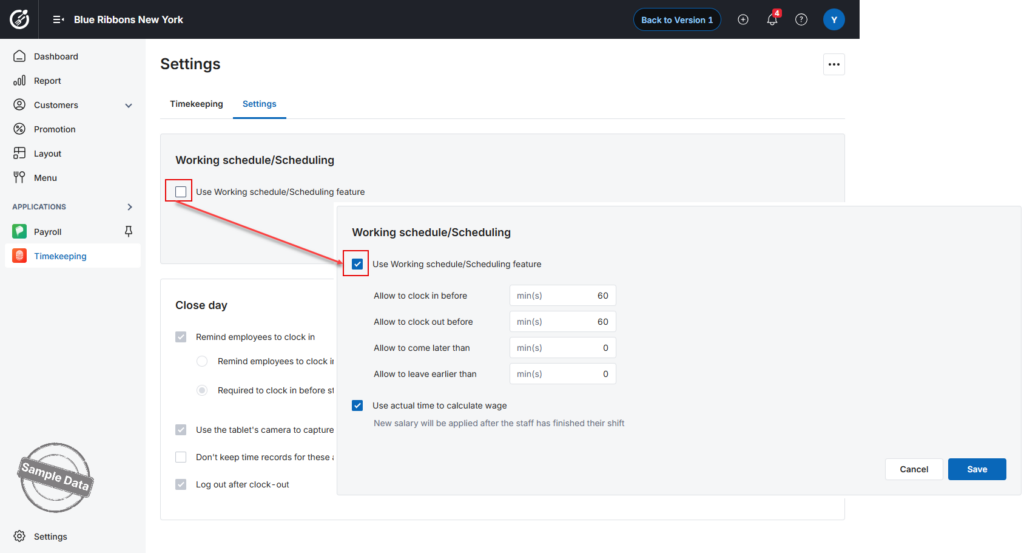
- Open Dashboard → Timekeeping and switch to the Settings tab.
- Click the Edit icon in the Working schedule / Scheduling panel.
- Tick Use Working schedule / Scheduling feature to turn on shift control.
Configure Clock-In / Clock-Out Rules
Here, you can set the number of minutes employees can clock in early, clock out late, arrive late, or leave early.
- Allow to clock in before: How many minutes before a shift an employee may clock in and still be considered “on time.”
- Allow to clock out before: How many minutes before the scheduled end an employee may clock out without being marked “left early.”
- Allow to come later than: Grace period (minutes) after shift start before the system flags a Late arrival.
- Allow to leave earlier than: Grace period (minutes) before shift end before the system flags an Early leave.
Payroll Basis
- Tick Use actual time to calculate wage if salaries should reflect real clock-in / clock-out times instead of scheduled hours (the change applies after current shifts end).
Click Save to apply, or Cancel to discard.
2. Create Working Schedules
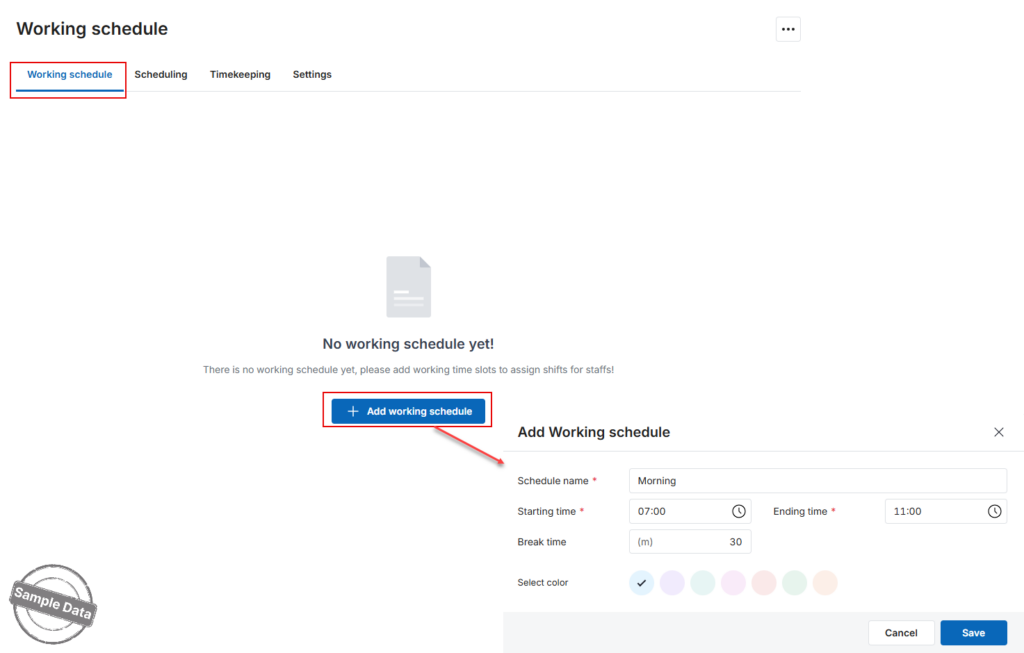
- Go to the Working schedule tab and click Add working schedule.
- Enter a Schedule name.
- Define Start / End times and Breaks (if any).
- Pick a Color for easy recognition on the timesheet.
- Click Save.
Repeat to create as many schedules as needed.
3. Assign Shifts to Employees
- Open the Scheduling tab.
- Locate an employee row and click the ➕ icon on the desired day.
- Choose a Working schedule.
- Tick additional days that share the same schedule, if applicable.
- Click Save.
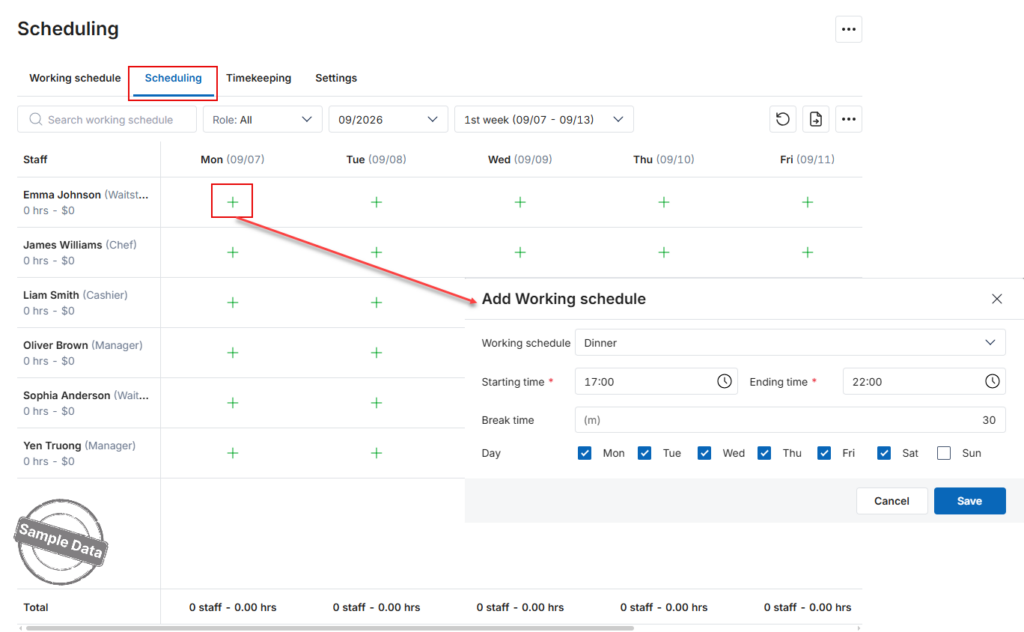
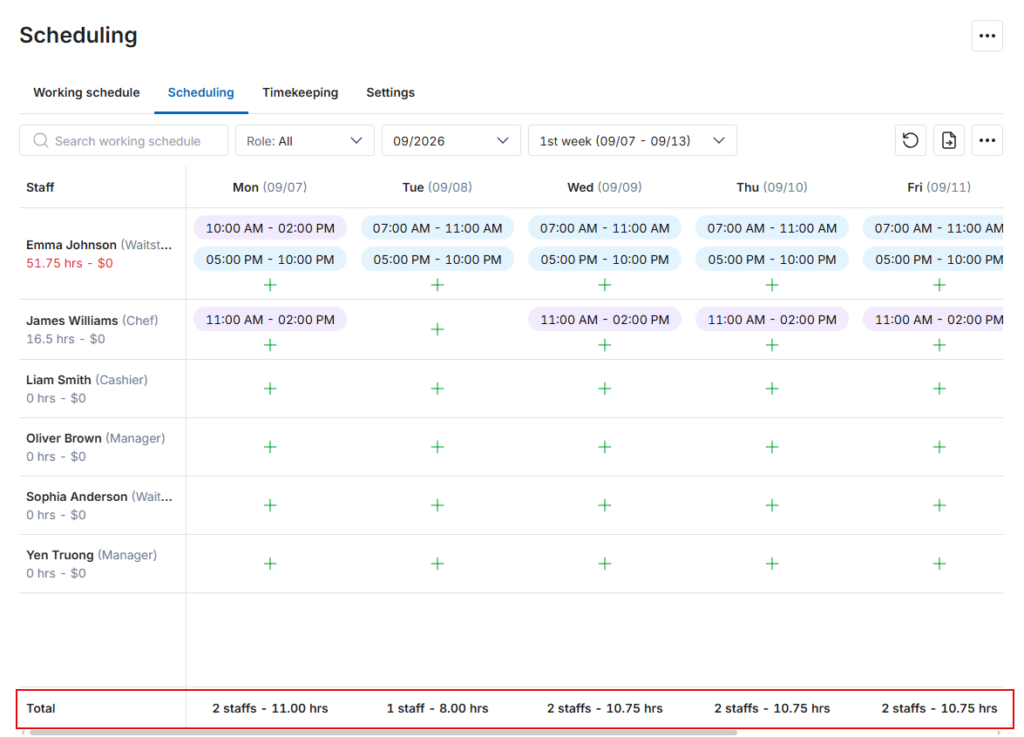
The grid immediately shows each employee’s total assigned hours and estimated pay.
Quick Edits
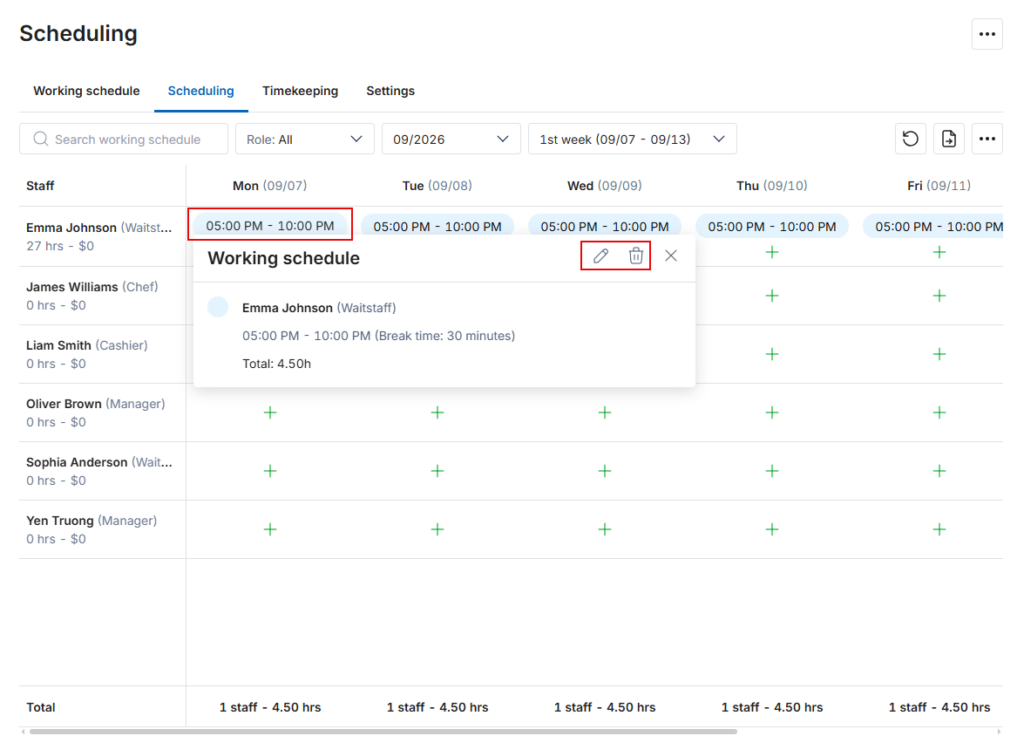
- Edit / Delete a shift: Click the shift block, then the edit icon to adjust times or the 🗑️ icon to remove it.
- Add another shift: Click the ➕ icon again (up to 3 shifts per day per employee).
- Change shift times for one employee: Click the edit icon on that specific shift.
Visual Alerts & Summaries
- Hours exceeding 40 per week display in red so managers can spot overtime.
- The footer shows the total number of employees scheduled and the aggregate hours for each day of the week.
Have a nice day!


