

I. Purpose
Help staff correct items assigned to the wrong guest or order by moving them between guests within the same order or between different orders.
II. Instruction steps
1. Move items between guests in the same order
If an item has been assigned to the wrong guest on the PC/POS, follow the steps below to move it to the correct guest.
a. Move a single item
Drag the item and drop it onto the guest who ordered it.
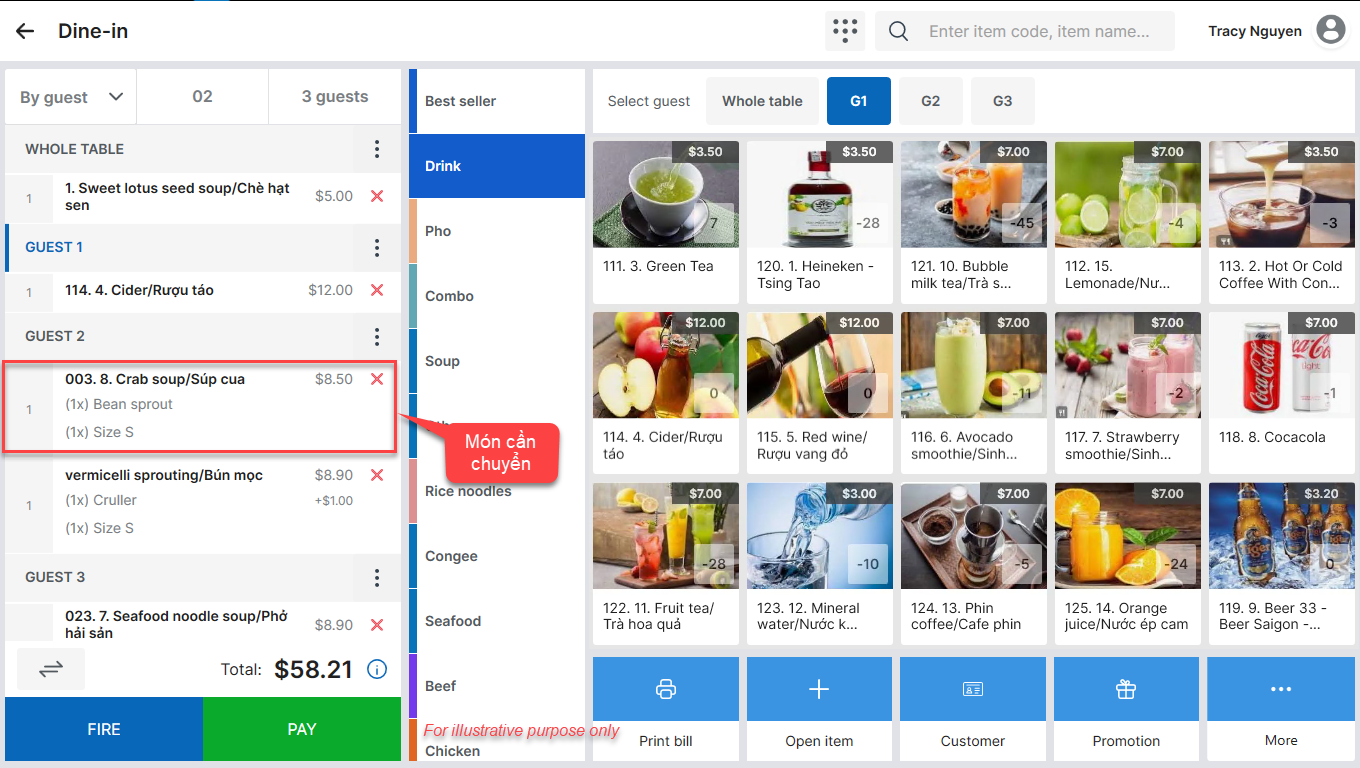
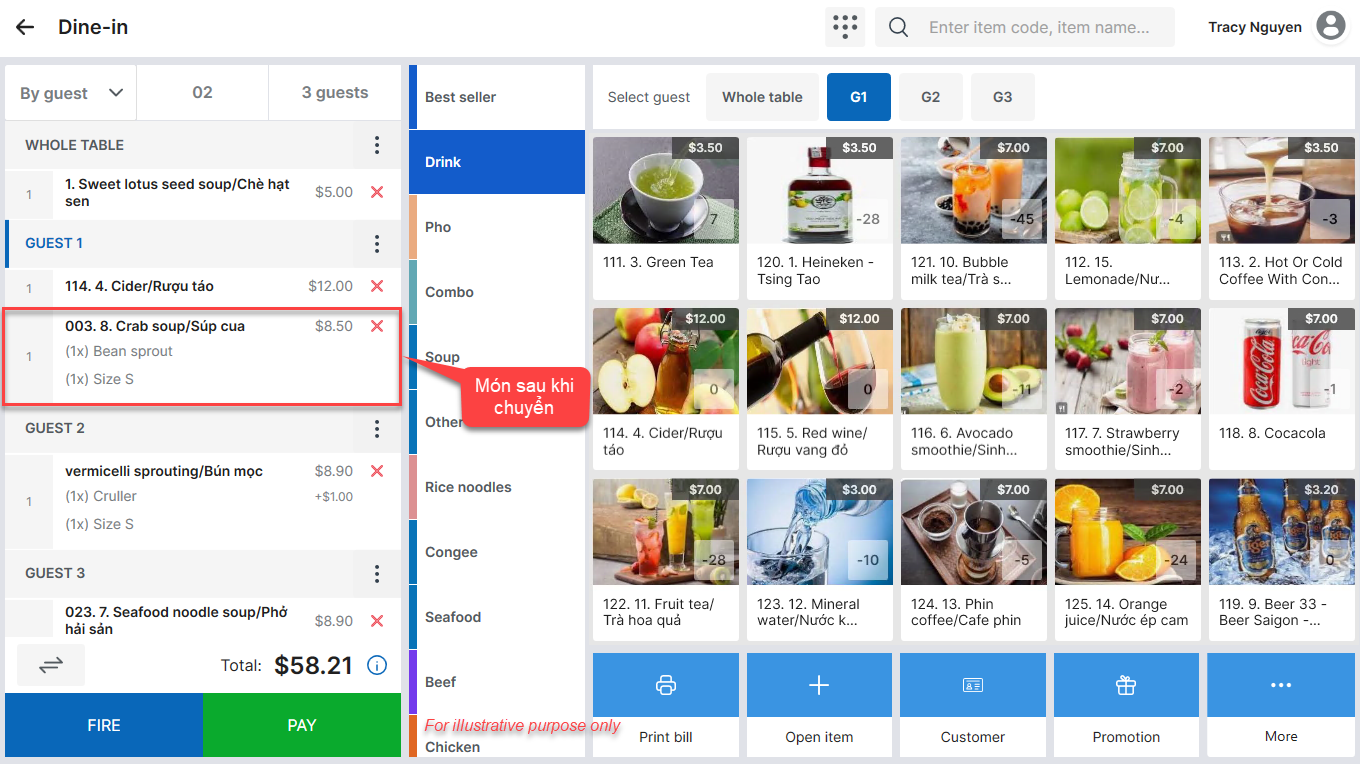
b. Move multiple items
- Tap the icon

- Tap the plus icon and enter the quantity of each item you want to move.
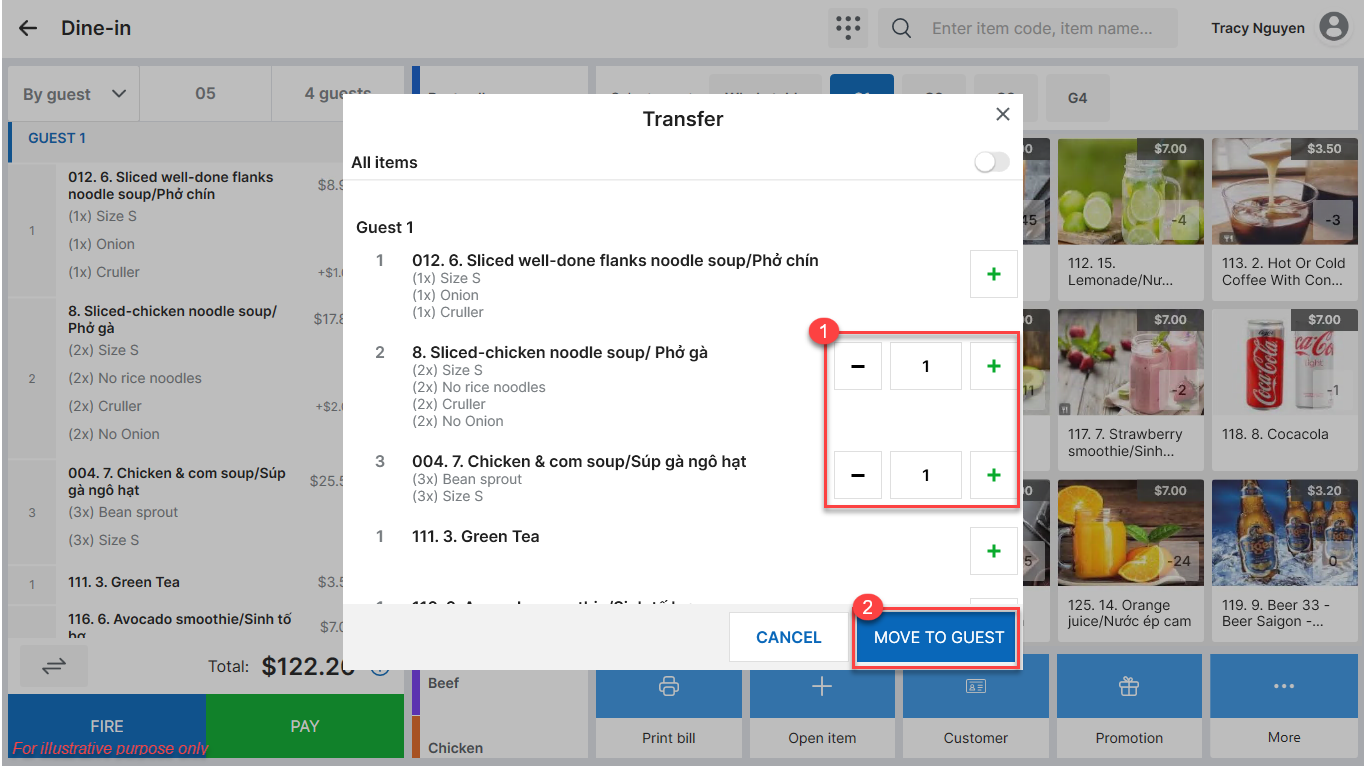
- Select Move to guest.
- Select the destination guest, then tap Done.
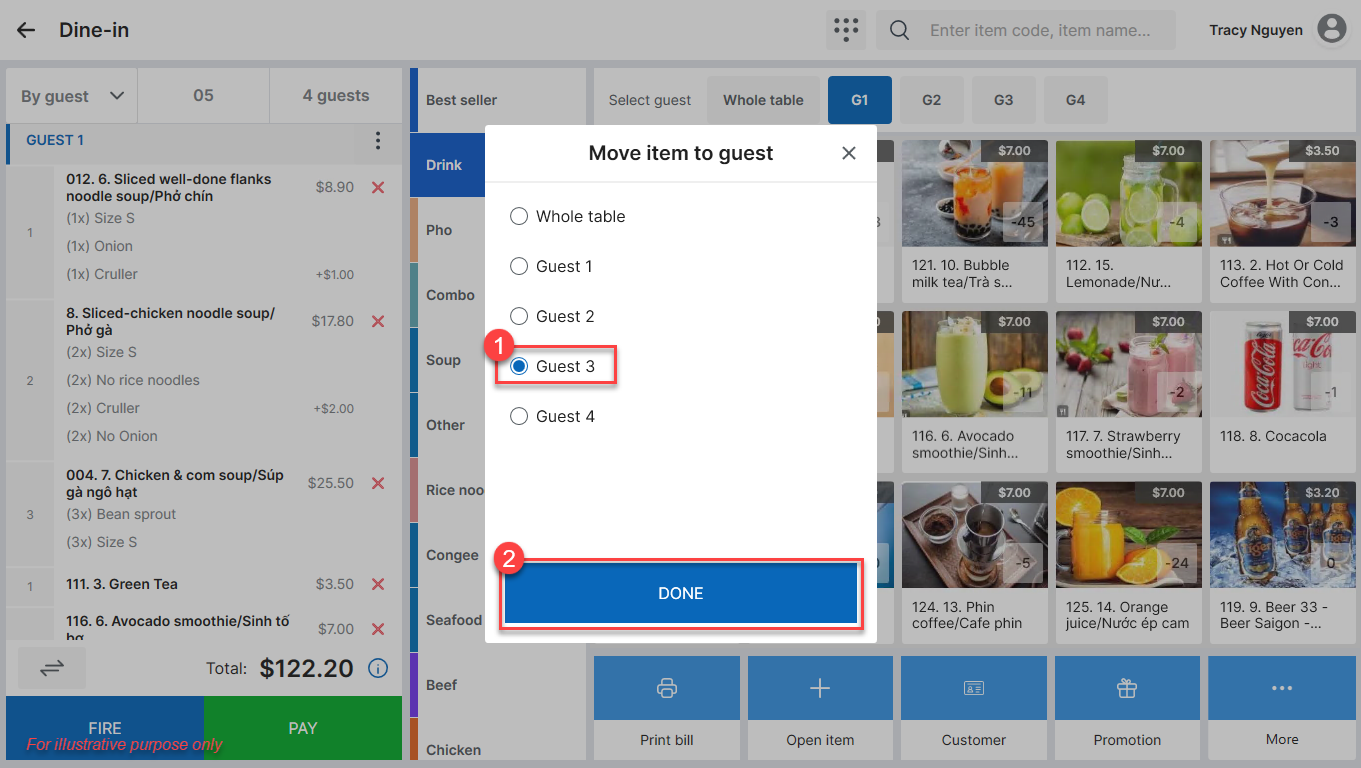
The selected items are moved to the correct guest.
2. Move items between orders
If items have been added to the wrong order:
- Open the order containing the incorrectly assigned items and tap the icon
- Tap the plus icon and enter the quantity of each item you want to move.
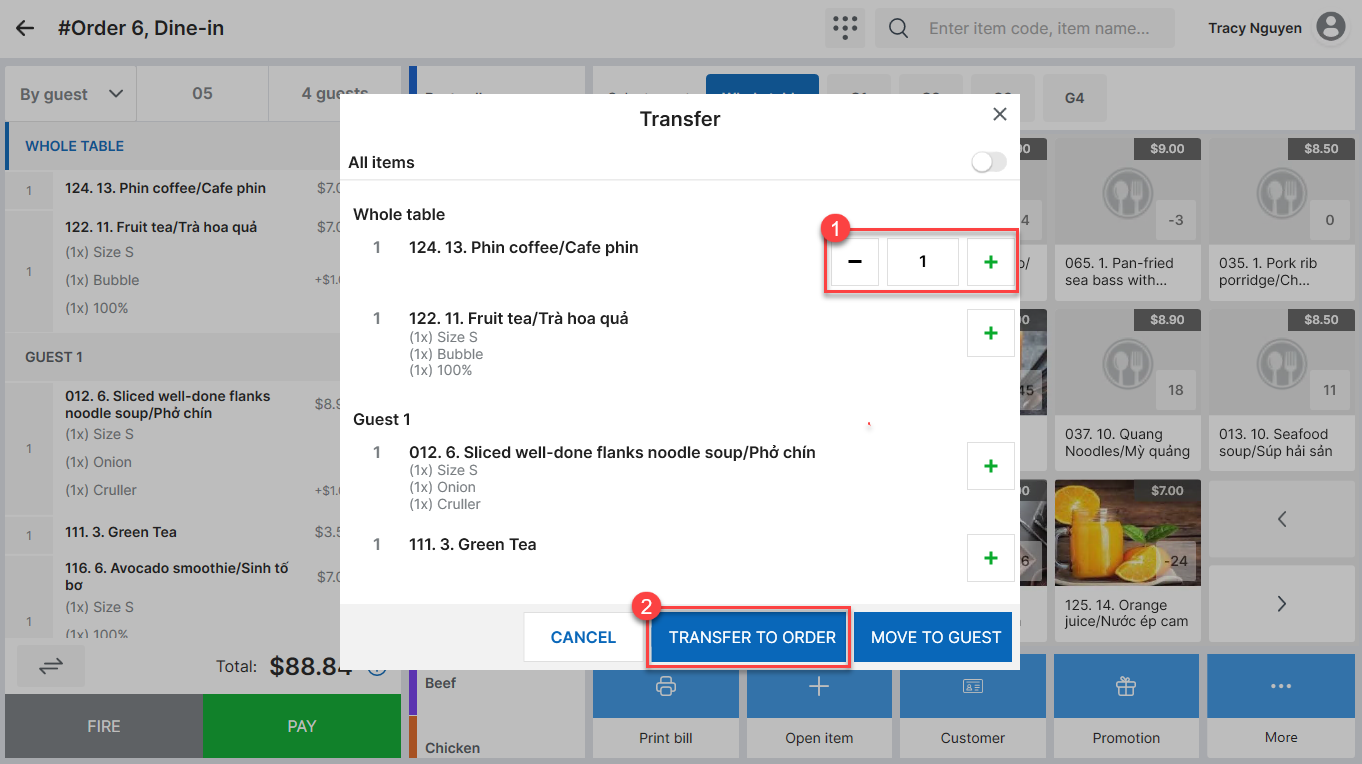
- Select Transfer to order.
- Choose one of the following:
- Move to existing order: Move the items to an existing order.
- Move to new order: Move the items to a new order.
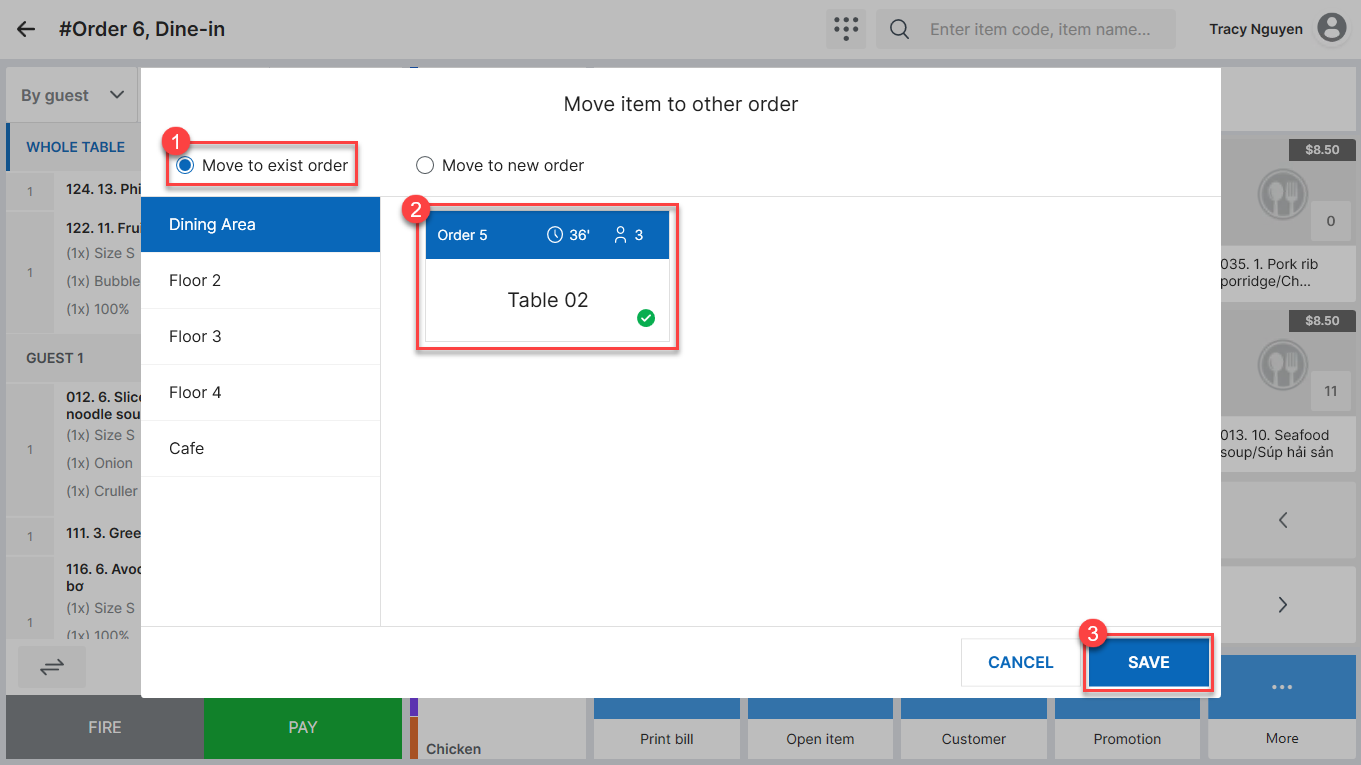
- Select the destination table, then tap Save.
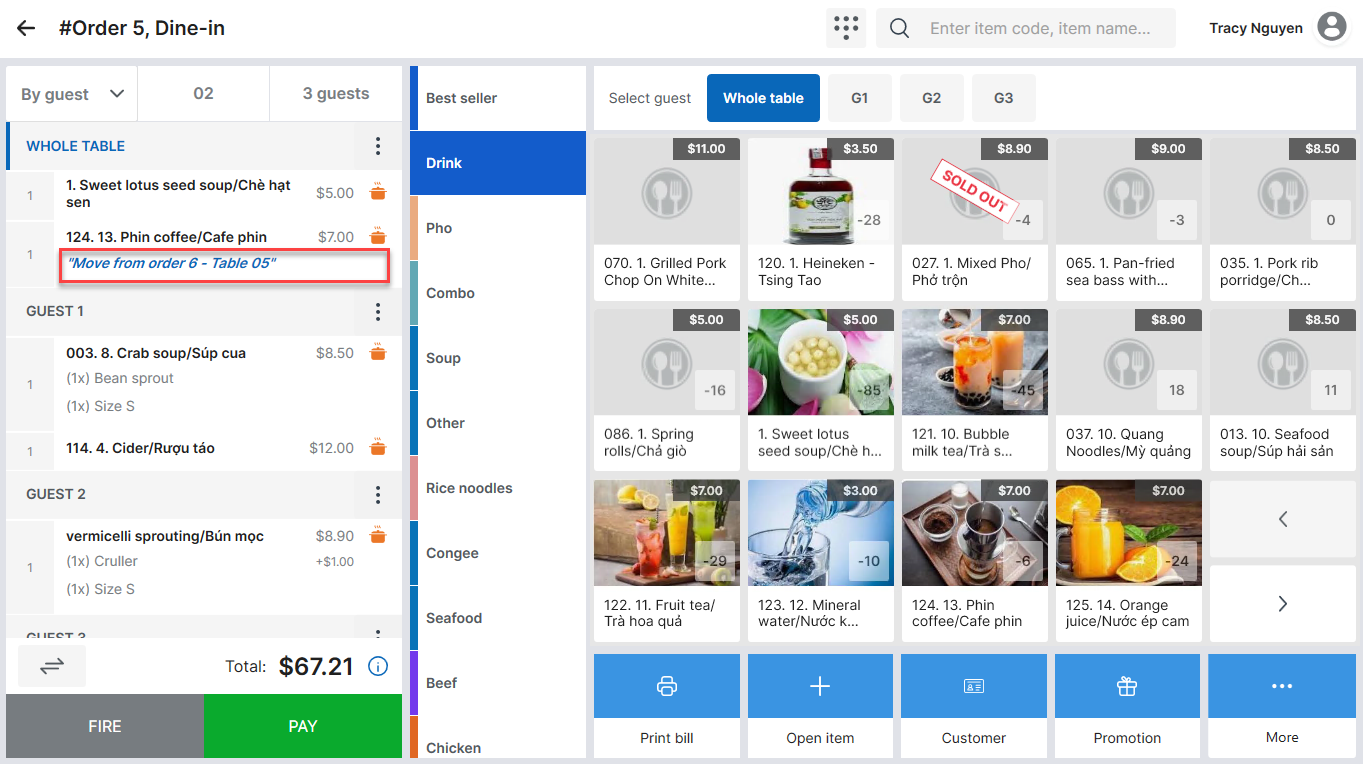
The original order displays a notification confirming that the items have been moved to another table.
Have a nice day!


