

I. Purpose
This feature allows managers to customize how orders are received, processed, and confirmed on the Online Ordering website.
II. Instruction Steps
1. Email Requirement
Step 1: Access Order Settings
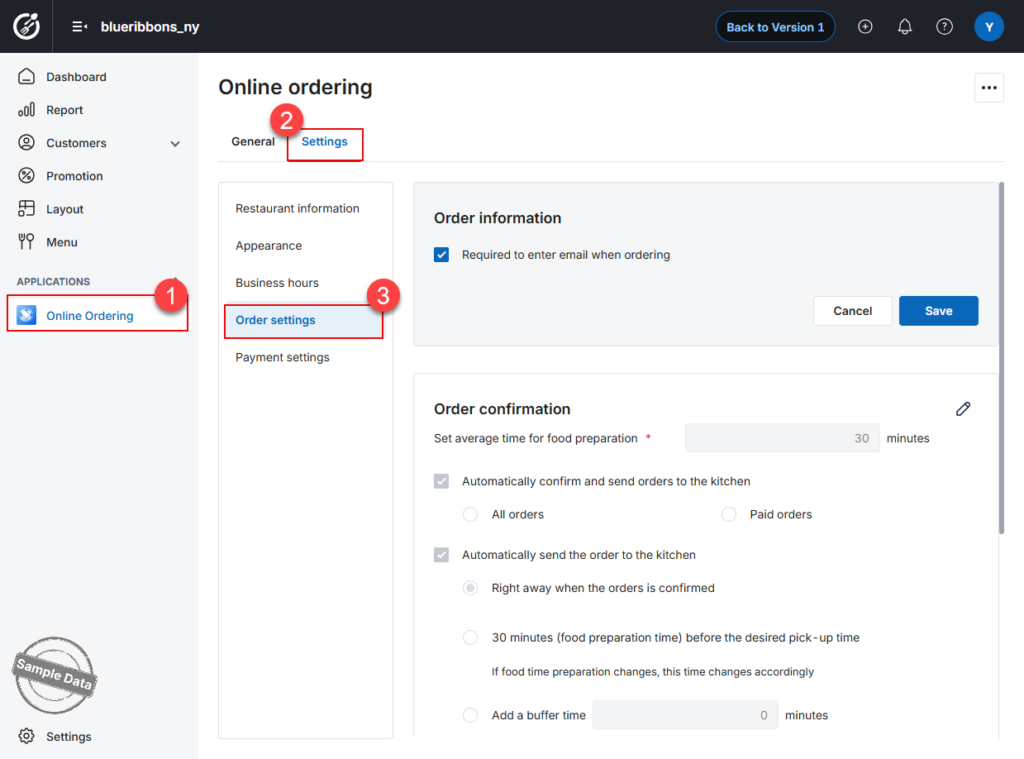
- On the Dashboard, go to the Online Ordering app.
- Select the Settings tab.
- Navigate to the Order settings section.
Step 2: Configure Email Requirement
- Click the Edit icon.
- By default, Required to enter email when ordering is enabled, which makes the email field mandatory during checkout.
- If you want customers to enter their email → keep this option enabled
- If not → uncheck the option
- Click Save to apply the changes.
Note: If this setting is enabled and the customer leaves the email field blank, the system will display the message: “Please enter your email.”
2. Order Options
2.1. Preparation Time
- Set the average preparation time for the kitchen or bar to prepare orders.
- Default setting: 30 minutes
- Managers can adjust this time based on actual operations.
2.2. Configure Automation Rules
Rule 1: Auto-Confirm & Send to Kitchen
This controls when an order is officially recognized and sent to the kitchen/bar.
- Automatically confirm and send orders to the kitchen:
- All orders: Every order received will be sent to the kitchen immediately.
- Paid orders (Recommended): Only orders that have been successfully paid through the gateway will be sent to the kitchen. This prevents preparing food for unpaid orders.
Rule 2: Timing for Kitchen Orders
This controls WHEN the order actually reaches the kitchen/bar staff.
- Automatically send the order to the kitchen:
- Right away when the order is confirmed: The kitchen receives the order the moment it is confirmed/paid.
- 30 minutes (food preparation time) before the desired pick-up time: The system calculates and sends the order to the kitchen 30 minutes before the customer’s requested pickup time.
- Add a buffer time: You can set a specific number of minutes (e.g., 10 minutes) to act as a “safety gap” before the scheduled pickup time.
Rule 3: Automatic Bill Printing
This controls the printer behavior at the cashier/POS.
- Automatically print bill:
- When order is confirmed: The bill prints as soon as the order is successfully received by the system.
- When order is fired: The bill only prints when the kitchen/bar staff actually starts preparing the order (fires the order).
After configuring your preferred workflow, click Save to apply the settings. 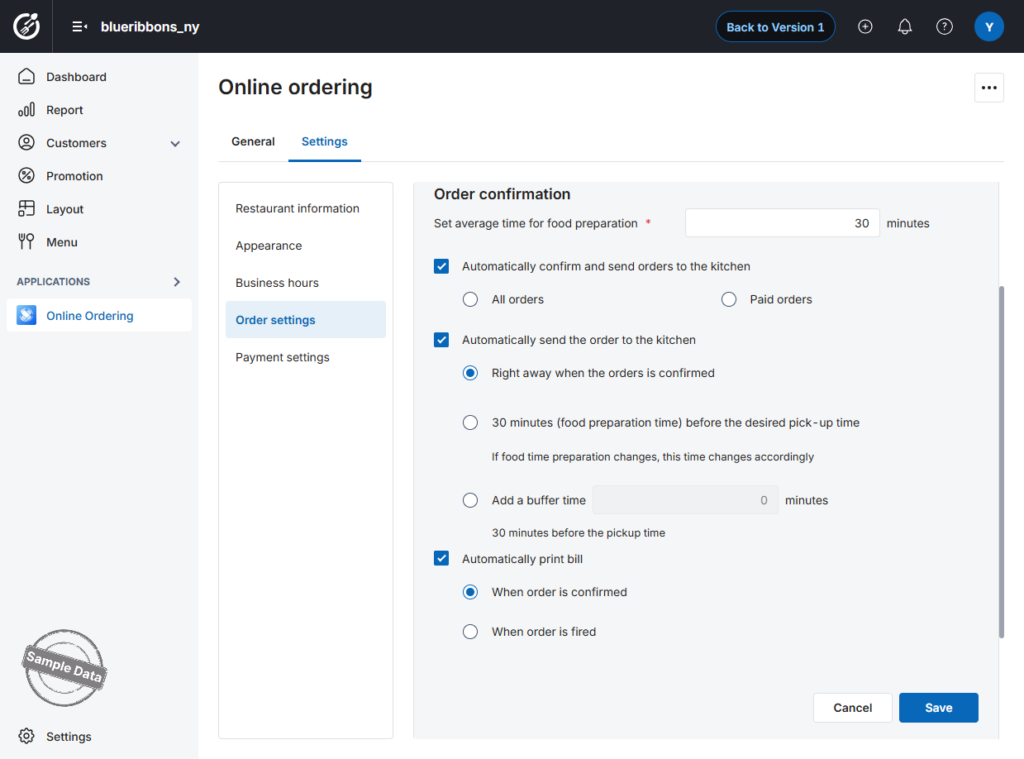
Have a nice day!


