

Nội dung có trong bài
Ẩn
I. Purpose
This feature allows restaurants to manage and display their operating hours on the Online Ordering website.
II. Instruction steps
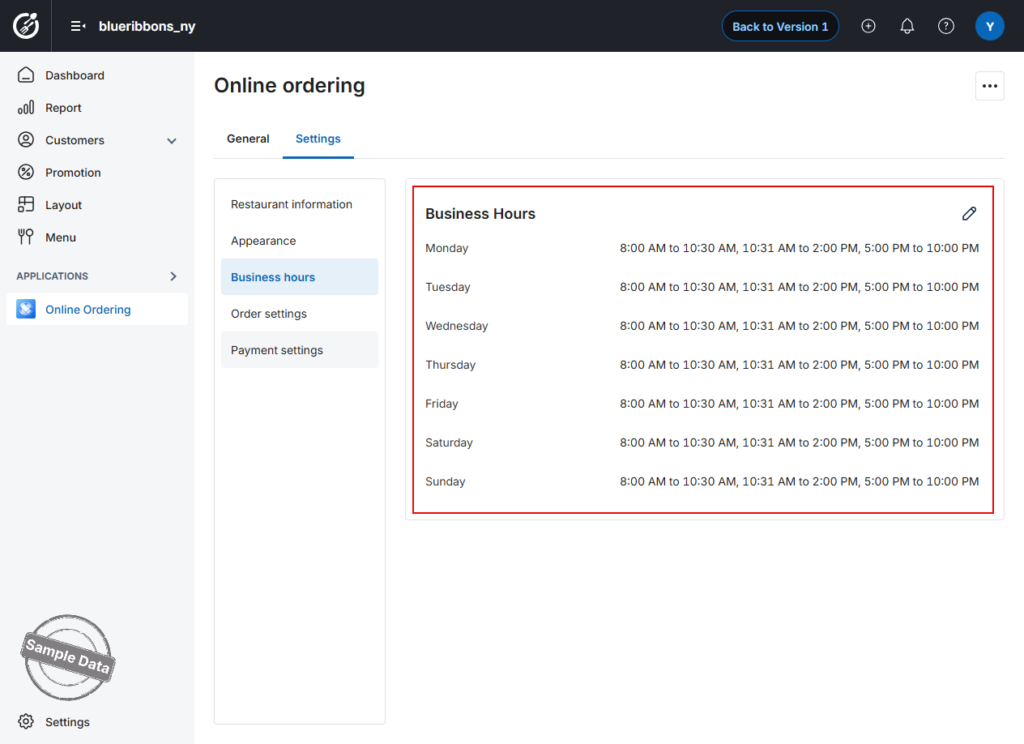
Access Business Hours Settings
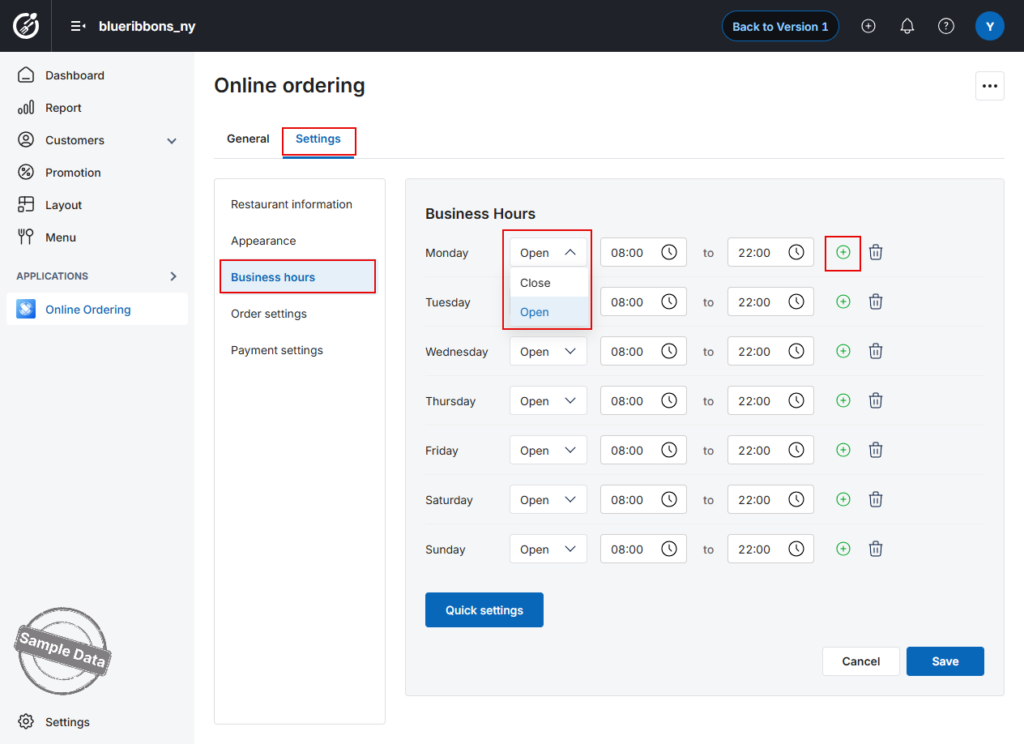
- On the Dashboard, go to Online Ordering.
- Select the Settings tab.
- Navigate to the Business hours section.
- Select the day(s) you want to configure
- Set the opening and closing time
- Click the clock icon to adjust working hours if needed
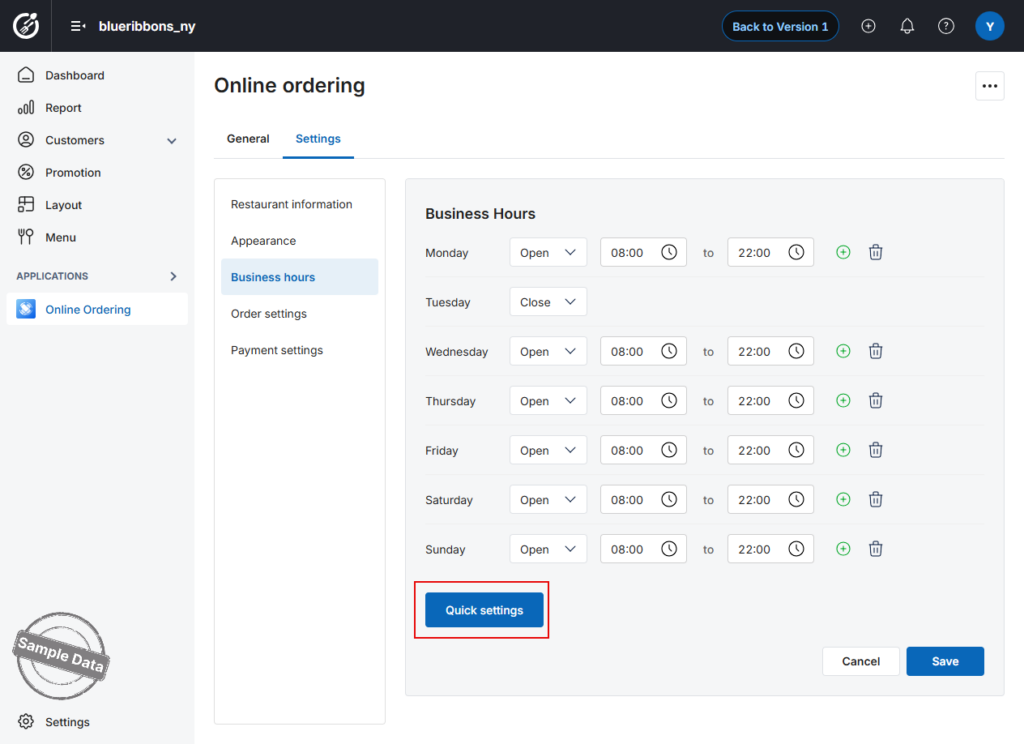
Apply Quick Settings (Optional)
- Click Quick settings to apply the same working hours across all days
- This is useful if your restaurant follows a consistent schedule
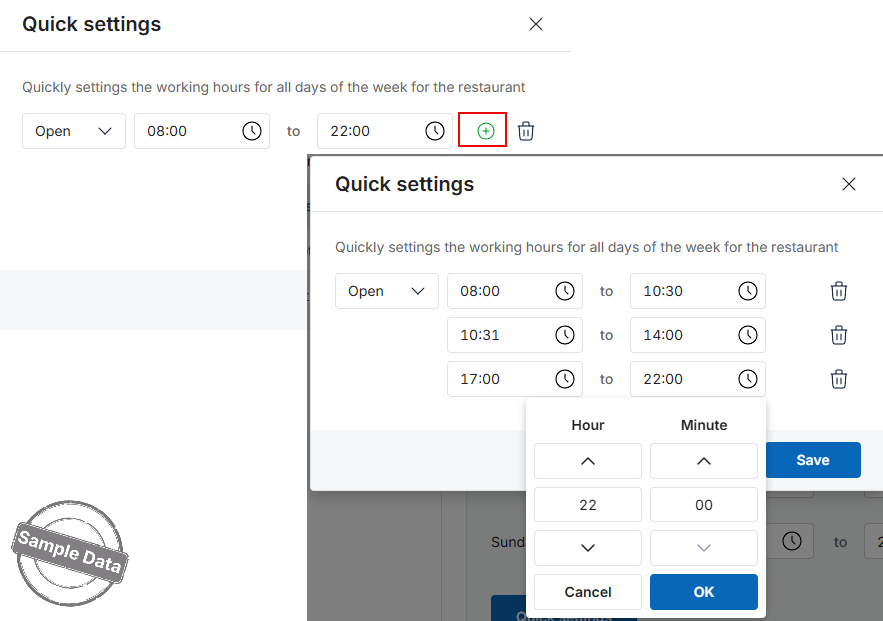
Step 4: Add Multiple Time Slots
- Click the plus (+) icon to add additional time slots within a day
(e.g., lunch and dinner shifts) - You can configure up to 3 time slots per day
Step 5: Save Changes
Click Save to apply all settings.
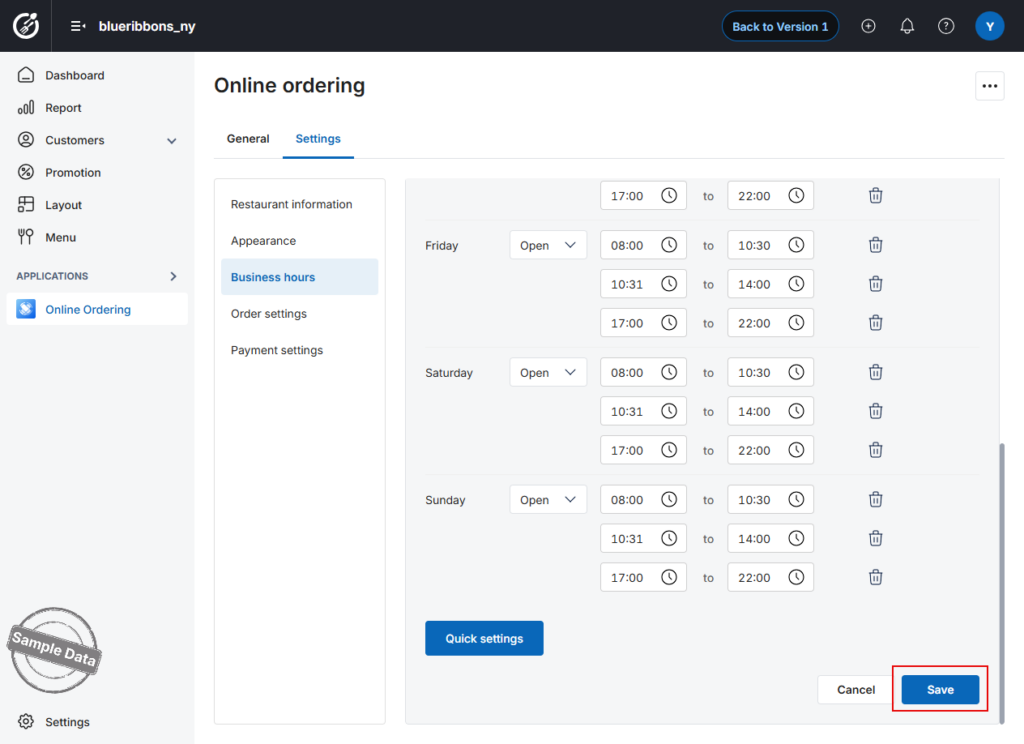
Your business hours are now updated and will be reflected on the Online Ordering website.
Have a nice day!


