

I. Purpose
The restaurant can set up how to receive orders from Uber Eats
II. Instruction steps
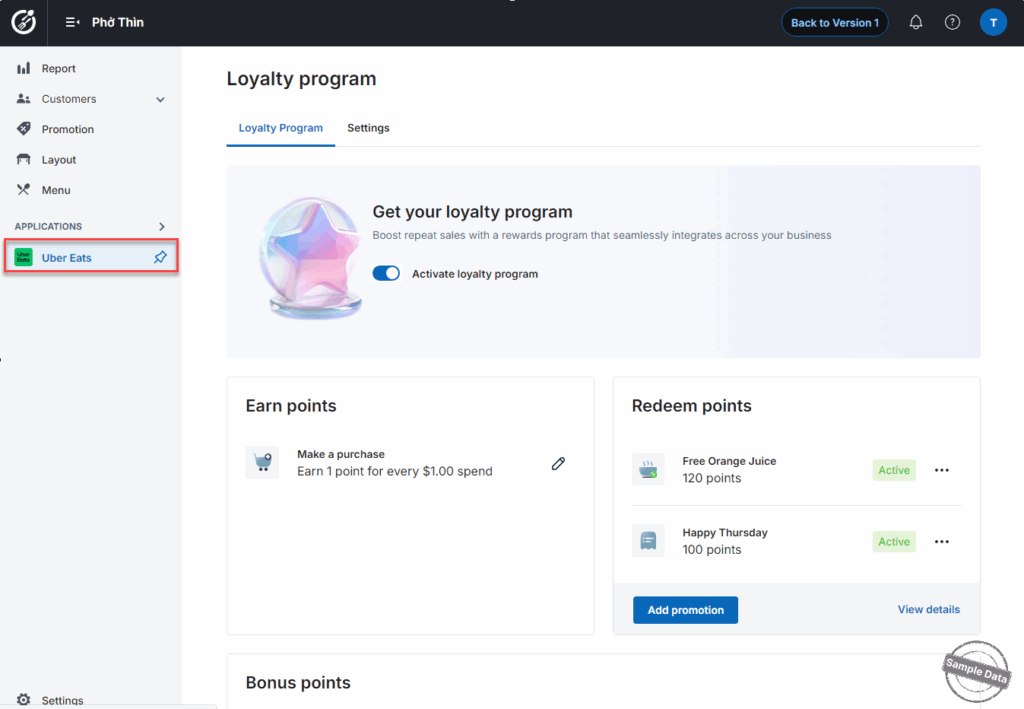
On the dashboard, go to Uber Eats. You can click this icon  to pin this app.
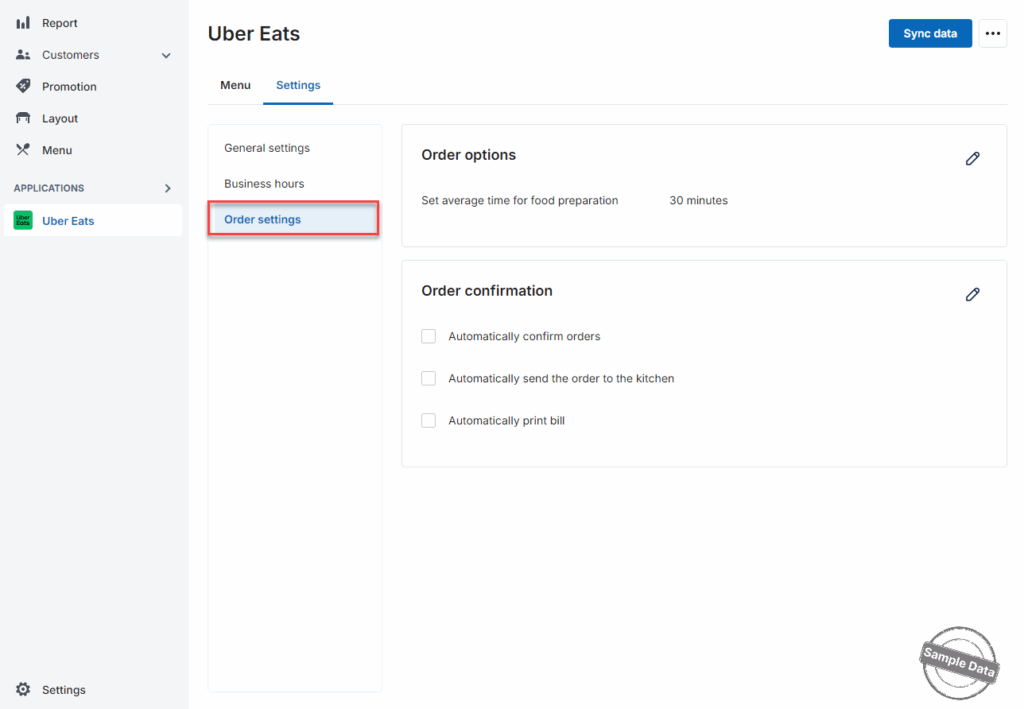
On Settings tab, click Order settings.
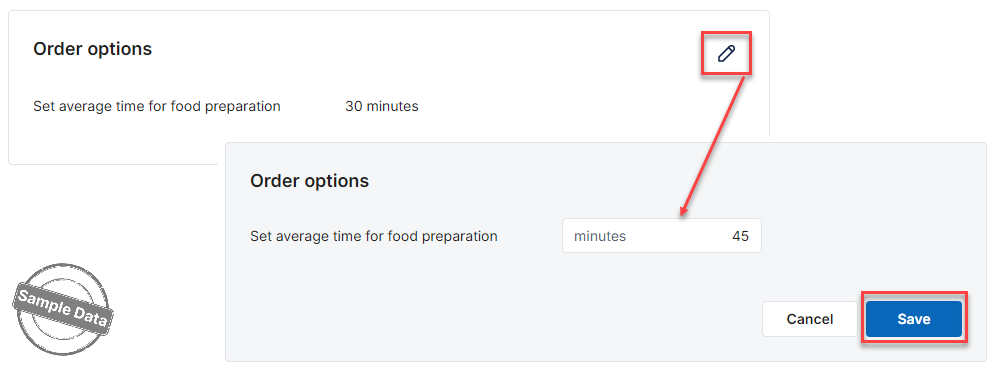
1. Set average time for food preparation:
Configure the average preparation time for food/drinks in the kitchen/bar. The system defaults to 30 minutes, and managers can adjust it to match the restaurant’s actual operations by clicking this icon 
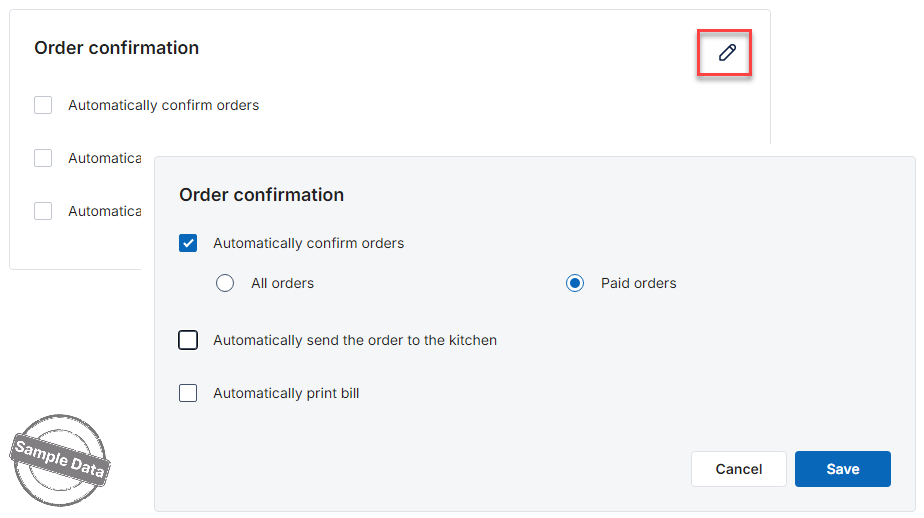
2. Automatically confirm orders:
If the restaurant wants automatic confirmation, check Automatically confirm orders. If the restaurant only wants to automatically confirm paid orders, select Paid orders.
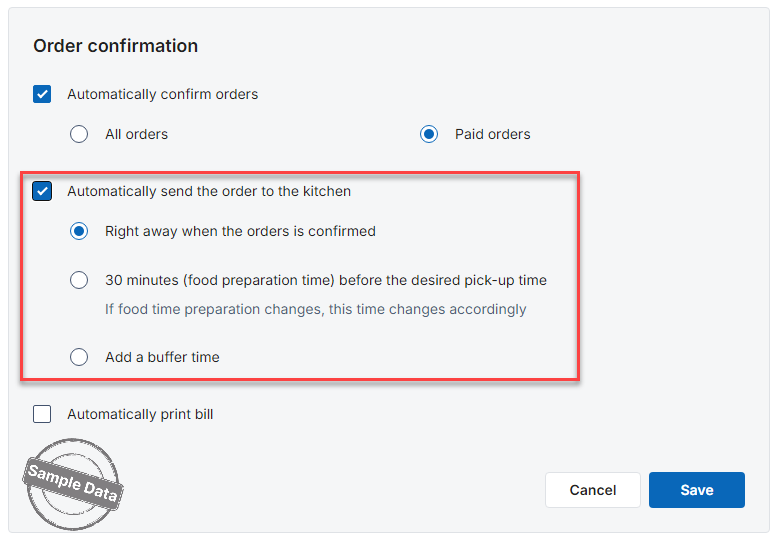
3. Automatically send the order to the kitchen:
By default, the system does not automatically send orders to the kitchen.
If the restaurant wants orders to be sent automatically, check this option and choose one of the following:
- Right away when the order is confirmed:
Send to the kitchen immediately after the order is confirmed. - 30 minutes (food preparation time) before the desired pick-up time:
Send to the kitchen 30 minutes before the requested pick-up time. - Add a buffer time:
Add additional buffer time. This time will always be added to the default 30 minutes.
For example: If the restaurant enters 30 minutes, the order will be sent to the kitchen 70 minutes before the desired delivery time.
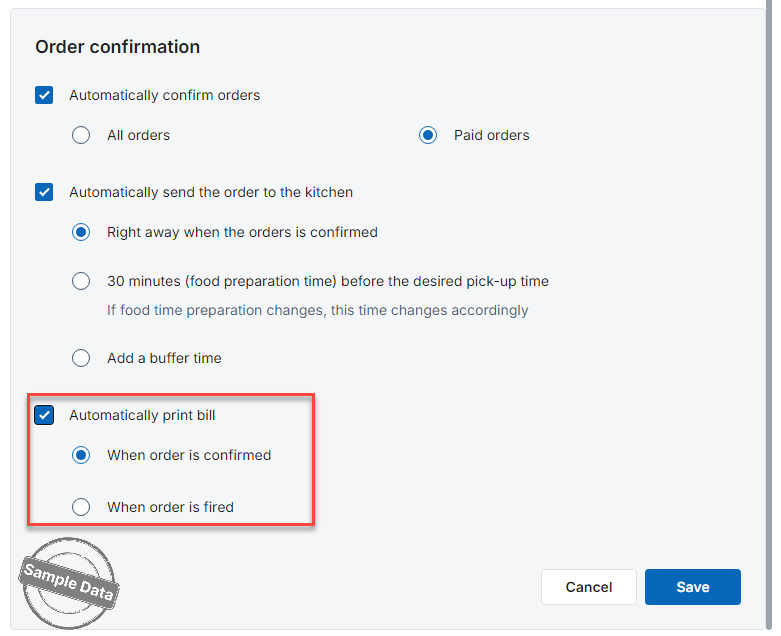
4. Automatically print bill
Check Automatically print bill and select the time to print.
After completing the setup, click Save to apply the changes.
Have a nice day!


